
Mastering Background Blur in One UI 8.5: The Complete Guide for Galaxy Users
Samsung has a long-standing habit of reworking how certain tasks are performed within its custom interface, and the latest One UI 8.5 update is no exception. While some might argue these changes streamline the user experience, others see it as a sign of Samsung’s constant experimentation. Regardless of the motivation, several key features have been relocated, requiring users to adapt to a new workflow for common photo editing tasks.
- ✨ One UI 8.5 streamlines the photo editing process by centralizing tools.
- ✨ The legacy "swipe-up" method for adjusting background blur has been removed.
- ✨ Background blur intensity is now exclusively managed within the Photo Editor.
- ✨ Users can still add blur to regular photos featuring people or animals.

The Evolution of Portrait Editing on Samsung Galaxy
With the rollout of One UI 8.5, Samsung has refined the method for adjusting background blur effects and intensity. This applies to both photos captured in the dedicated Portrait mode and standard images where you wish to add a depth-of-field effect post-capture. Specifically, Samsung has simplified the interface by removing redundant access points that existed in previous versions of the software.
The history of this feature shows a clear trend toward integration. Before One UI 6.1, adjusting blur was a one-tap process via a "Change background effect" button in the Gallery. One UI 6.1 moved this into a swipe-up menu, and One UI 7.0 introduced a second method within the standard editor. Now, on Samsung Galaxy devices running the latest firmware, the company has decided that the editor should be the definitive home for these controls.
How to Adjust Blur in the New Photo Editor
In One UI 8.5, swiping up on a photo still provides useful options such as Remaster, Live Effect, and Erase Reflections. However, you will notice that background blur is no longer part of this quick-access menu. To modify the depth of your shots, you must now enter the full editing suite.
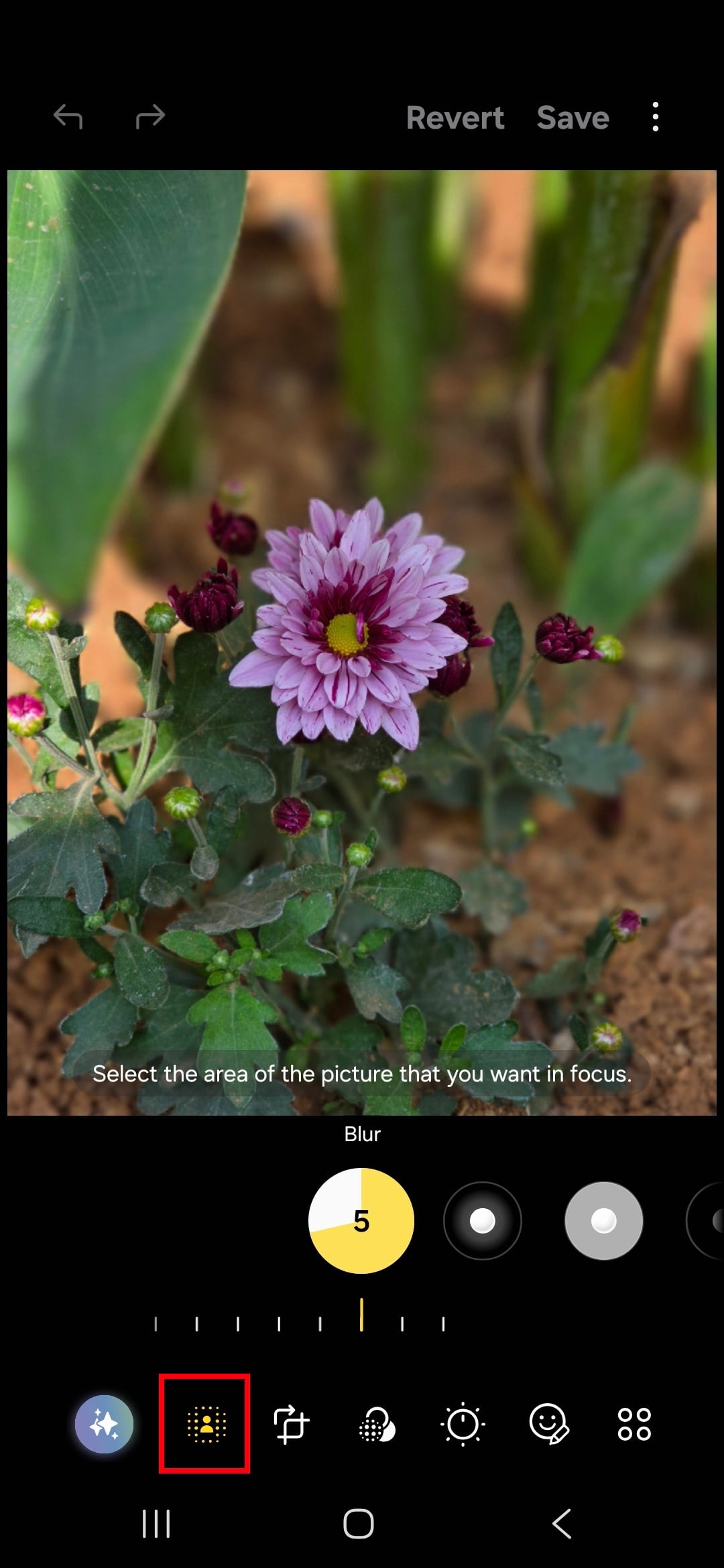
To adjust blur on a portrait photo, start by opening the image in your Gallery. Tap the pencil icon to enter editing mode. Once inside, look for the second icon in the bottom row—located right next to the colorful Galaxy AI button. This icon grants you full access to the background blur controls and intensity sliders.
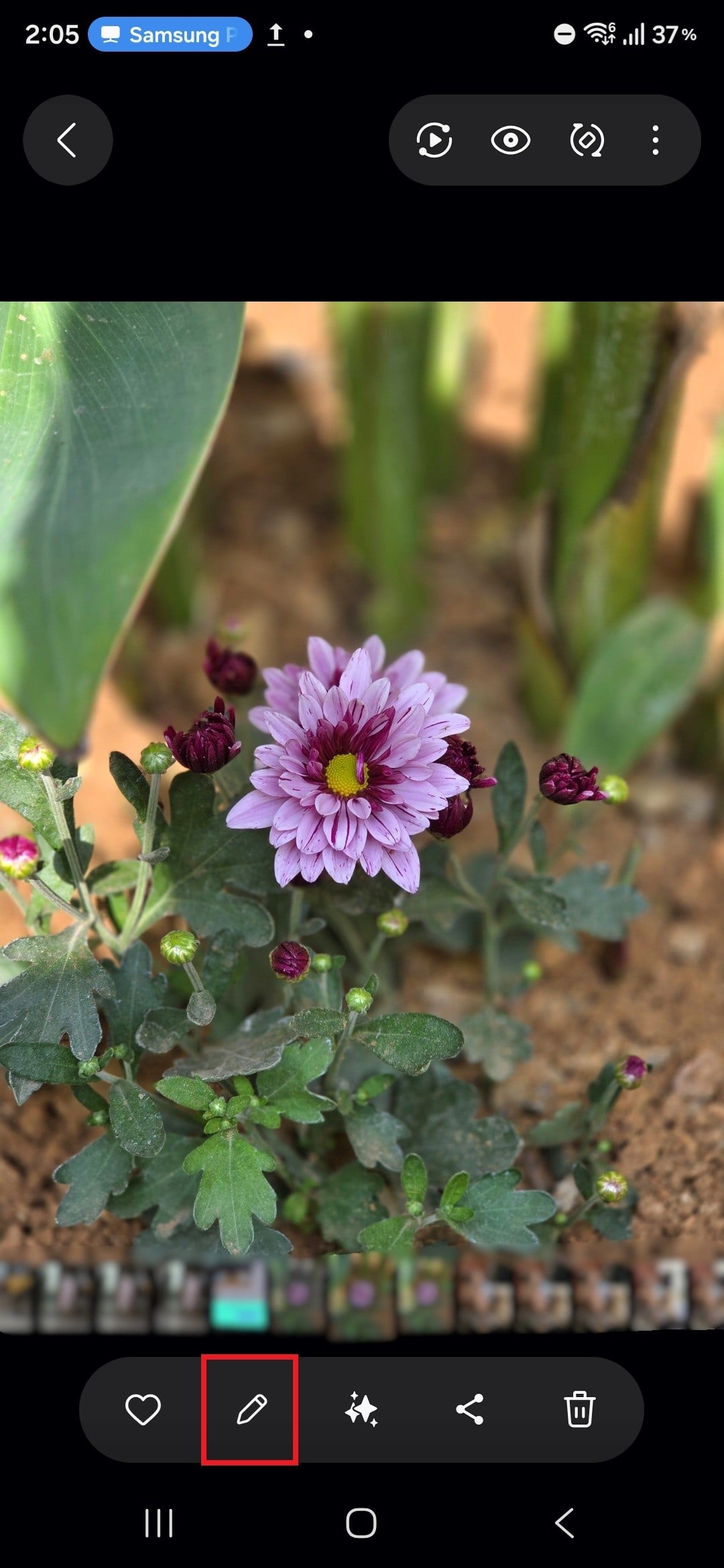
Adjusting blur on portrait photos
Adding Blur to Standard Images
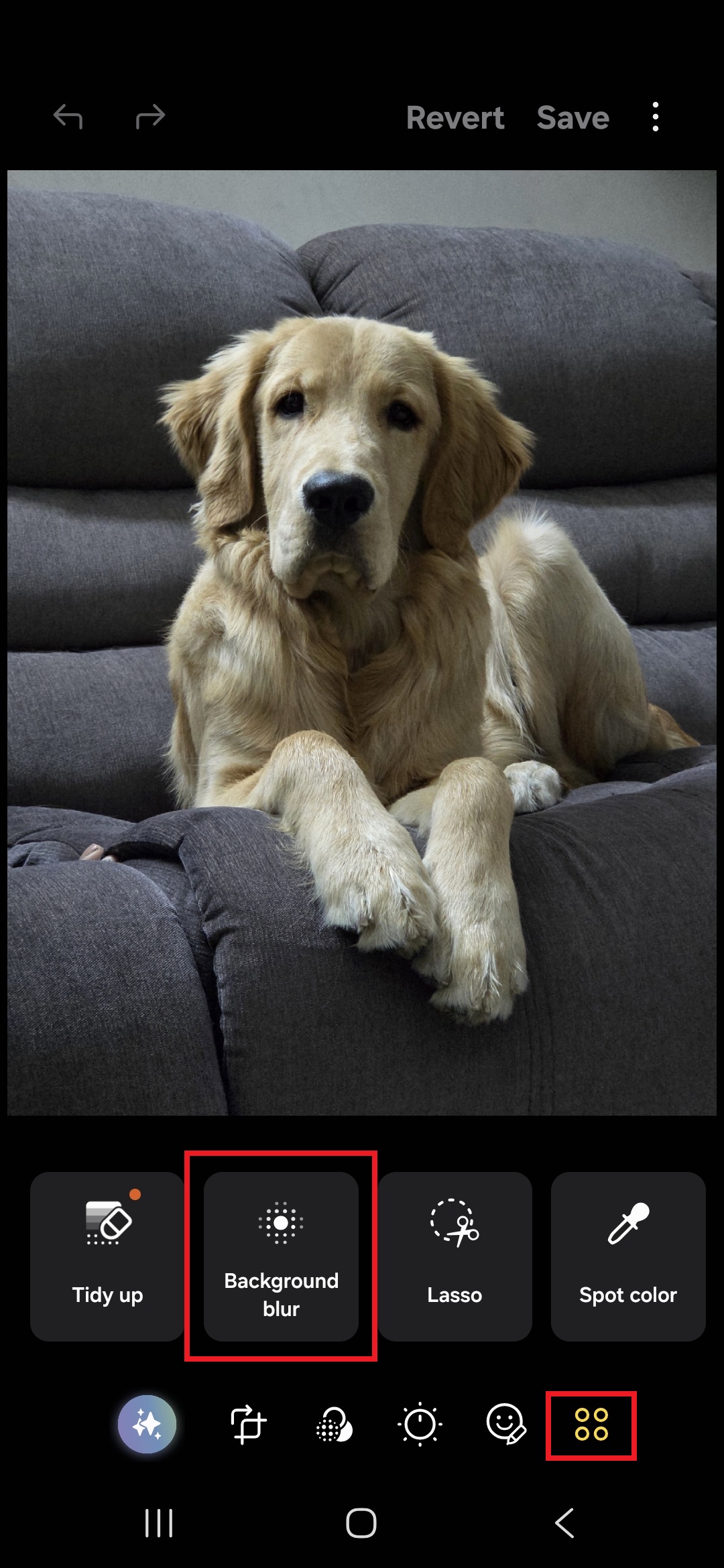
If you have a regular photo that wasn't taken in Portrait mode, you can still apply a professional-looking blur if the subject is recognized. In the editor, tap the last icon in the bottom row and select "Background blur." It is important to note that this functionality is primarily reserved for photos containing people or animals. If the AI does not detect a suitable subject, the background blur option will remain hidden.

Adding blur to regular photos
Why can't I find the background blur option when I swipe up on a photo?
In One UI 8.5, Samsung removed the background blur control from the swipe-up menu to consolidate all editing tools. You must now tap the edit (pencil) icon to find these settings.
How do I change the intensity of the blur in Portrait mode?
Open the portrait photo, enter the editing mode by tapping the pencil icon, and select the blur icon (the second one from the left in the bottom row) to adjust the intensity slider.
Can I add background blur to a photo of a landscape or an object?
Currently, the "Background blur" tool in the editor is designed to recognize people and animals. If the photo does not contain these subjects, the option will likely be unavailable.
Is this change available on all Samsung Galaxy devices?
This specific interface change is part of the One UI 8.5 update, which is rolling out to modern Galaxy devices including the S23, S24, and S25 series, as well as recent foldable models.
Are the different blur styles (like Studio or Spin) still available?
Yes, all the creative blur styles are still present; they have simply been moved into the main Photo Editor interface for a more unified editing experience.
🔎 Keeping up with Samsung's interface changes can be challenging, but the transition of blur controls to the main Photo Editor in One UI 8.5 represents a move toward a more professional and organized workspace. By centralizing these tools, Samsung ensures that users have everything they need in one place, even if it requires breaking old habits. Whether you are fine-tuning a portrait or adding depth to a candid shot of your pet, the power of Galaxy photography remains more accessible than ever within the standard editing suite.
Post a Comment