
Master Your Audio: How to Unlock One UI’s Hidden Separate App Sound Feature
One of the most noticeable differences between using a desktop PC and a smartphone is the way they handle audio multitasking. On a computer, you can have several applications running and producing sound simultaneously without interference. However, on most mobile devices, the moment you start playing audio in one app, the sound from any other active application stops immediately. This has been the standard for years, but for users of a Samsung Galaxy device, there is a clever way to bypass this limitation.

- ✨ Learn how to play music on Bluetooth while keeping navigation on your phone speakers.
- ✨ Discover the "Separate App Sound" feature hidden within One UI settings.
- ✨ Step-by-step guide to customizing audio outputs for specific apps.
- ✨ Understand the current limitations of audio routing on Galaxy devices.
While the "one-app-at-a-time" audio rule is unlikely to change for the broader mobile industry, One UI allows users to bend these rules. The feature responsible for this is called "Separate app sound." Although it has been part of the Samsung ecosystem for some time, it remains a hidden gem that many users have yet to discover.
By default, when you pair a Bluetooth audio device with your Galaxy phone or tablet, every single sound—from music and videos to system notifications—is sent to that connected device. Separate app sound changes this behavior by allowing you to choose specific apps to play through your device's built-in speakers even when a Bluetooth speaker or headset is active.
How to Enable Separate App Sound in One UI
Imagine you are a passenger in a car. You want to enjoy your favorite playlist through your Bluetooth headphones, but the driver needs to hear GPS directions from Google Maps through the phone's main speakers. Under normal circumstances, the Google Maps voice would interrupt your music or play inside your headphones. With Separate app sound, you can isolate Google Maps to the phone speaker, ensuring the driver hears the directions while your music remains uninterrupted.
This feature is highly versatile. You can mix and match various applications—such as games, media players, or navigation tools—depending on your specific needs. Here is how you can set it up on devices running the latest versions of One UI:
- Open Settings.
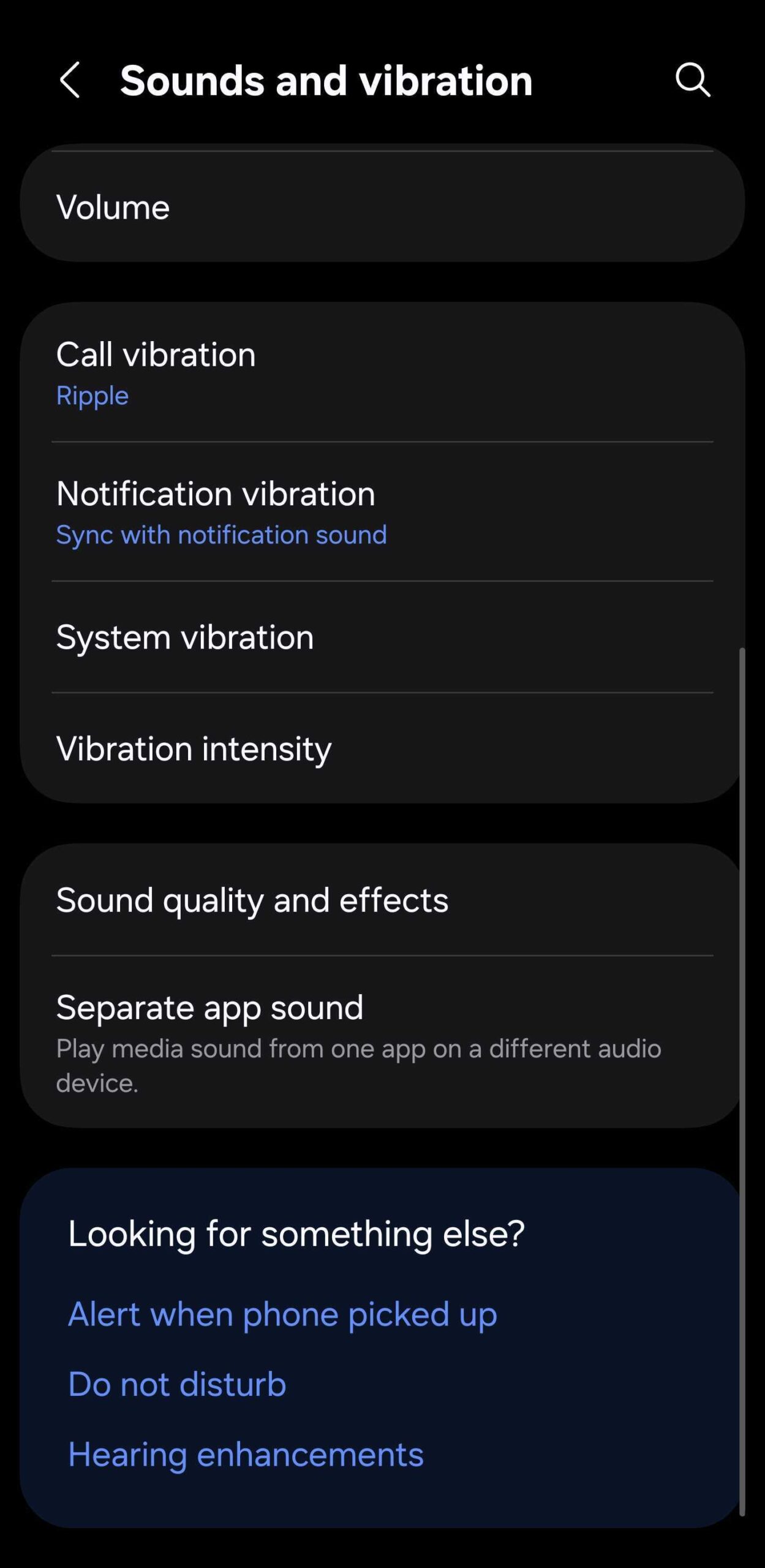
- Navigate to Sounds and vibration.
- Scroll down and tap Separate app sound.
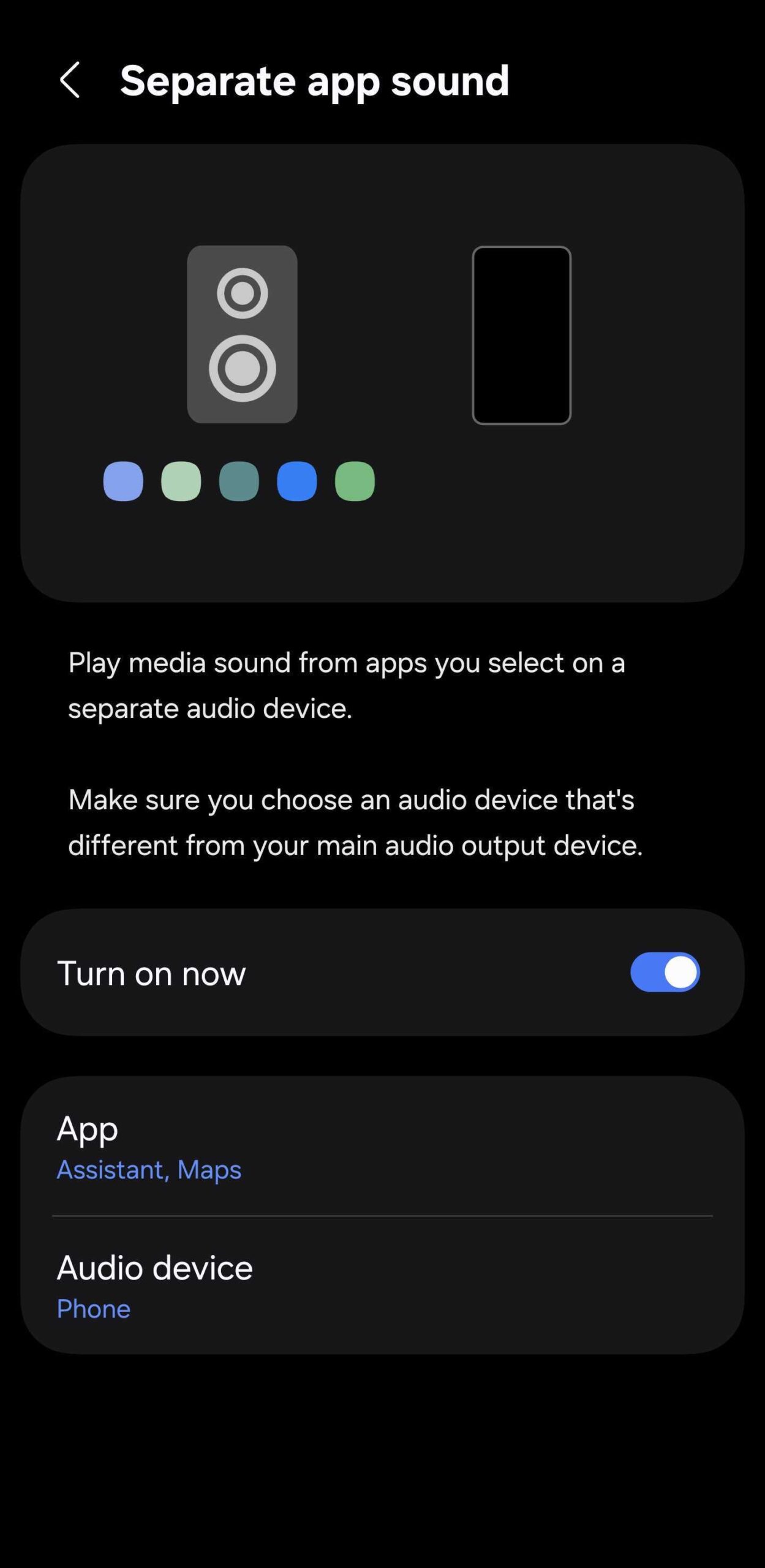
- Toggle the switch to Turn on now.
- You can then manually select which apps you want to isolate and choose your preferred audio output (Phone or Bluetooth device).
While this feature is incredibly useful, it does come with one specific limitation: you cannot assign different apps to different Bluetooth devices simultaneously. You are essentially choosing between the device's internal speakers and the single Bluetooth device currently connected for audio. You cannot, for example, send Spotify to one Bluetooth speaker and YouTube to another Bluetooth headset at the same time.
What is the main benefit of using Separate App Sound?
The primary benefit is the ability to multitask with audio. It allows you to keep specific sounds, like navigation or notifications, on your phone's speakers while your main media content, like music or movies, continues to play through a connected Bluetooth device without interruption.
Can I play two different songs on two different Bluetooth speakers?
No, the current version of Separate App Sound only allows you to split audio between the phone/tablet speakers and one connected Bluetooth device. It does not support routing different apps to multiple different Bluetooth outputs simultaneously.
Does every Samsung Galaxy phone have this feature?
Most modern Galaxy devices running One UI have this feature. You can find it under the "Sounds and vibration" section of your system settings. If you don't see it, ensure your device is updated to the latest available software version.
Will notifications still interrupt my music if I enable this?
If you set your notifications to play through the phone speaker while your music app is set to Bluetooth, the notification sound will play out loud on the phone and will not lower the volume or interrupt the music playing in your headphones.
Is Separate App Sound the same as Dual Audio?
No, they are different. Dual Audio allows you to play the same audio stream to two different Bluetooth devices at once. Separate App Sound allows you to play different audio streams to different outputs (Phone vs. Bluetooth).
🔎 Mastering the "Separate app sound" feature is a game-changer for anyone who uses their Galaxy device as a primary media hub. By taking control of how and where your apps output their audio, you can finally enjoy a tailored listening experience that rivals the flexibility of a desktop computer. Whether you're navigating a road trip or just want to keep system beeps out of your high-fidelity music, this hidden One UI hack is well worth the few seconds it takes to set up.
Post a Comment