
Mastering Samsung Galaxy Watch Ultra: Personalized Health and Lifestyle Customization Guide
Smartwatches have evolved from simple notification hubs into essential lifestyle companions. For many users, the ability to customize every aspect of the interface—from complications to hardware buttons—is what makes a wearable truly indispensable. In this article, we explore how one user's transition to the Galaxy Watch Ultra led to a complete overhaul of their digital setup to prioritize health tracking and seamless mobile payments.
- ✨ Discover how to optimize information-dense watch faces for health tracking.
- ✨ Learn the best hardware button configurations for the Galaxy Watch Ultra.
- ✨ Explore the benefits of graph-style complications for quick data visualization.
- ✨ Understand how to integrate Samsung Wallet and smart home controls into your daily routine.
The journey of customizing a Galaxy Watch often begins with aesthetics, but it eventually matures into a quest for efficiency. Initially, the focus for many is on finding a "good-looking" face that provides basic data like battery life and weather. However, with the more advanced capabilities of Samsung Health and the rugged build of the Ultra model, customization becomes a tool for achieving specific fitness goals.
When upgrading to the Galaxy Watch Ultra, tracking daily metrics like calorie intake and water consumption becomes a priority. For a balanced lifestyle, many aim for specific targets, such as a 1,800-kilocalorie limit and a 3-liter daily water intake. These shifts in lifestyle necessitate a rethink of how information is presented on the wrist.
Optimizing Watch Faces for Health and Efficiency
For those who prefer having all their data visible at once, information-dense watch faces are the way to go. Faces like Circle Dashboard, Daily Dashboard, and Ultra Info Board offer numerous slots for "complications"—small widgets that display specific app data.
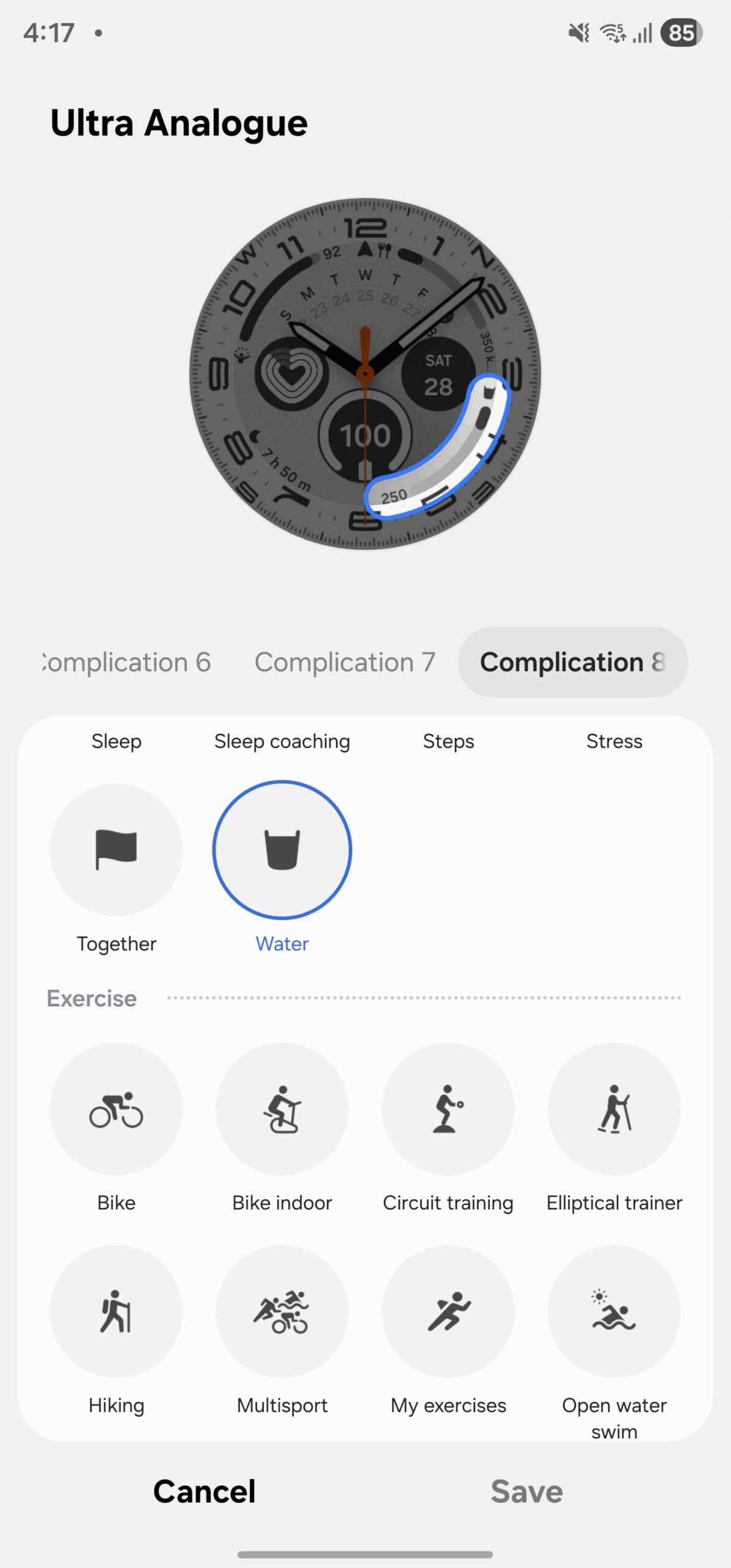
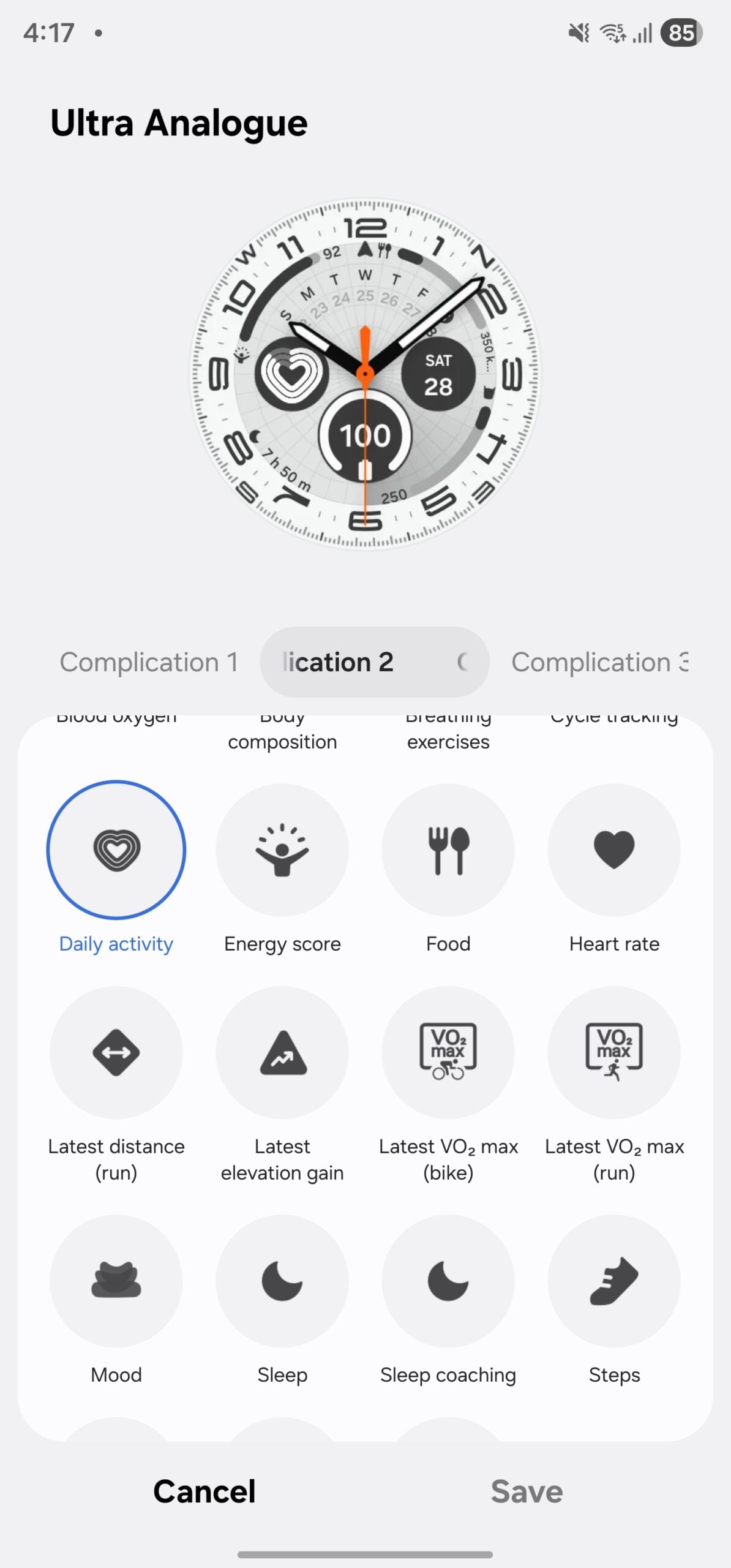
By populating these slots with complications for battery, calorie intake, daily activity, Samsung Wallet, sleep, and steps, you can eliminate the need to dive into the app drawer. This "at-a-glance" philosophy ensures that your progress toward health goals is always front and center.
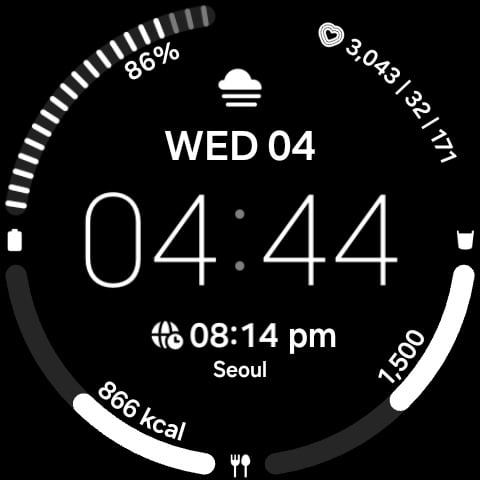
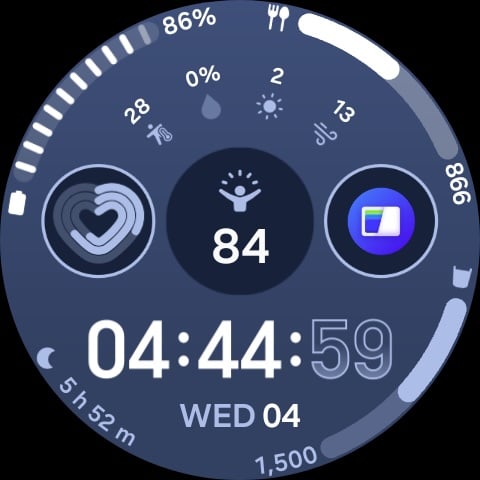
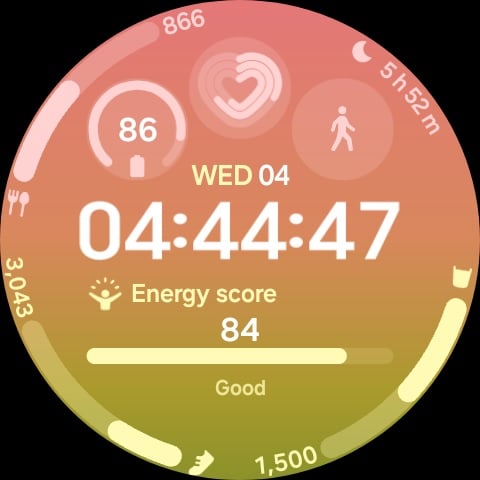
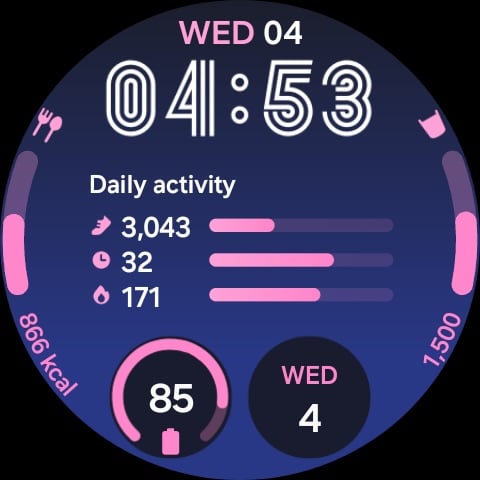
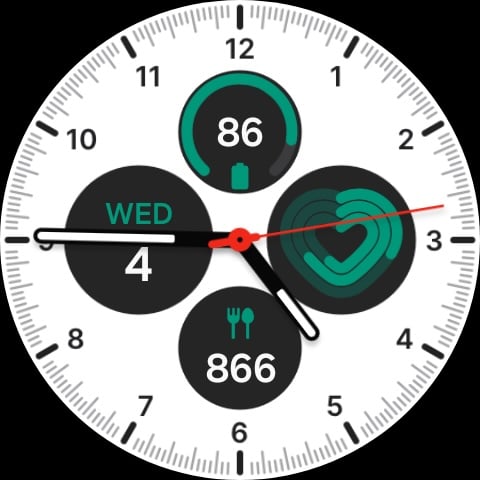
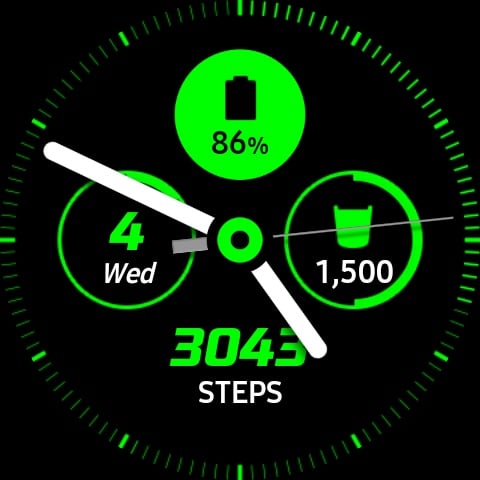
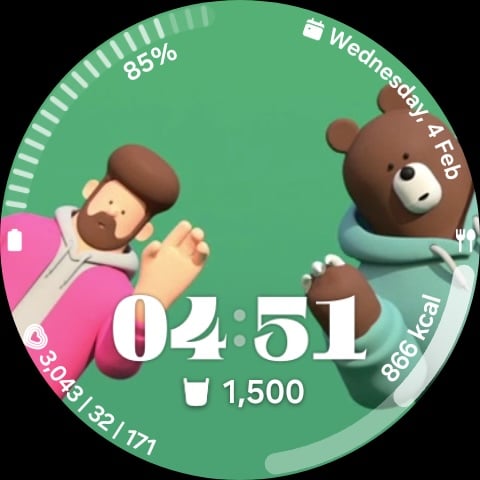
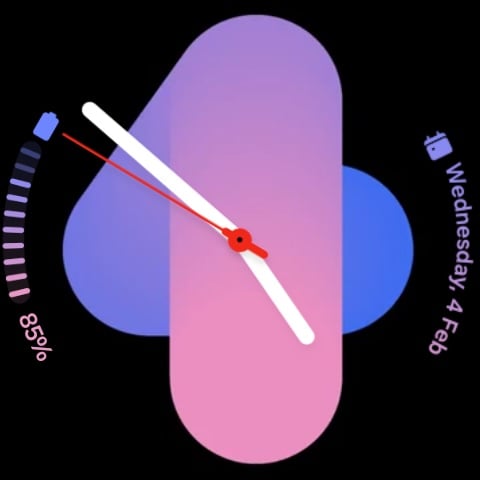
Even when opting for simpler, more aesthetic watch faces with fewer complication slots, core metrics should remain. A minimal setup might focus only on battery level, calorie intake, and water consumption. Thanks to One UI Watch, features like Samsung Wallet can still be accessed instantly by long-pressing the back button, even if they aren't visible on the face.
Leveraging Hardware for Faster Control
The introduction of the "Quick Button" on the Galaxy Watch Ultra has been a game-changer for power users. Unlike older models like the Galaxy Watch 4, this additional button allows for deeper customization of physical interactions.
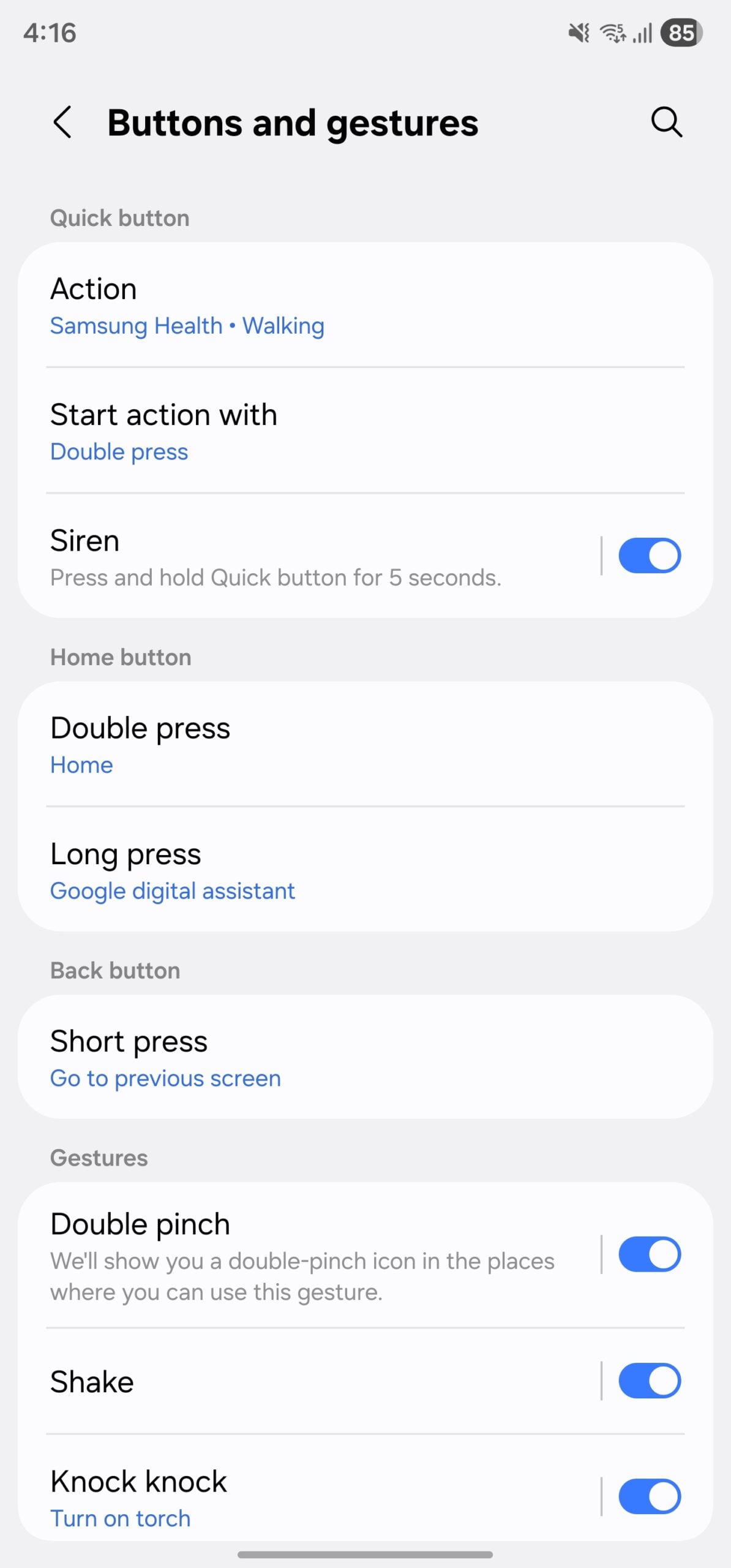
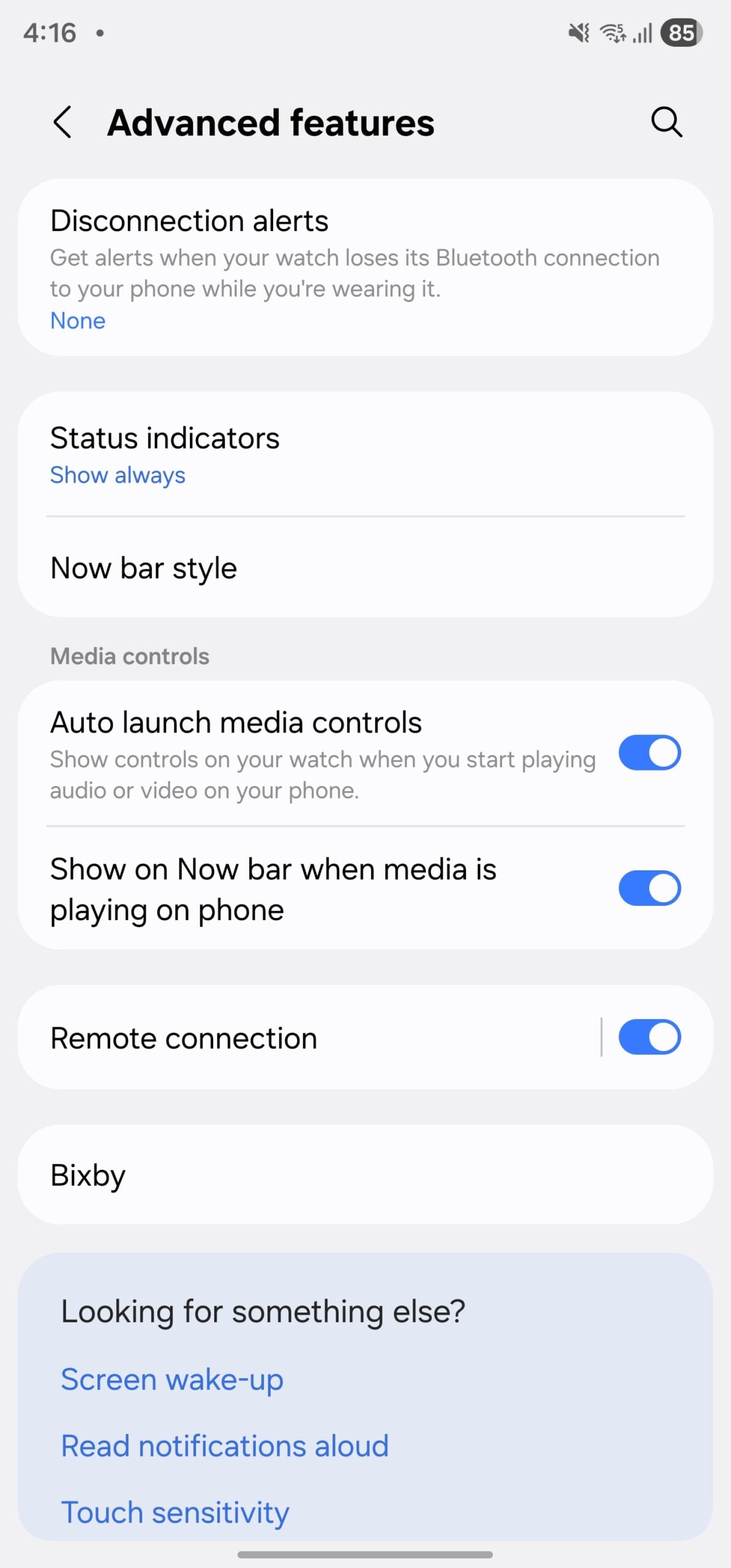
A popular configuration for the Quick Button includes a double-press to start workout tracking immediately. Meanwhile, the home button can be mapped to launch Google Home for smart home controls or long-pressed to summon Gemini or Google Assistant for quick timers and queries. This combination of touch and physical controls creates a highly responsive user experience tailored to a modern, fast-paced lifestyle.
What are the best watch faces for information density?
The best faces for seeing multiple data points at once include Circle Dashboard, Daily Dashboard, Info Board, Ultra Analog, and Ultra Info Board. These faces allow for up to 8 complications in some configurations.
How can I track my water intake more easily?
The most efficient way is to add the "Water" complication to your main watch face. Using a graph-style or progress-bar visual for this complication allows you to see how close you are to your daily goal (e.g., 3 liters) without opening the Samsung Health app.
What is the "Quick Button" on the Galaxy Watch Ultra?
The Quick Button is an exclusive third hardware button on the Ultra model. It can be customized to perform specific actions like starting a workout, launching a specific app, or activating the siren. It provides a faster alternative to navigating the touch screen.
Can I use AI assistants like Gemini on my Galaxy Watch?
Yes, you can configure the home button long-press to open Google Gemini. This is useful for asking general questions, setting reminders, or starting timers hands-free.
Is it possible to access Samsung Wallet without a dedicated shortcut?
By default, long-pressing the "Back" button (the bottom button on the right side) on most modern Galaxy Watches will launch Samsung Wallet, allowing for quick payments at any terminal.
🔎 Ultimately, the evolution of smartwatch customization reflects a shift from viewing the device as a novelty to seeing it as a vital health and productivity tool. By strategically choosing watch faces that highlight essential data and mapping hardware buttons to frequent actions, the Galaxy Watch Ultra becomes an extension of your lifestyle. Whether you are tracking every calorie or managing a smart home, the right setup ensures that your most important tools are always just a glance or a click away.
Post a Comment