
The Secret to Rebooting Your Samsung TV: Why It Feels Random and How to Fix It
If you have ever tried to perform a hard reset on your Samsung Smart TV, you might have noticed a frustrating inconsistency. Sometimes, holding the power button works perfectly; other times, the screen simply goes dark, entering a "deep sleep" mode rather than performing a full system restart. For a long time, users and even experts thought this was a software bug or a glitch in the Tizen operating system. However, we have finally uncovered the truth: it is not a bug, but a specific hardware requirement involving the SolarCell Remote.
- ✨ Discover why your Samsung TV enters deep sleep instead of performing a full system reboot.
- ✨ Learn about the hidden Infrared (IR) blaster inside your modern Bluetooth SolarCell Remote.
- ✨ Understand why line-of-sight is mandatory for the specific "Press and Hold" reboot command.
- ✨ Find out how to confirm a successful restart through the Tizen and Knox startup logos.
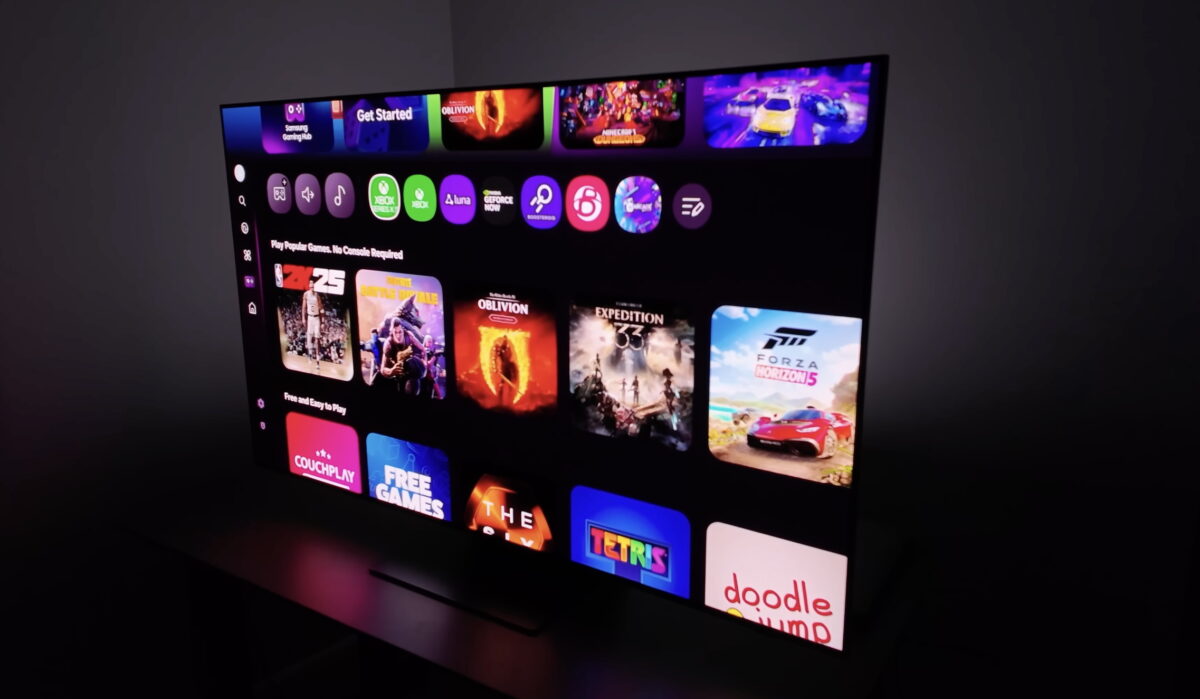
The Hidden Truth About the SolarCell Remote
On paper, the process for rebooting a Samsung TV is straightforward: you press and hold the power button for a few seconds until the system cycles. In reality, the results are often unpredictable. The reason for this "randomness" is that while the SolarCell Remote uses Bluetooth for almost every daily interaction—allowing you to control the TV from under a blanket or another room—it switches to Infrared (IR) technology for the reboot command.
Because IR requires a direct line of sight, the reboot will fail if the remote is not pointed directly at the TV's sensor. Instead of a system-level restart, the TV receives a standard "Power Off" command via Bluetooth and slips into deep sleep.
Why Infrared is Still Part of the Modern Experience
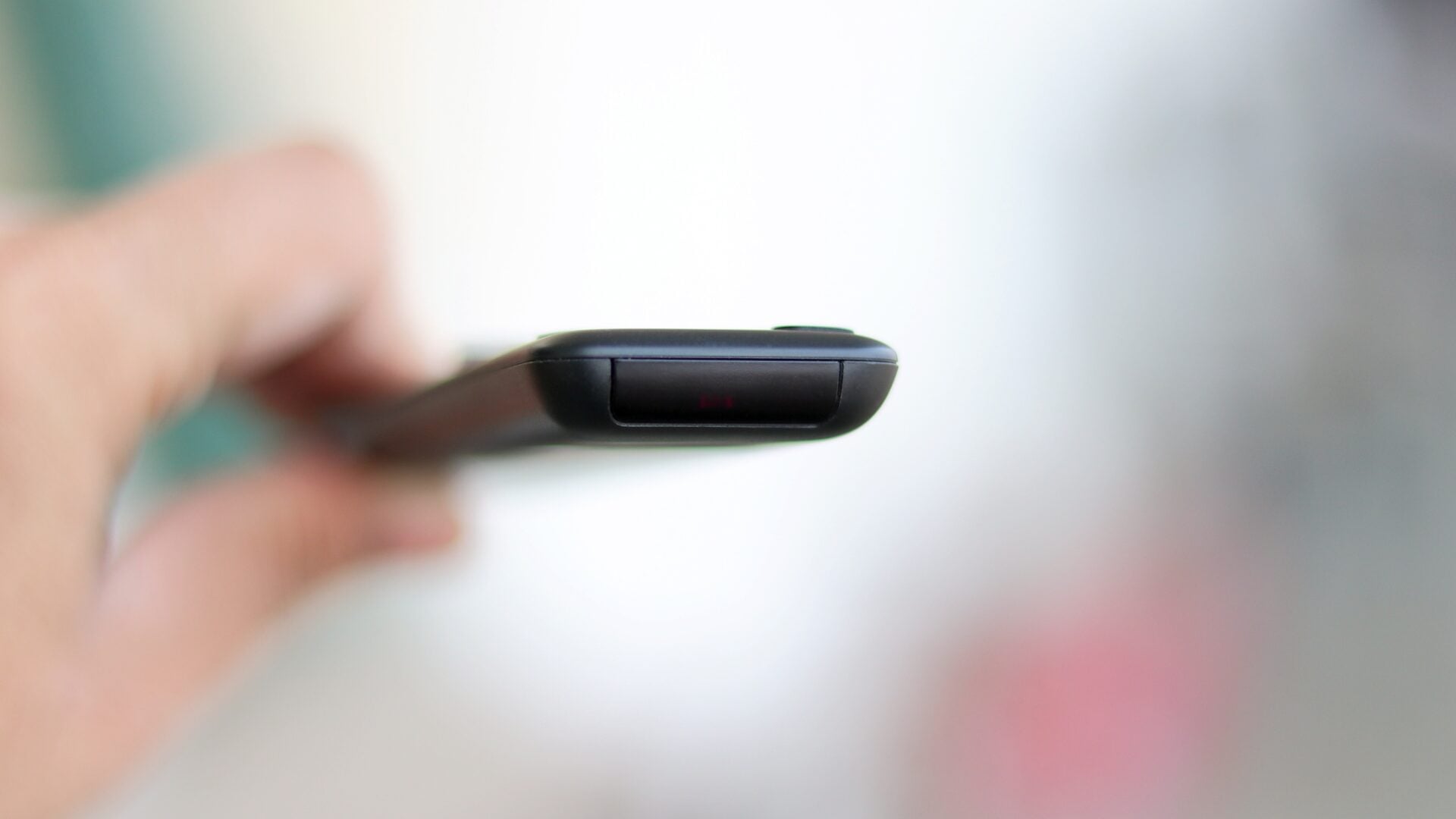
Many users are surprised to learn that their sleek, solar-powered remote even has an IR blaster. That small, dark cover at the top of the remote isn't just a design choice; it conceals the hardware necessary for legacy communication. Curiously, Samsung's internal software guides rarely mention the need to aim the remote when troubleshooting, leading to years of confusion among Smart TV owners.
To ensure a successful reboot every time, you must point the remote directly at the TV's IR receiver (usually located near the Samsung logo at the bottom) and hold the power button until you see the Tizen, Knox, or OLED/NeoQLED startup logos. This visual confirmation ensures the operating system has completely cleared its cache and restarted.
If you find that even pointing the remote doesn't work, there could be external interference. Some users have reported that certain HDMI soundbars can interfere with the power-cycling process. In those rare cases, additional troubleshooting may be required to clear the signal path.
Why does my Samsung TV go into deep sleep instead of rebooting?
This happens because the reboot command requires an Infrared (IR) signal. If the remote isn't pointed directly at the TV, it sends a standard Bluetooth power-off command instead of the system restart command.
Where is the IR blaster located on the SolarCell Remote?
The IR blaster is hidden behind the small translucent cover at the very top of the remote. While the remote uses Bluetooth for most functions, this specific hardware is reserved for the reboot process.
How can I tell if my TV has actually performed a full reboot?
A successful reboot will always show the startup splash screens, including the Tizen, Knox, or specific display technology logos (like OLED or Neo QLED). If the screen simply turns on to your last app, it was only in sleep mode.
Does this apply to all Samsung Smart TV remotes?
This specifically applies to the modern SolarCell remotes that primarily use Bluetooth. Older remotes that are 100% Infrared always required pointing, so the behavior was more consistent for users of older models.
🔎 Understanding the hardware limitations of your devices is the key to a frustration-free experience. By simply aiming your remote during a system reset, you can bypass the "random" glitches and ensure your Samsung TV remains fast and responsive. Whether you are clearing a temporary bug or just performing routine maintenance, this small adjustment makes all the difference in your home entertainment setup.
Post a Comment