
Essential Samsung Galaxy S26 Camera Settings: Optimize Your Photography Like a Pro
Congratulations on your brand-new Samsung Galaxy S26! Whether you have the base model, the S26 Plus, or the powerful S26 Ultra, you are now carrying one of the most sophisticated mobile photography systems in the world. However, to truly unlock the potential of these lenses, you shouldn't rely solely on the out-of-the-box configuration. Making a few strategic adjustments can significantly elevate the quality of your photos and videos.
- ✨ Enable the Composition Guide: Use grid lines and level indicators to perfectly frame your shots.
- ✨ Disable Auto Lens Switching: Maintain manual control over which camera sensor is used for zoom.
- ✨ Download Camera Assistant: Unlock professional-grade features hidden within the Samsung ecosystem.
- ✨ Master the Rule of Thirds: Align your subjects perfectly using the environment scanning tools.
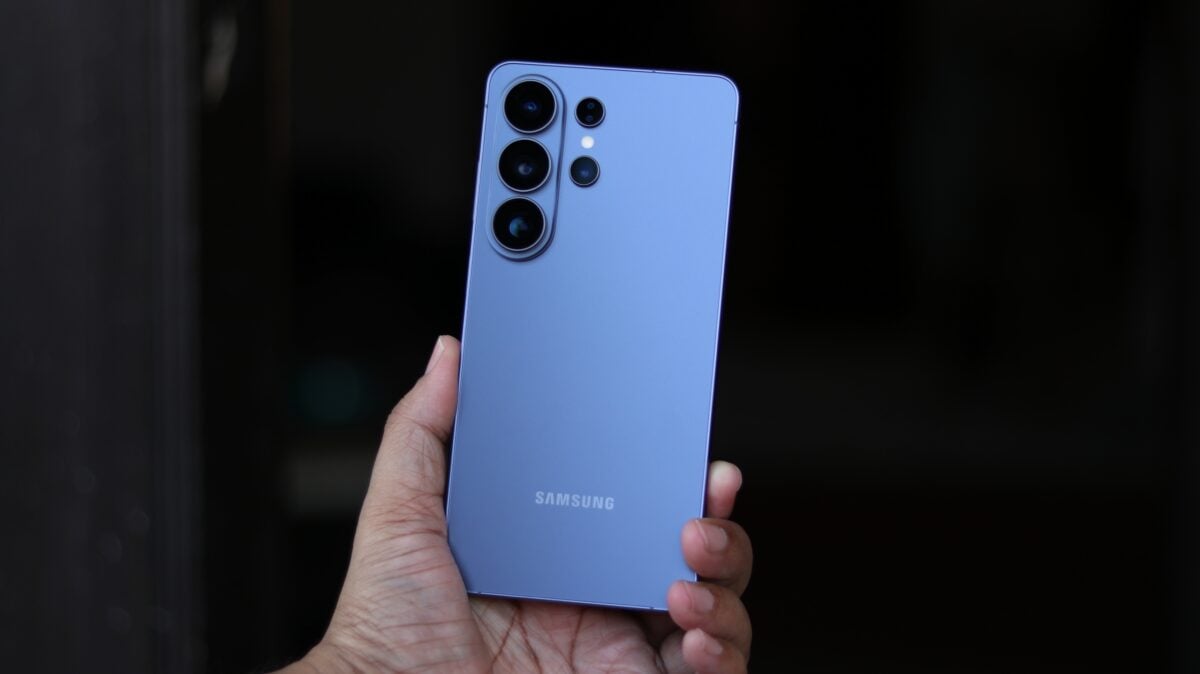
It has been a few weeks since Samsung began shipping the Galaxy S26 series to eager customers worldwide. If you are among the early adopters, now is the time to dive into your settings. The default software configuration is designed for the "average" user, but for those seeking professional-looking results, a few tweaks are mandatory. Our colleagues have analyzed the best Samsung camera settings to help you get the most out of your hardware.
Mastering Composition and Framing
Samsung has integrated several clever features within the native Camera app that often go unnoticed. One of the most impactful is the "Composition Guide." By enabling this through the settings menu, the app adds both grid lines and a digital level to your viewfinder. This tool is invaluable for framing your photos correctly, as it scans the environment and helps you align subjects according to the rule of thirds, ensuring your horizons are never tilted again.
Take Command with Camera Assistant
For users who want to push the Galaxy S26 Ultra to its limits, the "Camera Assistant" app is a vital download from the Galaxy Store. Once installed, the first setting you should address is "Auto Lens Switching." By default, the phone decides which rear camera to use based on lighting conditions. By disabling this, you take back control. This is crucial because the software often defaults to the main sensor in low light even when you want to use the telephoto lens, which can result in digitally cropped, lower-quality zoom shots.
Watch the Full Setup Video
All of these tips, along with several advanced video recording configurations, are covered in extensive detail in the guide below. Watching the technical breakdown will ensure you don't miss any of the subtle nuances that make the S26 camera system so special. If you find these tips helpful, consider following the creators for more mobile photography insights.
Why should I enable the composition guide on my Galaxy S26?
The composition guide provides visual overlays like grid lines and a level. This helps you follow the rule of thirds and ensures your photos are perfectly straight, which is essential for professional-looking landscapes and portraits.
What is the benefit of disabling auto lens switching?
Disabling auto lens switching prevents the phone from automatically choosing the sensor. This is important during zoom photography, as it ensures the phone uses the dedicated telephoto lens rather than a digital crop of the main sensor, preserving much higher detail.
Is Camera Assistant a separate app?
Yes, Camera Assistant is an official Samsung module available through the Galaxy Store. It integrates directly into your main camera settings once downloaded, providing advanced options that aren't available by default.
Does the rule of thirds really make a difference?
Absolutely. By placing your subject along the grid lines or at their intersections, you create a more balanced and engaging image that naturally draws the viewer's eye, rather than just centering everything.
🔎 Taking a few minutes to customize your Samsung Galaxy S26 camera settings is the best way to ensure you never miss a perfect shot. By enabling the composition guide and taking manual control over your lenses with Camera Assistant, you transform your smartphone from a simple point-and-shoot device into a powerful creative tool. Start experimenting with these settings today and watch your photography improve instantly.
Post a Comment