
How to Instantly Enable Galaxy S26 Ultra Privacy Display with This Secret Shortcut
The newly released Galaxy S26 Ultra is packed with advanced features designed to enhance user experience, but one of its most practical additions is the Privacy Display. This innovative technology narrows the screen’s viewing angle, effectively preventing anyone sitting next to you from snooping on your sensitive information. While most users navigate through complex menus to find this setting, there is a much faster way to protect your data on the go.
- ✨ Instant Protection: Learn how to toggle Privacy Display without even touching your screen.
- ✨ Custom Shortcut: Step-by-step guide to mapping the side button for maximum efficiency.
- ✨ Enhanced Privacy: Why the Galaxy S26 series is setting a new standard for mobile security.
- ✨ Deep Customization: Discover how to automate the feature based on specific apps or content.
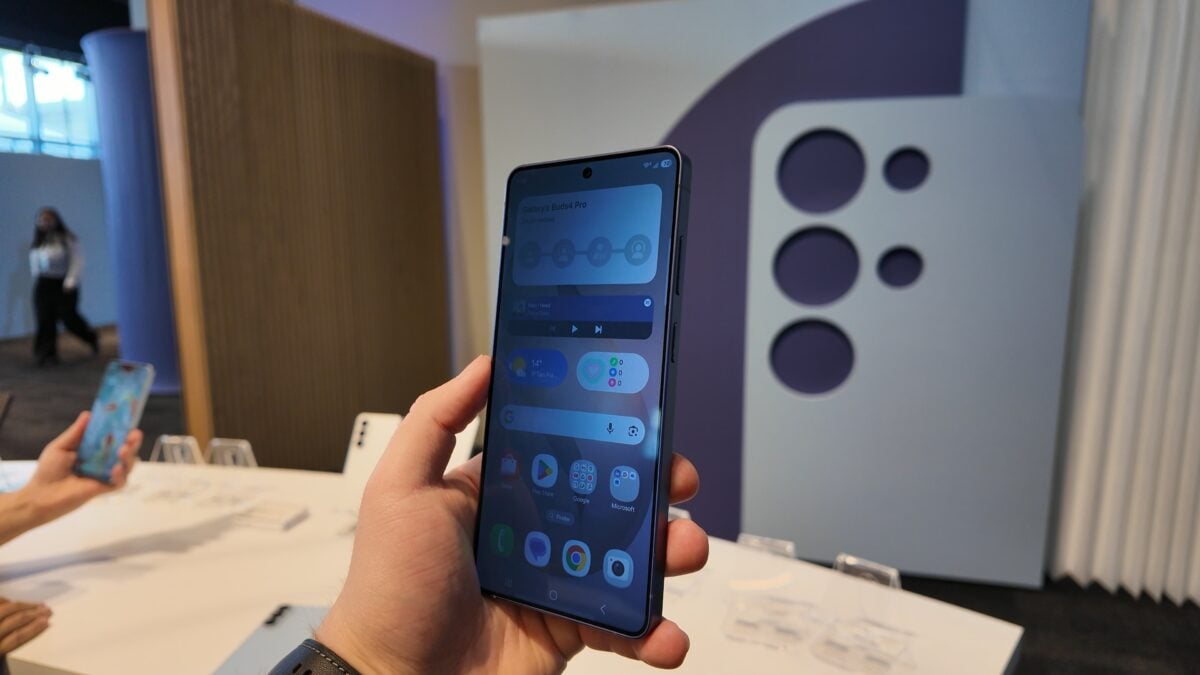
Mastering the Side Button Shortcut for Privacy
Many users assume they need to swipe down the Quick Settings panel or dive into the main Settings app every time they want to shield their screen. However, Samsung has integrated a powerful shortcut specifically for the Galaxy S26 Ultra. You can activate the Privacy Display instantly by simply double-pressing the side button. This is particularly useful when you are in a crowded elevator or using public transport and need immediate screen masking.
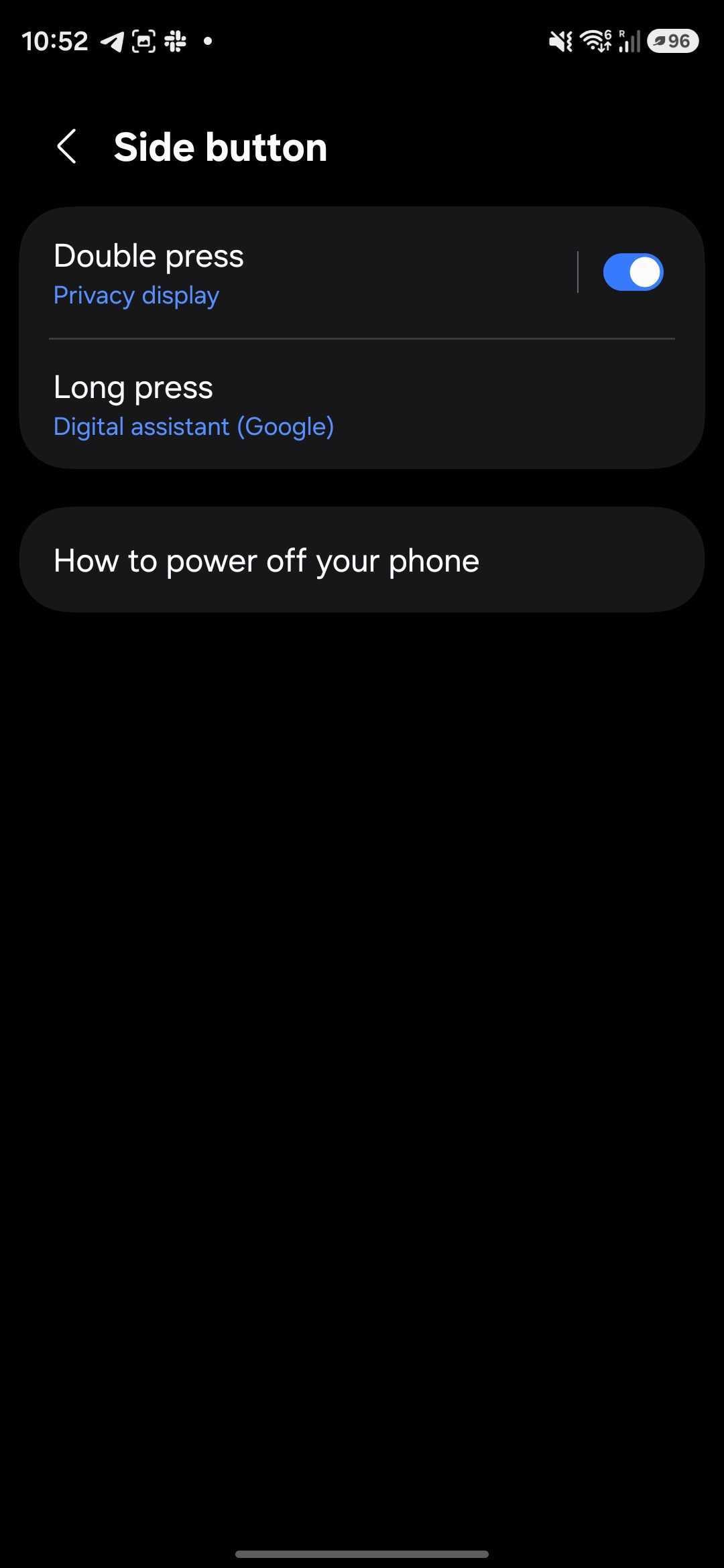
It is important to note that this shortcut is not enabled by default. To set it up, you must perform a one-time configuration in your device settings. Follow these steps to unlock the fastest way to stay private:
- Open the Settings app on your device.
- Navigate to Advanced features.
- Tap on Side button.
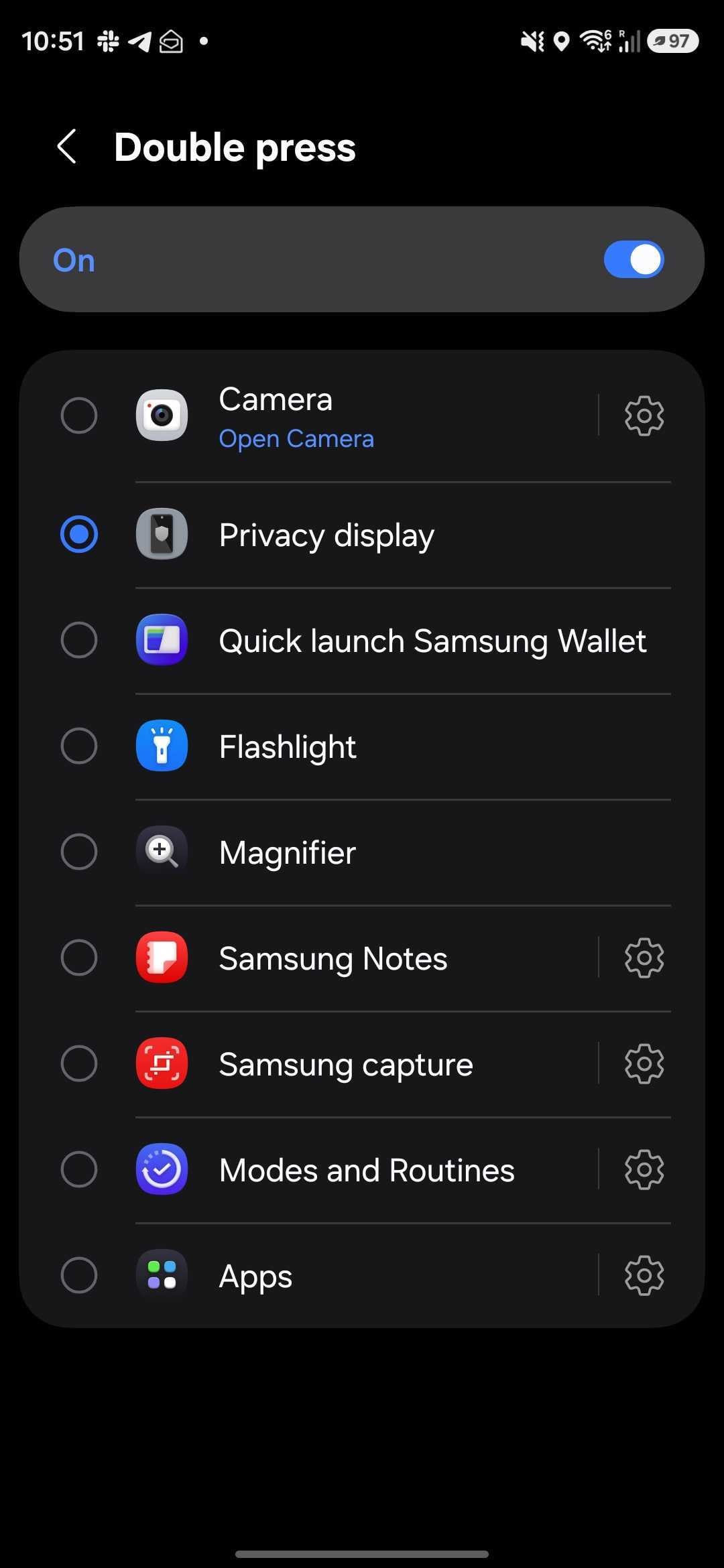
- Under the Double press section, select Privacy Display.
Why Use Privacy Display on the Galaxy S26 Ultra?
Once you have configured the side button, a quick double-click will instantly engage the specialized hardware and software layer that restricts off-axis viewing. This is the ultimate tool for professionals who handle confidential emails or anyone who values their personal space in public environments. The Galaxy S26 lineup continues to prioritize user safety through these intuitive physical interactions.
Beyond the shortcut, the Privacy Display offers deep customization options. Users can fine-tune exactly when the feature should trigger and even specify which applications should automatically prompt the viewing angle limitation. Whether you are reading a private message or viewing financial documents, the Galaxy S26 Ultra ensures that your business remains yours alone.
What exactly does the Privacy Display do on the Samsung Galaxy S26 Ultra?
The Privacy Display feature uses advanced screen technology to narrow the viewing angle of the OLED panel. When activated, the screen appears clear to the person holding it directly, but looks dark or unreadable to anyone looking at it from the side, preventing visual hacking in public spaces.
Can I use the double-press shortcut for other apps instead?
Yes, the side button is fully customizable. While we recommend mapping it to Privacy Display for security, you can also set it to open the camera, launch a specific app, or trigger a different system feature within the Advanced Features menu.
Does Privacy Display affect the battery life of the phone?
Because the feature involves adjusting the light output and pixel behavior to restrict angles, it may have a negligible impact on battery life. However, for most users, the security benefits far outweigh any minor power consumption increase.
Is Privacy Display available on the standard Galaxy S26 and S26+?
Currently, the advanced Privacy Display technology is a flagship-exclusive feature for the Ultra model due to the specific hardware requirements of the display panel. Standard models may offer software-based "extra dim" or "privacy filters," but they lack the hardware-level angle restriction found on the Ultra.
🔎 In conclusion, the Galaxy S26 Ultra continues to lead the market by blending high-end performance with thoughtful privacy tools. By taking a few seconds to map the Privacy Display to your side button, you transform your device into a fortress of personal information. As mobile security becomes increasingly vital, these small shortcuts make a world of difference in your daily digital life.
Post a Comment