
Master Your Galaxy S26 Camera: How to Restore the Missing Dedicated Night Mode
So you have finally unboxed your brand-new Galaxy S26, S26+, or the top-tier S26 Ultra. You’ve gone through the setup, opened the camera to capture a stunning low-light shot, and suddenly realized something is wrong: the dedicated Night mode is nowhere to be found. Whether you are a long-time Samsung enthusiast or a newcomer to the ecosystem, this can be a confusing moment. Does this flagship phone really lack a proper Night mode?
- ✨ Samsung has replaced the traditional Night mode with an AI-powered toggle in the standard Photo mode.
- ✨ The new toggle only appears when the software detects low-light conditions, which can limit manual control.
- ✨ Users can easily restore the dedicated Night mode tab using Samsung's official Camera Assistant app.
- ✨ This guide provides step-by-step instructions for all Galaxy S26 series models.
The Mystery of the Vanishing Night Mode on Galaxy S26
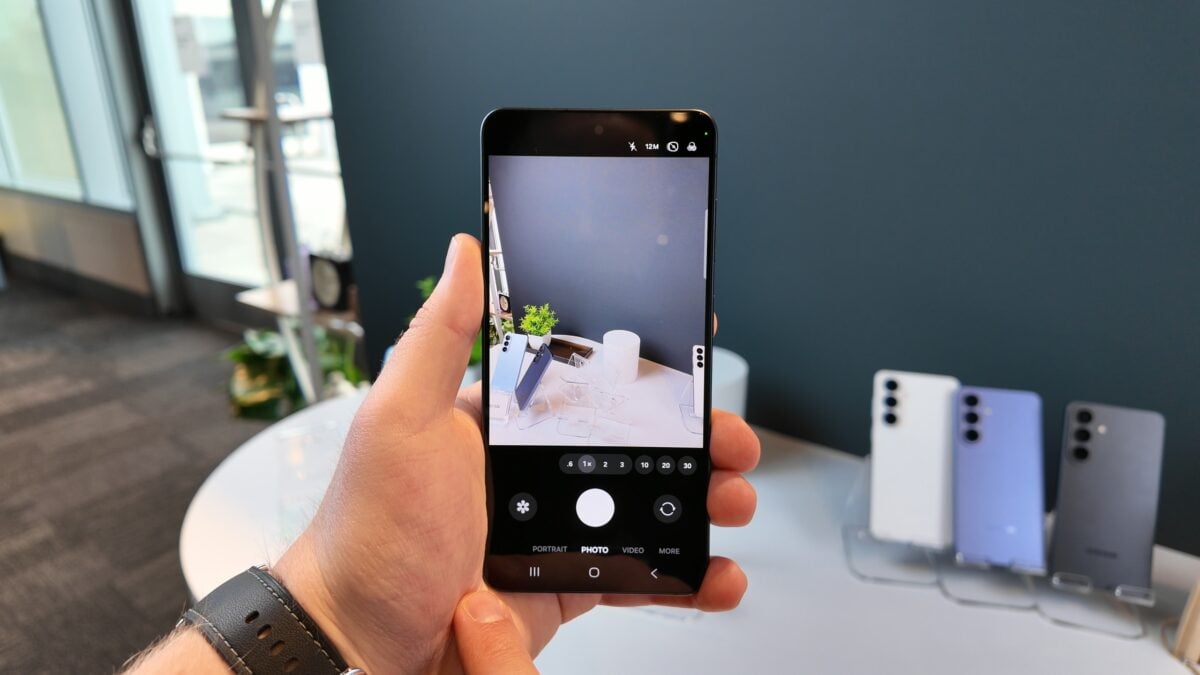
By default, the Samsung Camera Settings on the S26 series have undergone a significant change. Samsung decided to streamline the interface by removing the dedicated Night mode from the main slider. Instead, it has been integrated as an automatic toggle that only shows up in the standard "Photo" mode when the phone senses that the environment is dark enough to require extra exposure.
When this happens, a small moon-shaped icon will appear in the bottom-right corner of the viewfinder. By tapping this icon, you are presented with three distinct choices: Off, Auto, and Max. While the underlying technology remains the same, "Auto" allows the phone to determine the shutter speed, while "Max" pushes the sensor to its limits, capturing even more light in extremely dark environments.
While this change was intended to simplify the user experience, it has been a point of frustration for many. The main drawback is that the toggle is reactive; if the phone doesn't think it's dark enough, the icon won't appear, leaving you unable to manually force a long-exposure shot when you want one.
How to Bring Back the Dedicated Night Mode Tab
The good news is that Samsung hasn't permanently removed the option; they just moved it into their advanced customization tools. To get the traditional Night mode back into your camera's "More" tab or main slider, you will need the Camera Assistant app. This is an official module from Samsung that unlocks hidden professional features for your camera.
Follow these simple steps to restore the mode:
- ✨ Open the Galaxy Store and search for "Camera Assistant" to download and install it.
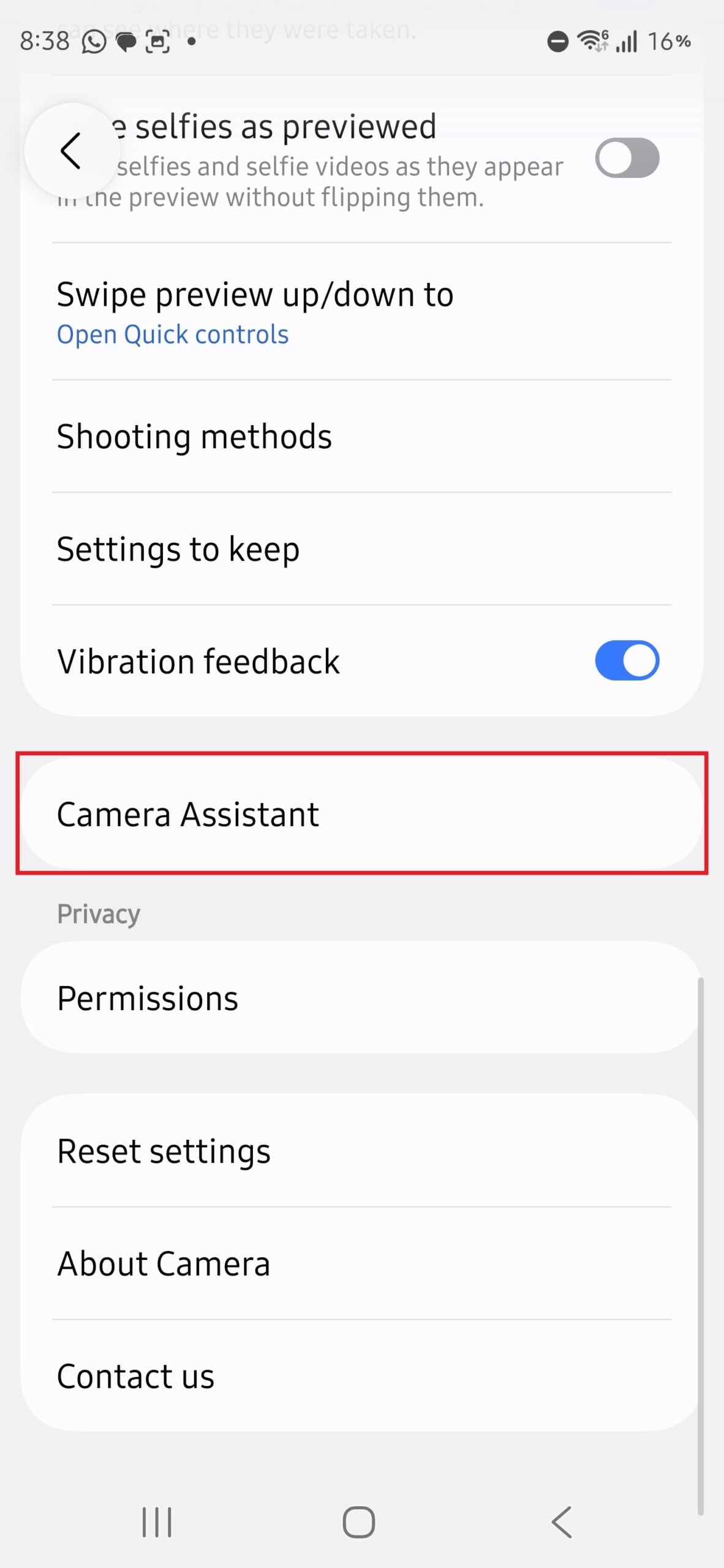
- ✨ Alternatively, open your Camera app, go to Settings, and tap the "Camera Assistant" link at the bottom.
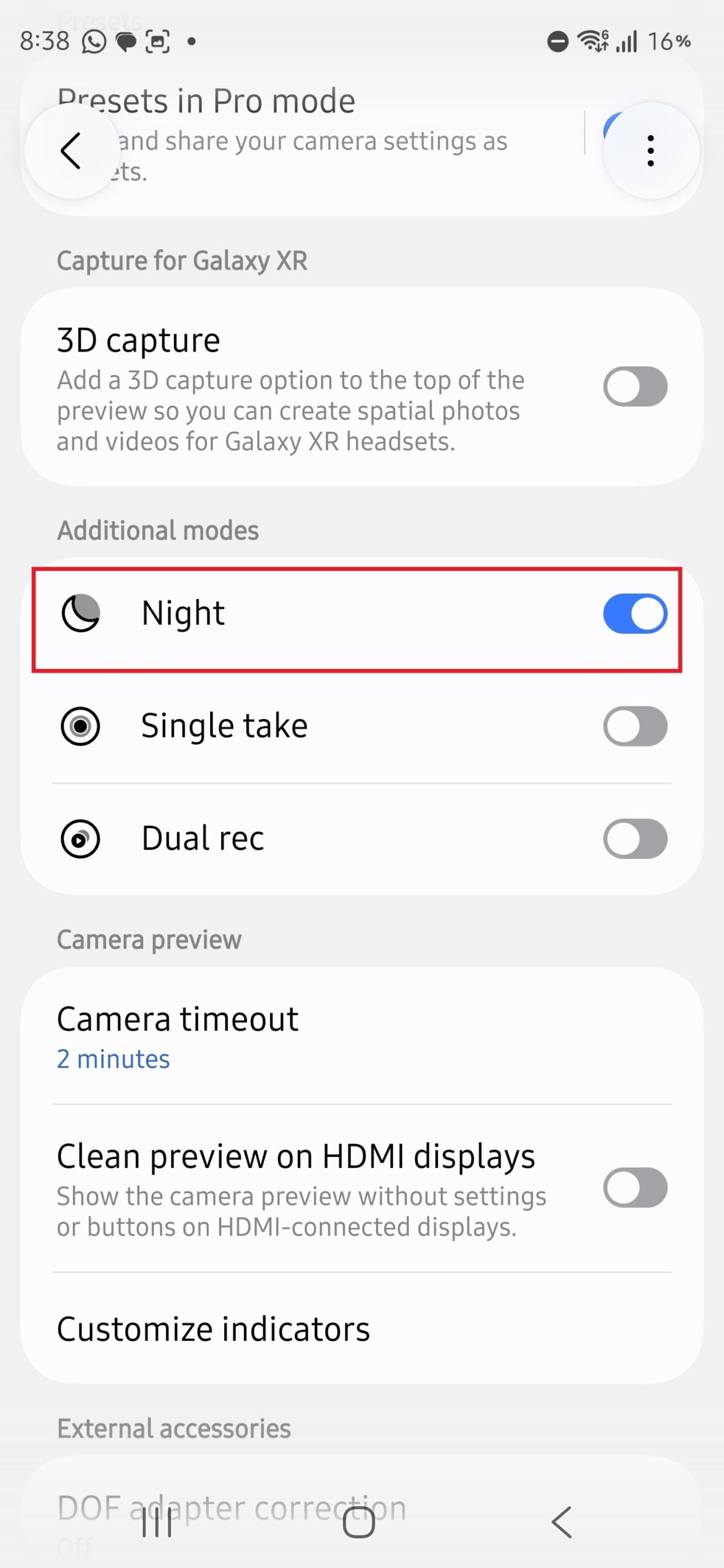
- ✨ Once inside the Camera Assistant app, scroll down until you find the Additional Modes section.
- ✨ Toggle the switch for Night mode to "On".
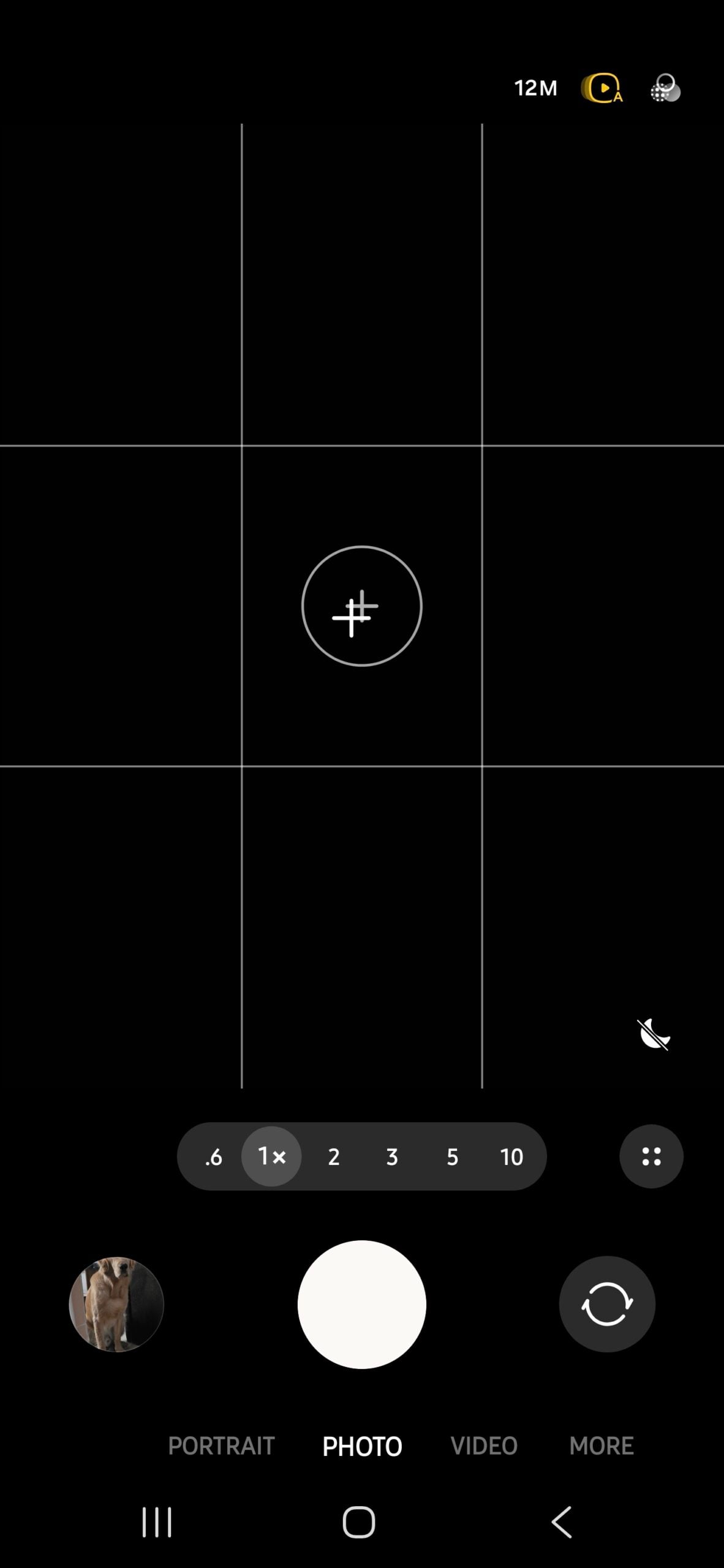
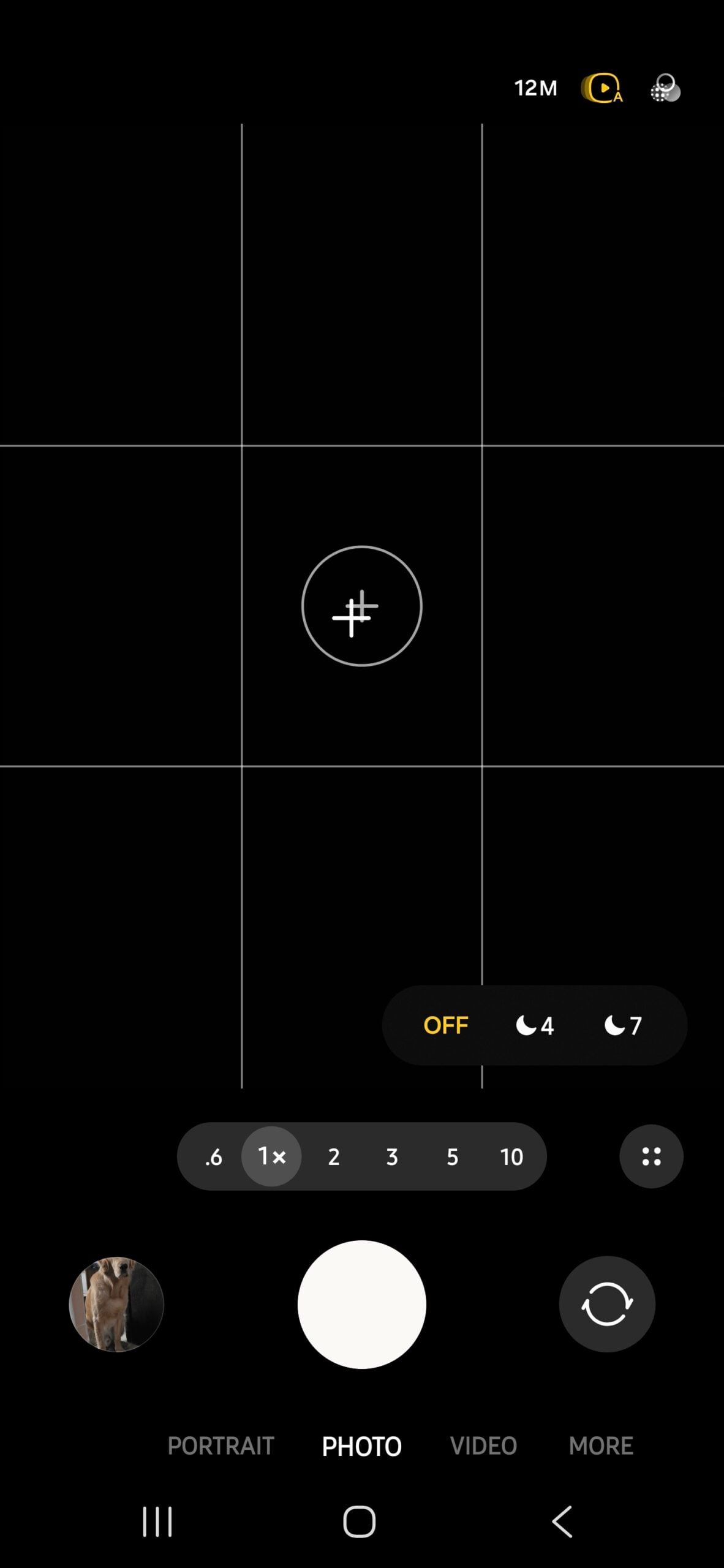
After enabling this, you will see the familiar Night mode icon return to the "Modes" or "More" section of your camera app. You can even drag it onto the main bottom bar for instant access. Interestingly, the moon toggle in the Photo mode will remain active, giving you the best of both worlds: AI-assisted automation and full manual control whenever you need it.
Why did Samsung hide the dedicated Night mode?
Samsung's goal was to simplify the camera interface for casual users. By turning Night mode into an automatic toggle, the phone handles the technical decisions, ensuring users get bright photos in dark scenes without having to manually switch modes.
What is the difference between Auto and Max in the moon toggle?
"Auto" lets the camera select a shutter speed it thinks is safe for handheld shots. "Max" allows the camera to use a significantly longer shutter speed to pull in every bit of available light, which is ideal if you are using a tripod or have very steady hands.
Is Camera Assistant a safe app to use?
Yes, Camera Assistant is an official app developed by Samsung. It is part of the Good Lock family of apps and is designed specifically to give users more granular control over their device's hardware.
Will this guide work on the Galaxy S26 Plus and Ultra?
Absolutely. The camera software and the Camera Assistant app function identically across the entire Galaxy S26 lineup, including the standard, Plus, and Ultra models.
Does restoring the dedicated mode disable the automatic toggle?
No, both features will exist simultaneously. You can use the automatic toggle for quick shots and switch to the dedicated Night mode when you want to ensure the setting is forced on regardless of what the AI detects.
🔎 Embracing the new AI-driven features of the Galaxy S26 series doesn't mean you have to sacrifice the manual control that makes Samsung's cameras so versatile. By utilizing the Camera Assistant app, you can tailor your photography experience to suit your specific needs, ensuring that you never miss a perfect low-light moment simply because the software didn't trigger. Happy shooting!
Post a Comment