
Samsung Galaxy S26 and One UI 8.5: How to Use the New AI Select Shortcut
A year ago, with the launch of One UI 7, Samsung replaced the classic Smart Select tool with an AI-powered alternative known as AI Select. Now, with the official debut of the Galaxy S26 series running One UI 8.5, Samsung is making this powerful tool much easier to access for everyday users.
- ✨ New press-and-hold gesture for AI Select via the Edge pull tab.
- ✨ Direct access that mirrors the "Circle to Search" experience.
- ✨ Native integration in One UI 8.5, removing the need for Good Lock customization.
- ✨ Enhanced one-handed usability for large-screen Galaxy devices.
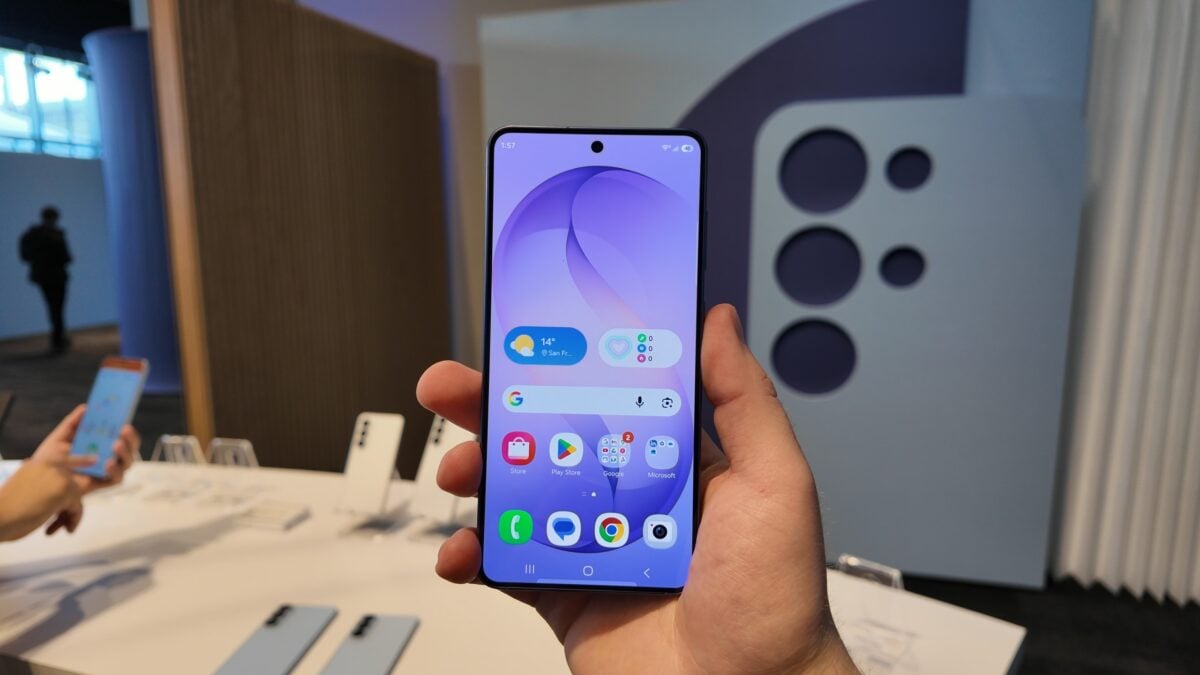
One UI 8.5 on the latest Galaxy S26 lineup introduces a new shortcut that lets you launch AI Select faster than ever before. Instead of opening the Edge panel and tapping a specific shortcut, you can now simply press and hold the Edge pull tab. AI Select launches almost instantly, shaving off a step and making the entire interaction feel more direct and fluid.
The traditional method of launching AI Select through the Edge panel remains available in One UI 8.5. However, this new press-and-hold gesture works in a way that feels very similar to Circle to Search. Only this time, rather than pressing and holding the navigation gesture bar at the bottom of the screen, you simply hold the Edge pull tab on the side of your display.
This new gesture aligns perfectly with existing interactions in One UI, ensuring it follows a cohesive UI design vision. By integrating this shortcut, Samsung is streamlining the Samsung Galaxy AI experience for power users and casual owners alike.
Arguably, this new gesture also makes AI Select quicker and more convenient to use one-handed, particularly if you position the Edge pull tab lower on the display. It significantly reduces friction and turns AI Select into something that feels more like a native system action rather than a tucked-away utility menu.
Samsung’s Evolution of the AI Select Tool
This is not Samsung’s first attempt at making AI Select easier to reach. Nearly a year ago, the company updated the One Hand Operation+ module within the Good Lock suite to allow users to assign AI Select to a specific gesture. While that solution worked well, it required deep customization and the installation of an additional application.
Now, this other, arguably simpler gesture, is baked directly into the core of One UI 8.5, making AI Select more accessible right out of the box. It is reasonable to expect that this shortcut will roll out to other eligible Galaxy smartphones and tablets once they receive their respective software updates.
As for the AI Select tool itself, nothing has changed in terms of its core functionality. Once activated, you can tap or draw around anything on the screen to reveal contextual actions such as translation, Drawing Assist, Generative Edit, GIF creation, and more—depending on which contextual actions are supported by your specific Galaxy model.
If you are considering trying One UI 8.5 ahead of a wider rollout, the Galaxy S26 series is available for pre-order until March 11, with early buyers receiving a range of exclusive perks and trade-in offers.
What is the new AI Select shortcut in One UI 8.5?
The new shortcut allows users to launch the AI Select tool by simply pressing and holding the Edge pull tab on the side of the screen. This replaces the need to swipe open the Edge panel and manually tap the AI Select icon.
Do I still need Good Lock to use gestures for AI Select?
No, with the release of One UI 8.5, the press-and-hold gesture is integrated directly into the system settings. While Good Lock's One Hand Operation+ still offers more advanced customization, the native shortcut provides a simpler solution for most users.
Will this feature come to older Galaxy devices?
Yes, it is highly likely that this feature will be included in the One UI 8.5 update for older flagship models, such as the Galaxy S25 and S24 series, as well as recent Galaxy Z Fold and Flip devices.
How does this gesture differ from Circle to Search?
While both use a press-and-hold mechanic, Circle to Search is triggered by holding the navigation bar at the bottom of the screen. The new AI Select shortcut is triggered by holding the Edge pull tab on the side, making it more accessible for those who prefer side-screen interactions.
What can I do with AI Select once it is activated?
Once active, you can select text or images to perform contextual actions like instant translation, creating GIFs, using Drawing Assist, or performing Generative Edits on specific parts of your screen.
🔎 The refinement of the AI Select shortcut in One UI 8.5 demonstrates Samsung's commitment to making its Samsung Galaxy AI suite as intuitive as possible. By reducing the number of steps required to access powerful tools, the Galaxy S26 offers a more seamless and productive user experience. Whether you are translating text on the fly or creating content, these small software tweaks make a significant difference in daily usability.
Post a Comment