
Samsung Good Lock Update: Activating Galaxy S26 Ultra Privacy Display with Gestures
Last month, Samsung officially unveiled its latest flagship smartphone lineup, the Galaxy S26 series. Among the most innovative features introduced is the Privacy Display on the Ultra model, designed to prevent onlookers from viewing sensitive content on your screen. To streamline this experience, Samsung has begun updating its software suite to support this hardware-level feature, starting with the popular Good Lock module, One Hand Operation +.
- ✨ New One Hand Operation + update (version 8.7.11) adds Privacy Display support.
- ✨ Users can now trigger the privacy shield using custom screen gestures.
- ✨ Fixed critical bugs regarding gesture malfunctions during screen rotation.
- ✨ Improved overall app stability and performance for the Galaxy S26 Ultra.
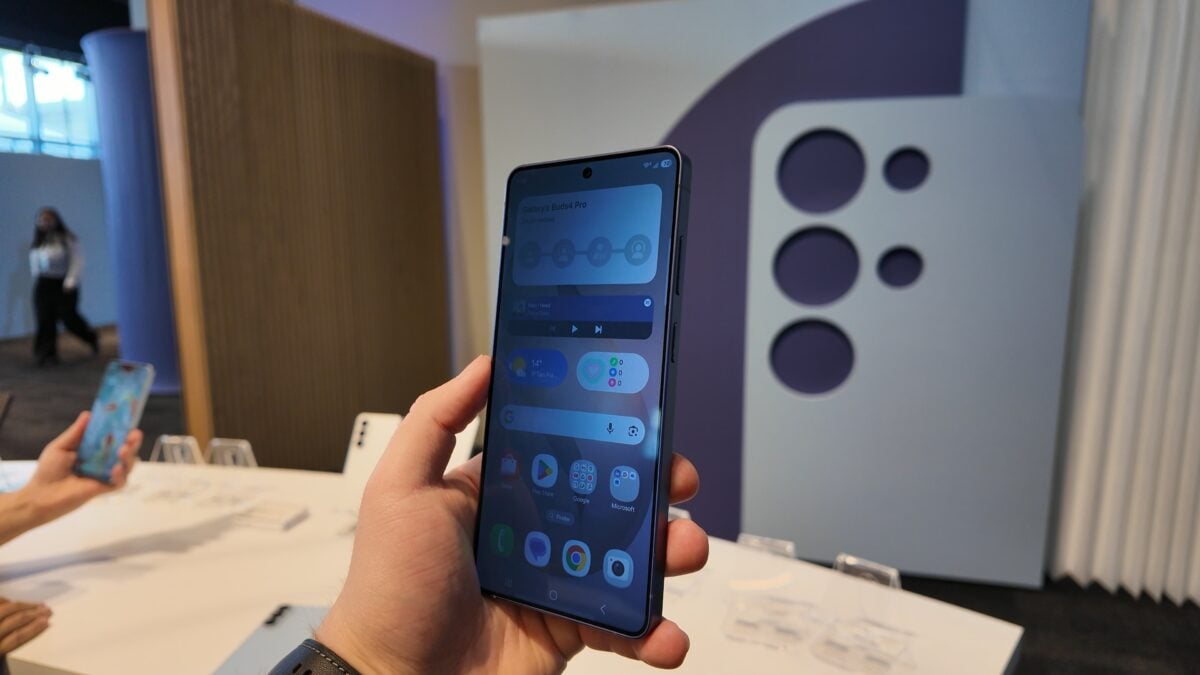
Enhancing Privacy Through Seamless One-Handed Gestures
Samsung is currently rolling out a significant update to the One Hand Operation + module. This new version, identified as 8.7.11, introduces three primary enhancements. The most notable addition is the integrated support for the Galaxy S26 Ultra's Privacy Display. This allows power users to map a specific gesture—such as a long swipe from the edge—to instantly activate or deactivate the privacy filter, making it more accessible than ever before
Beyond the privacy features, the update addresses technical hurdles that some users faced. Specifically, the development team has resolved a "gesture malfunction issue" that occurred after rotating the screen. This fix ensures that whether you are using your phone in portrait or landscape mode, your navigation remains fluid and responsive. Additionally, the update package includes various "bug fixes and stability improvements" to refine the user interface.
How to Update and Alternative Activation Methods
To ensure your device is running the latest software, navigate to the Galaxy Store on your Samsung device. Tap the menu icon, select Updates, and look for One Hand Operation + or simply select "Update all." While gesture control via Good Lock is a highly efficient method for enthusiasts, standard users can still rely on the physical side button. By default, double-pressing the side button can also be configured to toggle the Privacy Display, providing a tactile alternative for quick security.
What exactly is the Privacy Display on the Galaxy S26 Ultra?
The Privacy Display is a specialized screen technology on the Galaxy S26 Ultra that narrows the viewing angles. When activated, the screen appears dark or unreadable to anyone looking at it from the side, ensuring that only the person directly in front of the phone can see the content.
How does the Good Lock update change the way I use this feature?
Previously, you might have had to use a physical button or a quick panel toggle. With the One Hand Operation + update (v8.7.11), you can now assign a specific gesture, like a diagonal swipe, to turn the Privacy Display on or off instantly with one hand.
Does this update apply to the standard Galaxy S26 and S26+?
While the One Hand Operation + update is available for all compatible devices, the specific "Privacy Display" gesture support is only functional on the Galaxy S26 Ultra, as it is the only model in the series equipped with the hardware required for this privacy filter.
What should I do if my gestures stop working after rotating my phone?
This was a known bug in previous versions. To fix it, you should update your One Hand Operation + app to version 8.7.11 or higher via the Galaxy Store, as this release specifically addresses and resolves screen rotation malfunctions.
🔎 The continuous evolution of the Samsung Good Lock ecosystem demonstrates the brand's commitment to user-centric customization. By integrating hardware-specific features like the Privacy Display into gesture-based navigation tools, Samsung provides Ultra users with a sophisticated level of control that balances security with daily convenience. Keeping your modules updated is essential for maintaining the best possible performance on your flagship device.
Post a Comment