
Unleash Professional Sound: Mastering Audio Recording on Your Samsung Galaxy
Visuals are only half the battle when it comes to creating high-quality mobile content. The default, non-Pro shooting modes in the Samsung Camera app are designed for speed and simplicity, making them perfect for capturing spontaneous moments. However, this streamlined approach often automates critical settings, which can lead to limitations—not just in picture quality, but significantly in how your device handles audio recording.
- ✨ Learn how to bypass automated audio limitations on Galaxy devices.
- ✨ Discover the specific advantages of the Pro Video microphone settings.
- ✨ Step-by-step guide to connecting external USB and Bluetooth microphones.
- ✨ Professional tips for balancing internal and external audio sources.
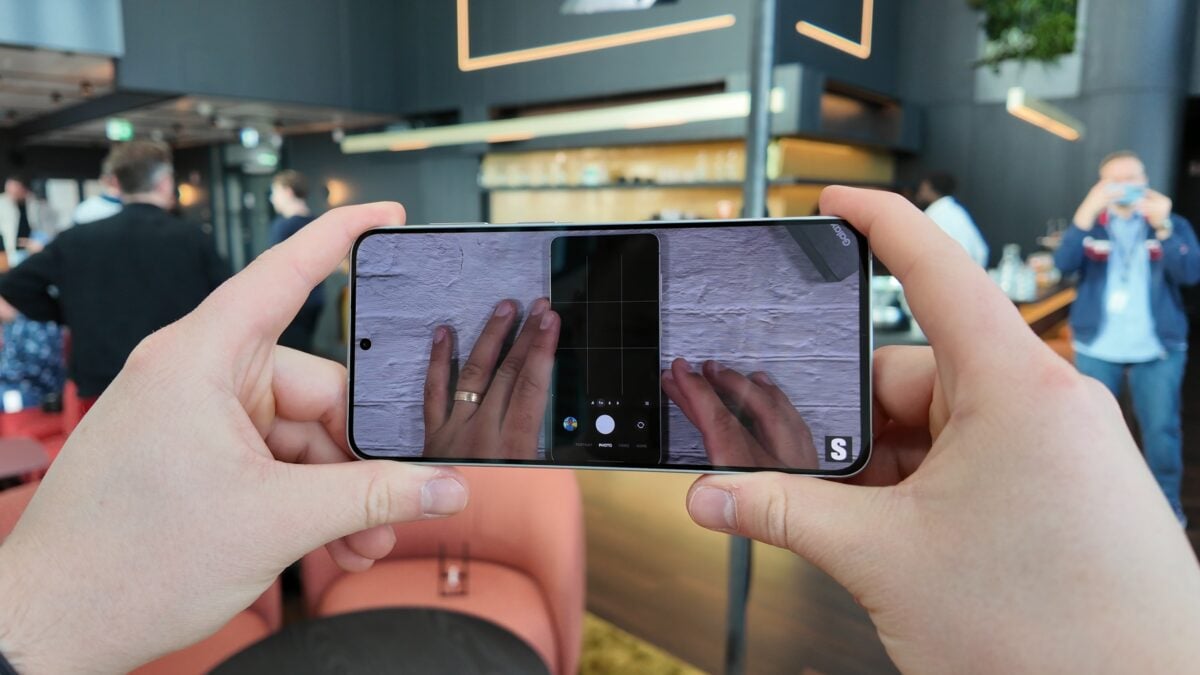
While the standard interface works well for casual users, it typically defaults to the phone's built-in microphones without offering an alternative. This can be frustrating if you have invested in professional gear or want to use the high-quality mics in your Galaxy Buds. Fortunately, Samsung provides a robust solution hidden within its advanced menus: Pro Video mode.
How to Select Your Preferred Microphone for Video
To take control of your soundscape, you must first transition from the basic video interface to the professional suite. Open your Camera app, navigate through the modes by swiping to the "More" section, and tap on Pro Video. For those who record frequently, you can customize your One UI experience by dragging this mode directly onto your main toolbar for instant access.
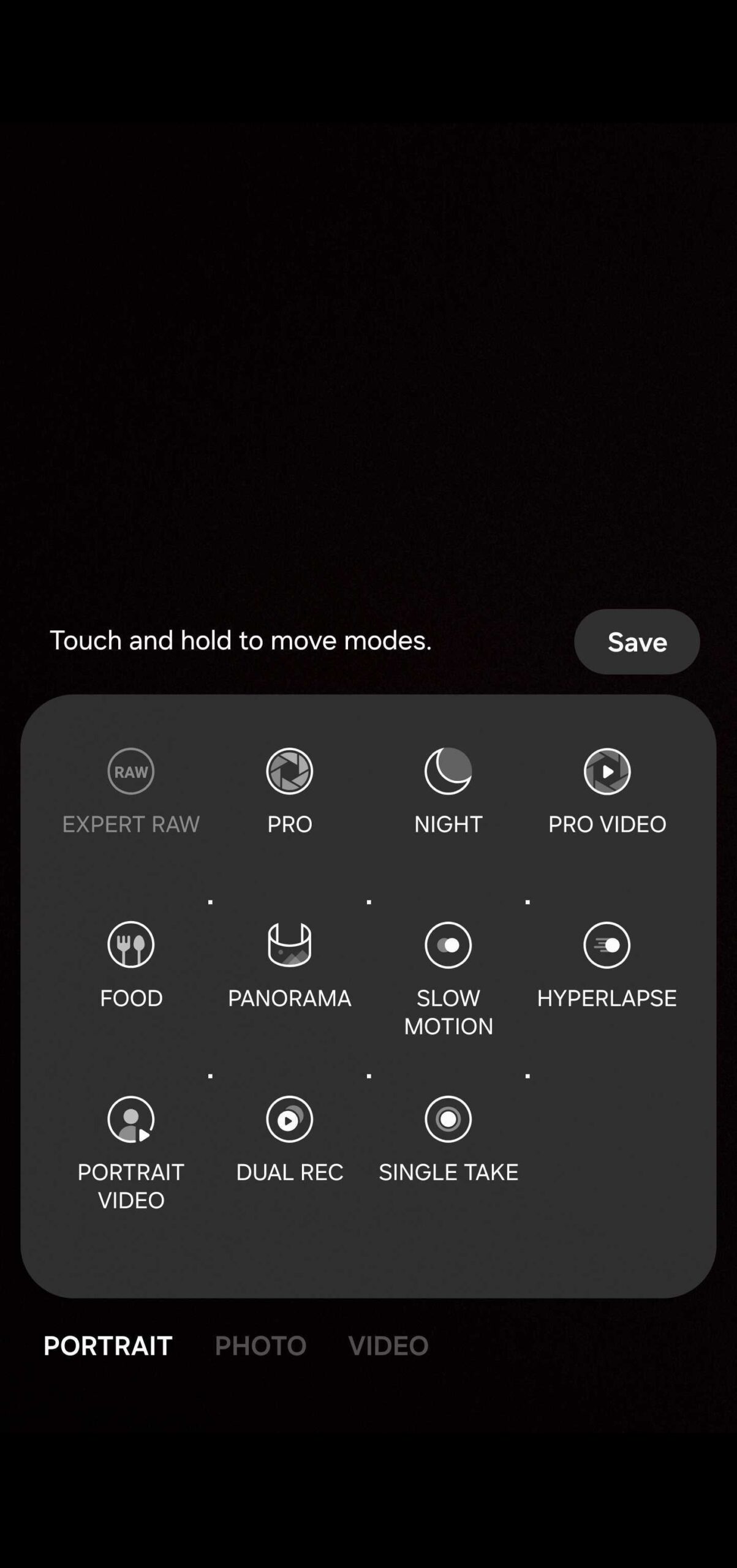
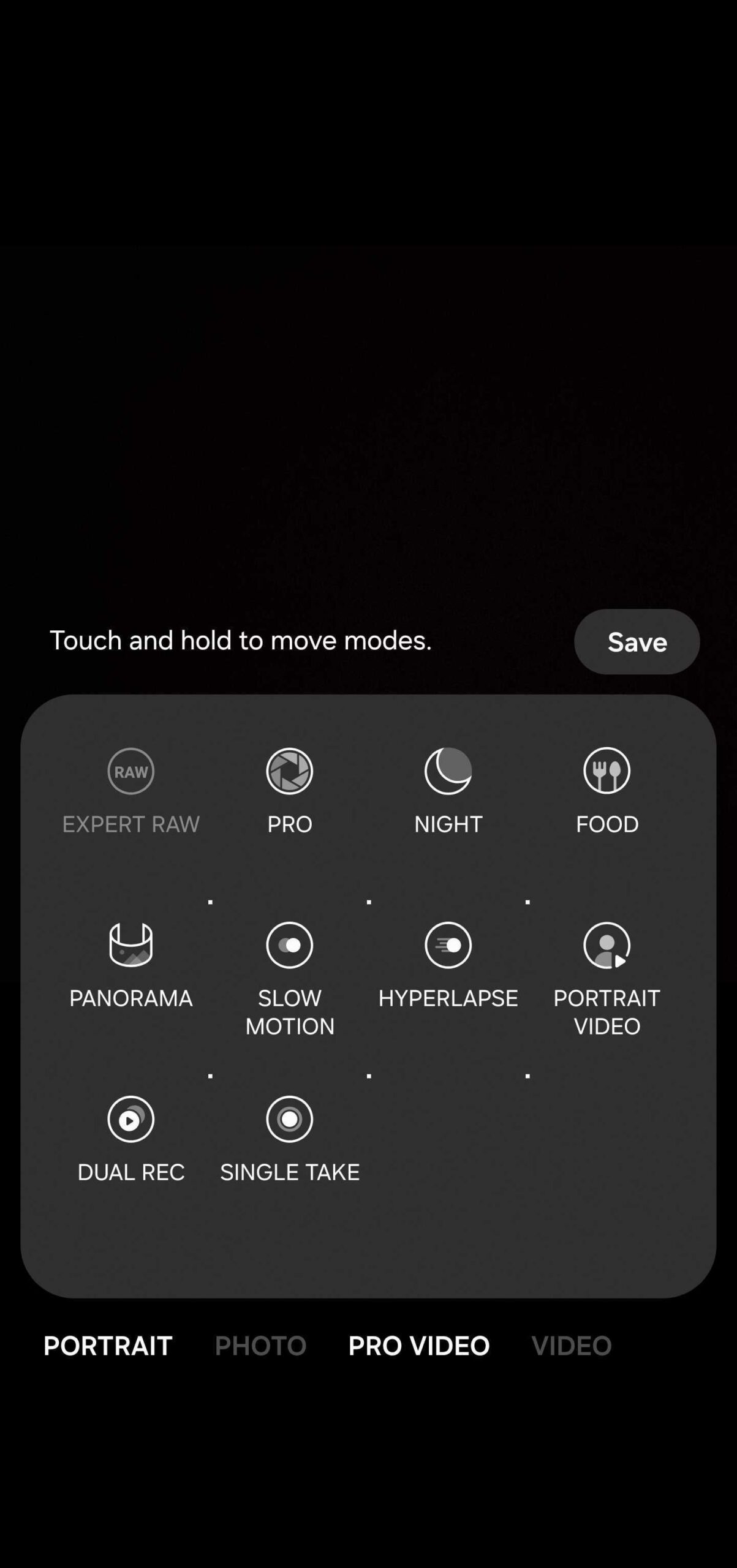
Once inside the Pro Video interface, look for the microphone icon (usually located at the top in portrait mode or the side in landscape). Tapping this icon opens a comprehensive menu of audio input options tailored to different environments:
- Omni: This setting captures sound from all directions, ideal for ambient noise or group settings.
- Front: Directs the focus to audio coming from the subject in front of the lens.
- Rear: Perfect for vloggers who want to narrate while filming their surroundings.
- USB: Automatically activates when a compatible external USB microphone is connected.
- BT (Bluetooth): Utilizes the microphones on connected Bluetooth devices like the Galaxy Buds 4 Pro.
- BT MIX: A unique feature that captures audio from both the Bluetooth headset and the phone's internal mics simultaneously.
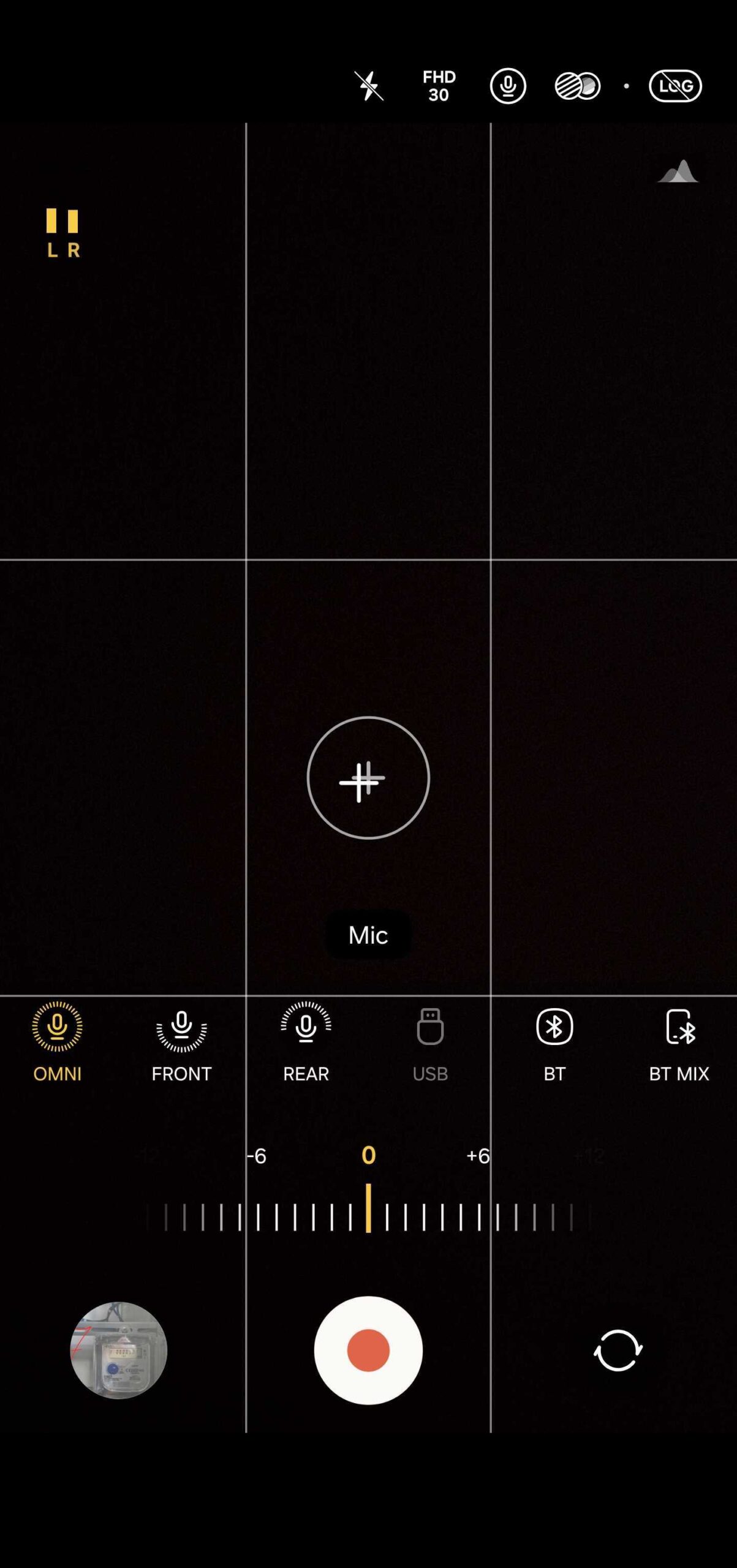
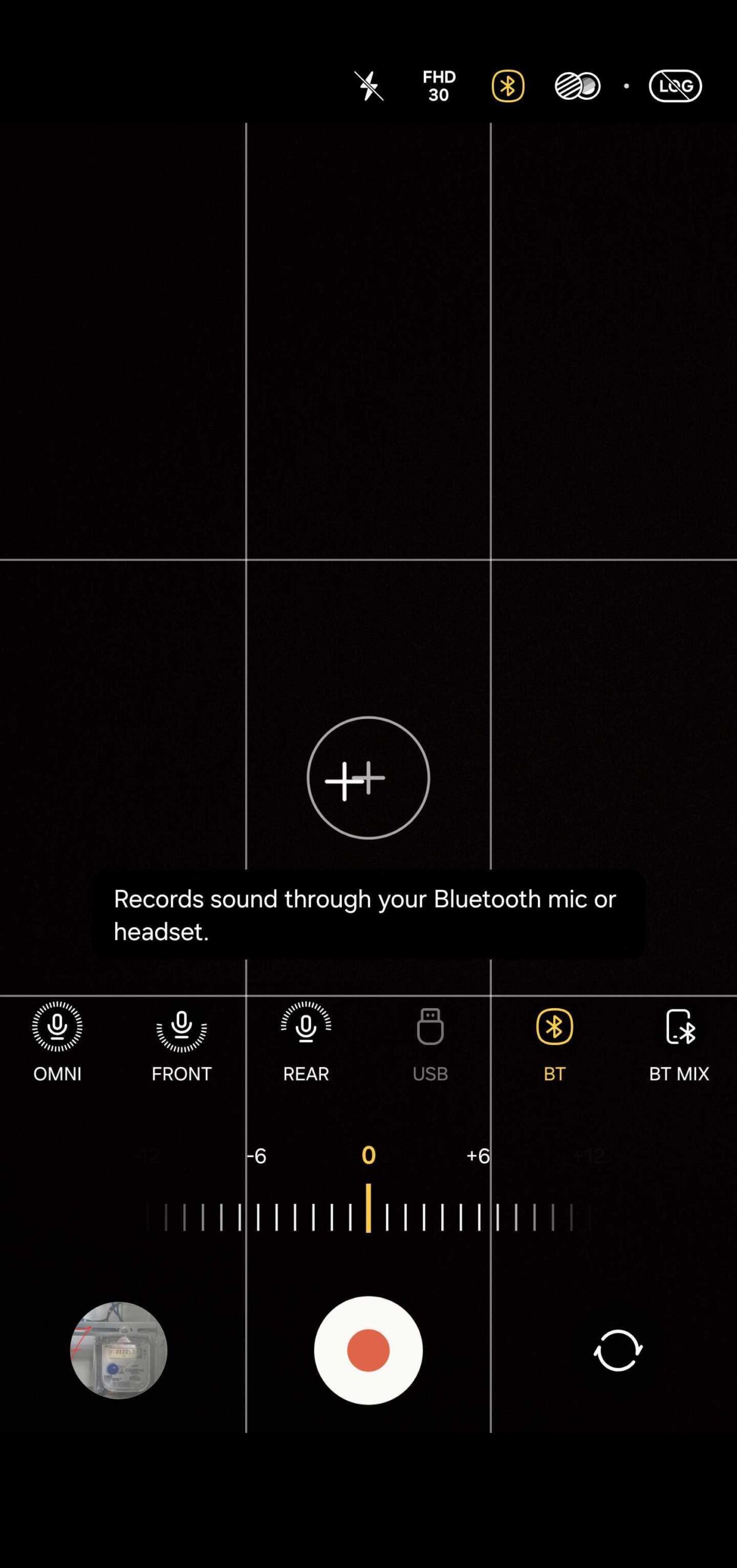
Pro Tip: Keep an eye on the microphone icon in your viewfinder. It changes visually based on your selection, allowing you to verify that your external mic is active at a glance before you press the record button.
For creators looking for the absolute best hardware to pair with these features, the Galaxy S26 Ultra offers unparalleled processing, while the latest earbuds provide studio-grade input. You can explore the best deals for these accessories below:
How do I know if my external microphone is working?
In Pro Video mode, the microphone icon in the viewfinder dynamically updates to show the active source. Additionally, you will see a real-time audio level meter that moves as sound is captured, confirming that the signal is reaching the app.
Can I record audio from both my phone and my earbuds?
Yes, by selecting the "BT MIX" option in the microphone settings. This is particularly useful for interviews where the cameraman is speaking while the subject is wearing a Bluetooth headset.
Is Pro Video mode available on all Samsung phones?
Most mid-range and flagship Galaxy devices running recent versions of One UI include Pro Video mode. However, the specific microphone options (like BT Mix) may vary depending on your hardware and software version.
Why should I use the Rear microphone setting?
The Rear setting is ideal when the person filming is the primary narrator. It prioritizes the voice of the person behind the camera while suppressing distracting noises from the front.
🔎 Mastering the audio capabilities of your Samsung device is a game-changer for any mobile videographer. By stepping away from the automated defaults and utilizing the Pro Video suite, you gain the precision needed to produce content that sounds as good as it looks. Whether you are using a professional USB rig or a simple pair of Galaxy Buds, the power to choose your sound source ensures your message is always heard loud and clear.
Post a Comment