
Master One UI: How to Customize Notification Sounds for Every App and Category
Most Samsung Galaxy users are well aware that they can assign unique ringtones to specific contacts, but a much more powerful feature often flies under the radar. Beyond simple ringtones, One UI customization allows you to set distinct notification sounds for individual applications. This level of control ensures you know exactly which app is demanding your attention without ever having to look at your display.
- ✨ Assign unique alert tones to different mobile applications for better recognition.
- ✨ Deep-dive into specific notification categories to separate personal messages from system alerts.
- ✨ Navigate the hidden menus within the latest Samsung Galaxy features update.
- ✨ Enhance your digital workflow by prioritizing sounds for high-importance apps.
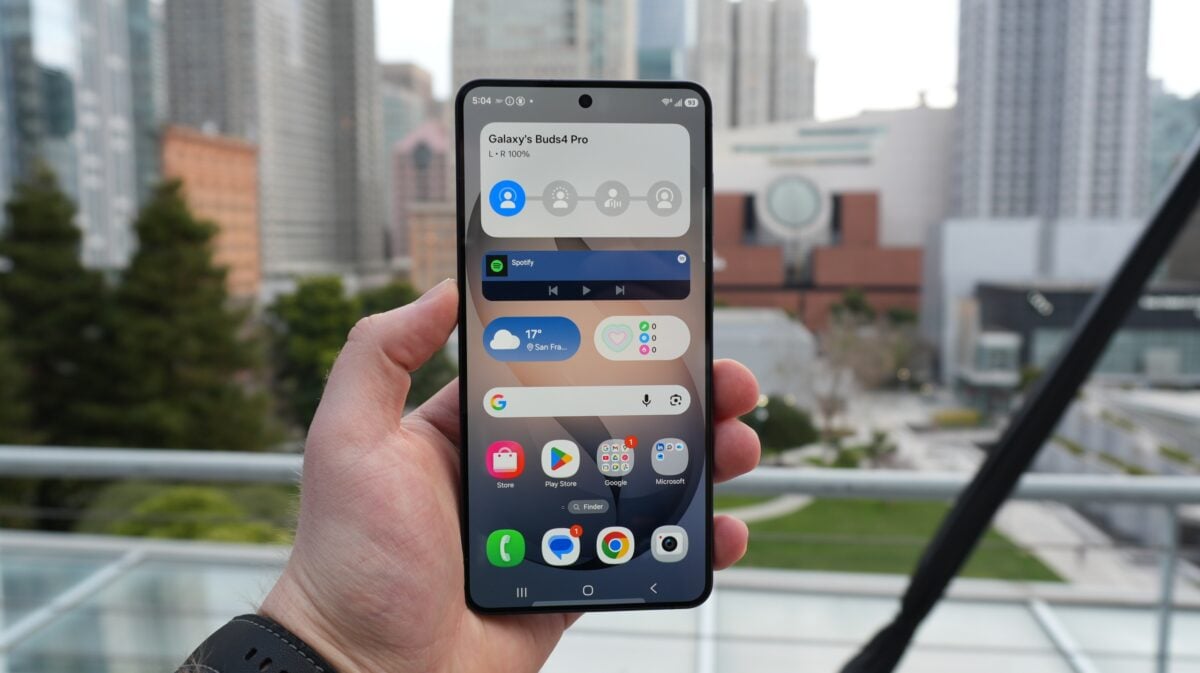
Unlocking Deep Notification Customization in One UI
You can actually take this functionality a step further by assigning unique sounds to specific notification categories within a single app. If you didn't know this feature existed, you aren't alone. It is considered one of the more obscure settings in Android tips for Samsung users, primarily because it requires a bit of digging into the system menus to activate.
If your Galaxy phone is running the latest software, here is the step-by-step guide to mastering your audio alerts:
- Open Settings and navigate to Notifications.
- Tap on App notifications and select the specific application you wish to modify.
- Ensure Allow notifications is toggled on, then tap Notification categories.
- Select a specific category (such as "General notifications") by tapping the text itself.
- Ensure Alert is enabled, tap Sound, and choose your preferred audio file.
Pro Tips for Managing Galaxy Alerts
When setting up your custom sounds, there are a few essential details to keep in mind to ensure the process works correctly. First, remember to tap the name of the category rather than just the ON/OFF toggle; tapping the toggle only enables or disables the alert, while tapping the name opens the deeper customization menu.
Additionally, you can apply a blanket sound to all notifications for an app by selecting "General notifications" if the app supports it. However, be aware that not every app category supports custom audio files, as some are hard-coded by the app developers themselves.
Samsung's notification ecosystem is significantly more robust than most users realize. While these settings are somewhat buried, they offer a powerful way to reclaim control over your device's audio profile. Give it a try on your Galaxy device and experience a more organized notification experience.
Can I set a different sound for individual group chats?
Yes, if the application (like WhatsApp or Telegram) supports notification categories for specific chats, you can follow the same steps to assign a unique tone to a specific conversation or group within the One UI settings.
Why can't I see the "Notification categories" option?
In some newer versions of One UI, you may need to enable "Manage notification categories for each app" under Settings > Notifications > Advanced settings before the option appears within individual app menus.
Will these custom sounds persist after a software update?
Generally, yes. System-level customizations for app notifications are tied to your user profile and should remain active even after updating to a newer version of One UI or Android.
Does this feature drain more battery?
No, assigning different audio files to different notification triggers does not have a measurable impact on your battery life compared to using the default system notification sound.
🔎 Mastering the hidden layers of One UI ensures that your smartphone works for you, rather than just being a source of constant interruptions. By taking the time to separate your alerts by sound, you create a more efficient digital environment where you can prioritize what truly matters without even needing to unlock your device.
Post a Comment