
Mastering Samsung TV Software: A Comprehensive Guide to Managing Automatic Firmware Updates
In the modern era of home entertainment, software updates for your Samsung TV have evolved to mirror the frequency and significance of smartphone firmware releases. Samsung has committed to a robust lifecycle for its displays, typically launching one major version of Tizen OS annually. Furthermore, the tech giant now supports its contemporary models with up to seven years of consistent updates, ensuring that even older hardware benefits from the latest features and the refreshed One UI interface layer.
- ✨ Learn the precise steps to toggle automatic Tizen OS updates on or off.
- ✨ Understand the trade-off between being an early adopter and maintaining system stability.
- ✨ Discover how to manually check for the latest firmware to avoid potential software bugs.
- ✨ Stay updated on the rollout roadmap for Tizen 9 and the upcoming Tizen 10.
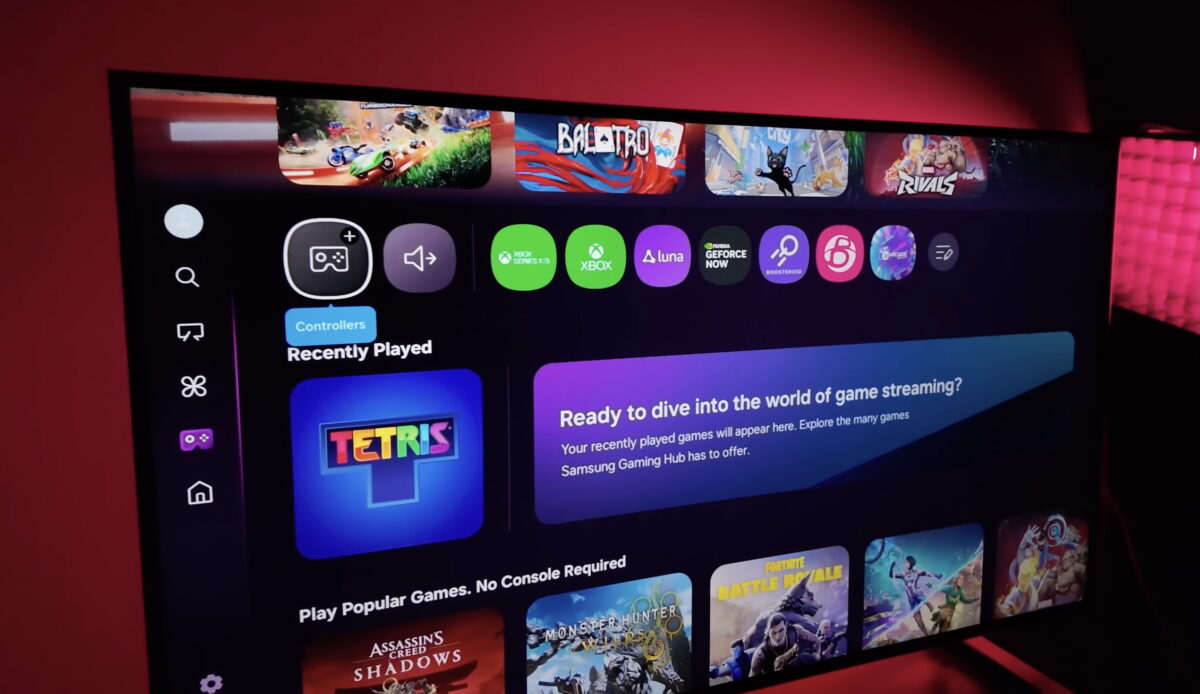
Despite these advancements, the transition to newer software isn't always seamless. For instance, the deployment of Tizen 9 was notably slower for legacy models than initially anticipated. When the update finally arrived last year, a segment of the user base encountered performance issues and bugs. While minor glitches are common in software development, the stability of a Smart TV is often viewed as more critical than that of a mobile device. Because a television is a central, non-portable fixture of the home, resolving a catastrophic software error is significantly more cumbersome than simply swapping out a phone.
How to Enable or Disable Automatic Updates on Your Samsung TV
As a user, you have the autonomy to decide your update strategy. You can choose to be an early adopter to access new features immediately, or you can play it safe by waiting for the community to verify the update's stability. Regardless of your preference, knowing how to manage these settings is essential for any owner. To adjust your preferences, press the Settings button on your remote and follow this path:
All settings > Support > Software update > Auto update (Toggle the switch to ON or OFF).
If you choose to keep automatic updates disabled, you aren't locked out of new features. You can still perform a manual check at any time. Simply return to the Software update menu and select the Update now button. This allows you to research the latest version online before committing to the installation.
Currently, the rollout of Tizen 9 continues for specific 2023 and 2024 models, bringing a host of One UI enhancements. Looking ahead, Tizen 10 is slated to debut with the 2026 Samsung TV lineup and will eventually reach older compatible models via future firmware updates.
Should I keep automatic updates turned on for my Samsung TV?
It depends on your priority. If you want the latest features and security patches without effort, keep it on. However, if you are concerned about potential bugs that might affect apps like YouTube or Netflix, turning it off and waiting a few weeks after a release is a safer approach.
How many years of software updates does Samsung provide for its TVs?
Samsung has recently announced a commitment to provide up to seven years of Tizen OS updates for its modern Smart TVs, significantly extending the functional life of the hardware.
What should I do if a firmware update causes bugs on my TV?
If you encounter issues after an update, check the "Support" menu for a self-diagnosis tool or a factory reset option. Often, community forums will provide workarounds for specific app glitches until a hotfix is released.
Will my older Samsung TV receive the Tizen 10 update?
Samsung typically rolls out major OS versions to models from the previous two to three years. While Tizen 10 debuts with the 2026 models, select 2024 and 2025 models are expected to receive it as part of Samsung's extended support promise.
🔎 Managing your Samsung TV's firmware is a vital part of maintaining a high-quality viewing experience. Whether you prefer the convenience of automatic updates or the control of manual installations, staying informed about the software lifecycle ensures your device remains secure and feature-rich. As Tizen OS continues to evolve with One UI, taking a moment to check your settings can prevent unexpected disruptions and keep your entertainment system running at its peak performance.
Post a Comment