
Mastering Samsung's One UI Tizen: How to Shrink Interface Size and Adjust Transparency
Samsung has recently begun rolling out its highly anticipated One UI Tizen update to a wider range of smart televisions, bringing a more unified and modern aesthetic to the living room. While much of the initial discussion focused on how to enlarge elements for better visibility, the update actually provides a surprising amount of flexibility for those who prefer the opposite. If you feel the default interface is a bit too "loud" or takes up too much screen real estate, Samsung has included hidden gems in the settings that allow you to scale things down and blend the menus more naturally into your viewing experience.
- ✨ Shrink UI elements below the standard default size for a cleaner look.
- ✨ Adjust menu transparency to keep your content visible while navigating settings.
- ✨ Optimize viewing for large screens or close-proximity seating arrangements.
- ✨ Simple navigation through the General & Privacy accessibility menus.
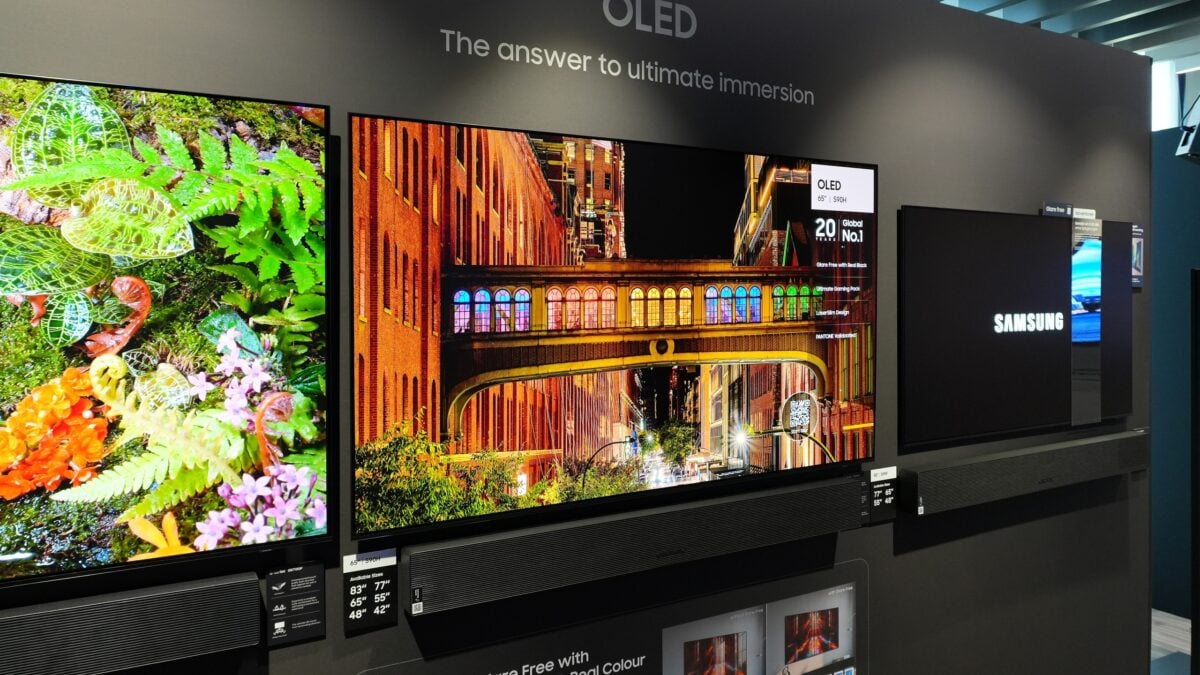
While many users look for ways to increase font sizes, the full picture of the latest Tizen update reveals a more sophisticated scaling engine. For owners of massive displays—such as a 77-inch or 85-inch Samsung Smart TV—the default icons can sometimes feel overwhelming. By shrinking the UI, you can gain a more professional, "monitor-like" feel that allows the stunning picture quality of your OLED or Neo QLED panel to shine through, even when you are adjusting settings.
Sitting close to a high-resolution screen often makes smaller UI elements preferable, as it reduces eye strain and prevents the menu from blocking too much of the action. Furthermore, the 2025 One UI Tizen update introduces a dedicated transparency slider, allowing the background video to bleed through the navigation bars, creating a truly immersive and futuristic user experience.
Step-by-Step: Customizing Menu Style and Opacity
To access these advanced scaling features, you must first ensure that certain accessibility overrides are disabled. If the system is forced into a high-visibility mode, the ability to shrink elements will be locked. Follow these steps to take full control of your display:
- Disable Zoom Features: Ensure that the "Zoom Menu and Text" accessibility setting is turned off. This is a prerequisite for shrinking the interface below the factory default.
- Navigate to Menu Style: Grab your remote and go to Settings > All settings > General & Privacy > Menu Style.
- Adjust UI Size: Use the left and right directional buttons on your remote to move the Size slider. Moving it to the left will reduce the footprint of the icons and text.
- Set Transparency: In the same menu, press down to reach the Transparency slider. Adjust it to your liking to make the menus more or less opaque.
It is worth noting that while UI size is restricted when "Zoom Menu and Text" is active, transparency remains adjustable regardless of your scaling choice. This ensures that even those who need larger text can still enjoy a modern, transparent aesthetic.
If you are using a 2023 or 2024 Samsung model and don't see these options yet, you may need to trigger a manual update. You can do this by navigating to Settings > All settings > Support > Software update > Update now. Keeping your firmware current is the best way to ensure you have the latest Tizen OS features and security patches.
Can I shrink the UI while the Zoom Menu and Text feature is enabled?
No, you cannot. The "Zoom Menu and Text" feature is designed to prioritize high visibility and forces the UI into a larger preset. To access the smaller scaling options, you must first disable this accessibility feature in the General & Privacy settings.
Which Samsung TV models support these new UI controls?
These features are primarily part of the latest One UI Tizen update being rolled out to 2023 and 2024 Samsung Smart TV models, including their OLED, Neo QLED, and QLED lineups. They are also standard on 2025 models and later.
Will adjusting transparency affect the performance of my TV?
No, adjusting transparency is a visual style choice and does not impact the processing speed or performance of the Tizen operating system. It is a built-in feature optimized for the TV's hardware.
How do I check if my TV has the latest firmware?
You can check for updates manually by going to the Settings menu, selecting "All Settings," then navigating to "Support" and choosing "Software Update." If an update is available, select "Update Now" to begin the installation.
Why would someone want a smaller UI on a television?
A smaller UI is often preferred by users who sit close to large screens or those who find the default menus too intrusive. It provides a cleaner, more sophisticated look that leaves more of the screen visible during navigation.
🔎 In conclusion, Samsung's transition to a One UI-inspired Tizen interface is about more than just a fresh coat of paint; it is about giving users the granular control they deserve. Whether you are looking to maximize visibility or minimize the digital footprint of your menus, these new size and transparency sliders offer the perfect balance. By taking a few moments to dive into the Menu Style settings, you can tailor your Samsung Smart TV to perfectly match your viewing environment and personal aesthetic preferences.
Post a Comment