
How to Force Standard Refresh Rate on Specific Samsung Galaxy Apps for Better Efficiency
Once you transition to a smartphone featuring a high refresh rate display, returning to the old standard feels nearly impossible. After experiencing the fluid animations and seamless UI transitions provided by modern screens, a traditional 60Hz refresh rate can often feel sluggish or laggy. Today, high refresh rate technology has moved beyond flagships, appearing in everything from entry-level devices to top-tier models, making it the new industry standard for the Samsung Galaxy ecosystem.
Article Highlights:
- ✨ Learn how to use Samsung's Display Assistant to control per-app refresh rates.
- ✨ Understand why high refresh rates aren't always necessary for apps like YouTube.
- ✨ Step-by-step guide to installing and configuring Good Lock modules on One UI 7.0.
- ✨ Discover the impact of refresh rate capping on daily battery endurance.
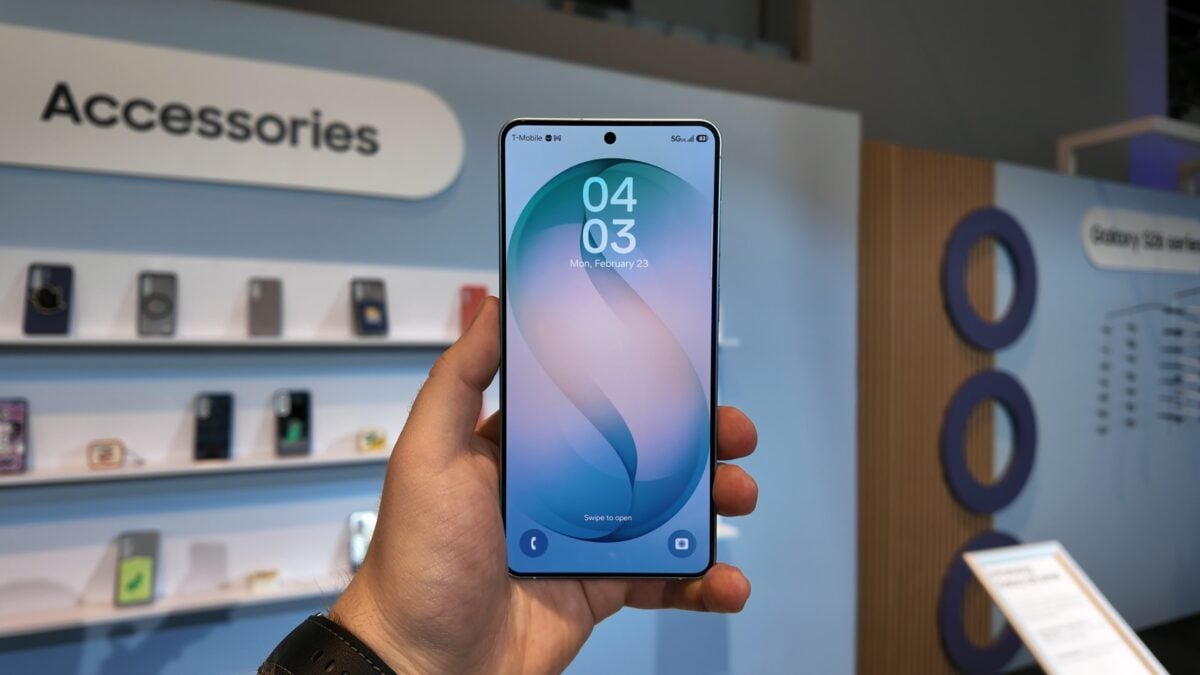
Samsung smartphones have embraced this trend fully. Even the budget-friendly Galaxy A07 5G boasts a 90Hz display, while 120Hz has been the standard for flagship models for several years. However, high refresh rates come with a trade-off: a noticeable battery life penalty. The reality is that not every application requires the screen to refresh 120 times per second. YouTube is a prime example; most video content is rendered at 24 or 30 frames per second, yet the app interface often forces the display to run at its maximum capability during navigation.
While 120Hz makes scrolling through comments or browsing video suggestions feel incredibly smooth, it is often unnecessary. Flagship devices with adaptive refresh rates do drop to 60Hz during full-screen video playback, but the moment you touch the screen, the display ramps back up to 120Hz. To address this, users can now manually cap the refresh rate for specific apps to conserve energy and optimize performance.
Using Display Assistant to Manage Refresh Rates
Samsung’s Good Lock suite offers a powerful tool called Display Assistant. This application allows users to force individual apps to run at a standard 60Hz refresh rate, regardless of the device's peak hardware capabilities. By selectively choosing which apps use high refresh rates, users can create a more balanced experience.
In testing, running YouTube for 30 minutes at 120Hz versus 60Hz showed identical battery drain for that specific window. While capping a single app might not provide a "magic bullet" for battery life, the cumulative effect across multiple apps throughout a full day can be significant. Having the granular control to decide which apps deserve high-speed smoothness is a valuable feature for power users.
How to Limit Apps to Standard Refresh Rate
The Display Assistant tool is compatible with Galaxy devices running One UI 7.0 (Android 15) and later. To begin, you must download the application. You can find it by searching the Galaxy Store on your device.
If the app is not visible in your regional Galaxy Store, you can obtain the APK file from trusted third-party repositories. Once you have the file, transfer it to your phone and install it manually via the My Files app.
Once the installation is complete, follow these steps to configure your apps:
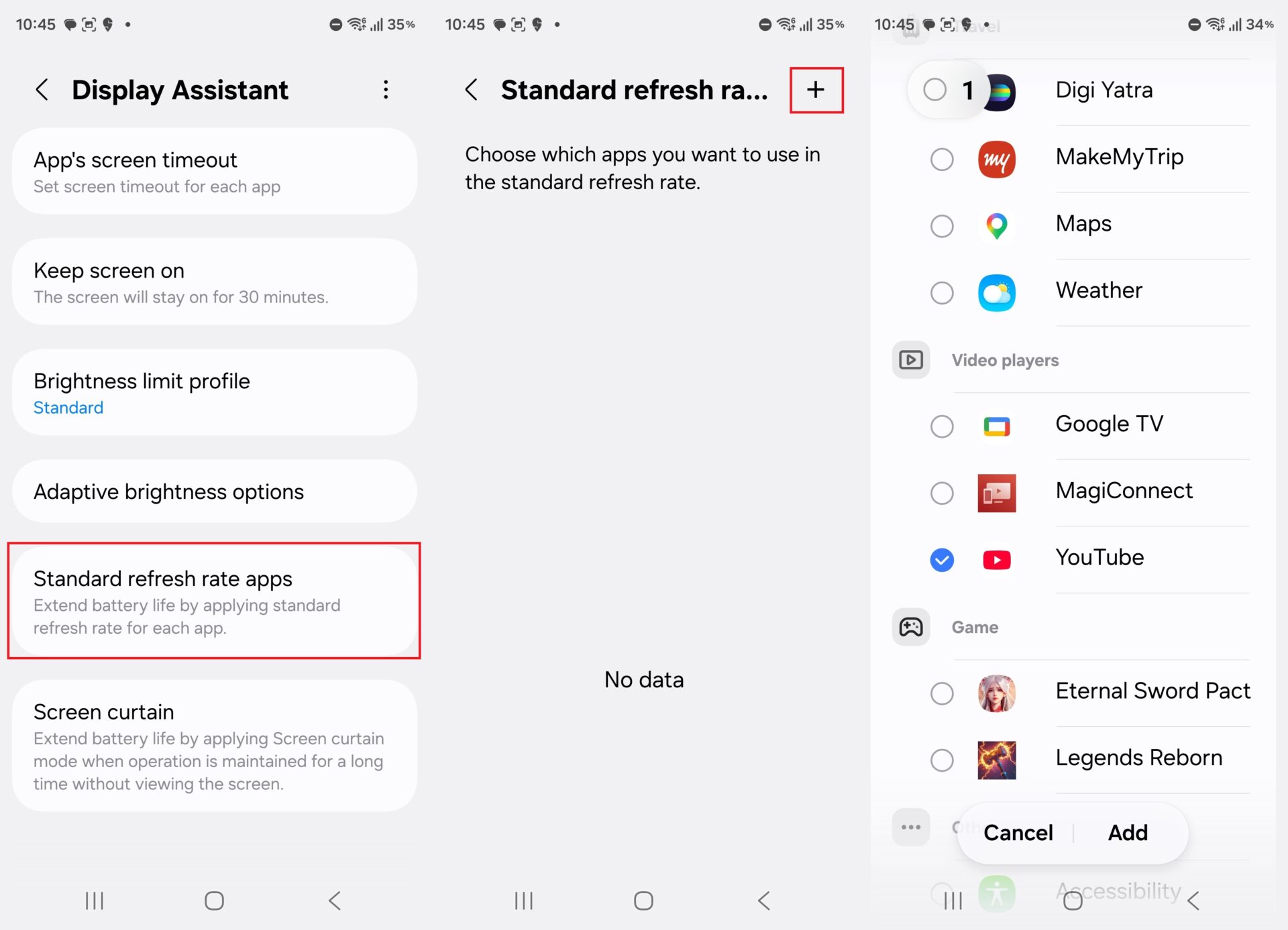
- ✨ Open Display Assistant from your app drawer.
- ✨ Select the option labeled Standard refresh rate apps.
- ✨ Tap the + icon to browse your installed applications.
- ✨ Check the boxes for the apps you wish to limit to 60Hz.
- ✨ To revert an app to maximum speed, long-press its name in the list and select Remove.
Will this significantly increase my battery life?
Capping the refresh rate on a single app like YouTube may not show an immediate, massive difference in a short test. However, over a full day of mixed usage across several apps, reducing the display's power draw can contribute to better overall endurance.
Which version of One UI is required?
This specific feature within Display Assistant is designed for devices running One UI 7.0 or higher, based on Android 15. Older versions may not support this specific module functionality.
Can I set different refresh rates for different games?
Display Assistant focuses on forcing a "standard" 60Hz rate for general apps. For games, Samsung's Game Booster and Game Plugins (specifically Game Booster Plus) are better suited for fine-tuning frame rates and performance profiles.
Is it easy to undo these changes?
Yes, the process is entirely reversible. You can simply go back into the Display Assistant settings and remove the apps from the "Standard refresh rate" list to restore their ability to use 120Hz or adaptive rates.
Does this affect the smoothness of the system UI?
No, this setting only applies to the specific applications you select. Your home screen, notification shade, and other system-wide transitions will continue to run at the maximum refresh rate supported by your device.
🔎 Managing the refresh rate of your smartphone is a smart way to tailor your device's performance to your specific needs. While high refresh rates are a luxury that makes modern phones feel premium, the ability to toggle them off for apps where they provide little benefit is a welcome addition to Samsung's software suite. By utilizing tools like Display Assistant, you can ensure your Galaxy phone remains efficient without sacrificing the smoothness where it matters most.
Post a Comment