
Master Your Gameplay: How to Real-Time Monitor FPS and System Stats on Samsung Galaxy Devices
Gamers are naturally drawn to performance metrics. Whether you are playing on a high-end PC, a console, or a mobile device, there is a distinct sense of satisfaction in watching a steady FPS counter in the corner of your screen. For many, it is a tool to verify device performance, while for others, it serves as the ultimate proof of their hardware's capabilities. If you are a Samsung Galaxy user, you might be surprised to learn that you do not need any third-party software to access these detailed statistics.
- ✨ Track real-time frame rates (FPS) without downloading external apps.
- ✨ Monitor CPU, GPU, and RAM consumption during active gaming sessions.
- ✨ Access built-in tools via the official Game Booster utility.
- ✨ Customize your screen with a movable floating performance overlay.
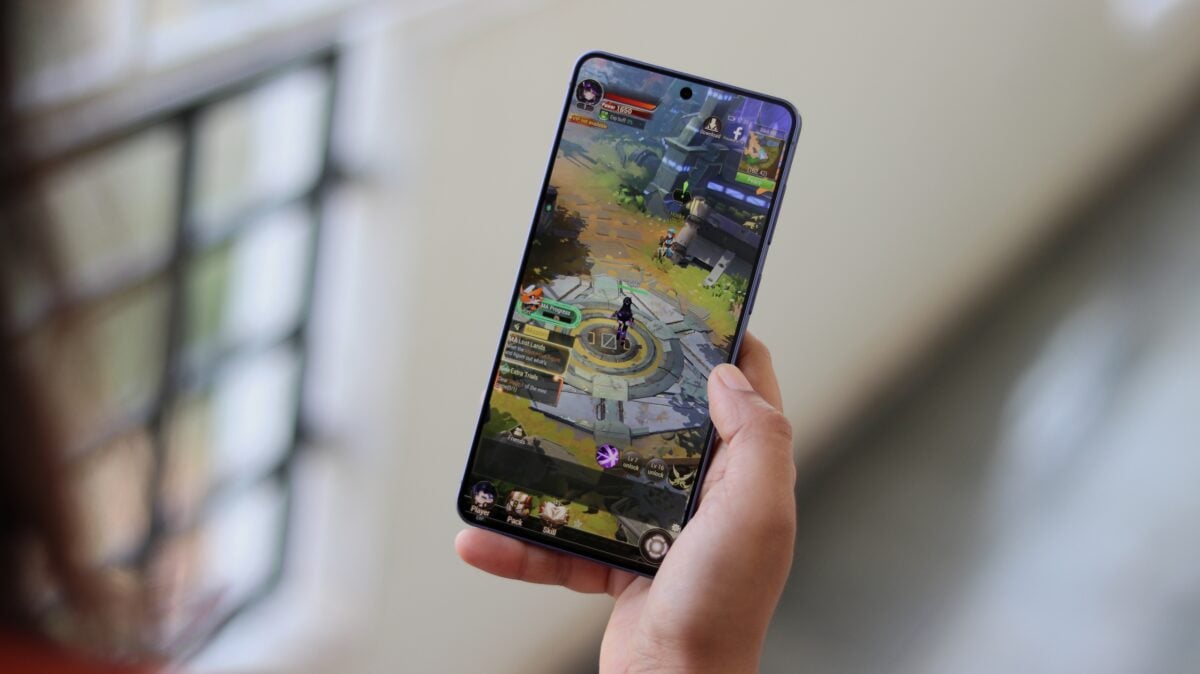
Beyond just frame rates, enthusiasts often want to keep a close eye on internal hardware behavior, specifically CPU and GPU load. Samsung’s native Game Booster application features a robust System Monitor tool. This feature provides a real-time overlay that sits directly on top of your game, displaying FPS alongside critical data regarding your processor, graphics chip, and memory usage.
How to Activate the System Monitor in Game Booster
Accessing these stats is straightforward once you are inside a game. The method to trigger the menu varies slightly depending on your navigation settings. If you use traditional navigation buttons, simply swipe up from the bottom of the display and tap the dedicated icon. If you prefer navigation gestures, you can swipe right on the small handle located on the side of the screen to bring up the interface.


Once you have the interface open, locate and tap the "System Monitor" button. This action immediately generates a floating window on your screen. This window is your dashboard for real-time performance, showing exactly how many frames per second your device is pushing and how much of your system's resources are being utilized at any given moment.

The beauty of this floating window is its flexibility; you can drag it to any corner of the screen so it doesn't obstruct your view of the action. It remains active throughout your play session, providing a constant stream of data. This is particularly useful for identifying if a game is poorly optimized or if your device is starting to throttle due to heat.

Once you have enabled it, the overlay will automatically reappear every time you launch a game. If you decide you no longer need the stats, simply return to the menu and tap the button again to hide it. Note that while this feature is highly useful, it is generally found on more recent hardware—specifically devices released in 2024 or later running One UI 8.0 and above.
Will the FPS counter work on older Samsung phones?
Generally, the native System Monitor in Game Booster is optimized for newer devices. Most Samsung phones launched from 2024 onwards that support One UI 8.0 or higher will have this feature built-in. Older models may require third-party plugins like "Game Plugins" from the Galaxy Store.
Can I customize which stats are displayed in the window?
The standard System Monitor provides a fixed set of data including FPS, CPU, GPU, and RAM. While you cannot hide individual metrics in the basic version, you can move the entire window to any position on the screen to ensure it doesn't interfere with your game's UI.
Does using the System Monitor affect game performance?
The performance impact is negligible. Because it is a native system tool integrated into the One UI environment, it is designed to run efficiently in the background without causing lag or significant battery drain.
How do I stop the FPS counter from appearing?
To disable the overlay, open the Game Booster menu while in-game (using your preferred swipe method) and tap the System Monitor button again. This will toggle the feature off and prevent it from appearing in future sessions until you re-enable it.
🔎 Monitoring your device's performance is the best way to ensure you are getting the most out of your mobile gaming experience. By utilizing Samsung's built-in System Monitor, you gain professional-grade insights into your hardware's health and efficiency without the clutter of extra apps. Whether you are troubleshooting frame drops or simply enjoying the technical side of gaming, these tools provide everything you need at your fingertips.
Post a Comment