
Master Your Privacy: How to Secure Samsung Galaxy S26 Ultra Notifications with Privacy Display
The **Galaxy S26 Ultra** is a powerhouse of technology, but its expansive screen can sometimes feel like an open book to anyone standing nearby. Samsung has addressed this with one of its most innovative software features to date: the Privacy Display. This tool is designed to ensure that your sensitive information remains seen only by you, utilizing advanced hardware and software integration to shield your data from prying eyes.
- ✨ Restrict viewing angles to prevent "shoulder surfing" in public spaces.
- ✨ Automatically activate privacy shields only when notifications appear.
- ✨ Choose between Standard and Maximum protection levels.
- ✨ Seamless integration with Samsung’s Modes and Routines for automated security.
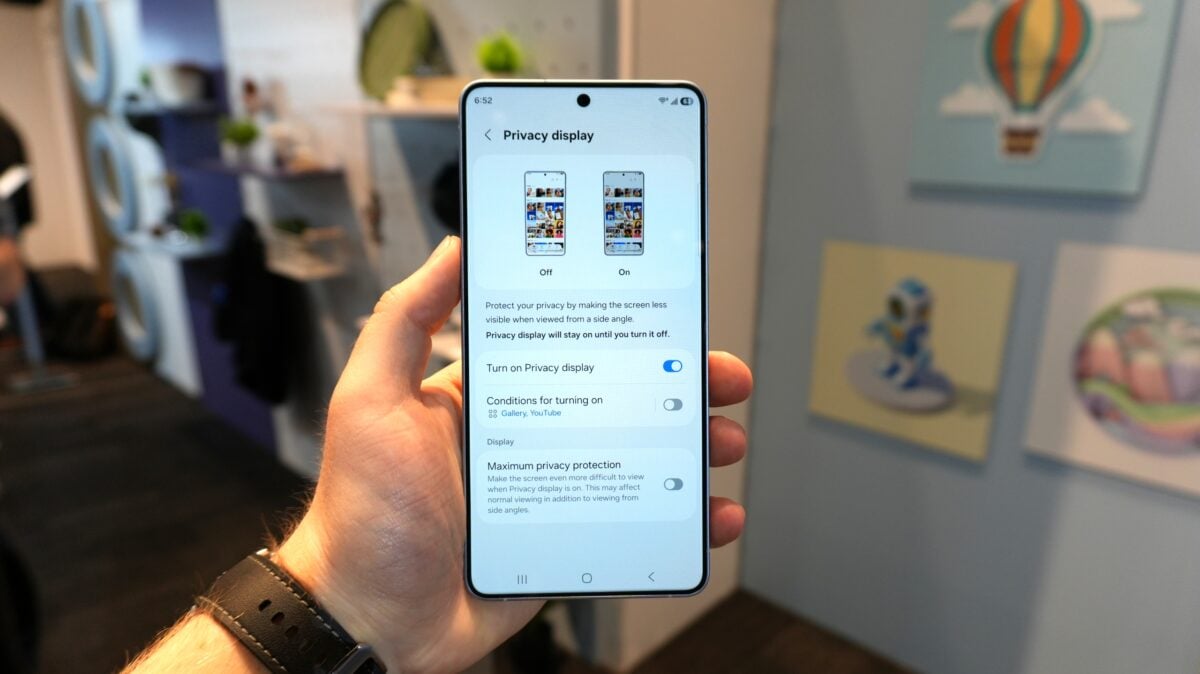
The Privacy Display on the **Galaxy S26 Ultra** is significantly more advanced than a simple screen filter. It works by physically limiting the light emission angles of the display, making the content invisible when viewed from the side or from above. Whether you are on a crowded train or in a meeting, you can rest assured that your screen content is for your eyes only. **Click here to explore our full guide on how Privacy Display works on the S26 Ultra**.
What makes this feature truly remarkable is its flexibility. You don't have to keep it on at all times. Instead, you can configure it to trigger only when you are performing sensitive tasks, such as accessing banking applications or entering a password, pattern, or PIN. Once the task is completed, the display automatically returns to its standard wide-viewing state.
Optimizing Your Galaxy S26 Ultra Notifications
One of the most practical applications of this technology is specifically for **Galaxy S26 Ultra notifications**. Instead of dimming the entire screen, you can set the device to only obscure the specific area where a notification pop-up appears. This ensures you can still read your main content while the incoming message remains hidden from onlookers.
Step-by-Step: Enabling Notification Privacy
Setting up this specialized protection is straightforward. Follow these steps to secure your **Privacy Display settings**:
- Open the Settings app on your device.
- Navigate to Display.
- Tap on Privacy Display.
- Select Conditions for turning on.
- Toggle the switch for Notification pop-ups.
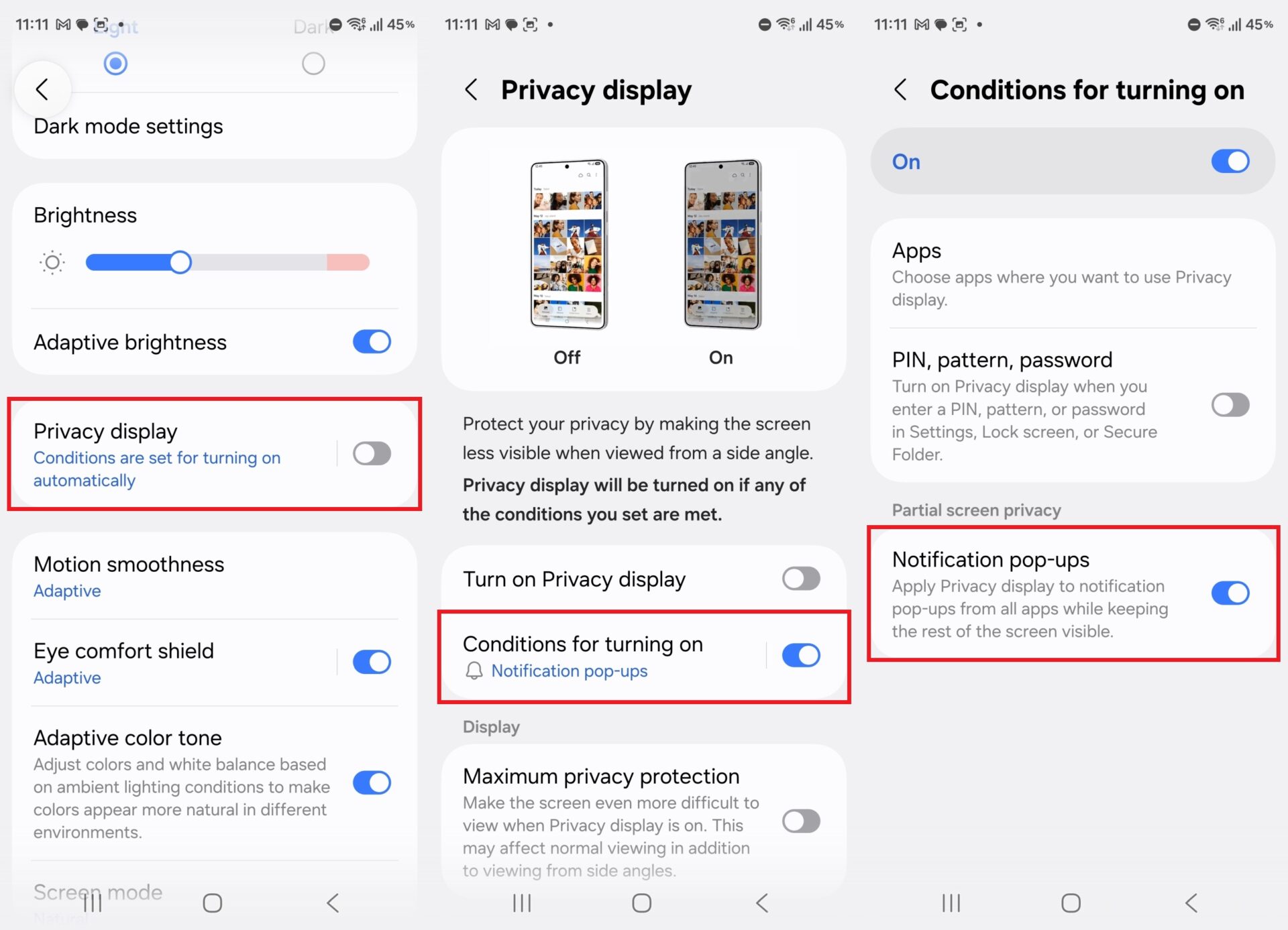
Once enabled, the Privacy Display will engage the moment a notification arrives and disengage as soon as the pop-up is dismissed. This functionality is consistent across the lock screen, the unlocked home screen, and even the Always On Display (AOD) mode. For those seeking the highest level of security, we recommend selecting the Maximum privacy protection option within the menu.
Does Privacy Display work with the Always On Display?
Yes, the feature is fully compatible with the Always On Display. If a notification pop-up appears while your phone is resting on a desk in AOD mode, the privacy shield will activate to ensure no one nearby can read the message content.
Will this feature drain my battery faster?
The battery impact is negligible. Because the feature uses the display's internal pixel structure to limit viewing angles rather than relying on high-brightness masks, it is highly efficient and won't noticeably shorten your daily battery life.
Can I use a screen protector with Privacy Display?
Standard clear screen protectors will not interfere with the Privacy Display functionality. However, using a third-party "privacy" screen protector on top of this built-in feature is not recommended, as it may cause visual artifacts or excessive dimming.
Can I set Privacy Display to turn on for specific contacts?
While the basic setting applies to all notification pop-ups, you can use the Samsung **Modes and Routines** app to create a specific routine that activates Privacy Display only when you receive messages from selected contacts or through specific messaging apps.
🔎 In conclusion, the Privacy Display on the **Galaxy S26 Ultra** is a game-changer for anyone concerned about **Samsung mobile security**. By allowing the device to selectively hide notification content, Samsung has provided a tool that balances convenience with high-level protection. Taking a few moments to configure these settings will ensure that your personal conversations and sensitive alerts stay exactly where they belong—private.
Post a Comment