
Mastering Samsung One UI 8.5: How to Find and Use Missing Video Filters
If you are a fan of recording videos with creative filters on your Galaxy smartphone, you might have encountered a frustrating surprise after the latest update. In Samsung One UI 8.5, many users noticed that the familiar video recording filter option has seemingly vanished from the main interface of the Camera app. While it might look like the feature was deleted, it has actually been moved and streamlined into different parts of the ecosystem.
- ✨ Discover why video filters were moved in the latest One UI update.
- ✨ Learn the two primary methods to apply filters to your Galaxy videos.
- ✨ Explore the new Cinematic LUT options for Pro Video users.
- ✨ Step-by-step guide to using the Gallery app for post-recording edits.
The good news is that if your phone is running One UI 8.5, you can still apply professional-grade filters to your videos using native Samsung software. You simply need to adapt to a slightly different workflow. Whether you prefer editing after the fact or using advanced cinematic tools during the shoot, here is exactly how to navigate these changes.
Adding Video Filters in One UI 8.5: The New Workflow
In essence, Galaxy users now have two main avenues to apply visual styles to their recordings. The first method involves the Gallery app for post-production, while the second utilizes the Camera app’s advanced modes for real-time cinematic grading.
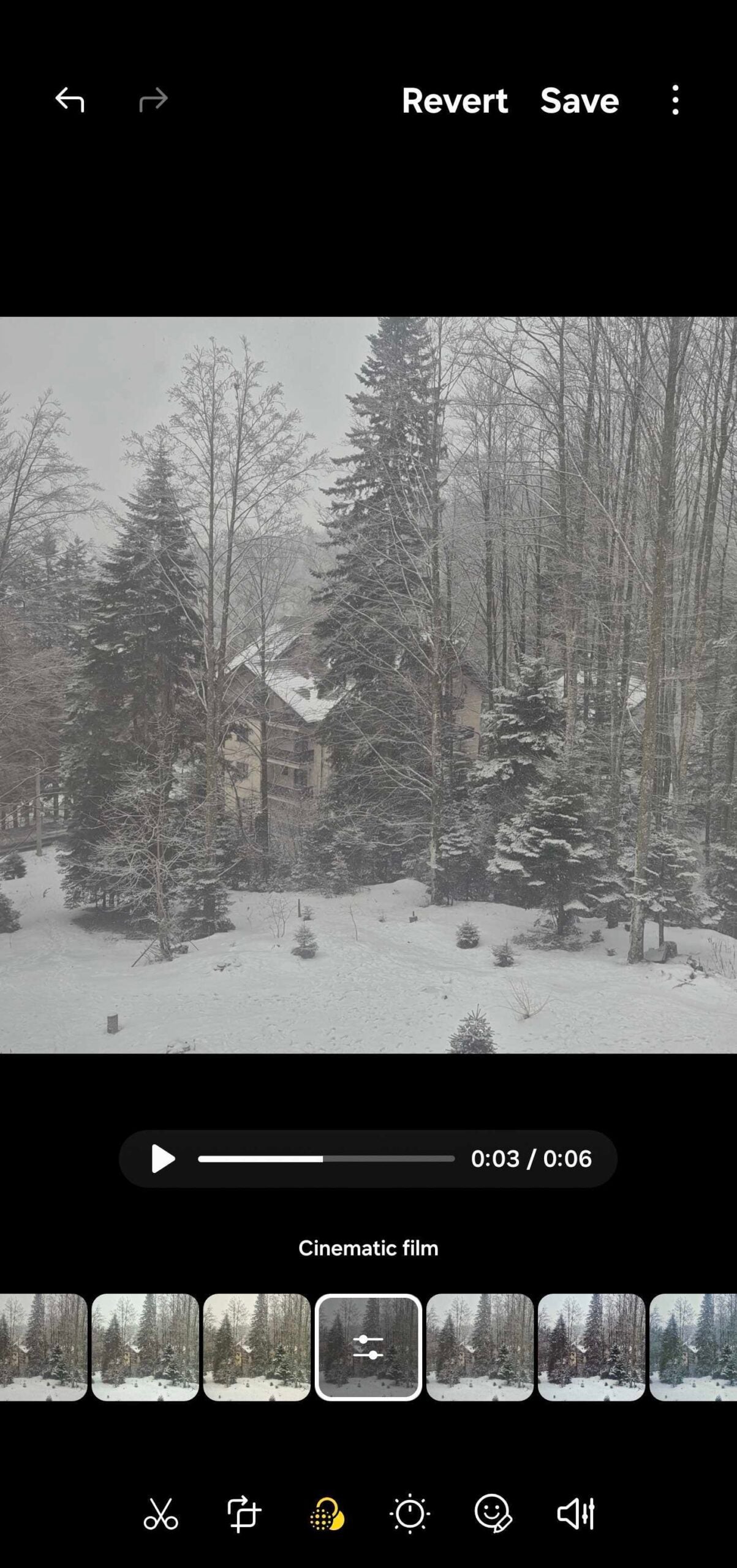
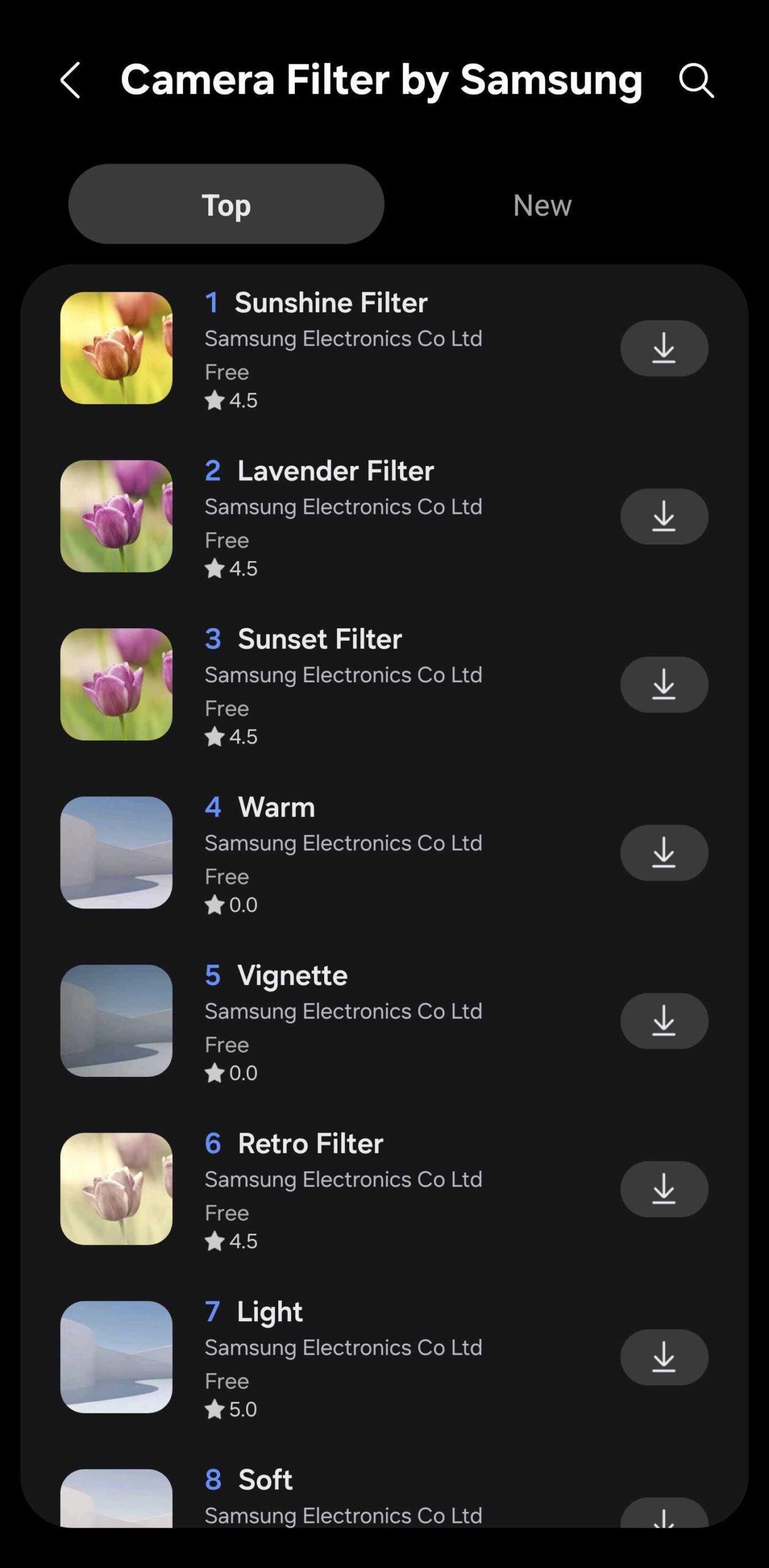
- The Gallery Method: This is the most versatile way to apply filters to existing video recordings. By using the post-editing tools in the Gallery, you have access to 13 preloaded filters. Furthermore, you can download an endless variety of new styles from the Galaxy Store by scrolling to the far right of the filter menu. While many are free, some premium options are paid. You can even create custom filters based on the color palette of your favorite photos.
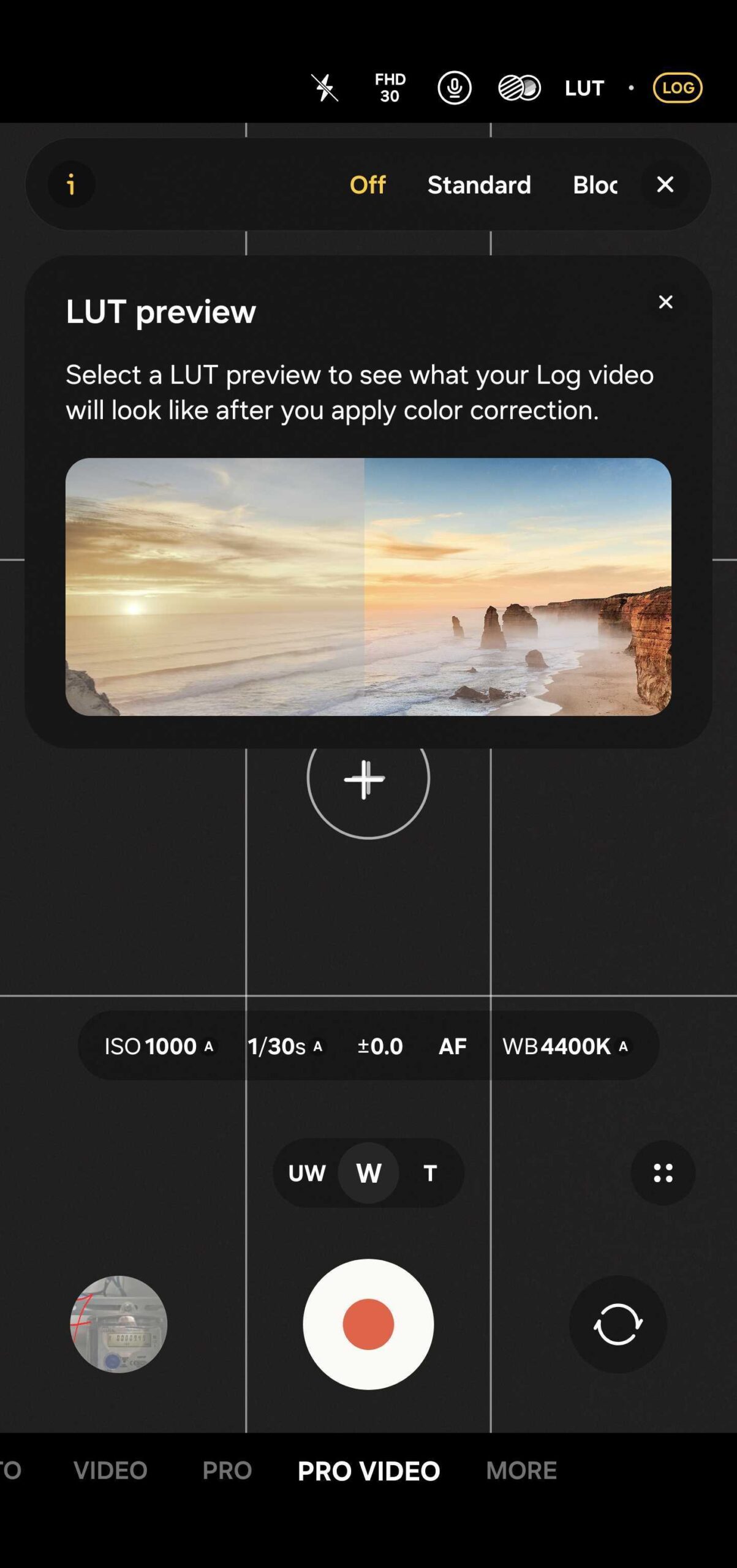
- The Camera App Method (LUTs): For those using a Galaxy S24 or a newer flagship model running Samsung Camera software, there is a more professional alternative. You can choose the "Log" video format and apply "Cinematic LUT" (Look-Up Table) filters. These include presets like Standard, Blockbuster, Coming-of-age, Romance, and Thriller.
PRO TIP: If you do not see the "Log" video option immediately, you must enable it. Navigate to Camera Settings > Video Format > Log. From there, you can select to have it active for "Pro video mode only" or both "Video and Pro video modes." Once enabled, the Log icon will appear in the upper-right corner of your viewfinder. Tap it, then select LUT to browse the cinematic styles.
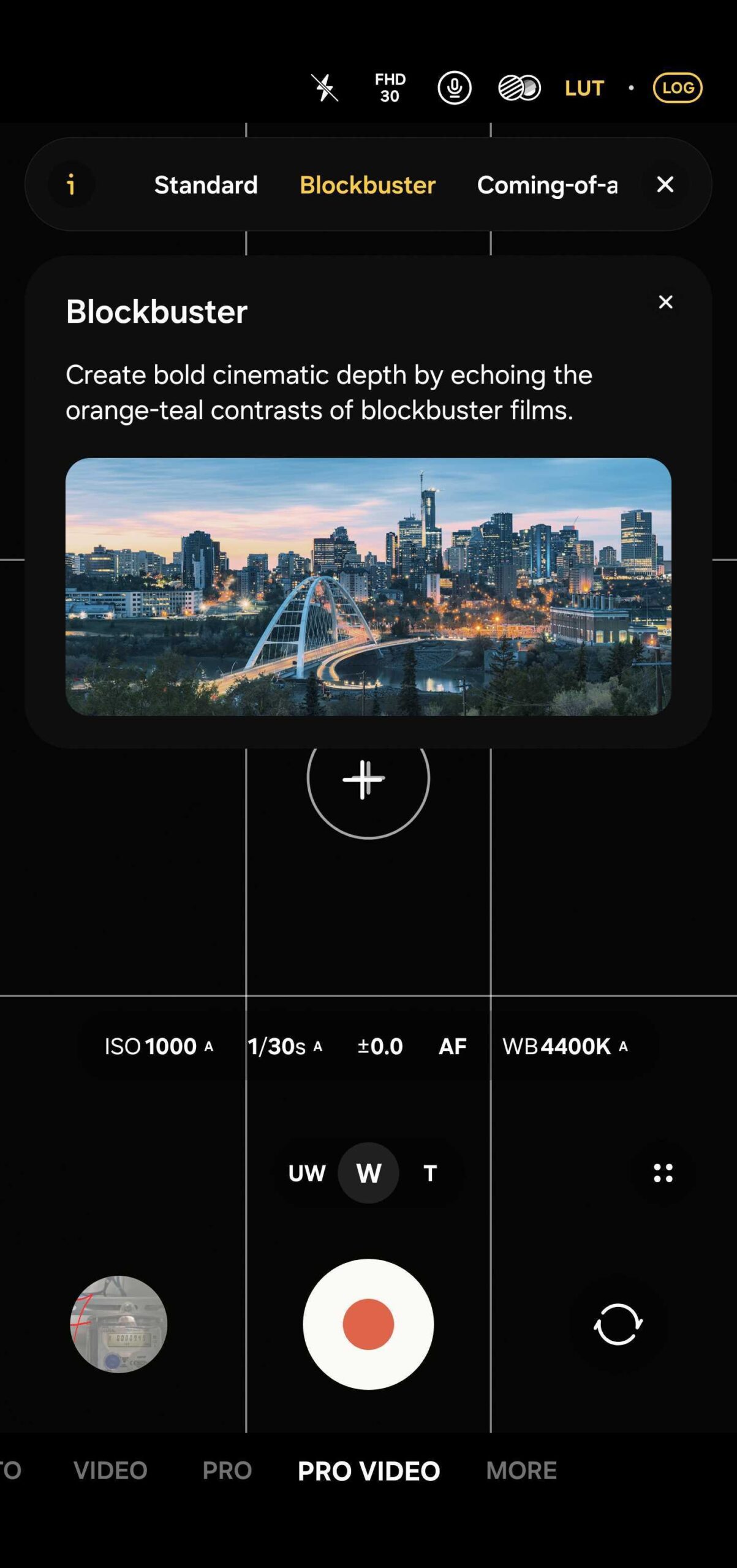
Samsung’s recent iterations of One UI have focused heavily on streamlining the user interface and reducing clutter. While removing direct video filters from the standard Camera mode might seem like a step backward for casual users, it aligns with Samsung’s goal of separating "quick snapshots" from "advanced content creation."
Currently, there is no indication that Samsung intends to bring back the legacy video filters to the standard Camera interface in the upcoming One UI 9 beta. This suggests the change is permanent. However, by mastering the Gallery editing tools and the new LUT system, you can actually achieve higher-quality results than the old filters ever provided.
Does One UI 8.5 still support third-party video filters?
Yes, you can still download additional filters through the Galaxy Store within the Gallery app's editor. Additionally, third-party camera apps from the Play Store remain unaffected by these internal One UI changes.
Why can't I find the Log video option on my Galaxy A-series phone?
The Log video format and Cinematic LUTs are currently reserved for Samsung's flagship hardware, such as the Galaxy S24 series and newer. Mid-range devices typically rely on the Gallery app method for applying filters.
Can I create my own custom filters in One UI 8.5?
Absolutely. Within the Gallery app's video editor, there is an option to "Create Filter." This allows you to select any photo from your gallery, and the AI will extract the color profile and lighting to create a unique filter for your video.
Will these filters return to the main Camera app in One UI 9?
As of now, leaked information regarding the One UI 9 development does not show a return of these legacy filters. Samsung appears to be doubling down on the Gallery-centric editing workflow.
🔎 While the initial disappearance of video filters in One UI 8.5 may be jarring, the new system offers much more control for those willing to explore the Gallery and Pro Video settings. By moving these features, Samsung has paved the way for more advanced tools like LUTs, which provide a truly professional look to mobile videography. Stay tuned as we continue to track how these features evolve in future software updates.
Post a Comment