
How to Disable the Samsung TV Game Bar Auto-Launch for a Distraction-Free Experience
Samsung's Game Mode for televisions is quite simply a total game-changer. While the pun might be obvious, it doesn't diminish how vital this feature has become for console and PC enthusiasts. Whether you are connected to a high-end gaming rig or a next-gen console, utilizing Samsung Game Mode is highly recommended to ensure the best possible visual and performance output, regardless of how often you dive into your favorite titles.
- ✨ Discover why Game Mode is essential for maximizing your television's performance.
- ✨ Learn the simple steps to stop the Game Bar from interrupting your screen every time you switch inputs.
- ✨ Understand how to manually access gaming tools only when you actually need them.
- ✨ Optimize your experience for the latest Tizen OS updates on Samsung Neo QLED and OLED models.
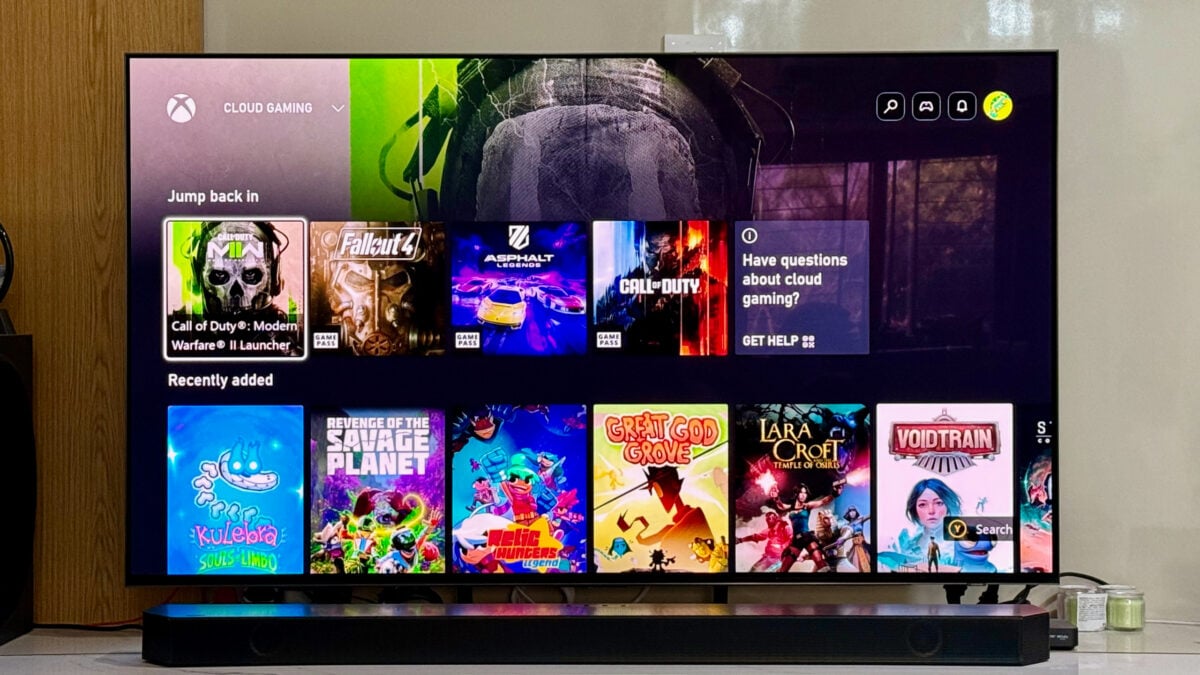
The only minor drawback to this robust system is that the accompanying Game Bar can feel a bit intrusive. It tends to pop up automatically every time you switch to a gaming source, which can break immersion. Fortunately, there is a straightforward fix that allows you to enjoy all the technical benefits of Smart TV gaming without the constant visual interruption.
Why is Game Mode Important for Your Setup?
Game Mode is not just a marketing term; it provides tangible benefits for both gamers and general PC users. By enabling this mode, the TV activates several performance-oriented features, including faster response times and significantly reduced input lag. It also minimizes image-enhancing post-processing effects—such as noise reduction and motion smoothing—which are great for movies but detrimental to interactive gaming.
These adjustments make your Samsung Neo QLED or OLED TV feel much more responsive. Whether you are navigating with a mouse, a gamepad, or specialized gaming accessories, the connection between your actions and the screen becomes nearly instantaneous.
Beyond these under-the-hood tweaks, Game Mode also grants access to the Game Bar. This interface appears whenever you activate a connected PC or console on a source with Game Mode enabled. It offers quick insights into your current resolution, refresh rate, and provides tools like a virtual crosshair. While seeing the Game Bar serves as a confirmation that Game Mode is active, for many users, this constant confirmation becomes redundant and slightly annoying over time.
Prevent the Samsung TV Game Bar from Appearing Automatically
If you find the auto-launching UI distracting, you can disable it through the internal settings without losing the benefits of Game Mode itself. First, ensure your TV is currently set to a source where Game Mode is active, then follow these steps:
- Press the Settings button on your remote.
- Navigate to All Settings.
- Select Advanced Features.
- Go to Game Mode Settings.
- Toggle Autorun Game Bar to the OFF position.
It is important to note that turning this off does not disable the Game Bar entirely. The UI element simply stops appearing on its own every time you switch inputs. You retain the ability to open the Game Bar manually at any time by long-pressing the Play/Pause button on your Samsung remote. This gives you the best of both worlds: a clean screen upon startup and easy access to frame rate information and tools whenever you actually need them.
This specific guide was curated using Tizen OS 9 (the 2025 update) on a Neo QLED model, though the steps remain very similar across most modern Samsung Smart TVs.
Does turning off the Autorun feature disable Game Mode?
No, disabling the "Autorun Game Bar" setting only prevents the menu from popping up on your screen automatically. Your TV will still stay in Game Mode, maintaining low latency and high performance for your console or PC.
How can I see my frame rate if the Game Bar is hidden?
You can still view your real-time FPS and other technical data by manually opening the Game Bar. Simply hold down the Play/Pause button on your Samsung Smart Remote for a few seconds, and the bar will appear at the bottom of the screen.
Will these steps work on older Samsung OLED or QLED TVs?
While this guide specifically references Tizen 9 (the 2025 update), the menu structure has remained consistent for several years. Most Samsung TVs from 2021 onwards that feature a Game Bar will have a similar option under the "External Device Manager" or "Game Mode Settings" menu.
What are the main benefits of keeping Game Mode enabled?
The primary benefits are reduced input lag and faster response times, which are crucial for competitive gaming. It also allows the TV to support features like Variable Refresh Rate (VRR) and Auto Low Latency Mode (ALLM) if your console or PC supports them.
🔎 Taking control of your television's interface is the final step in creating a truly premium gaming environment. By disabling the automatic launch of the Game Bar, you eliminate unnecessary distractions while keeping the powerful performance of Samsung's Game Mode fully intact. It’s a simple adjustment that makes your transition from watching TV to playing games feel seamless and professional. Enjoy your distraction-free gaming!
Post a Comment