
Master One UI 8.5: Top 6 Customization Hacks for Your Galaxy Device
Samsung's latest software update, One UI 8.5, offers significantly more flexibility for personalizing your Galaxy smartphone than previous versions. While many users stick to the default interface, a few strategic adjustments in the system settings and through the specialized Samsung Good Lock ecosystem can transform your user experience. From streamlining your camera's viewfinder to unlocking advanced desktop features in DeX, these tweaks allow you to tailor your device to your specific workflow.
- ✨ Learn how to resize and reorganize your Quick Panel for better accessibility.
- ✨ Discover the secret to a cleaner camera interface using Camera Assistant.
- ✨ Unlock custom home screen folder sizes with the Home Up module.
- ✨ Secure your sensitive media using the new Private Album feature in Gallery.
- ✨ Create unique, AI-generated wallpapers tailored to your own photos.
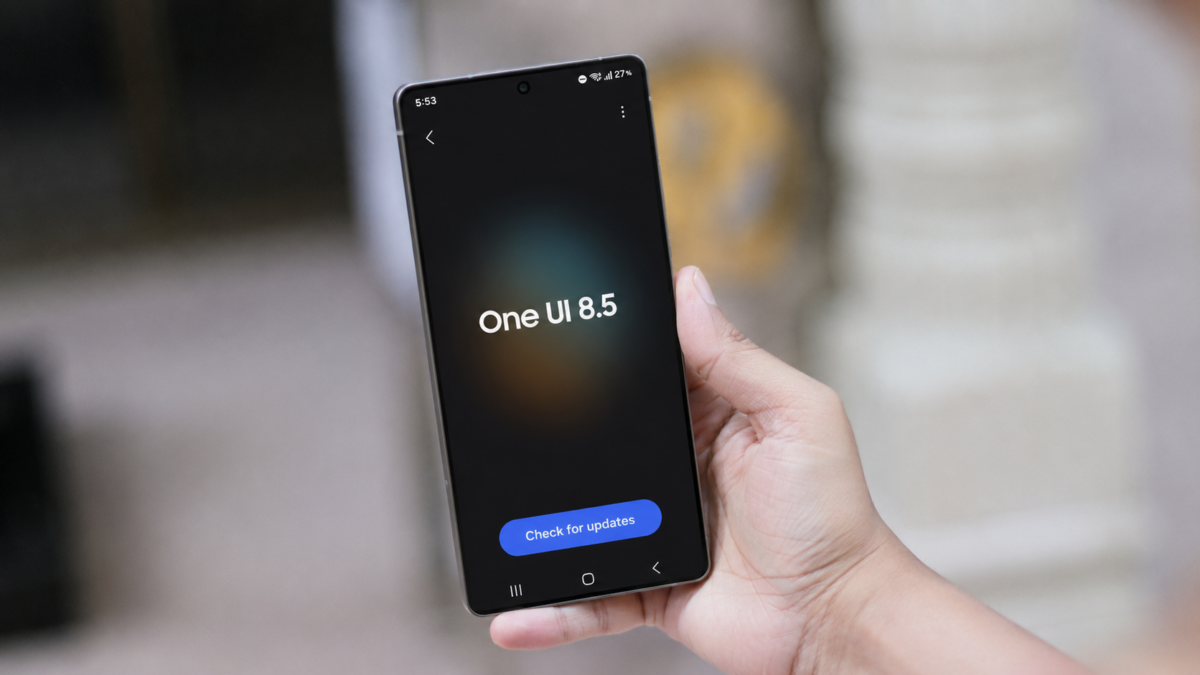
Whether you are a power user or just looking for a fresher look, these six settings and features are the best places to start your Galaxy customization journey.
1. Resize and Rearrange the Quick Panel
The Quick Panel is your central hub for system toggles, and One UI 8.5 makes it easier to manage. By swiping down twice and tapping the edit (pencil) icon, you can move, swap, or resize toggles. Some buttons can be condensed into single squares or expanded to fill more space, allowing you to prioritize the tools you use most frequently.
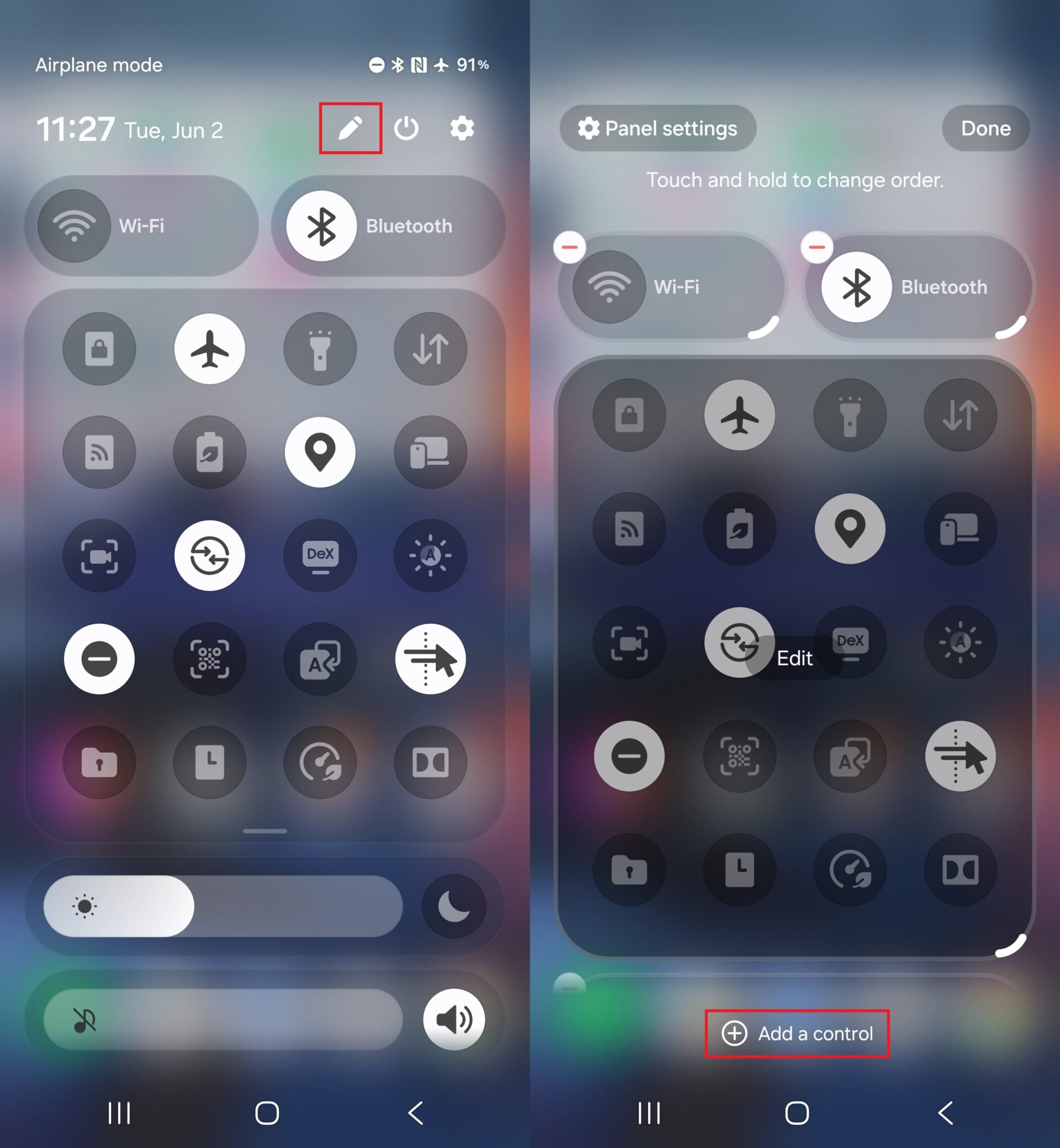
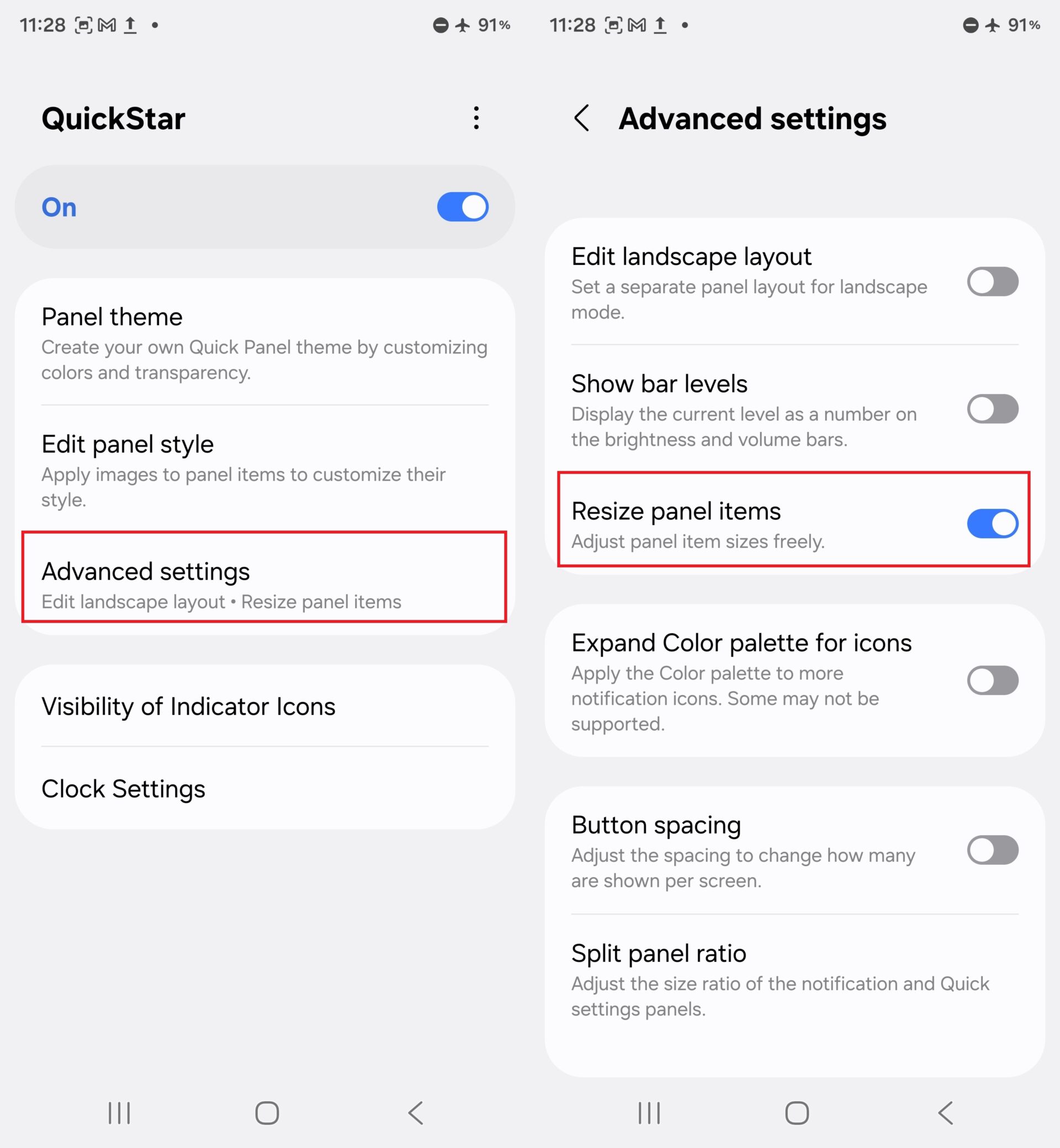
Furthermore, the brightness and volume sliders are now more versatile, offering both horizontal and vertical orientations. For those who want even more control, you can click here to download Good Lock and use the QuickStar module. Under the "Advanced settings" of QuickStar, you can enable "Resize panel items" to push toggle sizes beyond the standard system limits.
2. Clean Up Your Camera Viewfinder
A cluttered camera interface can be distracting when you are trying to frame the perfect shot. With the Camera Assistant module, you can hide the various indicators that usually sit at the top of the viewfinder. Click here to install Camera Assistant and navigate to "Customize indicators" to toggle off the icons you find unnecessary.
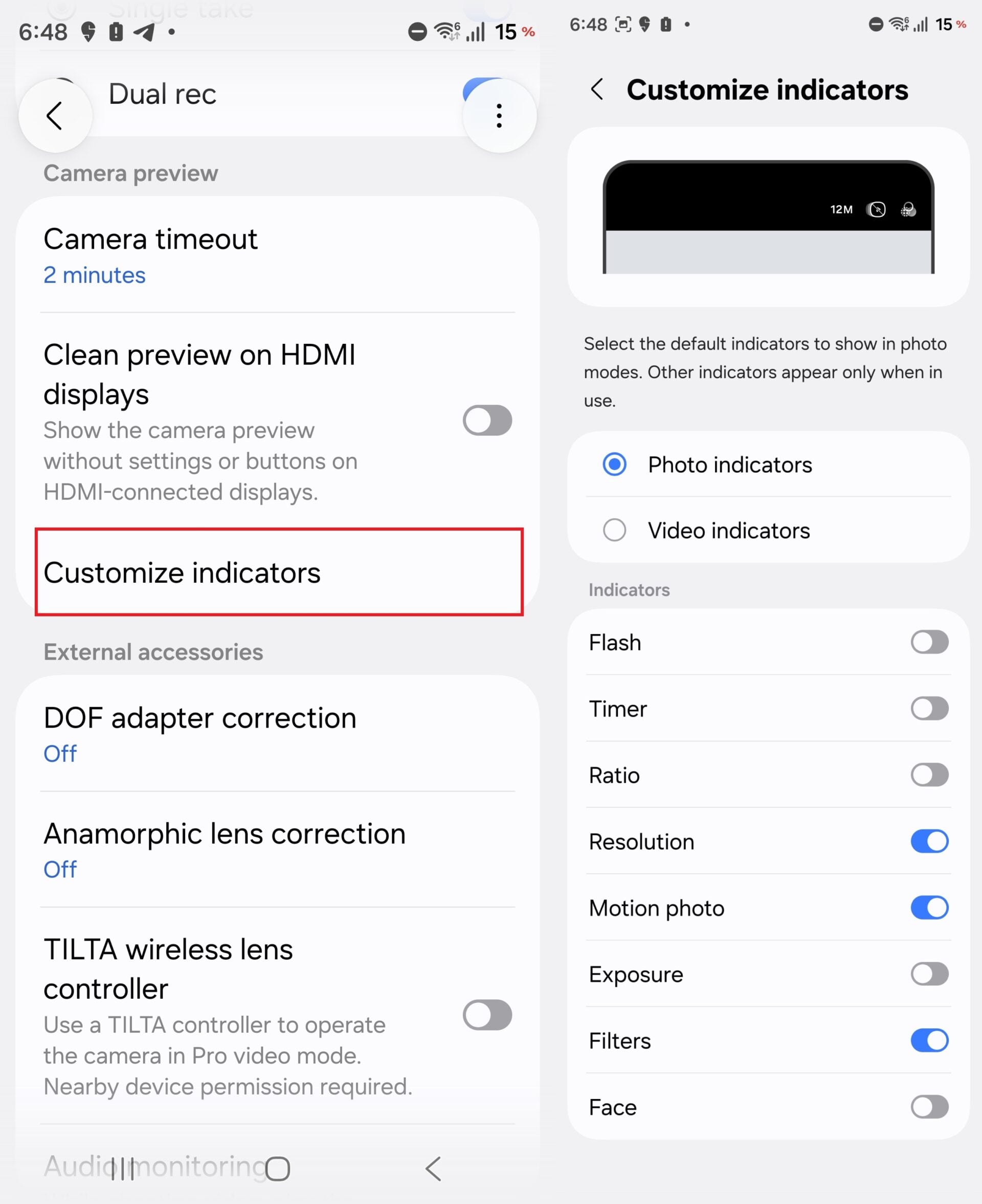
Even if you hide these indicators, they remain accessible via the four-dot menu at the bottom right of the viewfinder. This ensures that essential shooting information is never truly out of reach, while providing a much cleaner visual experience during both photography and videography.
3. Unlock Custom Home Screen Folder Sizes
The "Home Up" module within Good Lock introduces a highly requested feature: the ability to freely resize home screen folders. After enabling Home Up, tap the "Home screen" card and find the "Large folder" section. By enabling the "Custom" setting, you can long-press any folder on your home screen and adjust its dimensions to fit your aesthetic preferences.
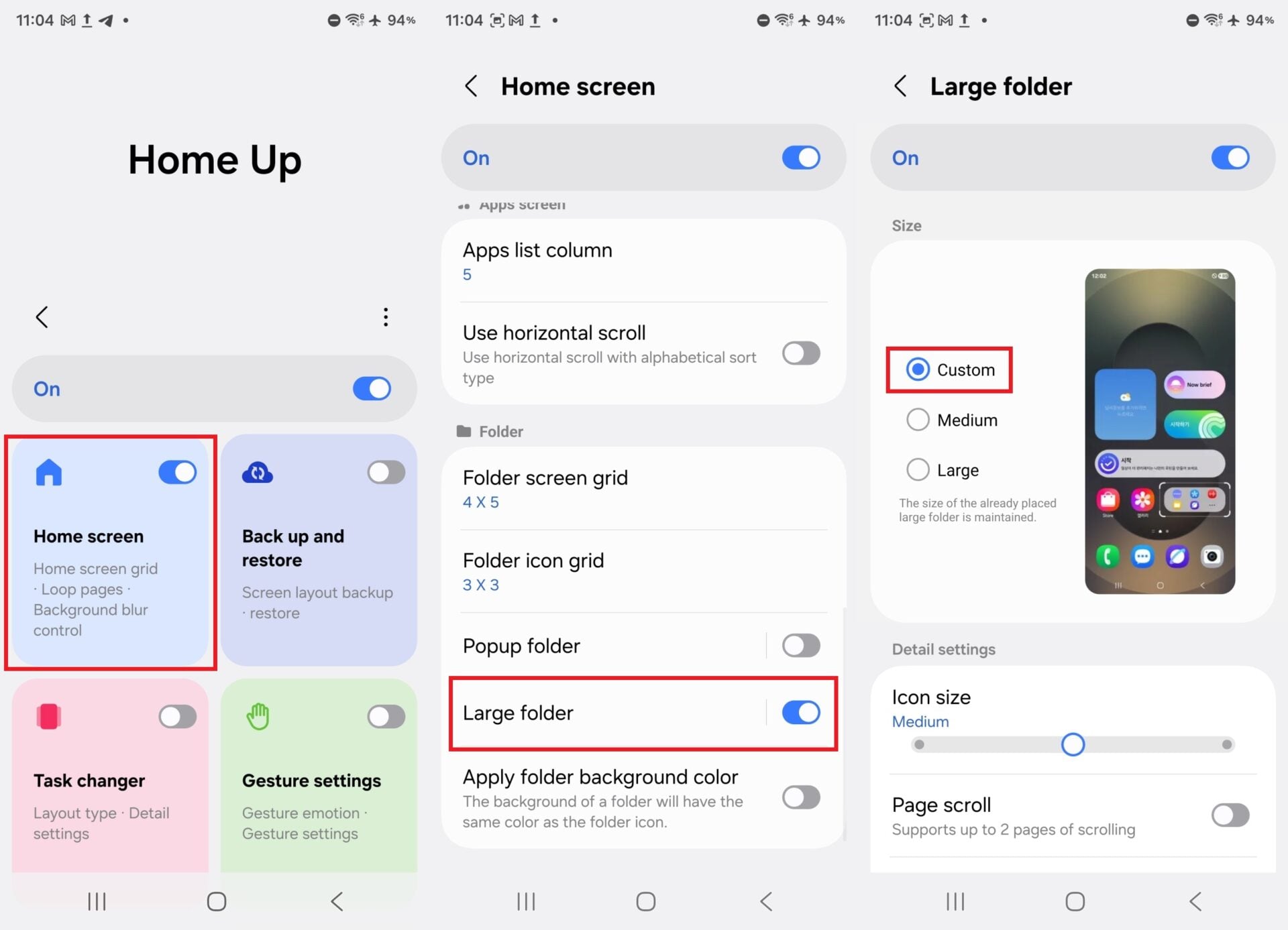
Note that you may need to "Enlarge" the folder first via the pop-up menu before the free-form resizing handles appear. This is perfect for users who want to see more app icons at a glance without opening the folder itself.
4. Secure Your Media with Private Album
Privacy is a core pillar of One UI 8.5. The Gallery app now includes a "Private Album" feature that allows you to hide specific photos and videos behind biometric authentication or a passcode. To use this, simply select your media, tap the "More" (three dots) button, and choose "Move to private album."
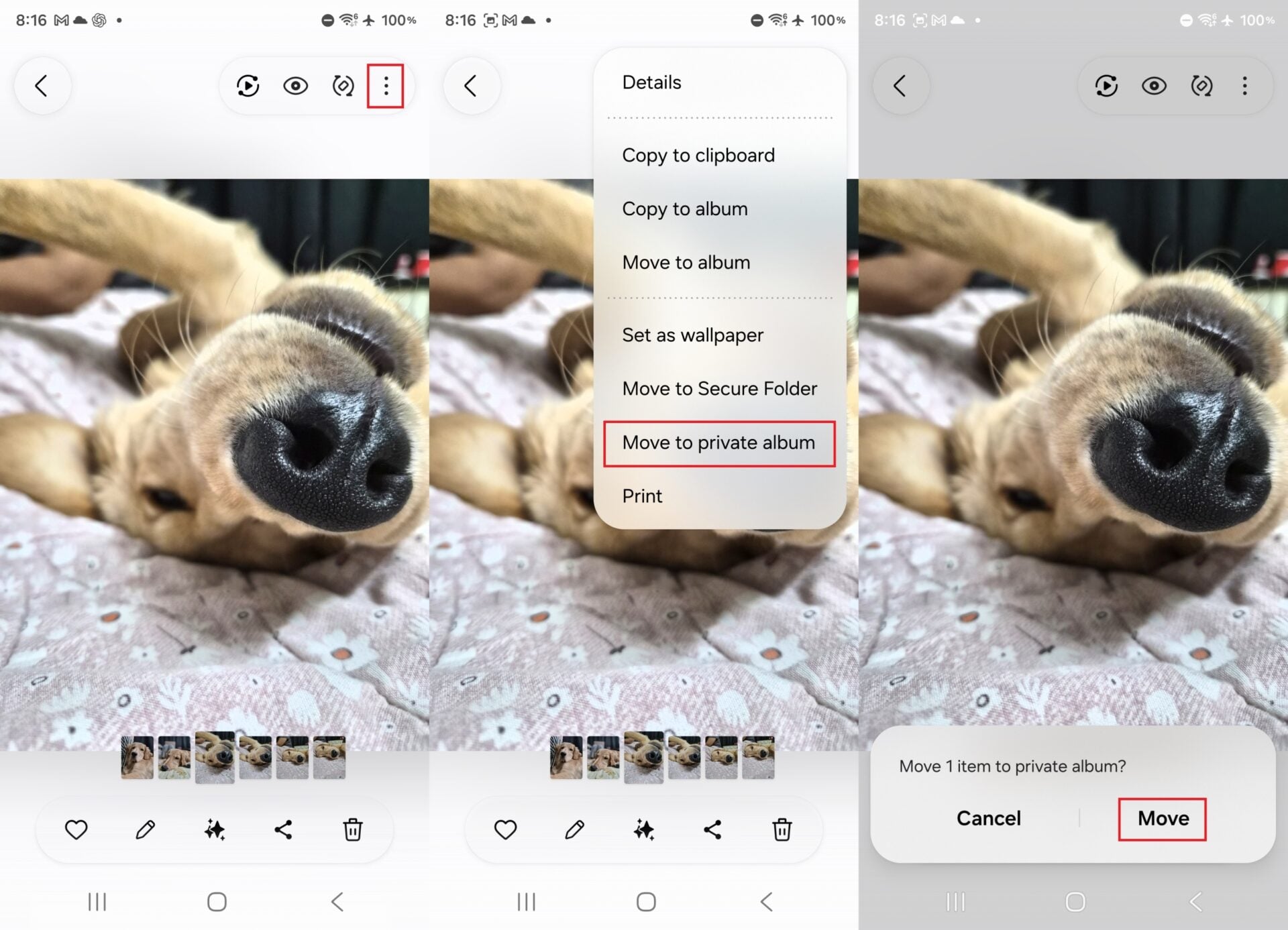
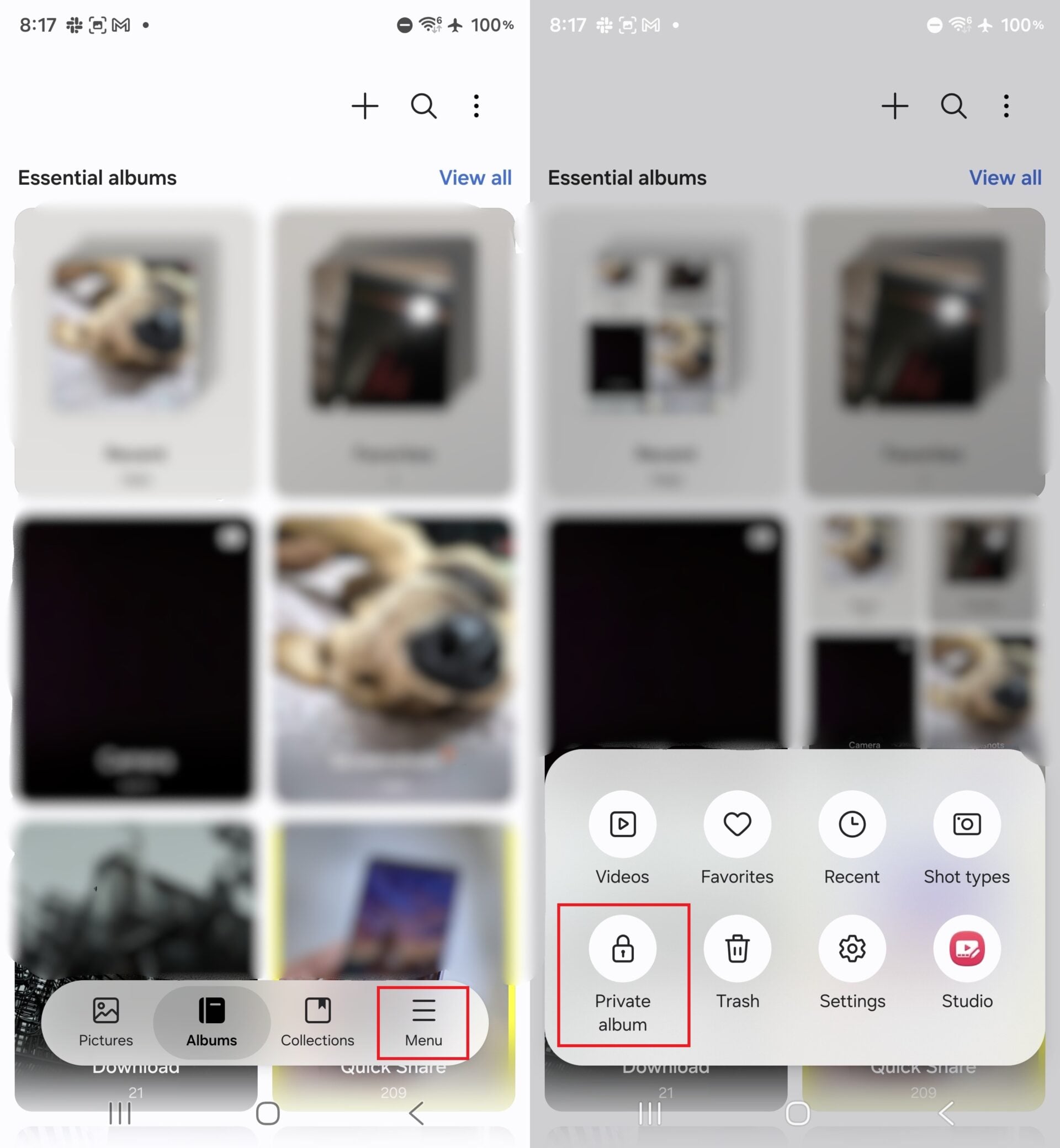
Accessing these files is straightforward: tap the "Menu" button on the Gallery's home screen and select "Private album." This provides an integrated layer of security for your personal content without needing third-party vault applications.
5. Generate AI Wallpapers with Creative Studio
Creative Studio in One UI 8.5 takes AI wallpaper generation to the next level. Instead of relying solely on text prompts, you can now upload one of your own photos as a base. The AI then applies specific artistic styles—such as oil painting, 3D cartoon, or childhood sketch—to transform your photo into something entirely new.
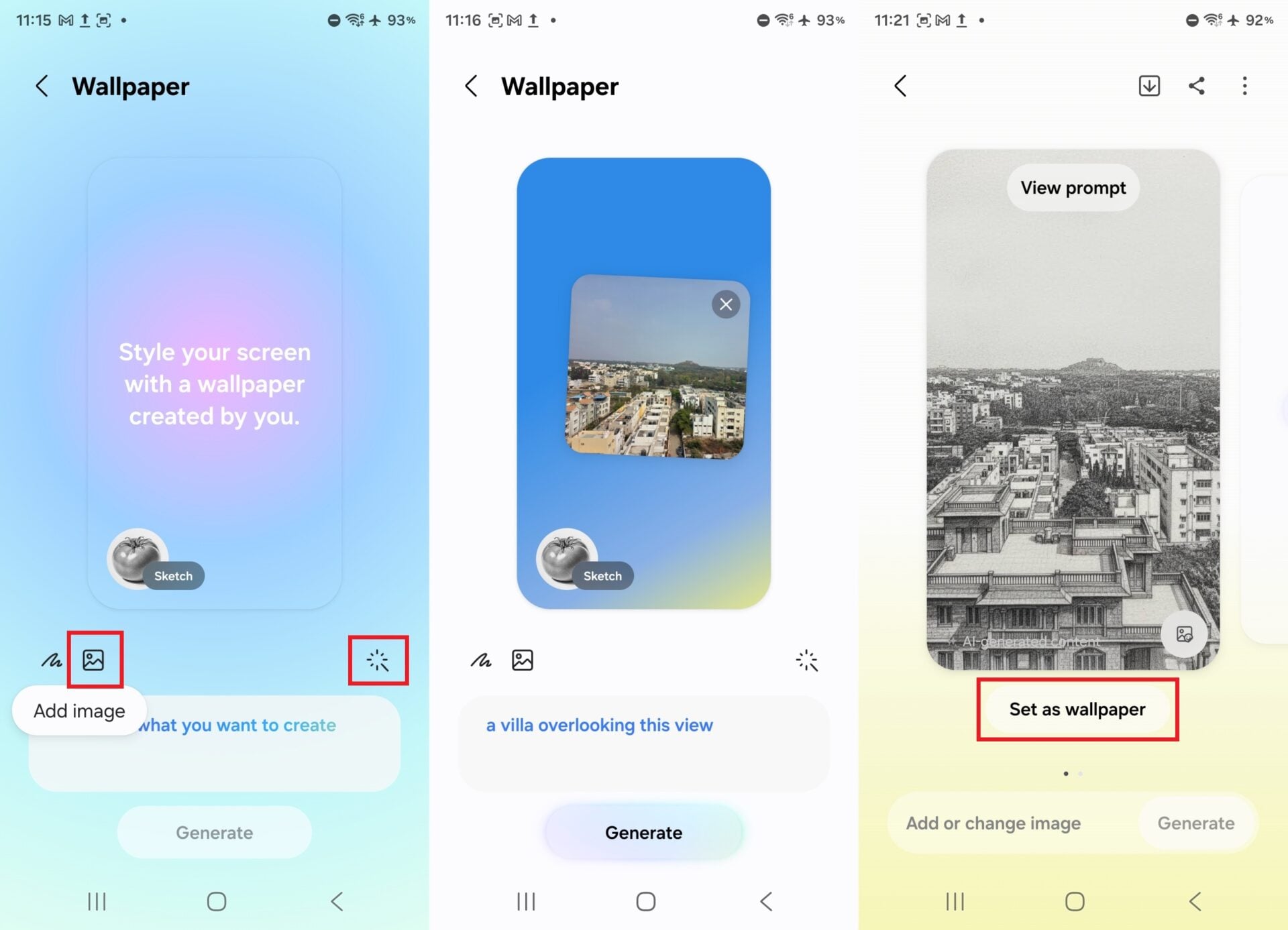
You can refine the results by adding descriptive text to the prompt, like "a futuristic city surrounding this mountain." Once you are satisfied with the generated image, you can set it as your wallpaper for the home screen, lock screen, or both with a single tap.
6. Enhance Samsung DeX with Desktop Widgets
Samsung DeX has received its most significant update in years, finally supporting home screen widgets. This bridge between the mobile and desktop experience makes DeX feel much more integrated and useful for productivity. You can now have your calendar, weather, or system monitors visible at all times on your desktop layout.
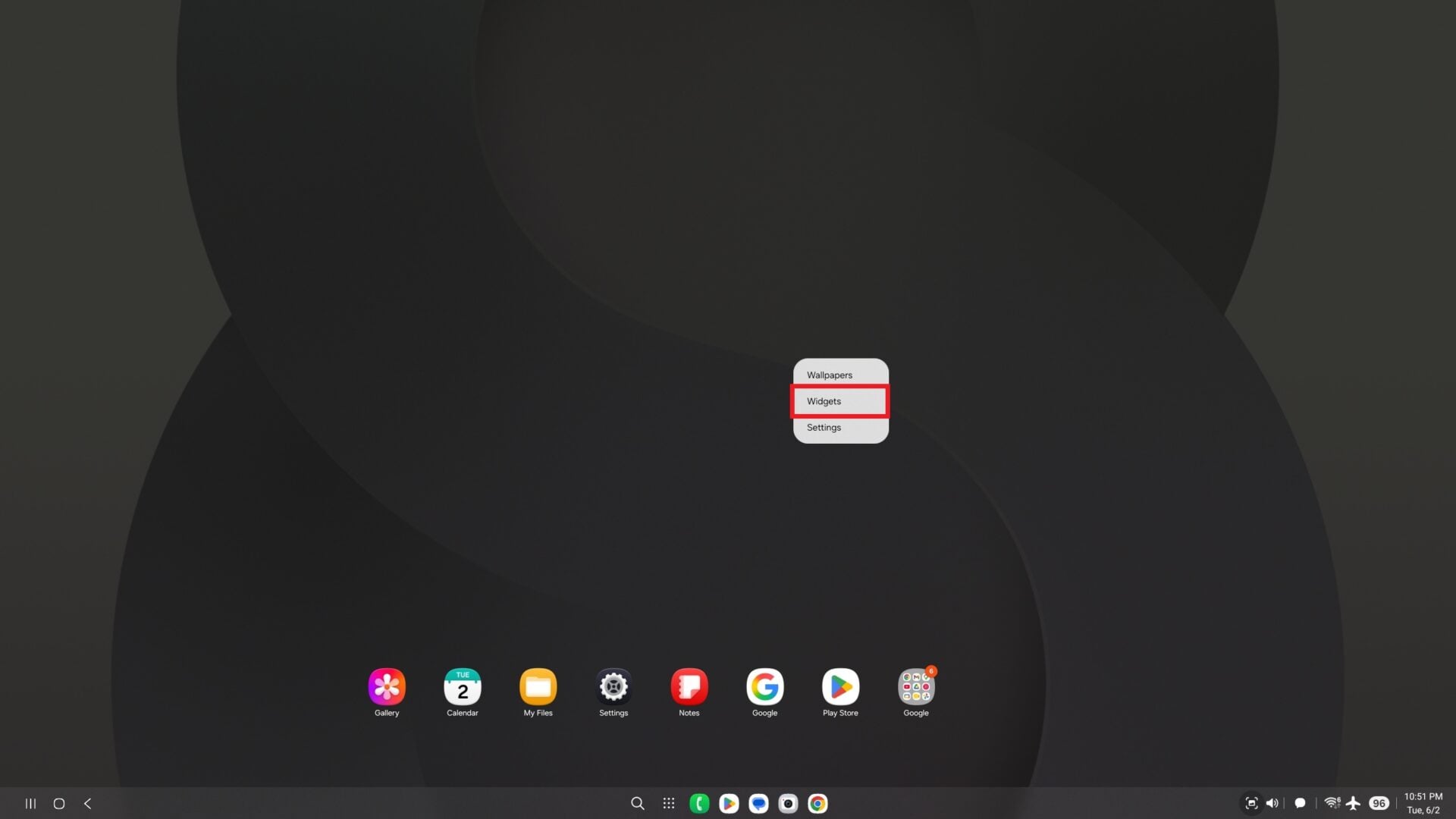
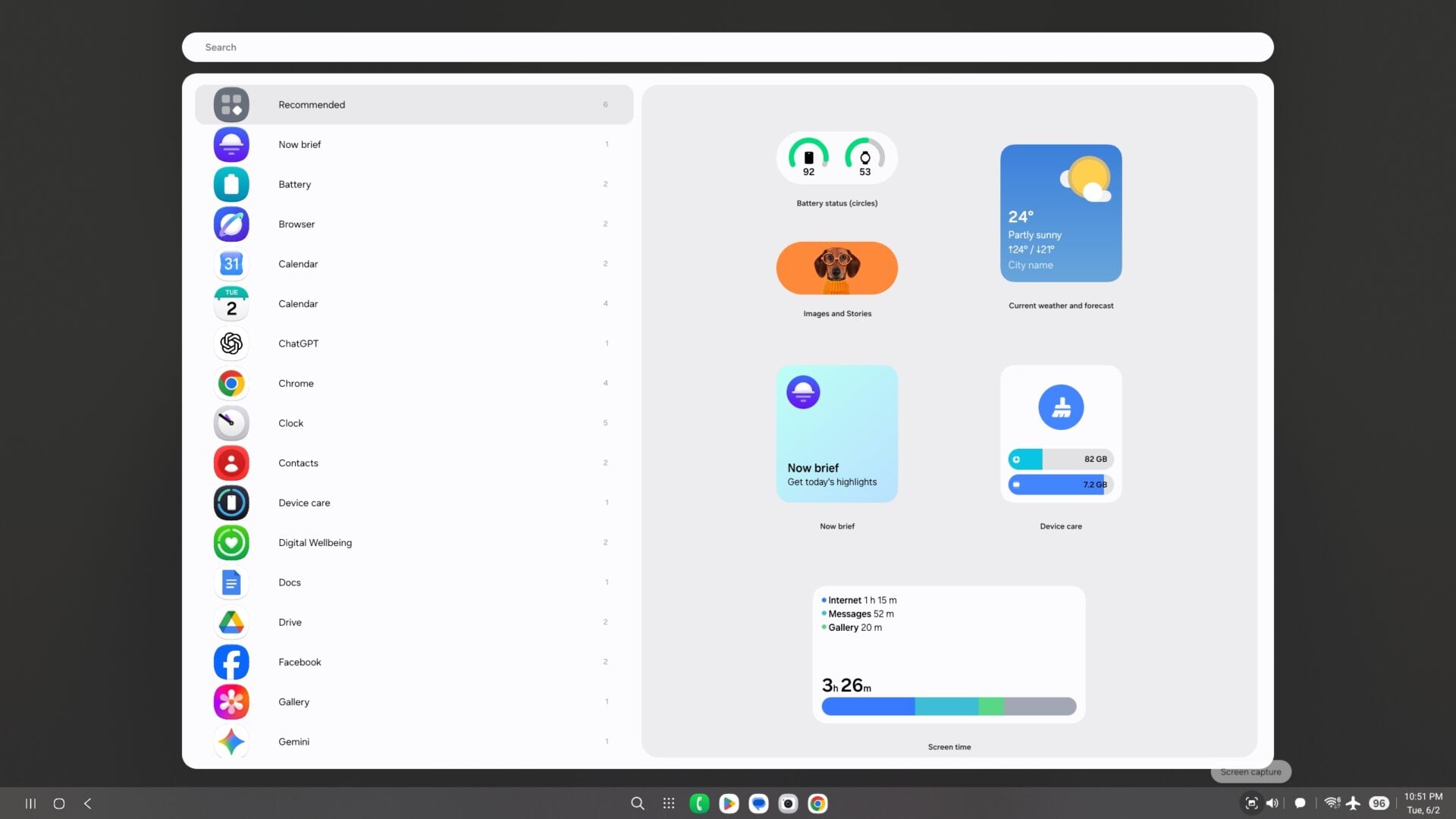
To add a widget in DeX, simply right-click on an empty space on the desktop and select "Widgets." This simple addition significantly improves the "tablet-as-a-laptop" feel that many Galaxy users rely on for work.
How can I resize the toggles in my Quick Panel beyond the default settings?
To unlock advanced resizing, you need to install the Good Lock app from the Galaxy Store. Once inside Good Lock, download the QuickStar module. Within QuickStar's advanced settings, enable the "Resize panel items" option, which allows you to manually adjust the scale of toggles and sliders.
Is the Private Album in the Gallery app different from Secure Folder?
Yes, the Private Album is a more streamlined feature built directly into the Gallery app for easier access to hidden media. While Secure Folder creates a completely separate, encrypted environment for apps and files, Private Album is specifically designed for quickly hiding photos and videos behind your fingerprint without leaving the Gallery interface.
What happens to my original photo when I use Creative Studio to generate a wallpaper?
Your original photo remains untouched in your gallery. Creative Studio uses the image as a reference to generate a new, AI-stylized version. You can experiment with different styles and prompts as many times as you like without affecting the source file.
Do all widgets work on the Samsung DeX home screen?
Most standard Android and Samsung widgets are now compatible with DeX. However, some third-party widgets that are not optimized for resizable windows may behave unexpectedly. You can test them by right-clicking the DeX desktop and selecting the Widgets menu to see the full list of available options.
Can I hide the camera indicators only for video mode?
Camera Assistant allows you to customize indicators for both Photo and Video modes. However, certain technical readouts like "Log" or "HDR" will remain visible in Video mode if those specific features are actively enabled in your settings, ensuring you are aware of your current recording format.
🔎 Exploring the depths of One UI 8.5 reveals that Samsung is moving toward a more modular and user-driven interface. By utilizing tools like Good Lock alongside the native system settings, you can strip away the elements you don't need and amplify the features that matter to your daily routine. These six tweaks are just the beginning of what is possible with the latest Galaxy software, providing a perfect balance between aesthetic cleanliness and functional power.
Post a Comment