
Mastering Privacy on Galaxy S26 Ultra: Hide Your PIN and Passwords Automatically
Typing your phone's PIN or password, or drawing your unlock pattern in a crowded public space, is one of those everyday moments where digital security becomes a physical concern. While a quick glance at your screen might seem harmless, someone watching you key in the specific code that unlocks your entire digital life is a significant risk. Protecting your Galaxy S26 Ultra from "shoulder surfers" is now easier than ever with advanced built-in features.
Article Summary:
- ✨ Learn how to automatically trigger Privacy Display during passcode entry.
- ✨ Discover how to narrow viewing angles to prevent unauthorized viewing.
- ✨ Step-by-step guide to configuring maximum privacy settings.
- ✨ Explore Modes and Routines for location-based screen protection.
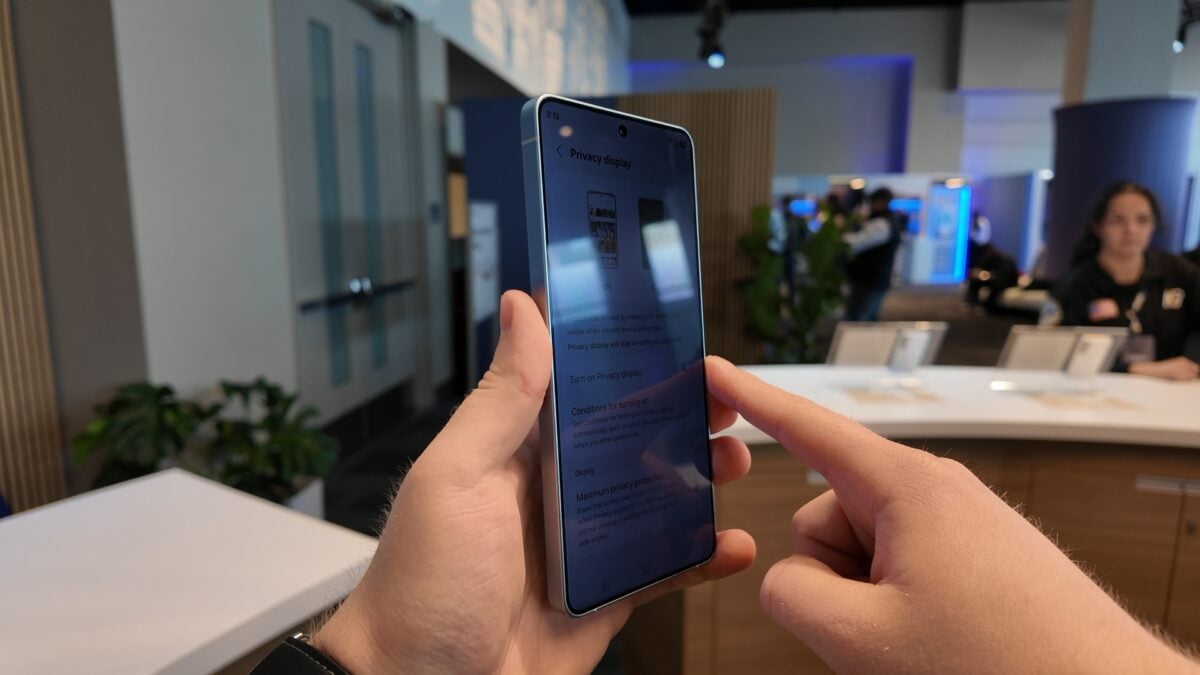
The Samsung Galaxy S26 Ultra introduces a sophisticated solution to this problem. You can configure the Privacy Display to activate the exact moment you begin entering a PIN, pattern, or password, and then automatically revert to normal once you have successfully accessed your device.
The Power of the Privacy Display Trigger
Privacy Display works by narrowing the screen's viewing angle. This ensures that anyone sitting beside you or standing behind you will see a darkened or distorted screen, making it nearly impossible for them to read your sensitive information. By enabling the PIN, pattern, and password trigger, your phone automates this defense mechanism every time you are prompted to authenticate on the lock screen or within a secured application.
The beauty of this feature is its "set it and forget it" nature. You don't need to manually toggle settings every time you're on a bus or in a cafe. Simply type your code, enter your device, and the Privacy Display turns itself off instantly, restoring the full, vibrant viewing experience of the Privacy Display technology.
Step-by-Step: Setting Up Automated Protection
Configuring this feature is straightforward and takes less than a minute. Follow these steps to secure your device:
- ✨ Open your Settings app.
- ✨ Navigate to Display and then select Privacy Display.
- ✨ Tap on Conditions for turning on.
- ✨ Switch the main toggle to ON.
- ✨ Specifically enable the PIN, pattern, password option.
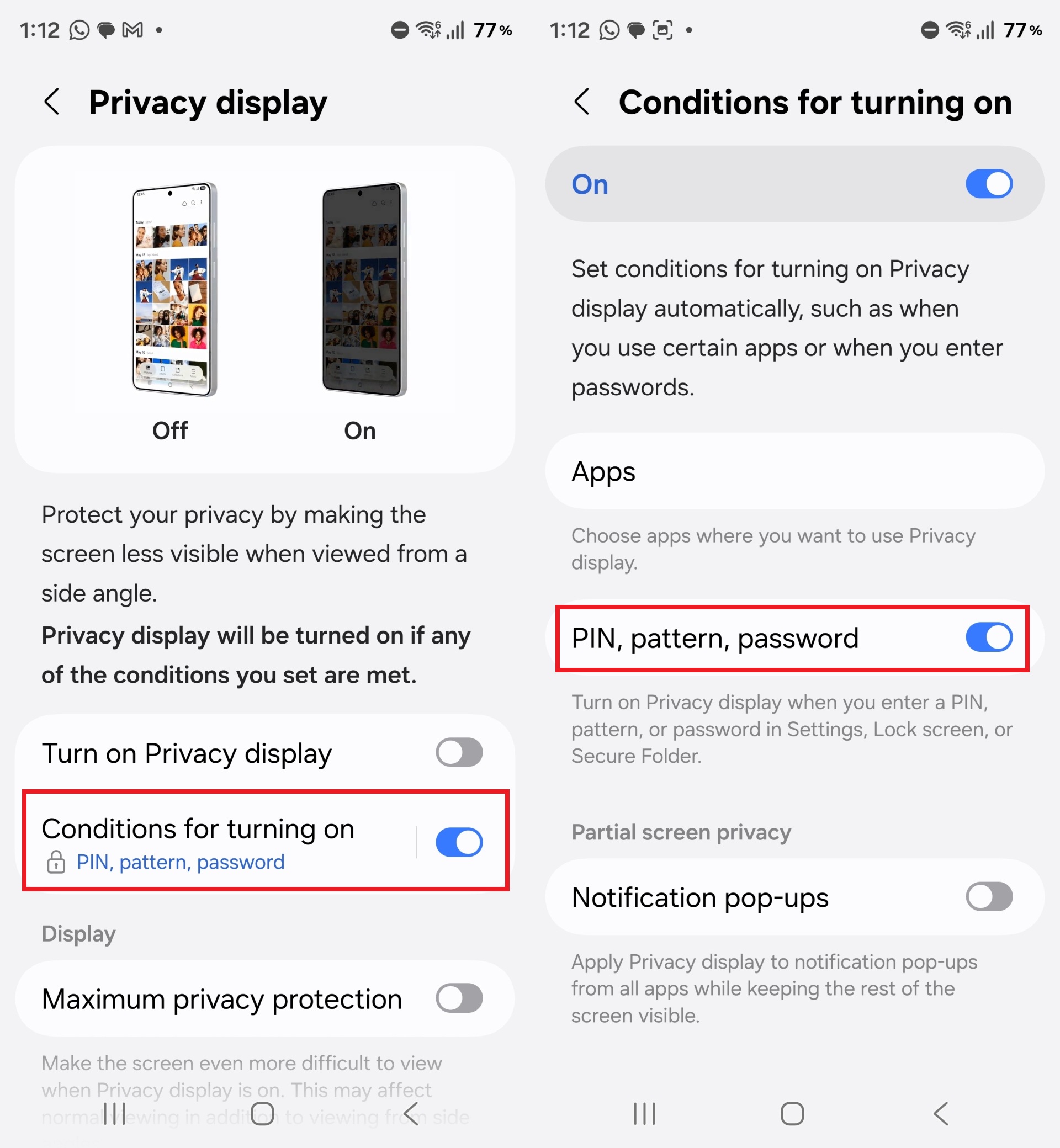
Once active, this protection extends beyond just the lock screen. It will kick in whenever you are prompted for your device credentials, such as when opening the Secure Folder or accessing banking apps that rely on system-level authentication.
Authentication Methods and Privacy
It is important to understand that this specific trigger is designed for manual input. If you primarily use biometric authentication, such as face recognition or the ultrasonic fingerprint scanner, the Privacy Display will remain off. This is because these methods don't require you to display a code or pattern on the screen for others to see. However, if you want constant protection regardless of the unlock method, you can always choose to enable Privacy Display manually via the Quick Settings panel.
Achieving Maximum Screen Confidentiality
For users who require the highest level of security, Samsung offers a Maximum privacy protection mode. Found within the same Privacy Display menu, this setting aggressively restricts viewing angles so the screen is only readable when viewed directly from the front. This is the ideal setting for professionals handling sensitive data in transit.
Customizing Triggers with Modes and Routines
The flexibility of the Galaxy S26 Ultra allows you to go even further. Using Modes and Routines, you can set the Privacy Display to turn on based on your location. For example, you can create a routine that activates screen protection the moment you leave your home or when you connect to a public Wi-Fi network. You can also specify certain apps that should always trigger the narrowed viewing angle, ensuring your messages or emails stay private.
Does Privacy Display affect screen brightness?
While Privacy Display narrows the viewing angle, it may slightly reduce the perceived brightness when viewed from the side, which is how it achieves privacy. However, for the user looking directly at the phone, the impact on clarity and brightness is minimal.
Can I use Privacy Display with a screen protector?
Yes, the feature works electronically through the display panel itself, so it remains compatible with most standard screen protectors. However, using a "privacy" screen protector alongside this software feature may make the screen too dark to see comfortably.
Will this feature drain my battery faster?
The battery impact of Privacy Display is negligible. Since it typically only activates for a few seconds while you type your password, it will not noticeably affect your daily battery life.
Is Privacy Display available on older Galaxy models?
Privacy Display is a specialized hardware-software integration introduced with the latest flagship panels. While some features may trickle down via One UI updates, the full automated viewing angle adjustment is currently optimized for the Galaxy S26 series.
🔎 In conclusion, the Galaxy S26 Ultra continues to set the standard for user-centric security. By automating the Privacy Display during passcode entry, Samsung has eliminated a common vulnerability in mobile usage. Whether you are a privacy-conscious professional or simply someone who values their personal space, these tools provide peace of mind without adding friction to your daily routine. Taking a moment to enable these settings ensures that your private codes stay exactly that—private.
Post a Comment