
10 Essential Customizations and Settings to Configure First on Your New Galaxy Z Fold 8
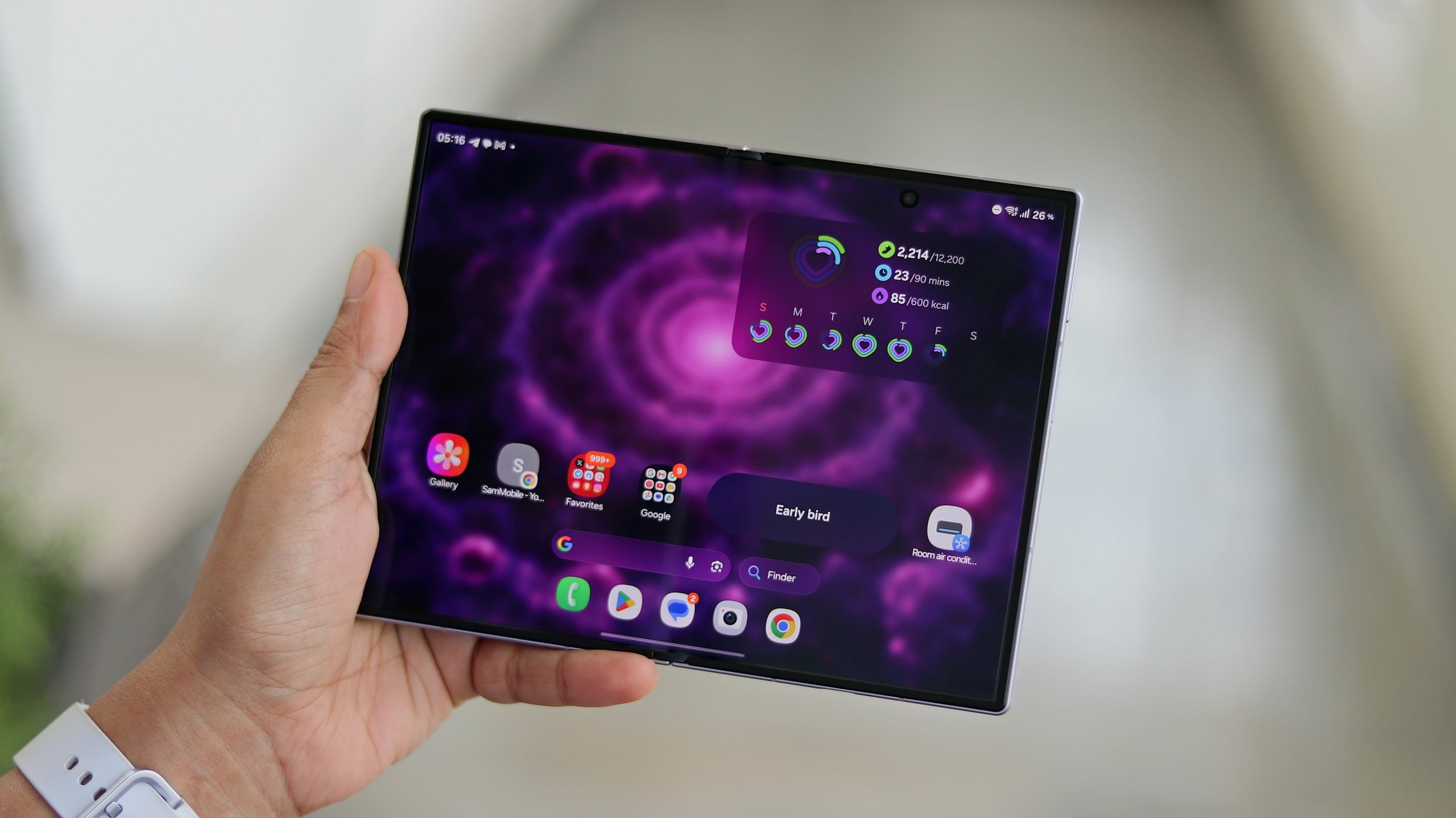
Getting a brand-new foldable device like the Galaxy Z Fold 8 is an exciting experience, but standard phone setups rarely unlock the true potential of a dual-screen form factor. Beyond transferring your accounts and contacts, configuring specific software settings will dramatically improve how you interact with both the outer cover screen and the expansive inner display. These optimizations ensure you get maximum value out of your foldable investment right from day one.
- ✨ Force stubborn portrait-only apps to run smoothly in landscape mode.
- ✨ Customize your home screen dock and multitasking taskbar for faster app switching.
- ✨ Unlock advanced camera features like 24MP default shooting and Capture View.
- ✨ Adjust cover screen grids using Home Up to fit significantly more applications.
1. Force Portrait-Only Apps to Open in Landscape
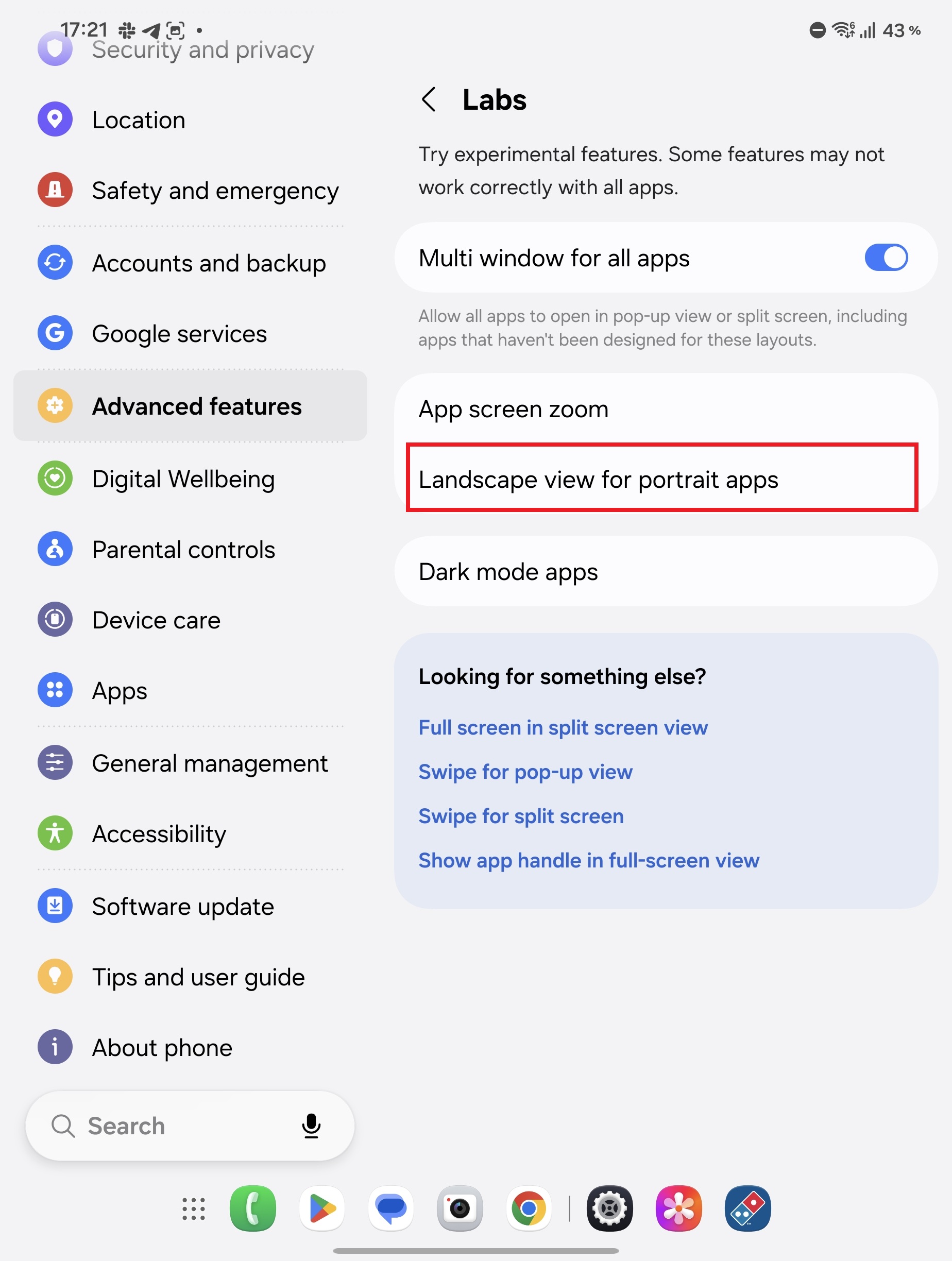
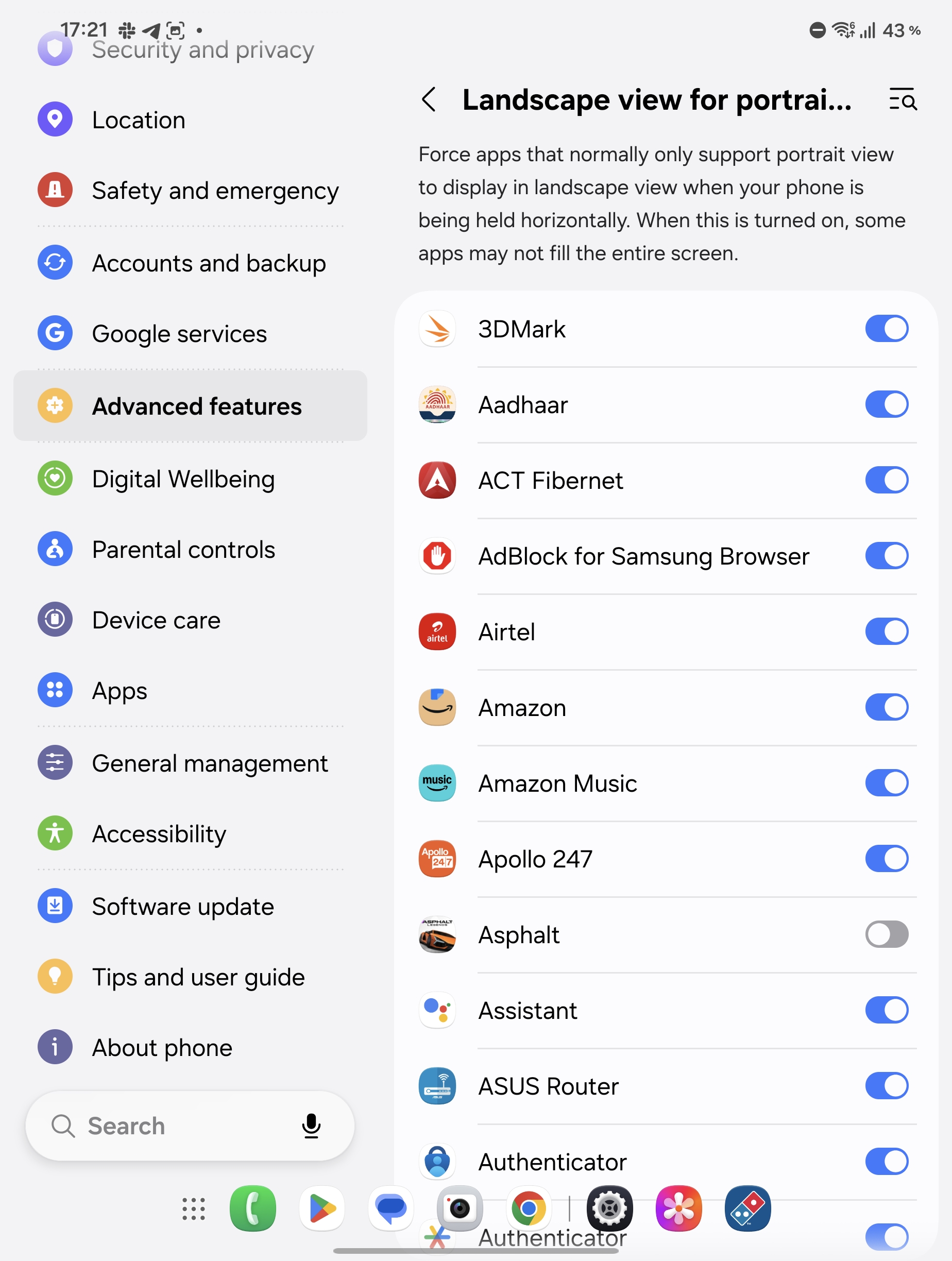
When you unfold your device, it naturally rests in a horizontal landscape orientation. However, many mobile applications stubbornly refuse to rotate out of vertical portrait mode. To fix this annoyance, open your Settings, navigate to Advanced features, tap on Labs, and select the Landscape view for portrait apps option.
Enabling this setting forces restricted apps—such as the Domino’s application—to launch directly in a landscape layout. This eliminates the tedious extra step of having to physically rotate your phone back and forth every time you open certain apps on your main screen.
2. Add Recent and Suggested Apps to the Home Screen Dock
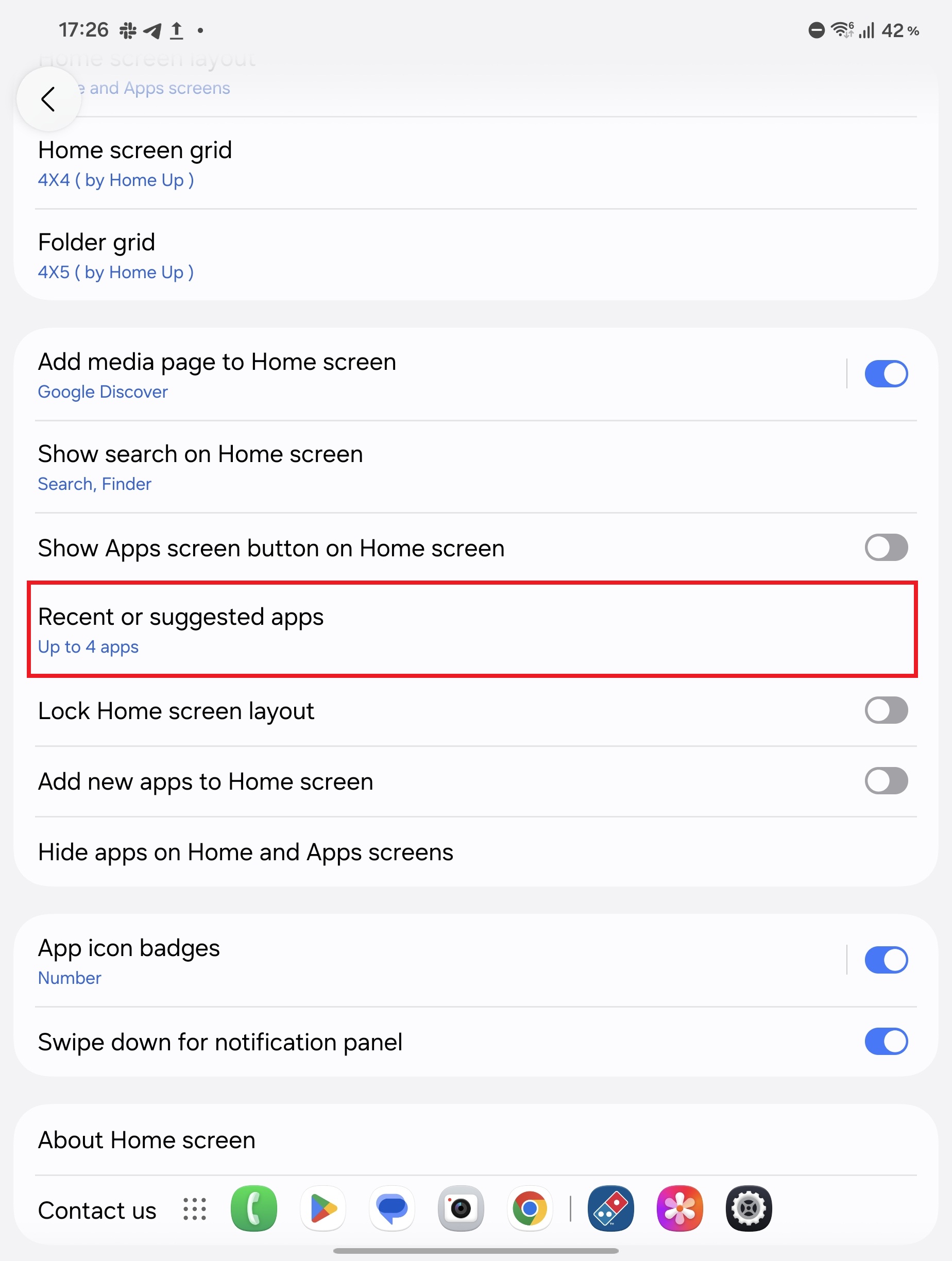
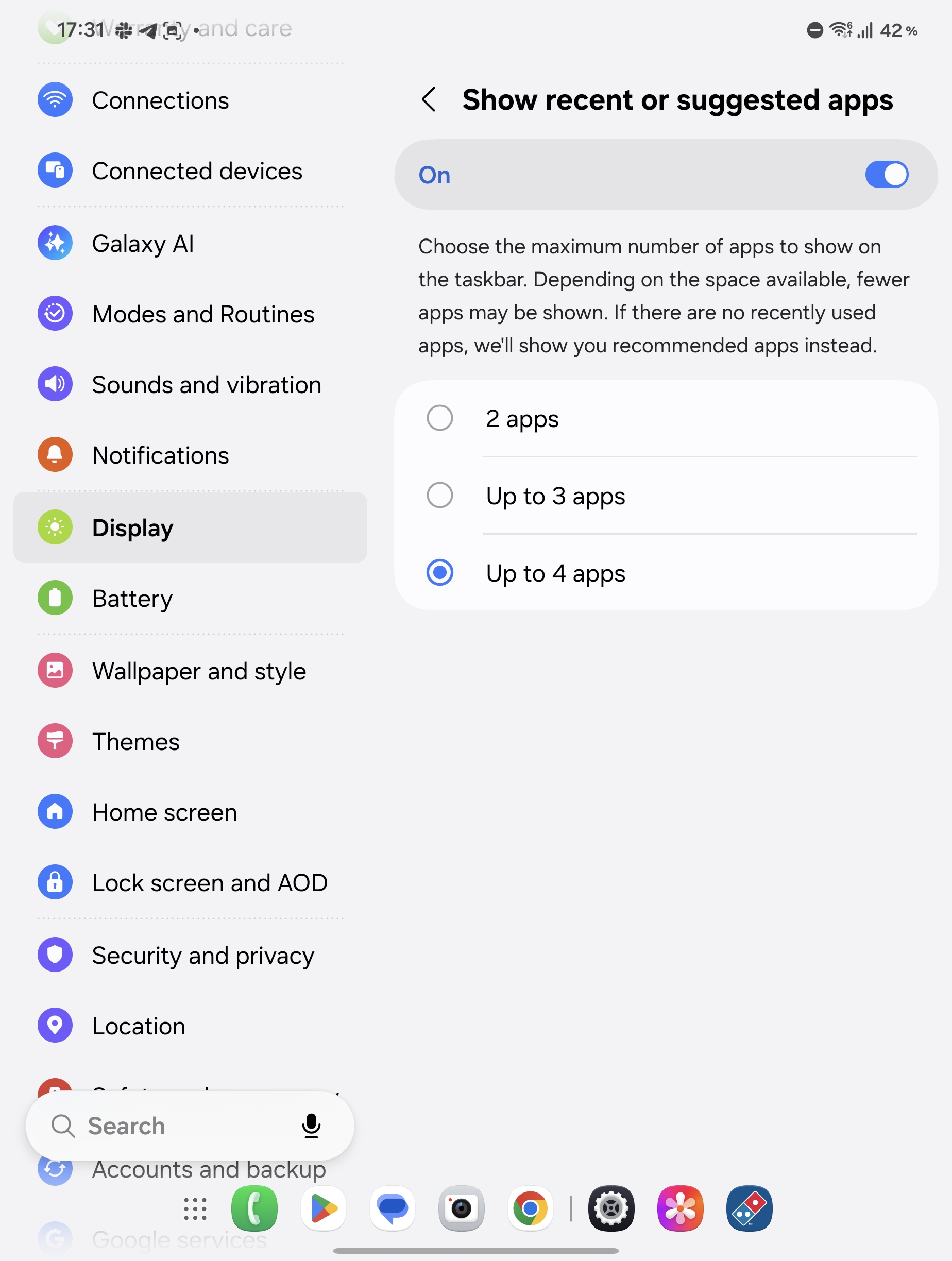
One UI 9 introduces a fantastic organizational enhancement that lets your home screen dock display recently used or intelligent suggested apps right alongside your manually pinned favorites, neatly divided for clarity.
Pinch your home screen, tap the Settings icon, and select Recent or suggested apps. From here, you can choose to show or hide these dynamic shortcuts and set the system to display two, three, or four apps.
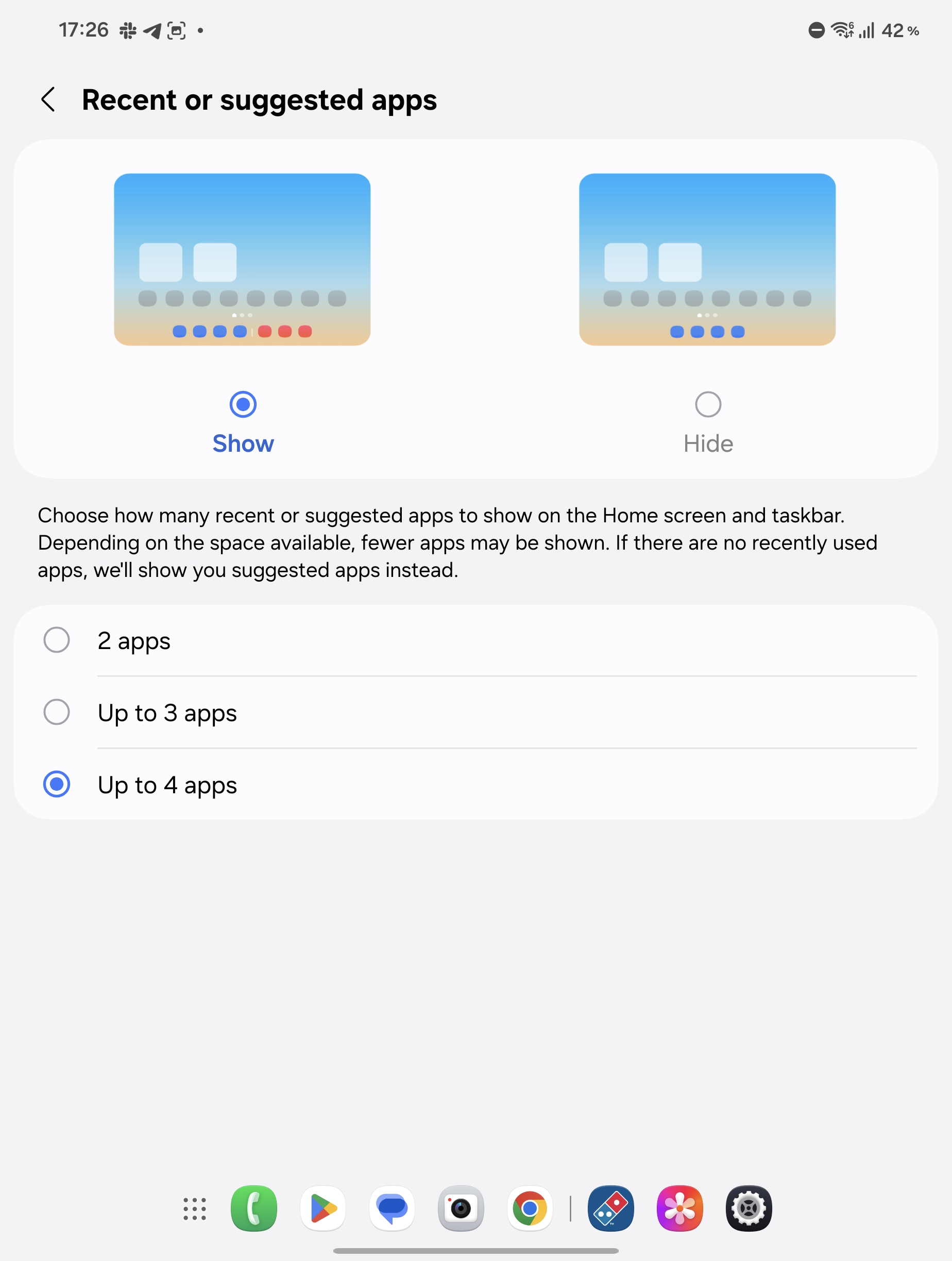
This feature serves as the foundation for the persistent taskbar that surfaces whenever you launch an application on your inner screen.
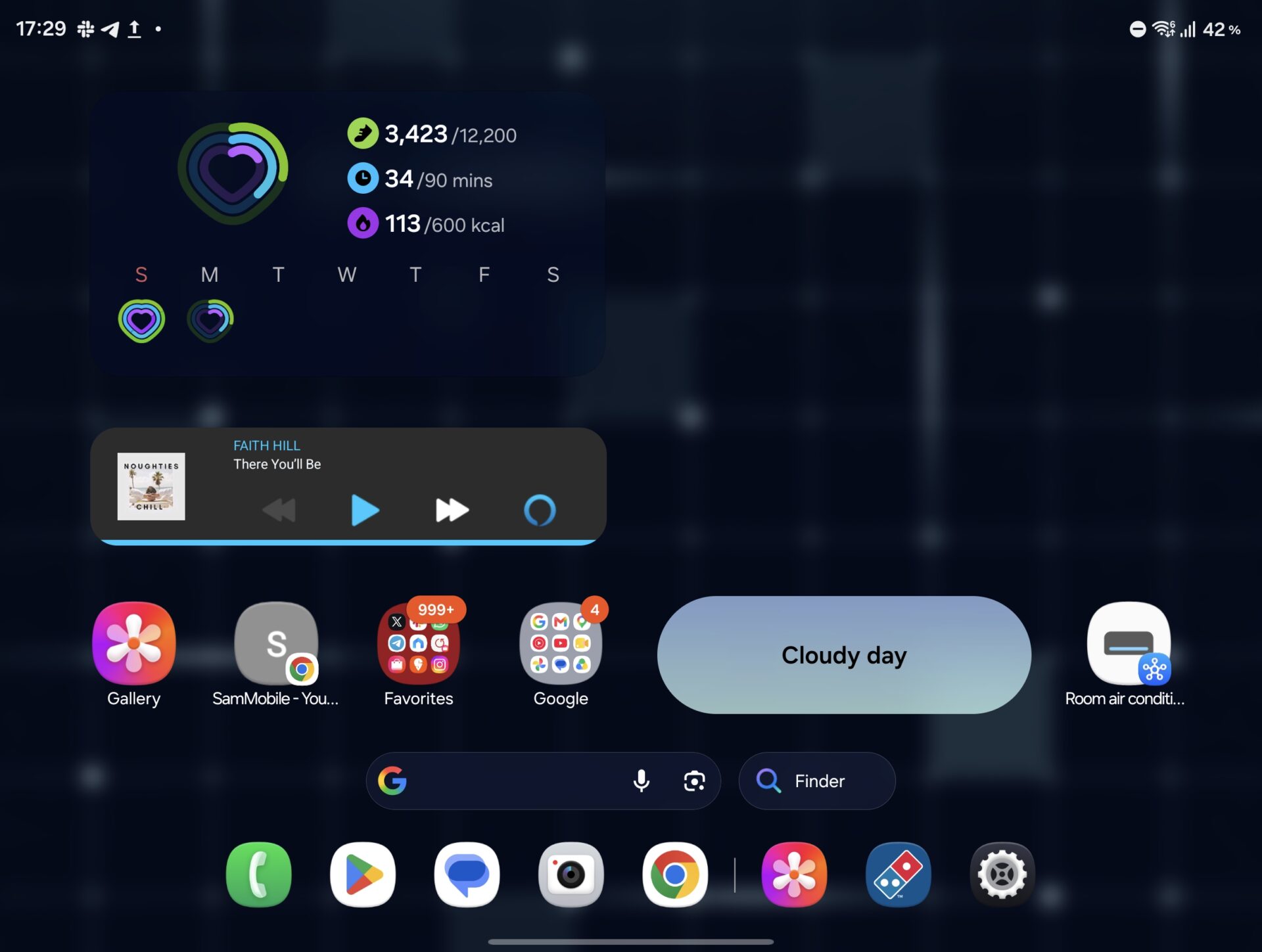
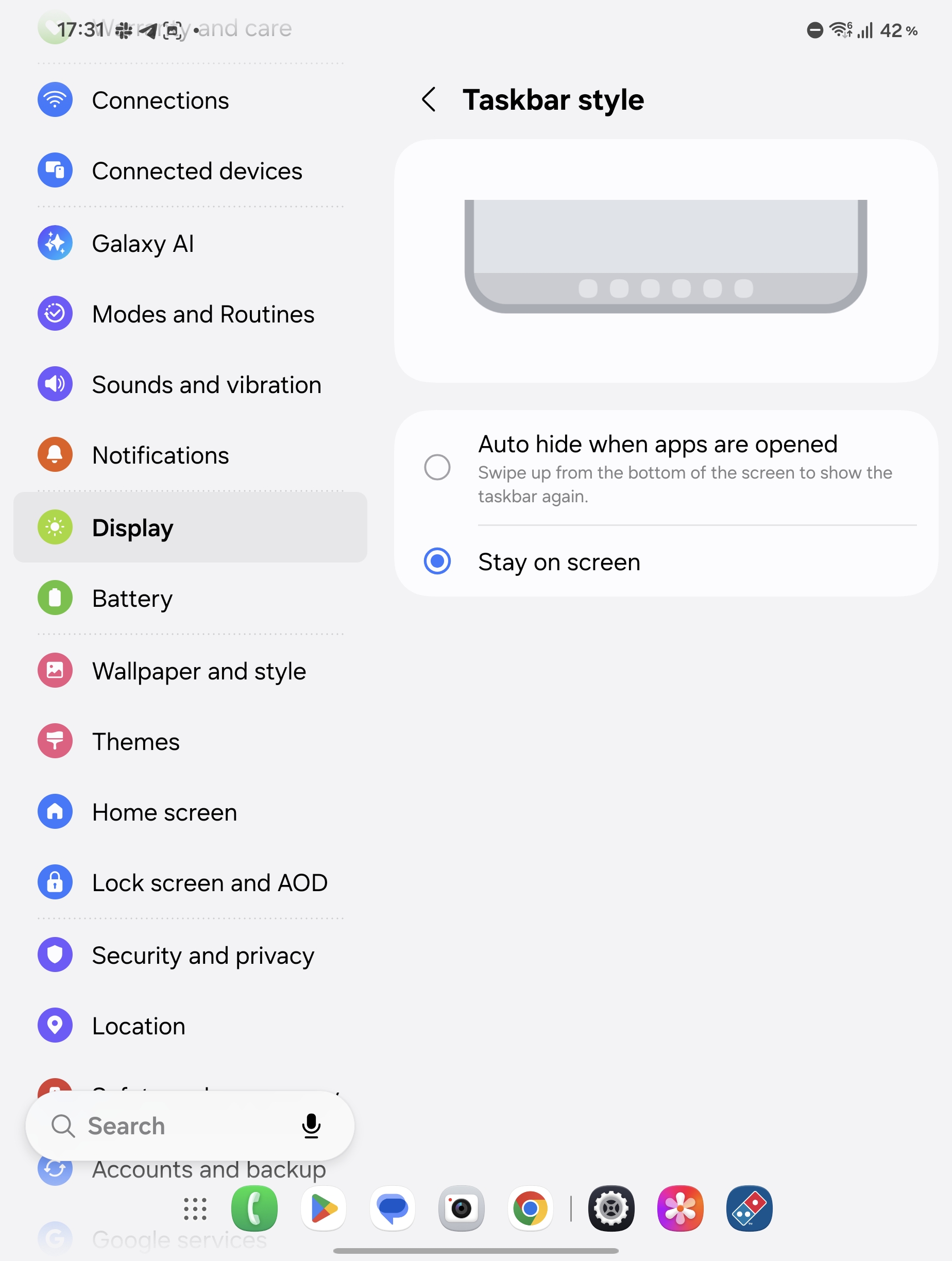
3. Customize the Taskbar for Seamless Multitasking
Navigate to Settings > Display > Taskbar to configure your multitasking preferences. Keeping the taskbar permanently visible via the Stay on screen option lets you switch between applications instantly without having to swipe up from the bottom every time.
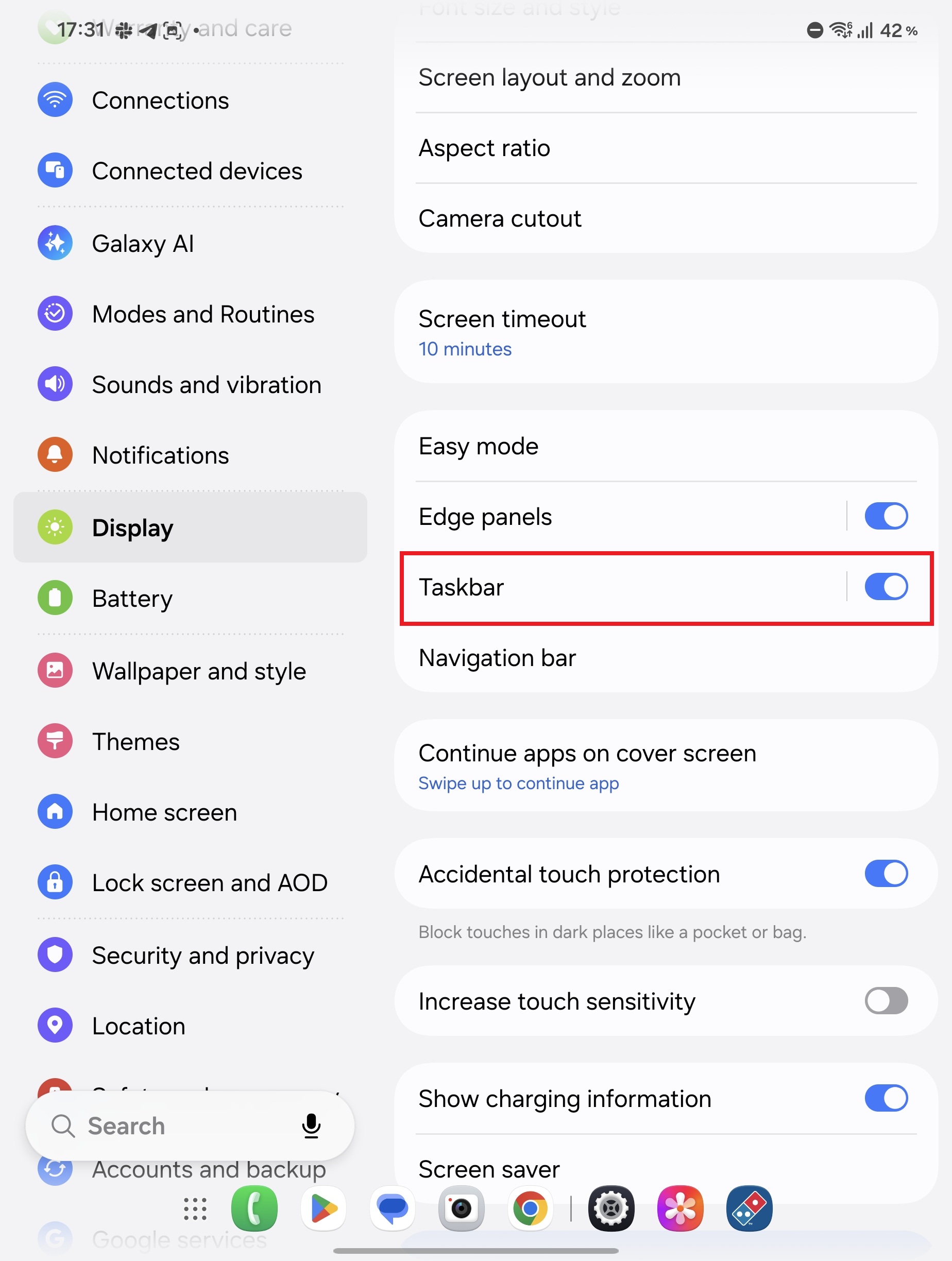
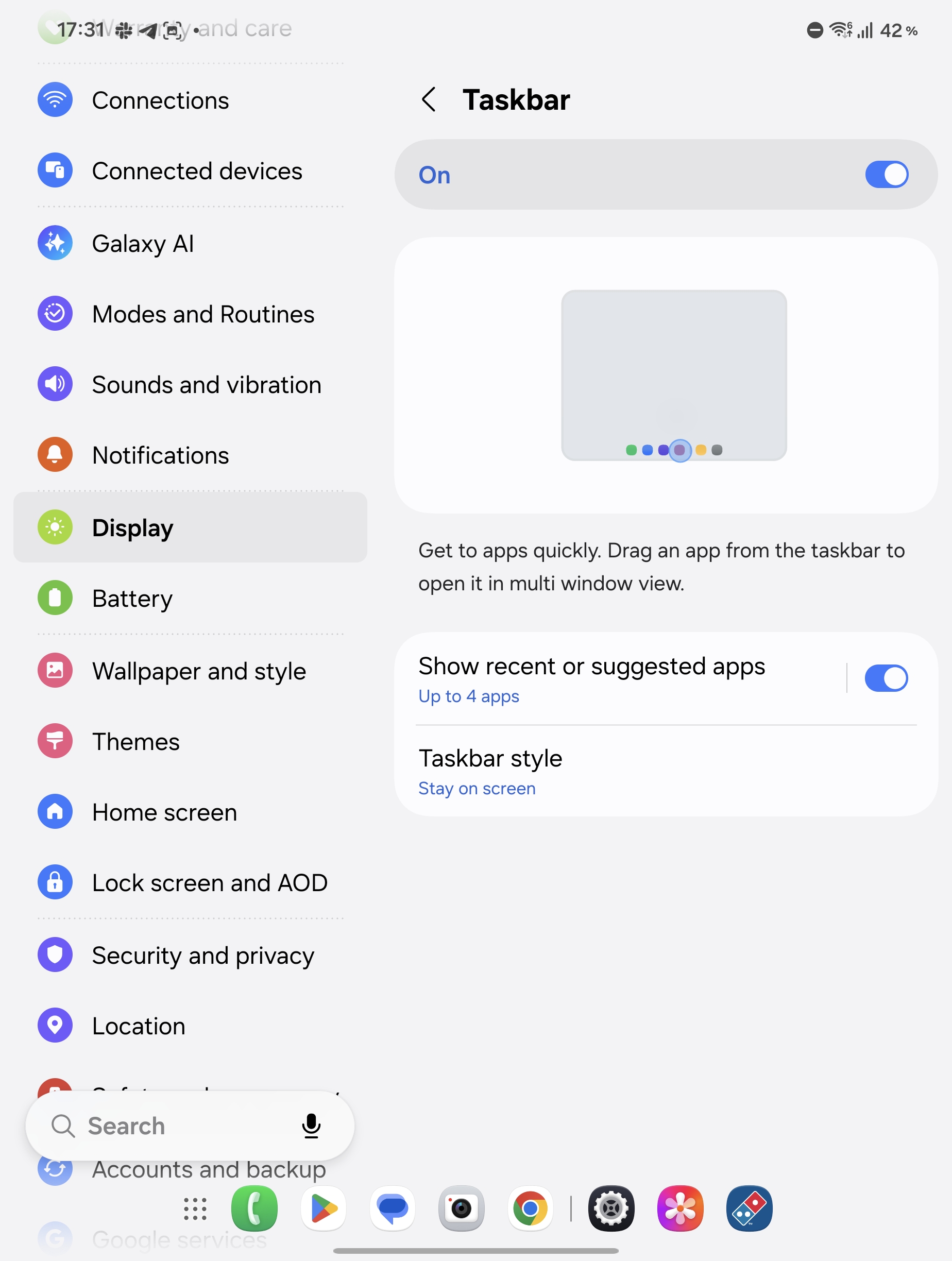
This is especially helpful if you rely on navigation gestures instead of traditional navigation buttons, preventing accidental triggers when pulling up application menus.
4. Add Google Search and Finder to the Home Screen
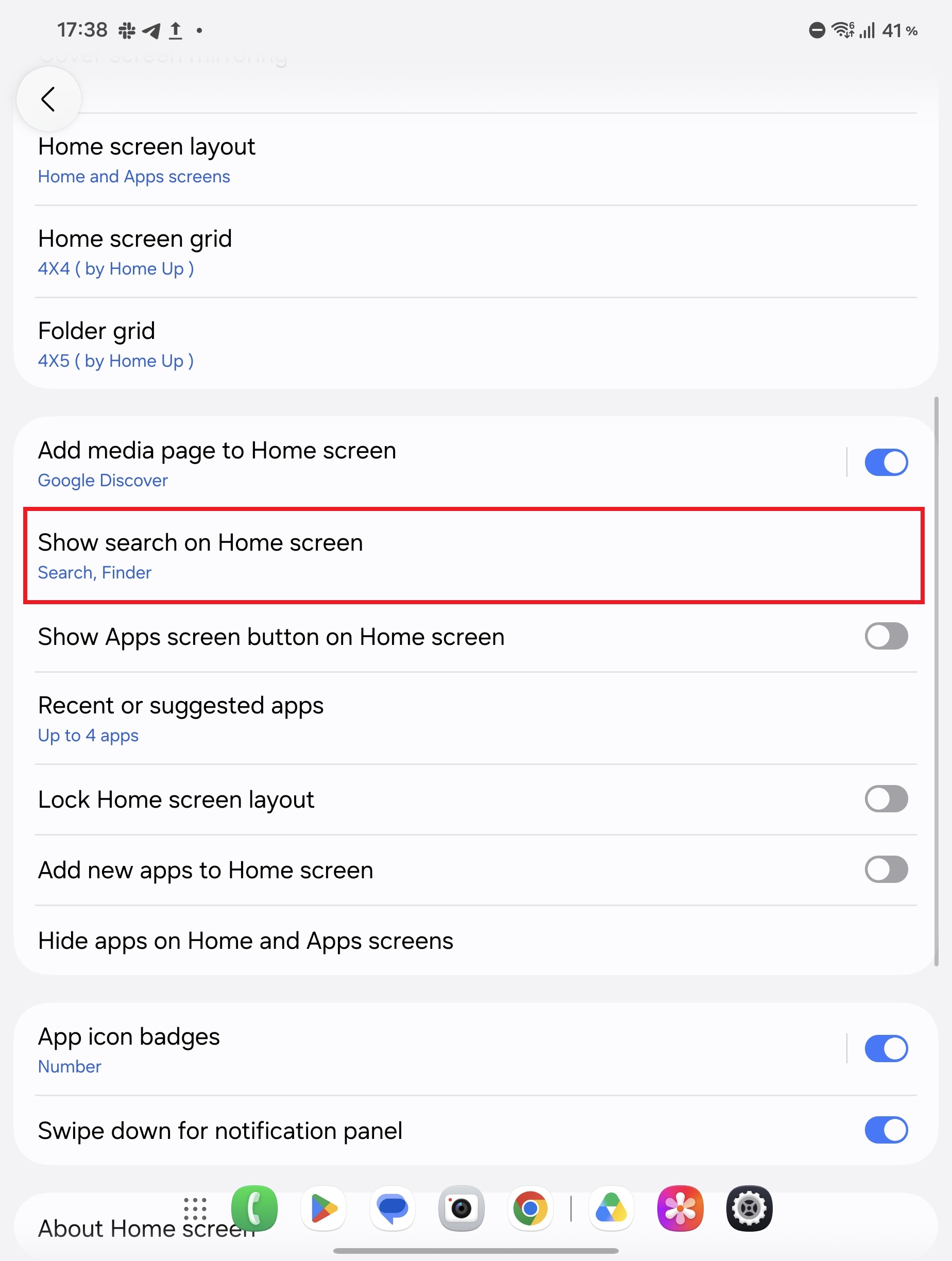
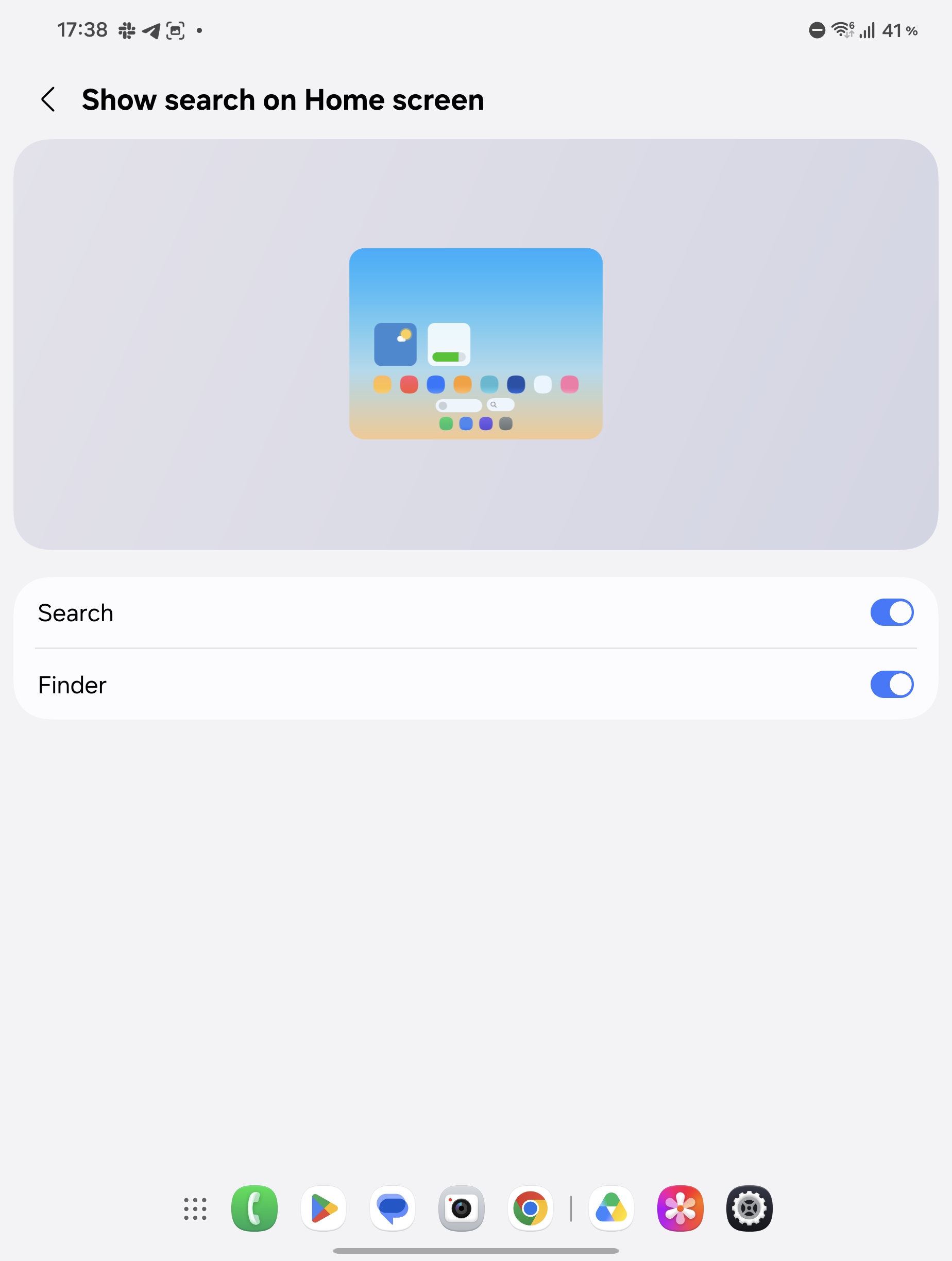
To make navigation and file retrieval lightning fast, you can permanently anchor search tools to your main display. Open your home screen settings and select Show search on Home screen to enable Google Search, Samsung Finder, or both simultaneously.
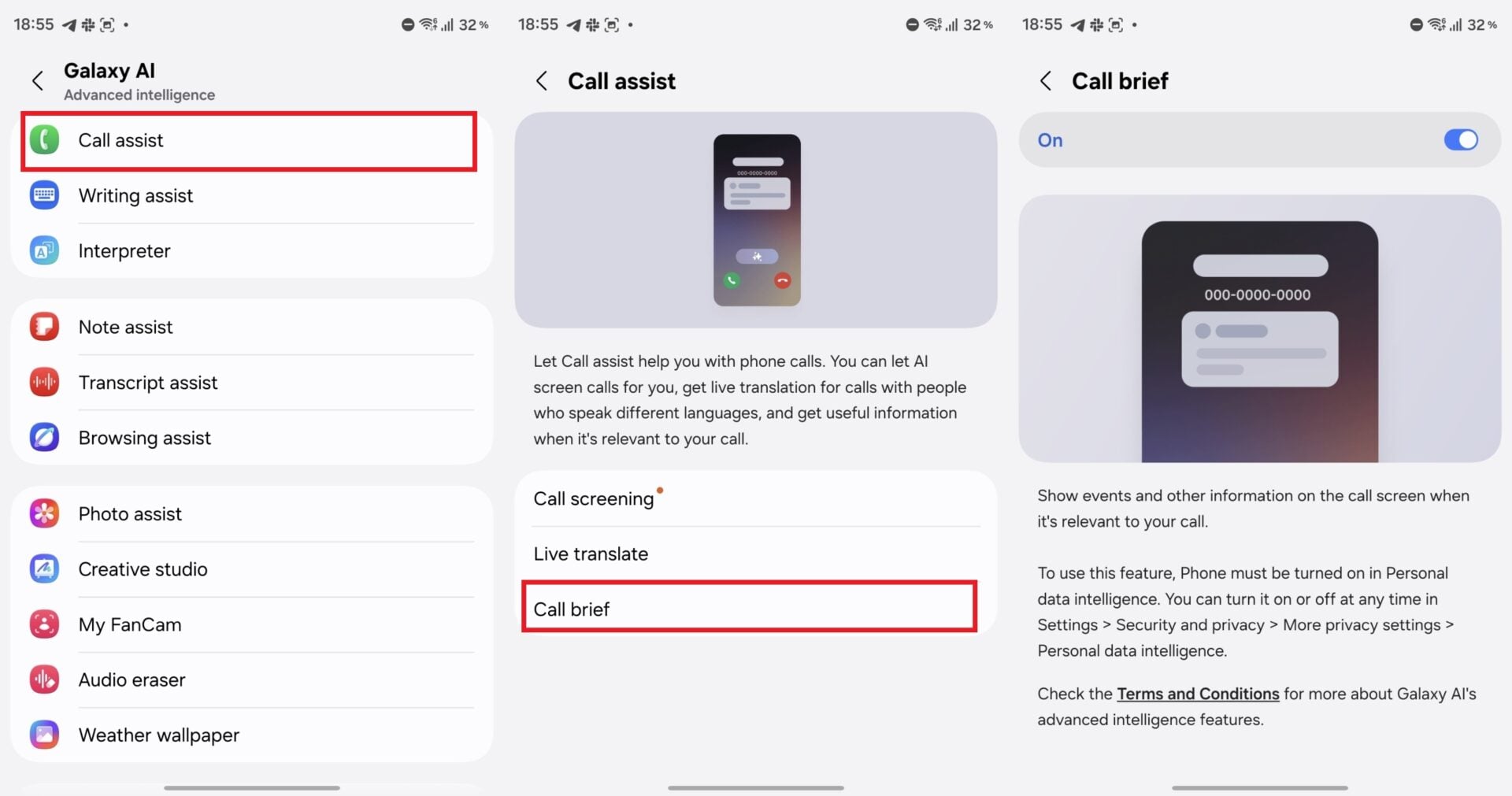
5. Turn on Call Brief
Head over to Settings > Galaxy AI > Call assist and switch on Call Brief. This feature listens intelligently during active conversations and surfaces relevant notes from your calendar, photo gallery, and messaging apps directly on the screen.
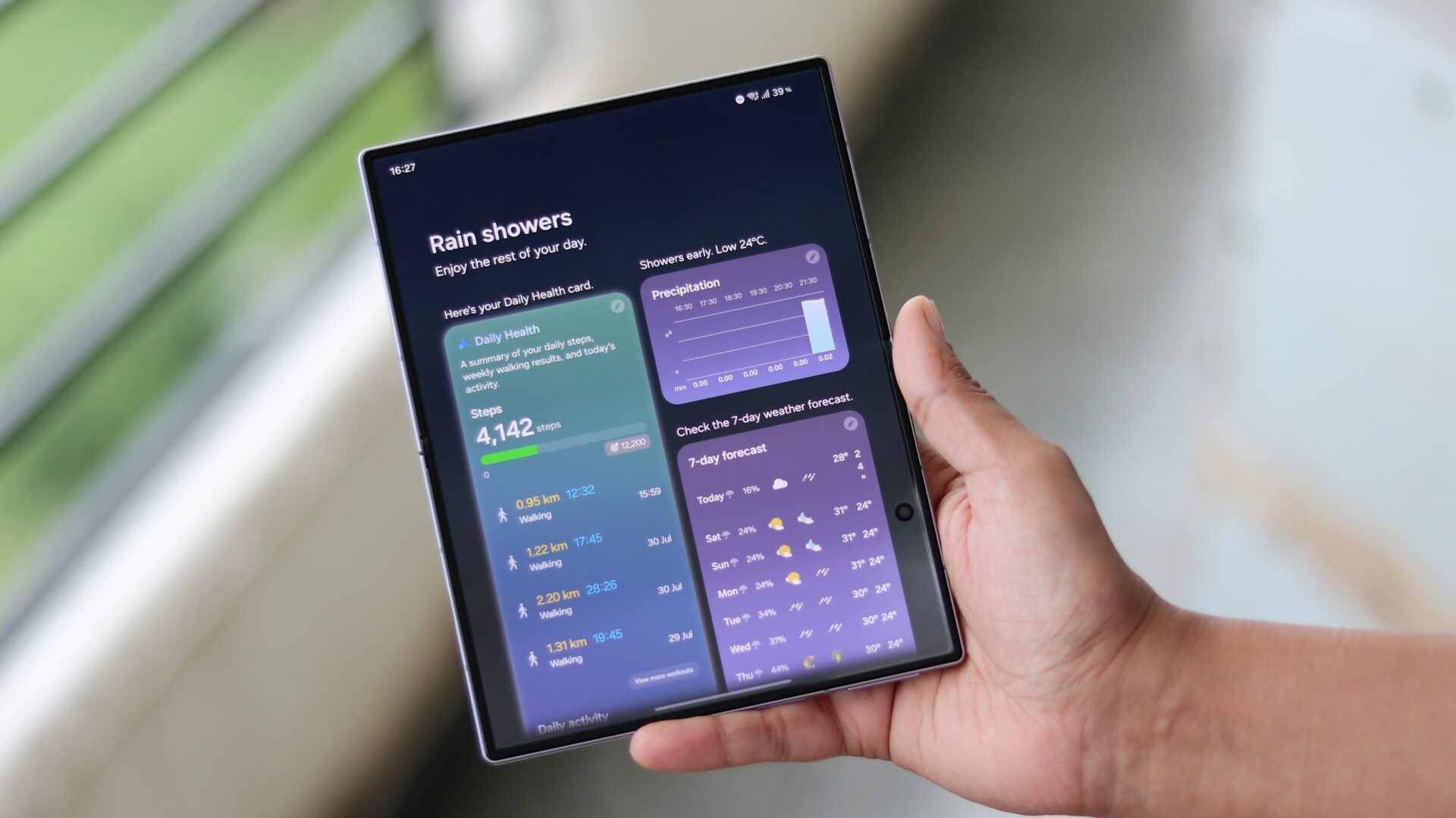
6. Create Custom Cards for Now Brief
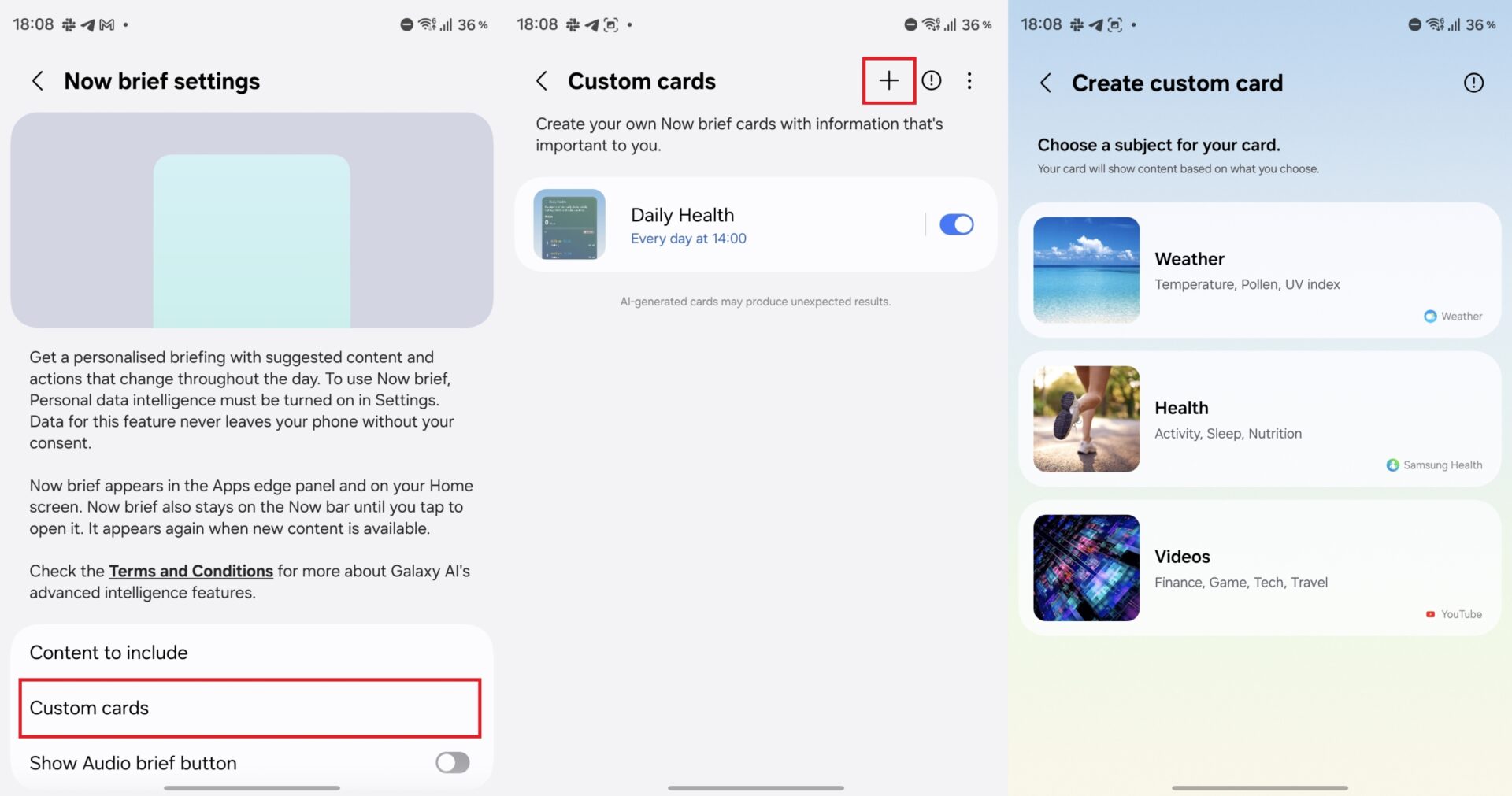
Now Brief provides smart day-long updates based on your daily routine. One UI 9 introduces a custom cards builder, allowing you to design tailored information modules covering weather, fitness insights, or preferred video content.
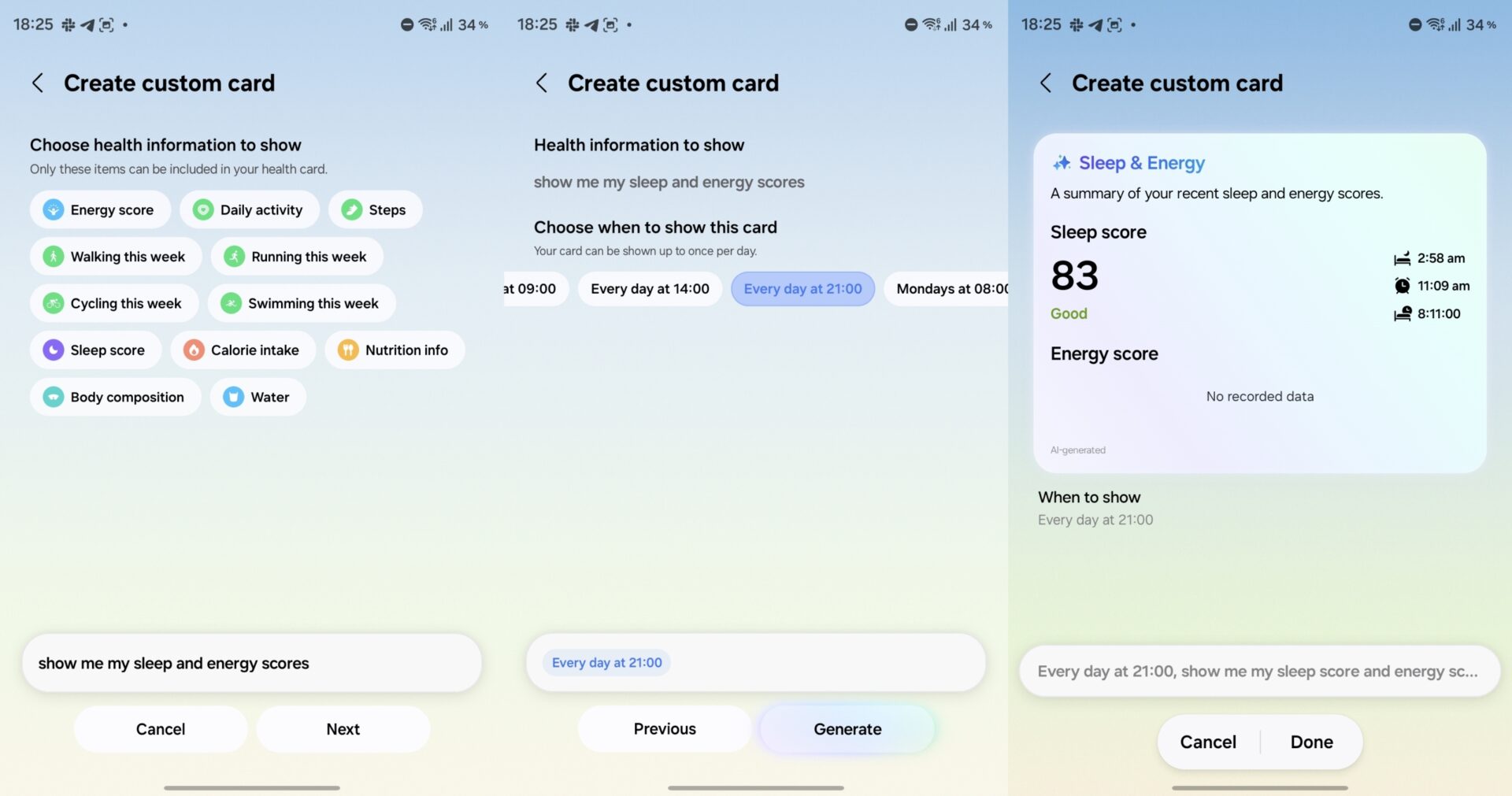
You can write custom prompts like “Show me my sleep and energy scores” and schedule them to appear at specific times of day, combining disparate metrics into a single readable widget.
7. Use Capture View Mode in the Camera
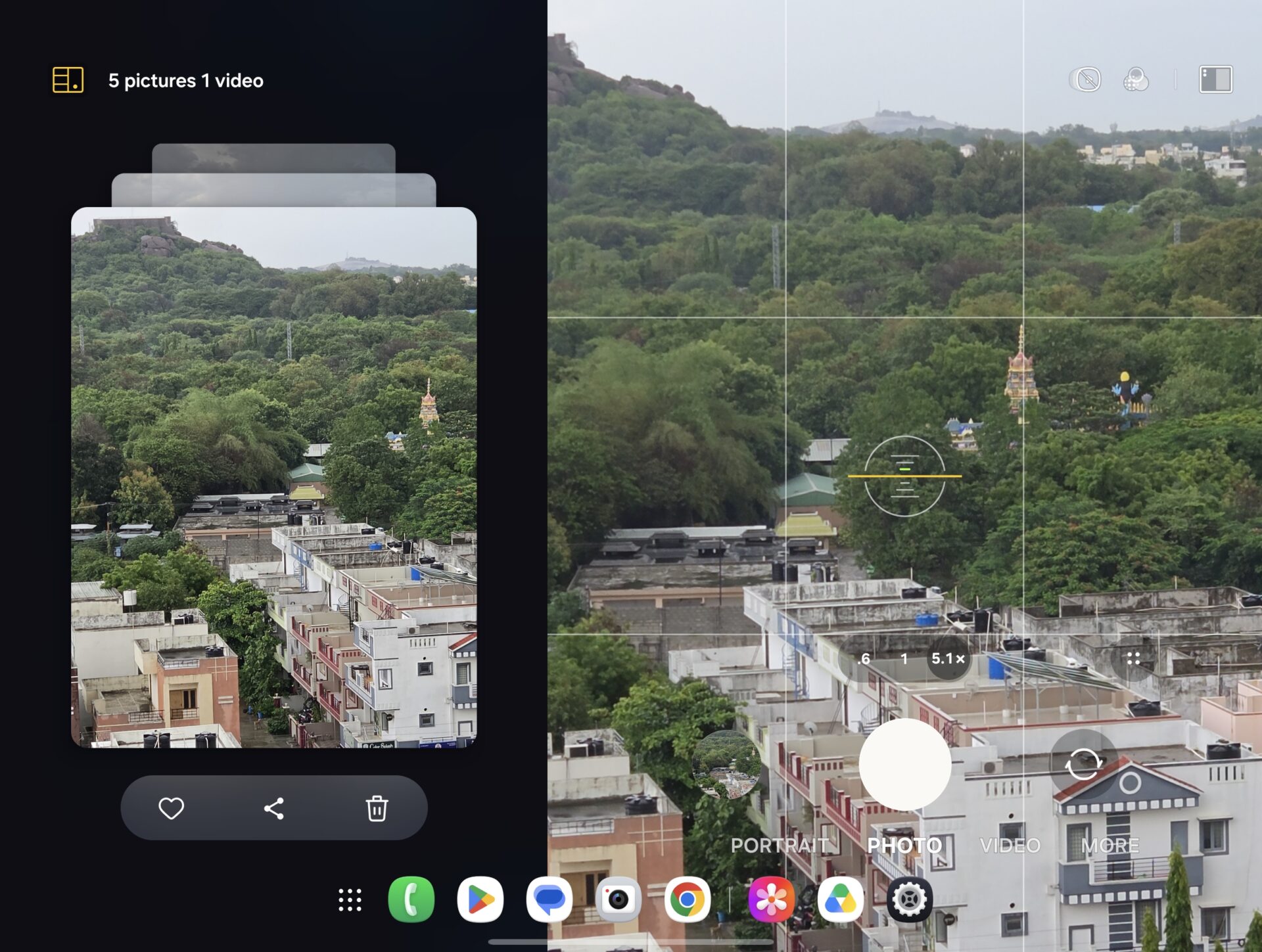
When holding your phone in landscape orientation, toggle on Capture View in the top corner of the camera interface. This splits the internal screen into a live preview zone and a dedicated photo review gallery, letting you check, favorite, or delete shots instantly without interrupting your workflow.
8. Enable 24MP Photos Through Camera Assistant
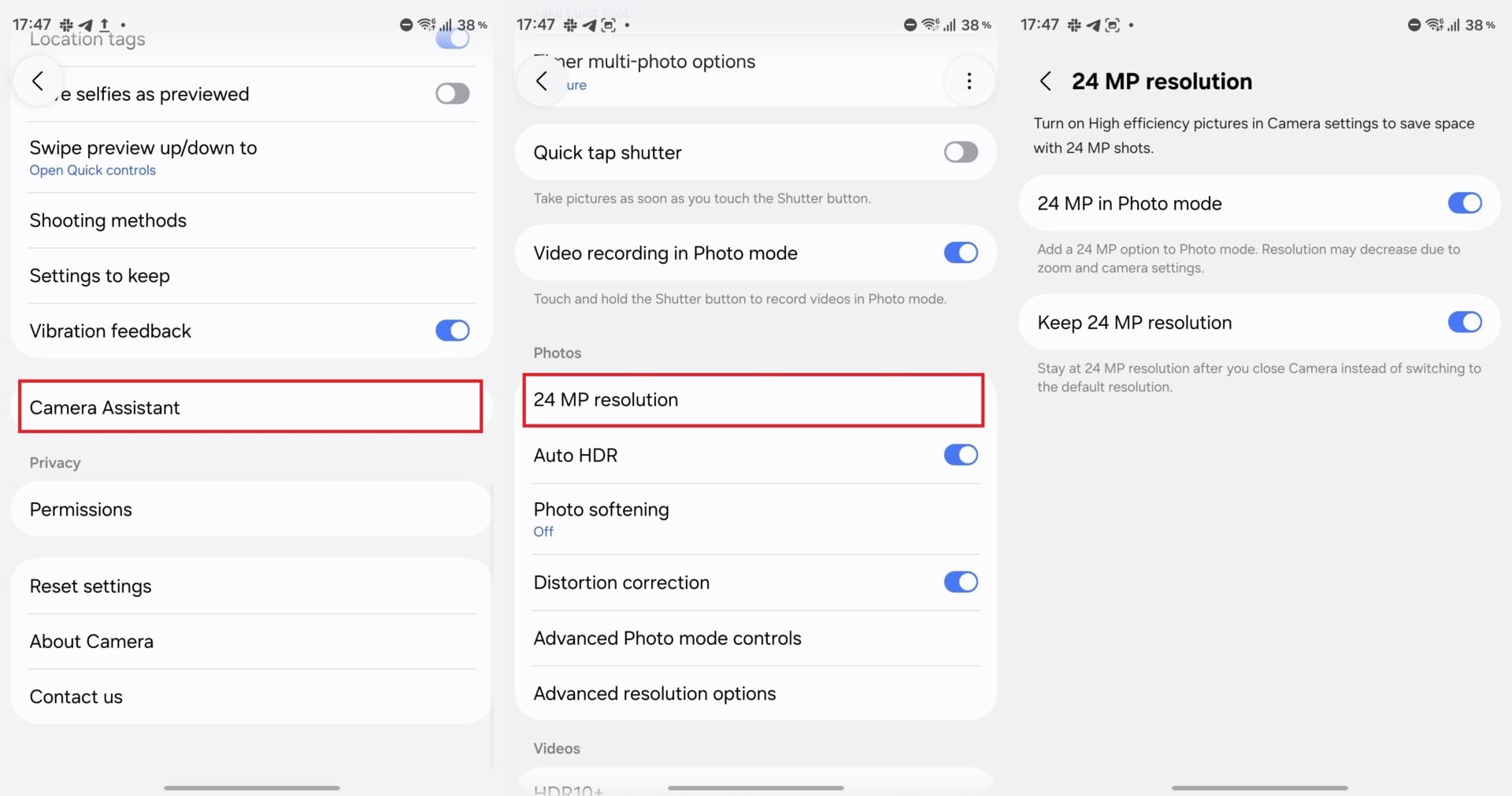
To capture higher-detail shots by default using the device’s 50MP sensors, open your camera settings, access Camera Assistant (downloadable via Galaxy Store if not pre-installed), and enable 24 MP in Photo mode.
9. Fit More Apps on the Cover Screen with Home Up
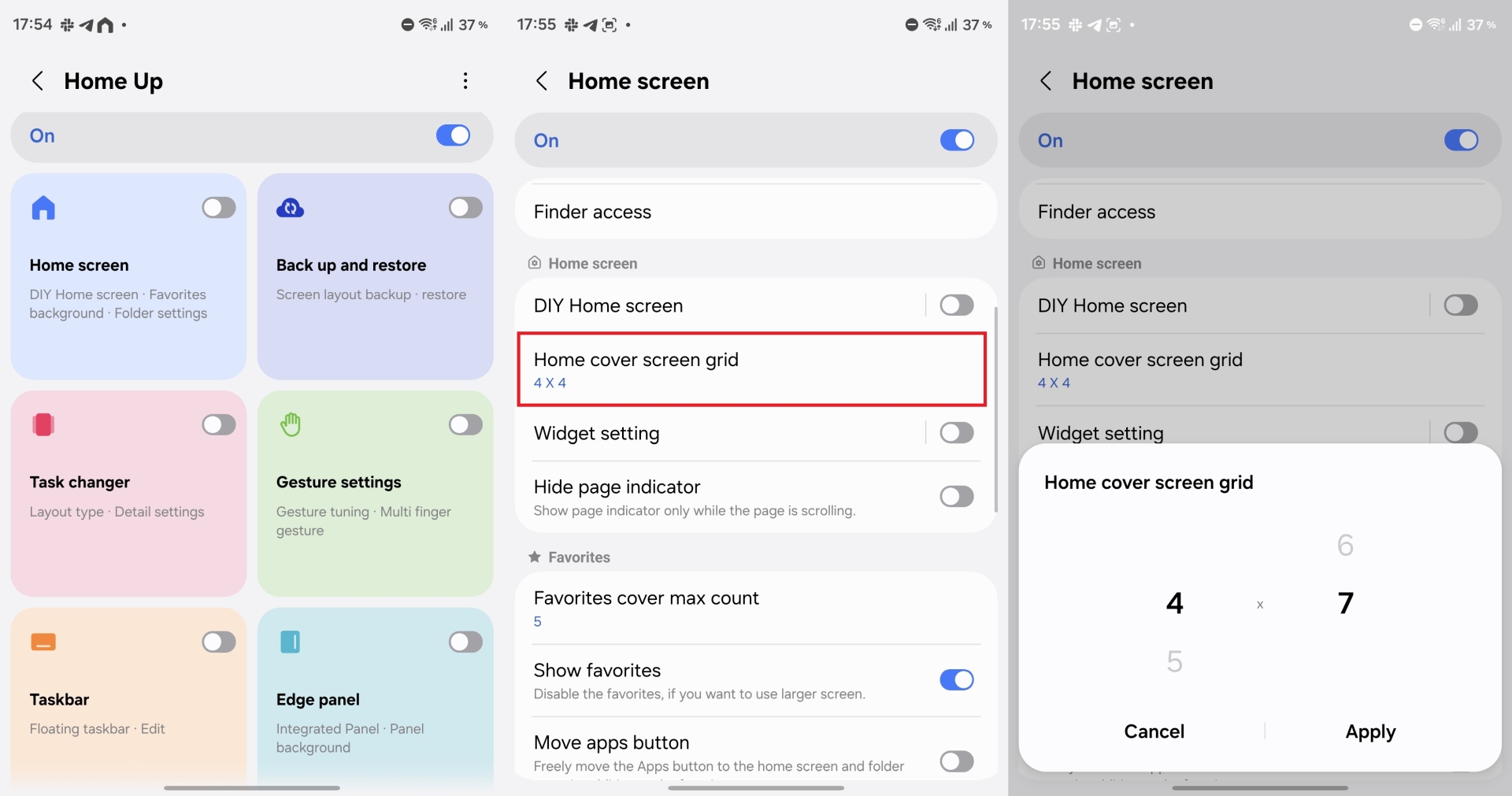
The cover screen offers plenty of horizontal width, but default icon layouts often feel oversized. Install the Good Lock application from the Play Store or Galaxy Store, open the Plugins tab, install Home Up, and adjust your cover grid up to 7x7 for better scaling.
Comparing a standard grid layout against an expanded setup shows just how much more efficient your home screen real estate becomes.
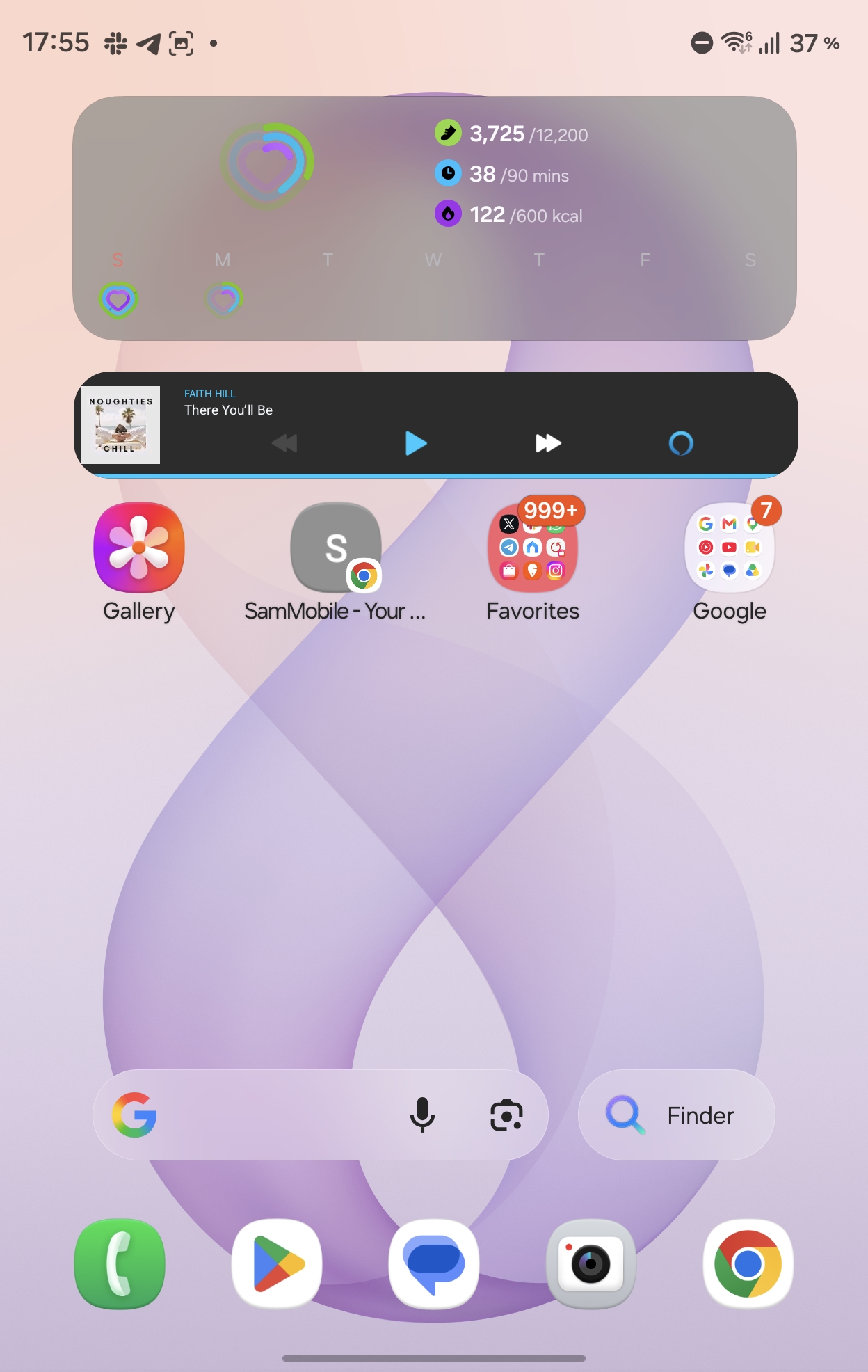
10. Customize Home Screen Grid and App Drawer on Inner Display
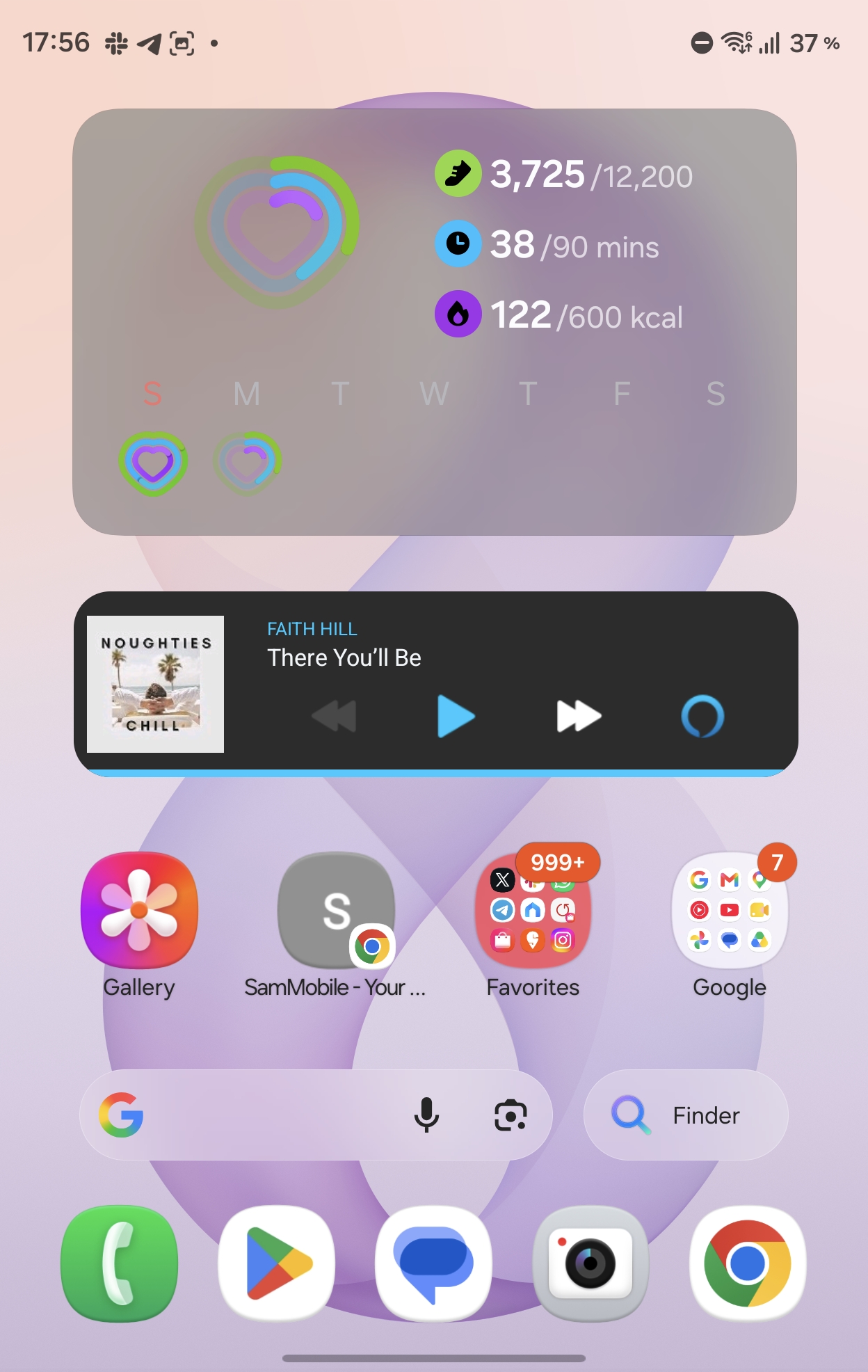
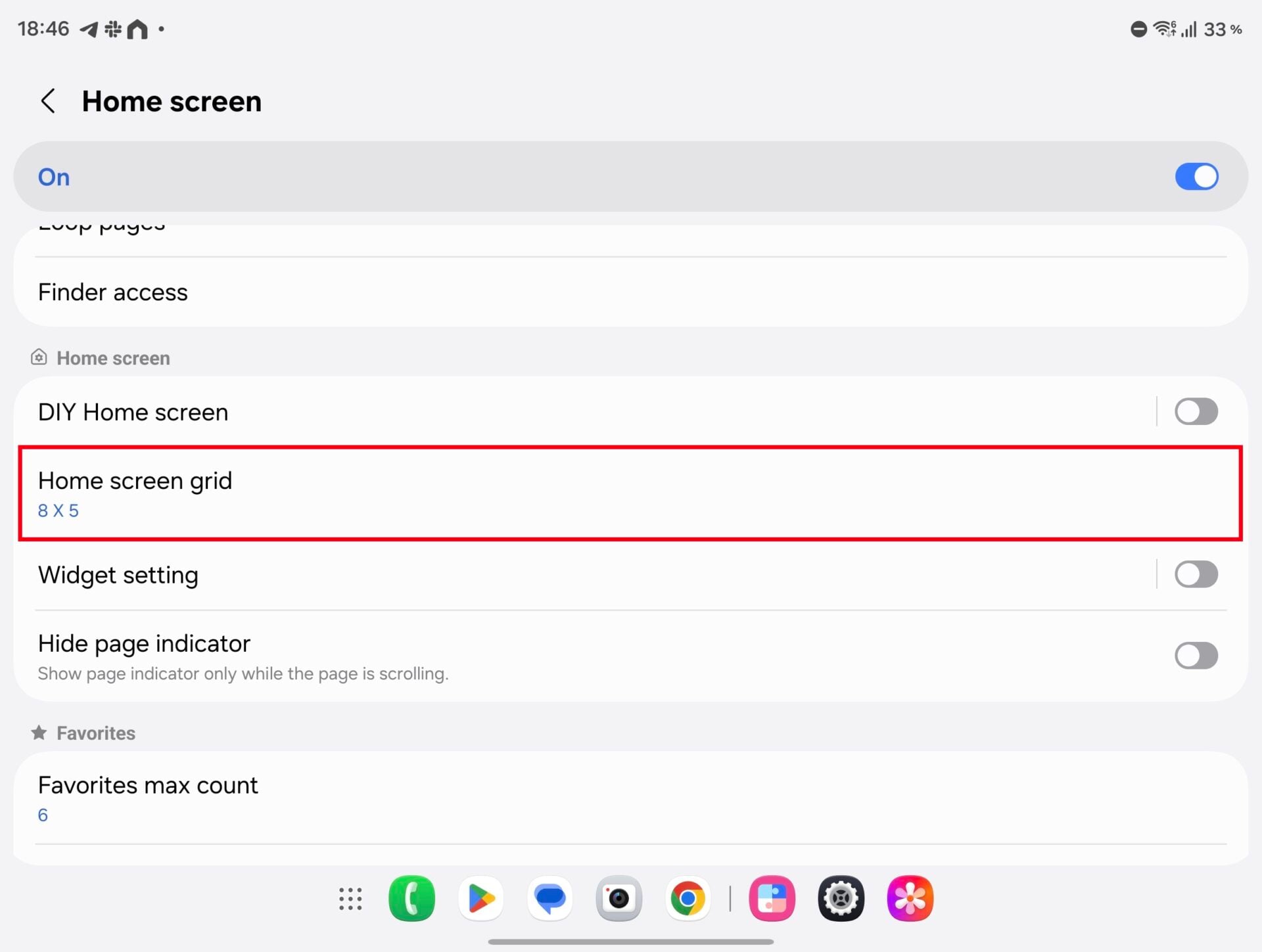
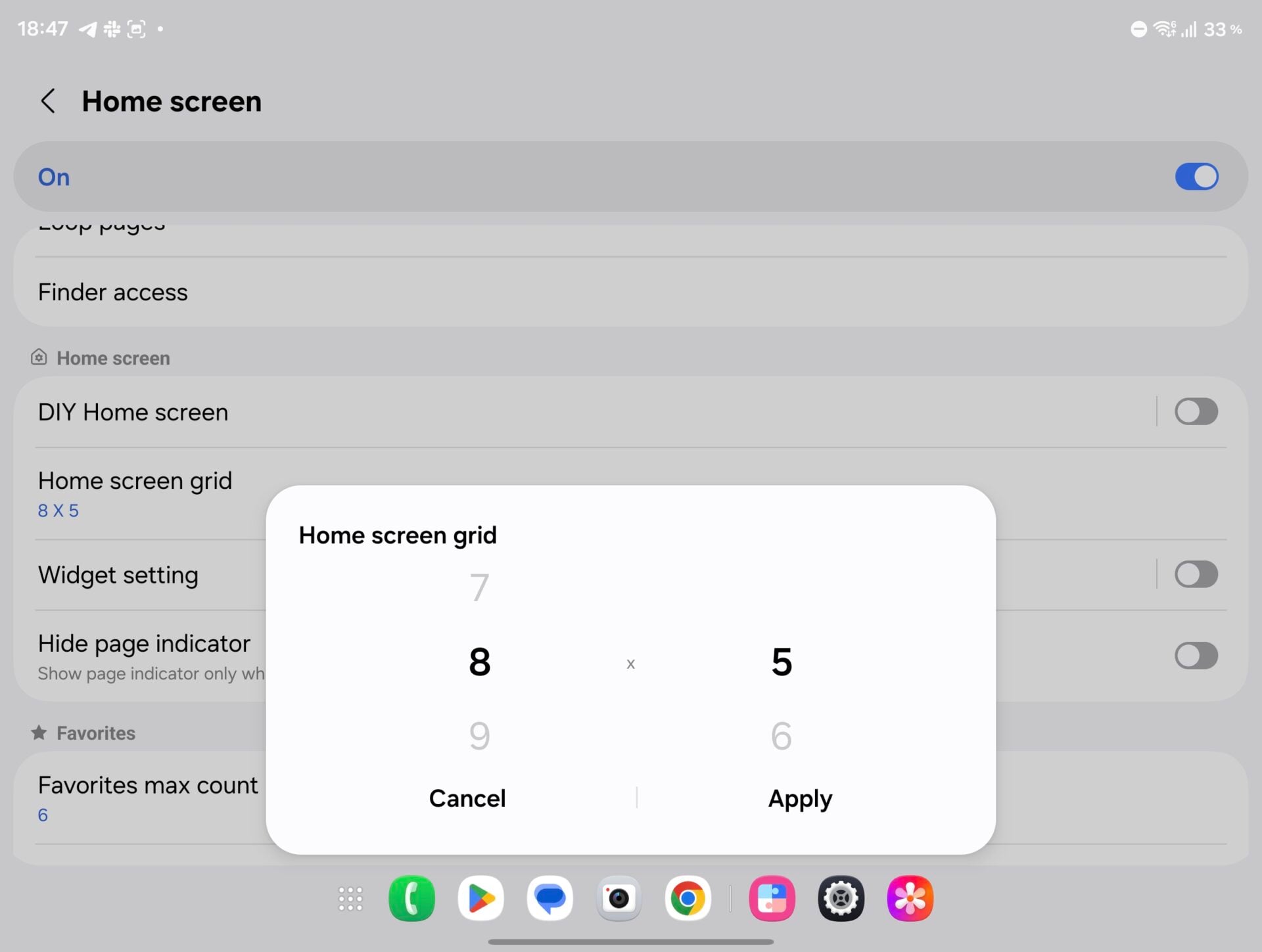
Home Up can also completely overhaul your primary unfolded display. First, disable cover screen mirroring in your main home screen display settings. Once independent control is active, open Home Up while the phone is unfolded to configure custom grid sizes, expand your favorites dock, and maximize your app drawer capacity.
Can I use Home Up on any Samsung Galaxy phone?
Yes, Home Up is part of the Good Lock ecosystem and works on most modern Samsung Galaxy devices, though its options are especially powerful on foldable devices like the Z Fold series.
What does disabling cover screen mirroring do?
Disabling cover screen mirroring allows you to arrange your applications, widgets, and grid layouts independently on the outer cover screen and the inner foldable display.
Does forcing portrait apps into landscape work for every application?
While the Labs setting successfully handles most stubborn apps, rare applications with strictly hardcoded layout constraints may still exhibit scaling quirks.
🔎 Taking a few minutes to walk through these targeted settings transforms your Galaxy Z Fold 8 from a standard smartphone into a powerhouse productivity machine. By tailoring your grids, unlocking advanced photography tools, and enforcing proper landscape layouts, you ensure your new device adapts perfectly to your daily routine.
Post a Comment