
Did You Set Up Your Galaxy Z Fold 8 with Smart Switch? Your Zoom Level Might Be Incorrect
Transferring settings from an older smartphone using Samsung's Smart Switch is remarkably convenient when upgrading your mobile device, but this process can occasionally introduce unexpected quirks. A prime example involves the newly launched Galaxy Z Fold 8, where carrying over your old display configurations can leave you with the wrong zoom level for your new foldable device.
Quick Summary
- ✨ Smart Switch can transfer higher zoom settings from older slab phones that do not fit the Galaxy Z Fold 8 properly.
- ✨ The Fold 8 defaults to a screen layout and zoom setting shifted one notch to the left of center.
- ✨ Users should manually verify display scaling or give the default setting a few days before making permanent changes.
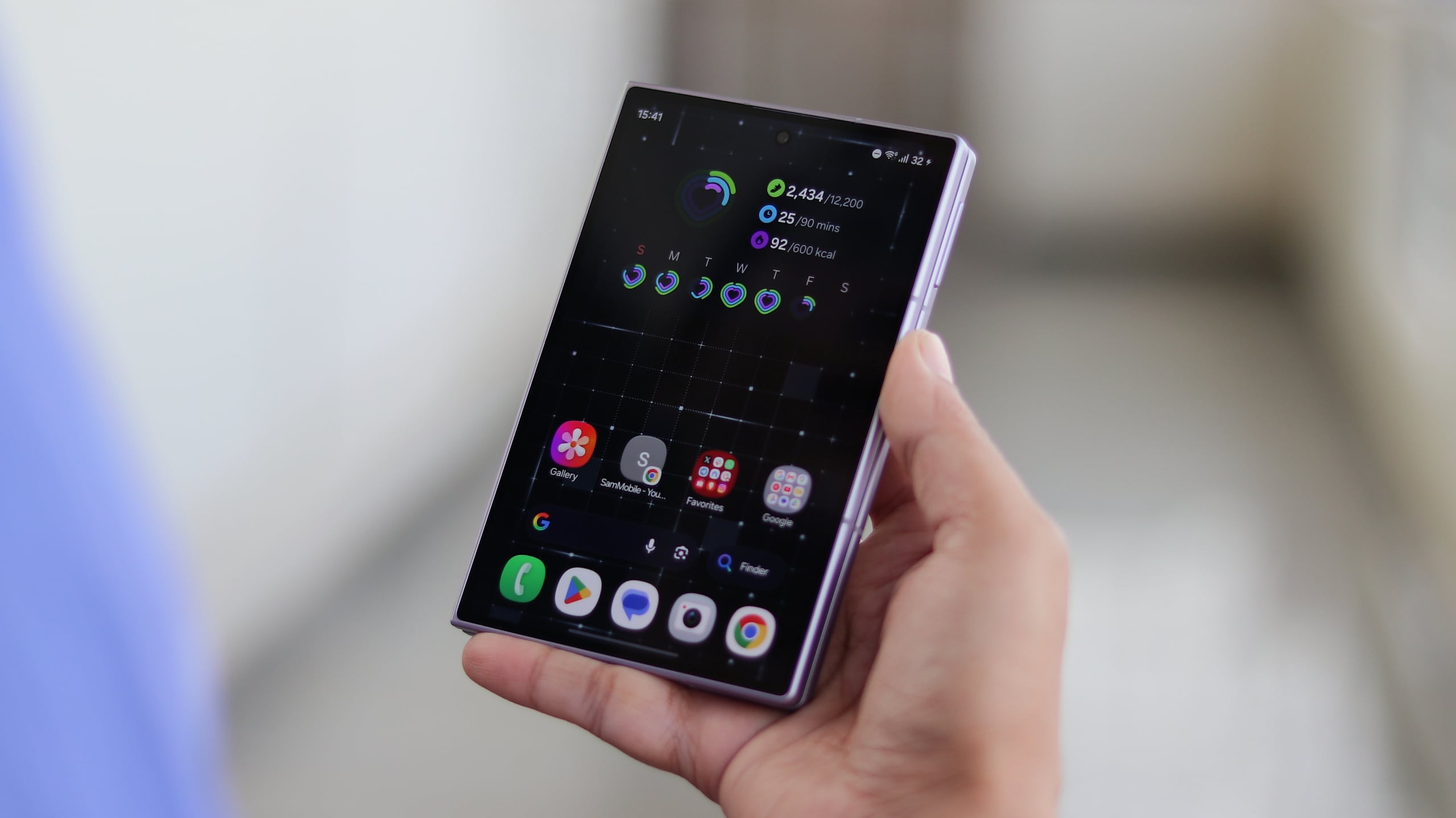
If you have recently purchased a Galaxy Z Fold 8, you might want to pause before blindly restoring every previous preference. Specifically, there is an essential display configuration that requires your immediate attention to prevent potential layout issues across your system and apps.
Be Cautious When Restoring Screen Layout and Zoom
Samsung's One UI software includes a display preference labeled "Screen layout and zoom." This utility manages the general scaling of user interface components throughout the operating system and installed applications via an adjustable slider.
Sliding the control to the left shrinks items down, while moving it to the right enlarges everything on your screen. The mechanism is straightforward, but standard values differ significantly between device categories.
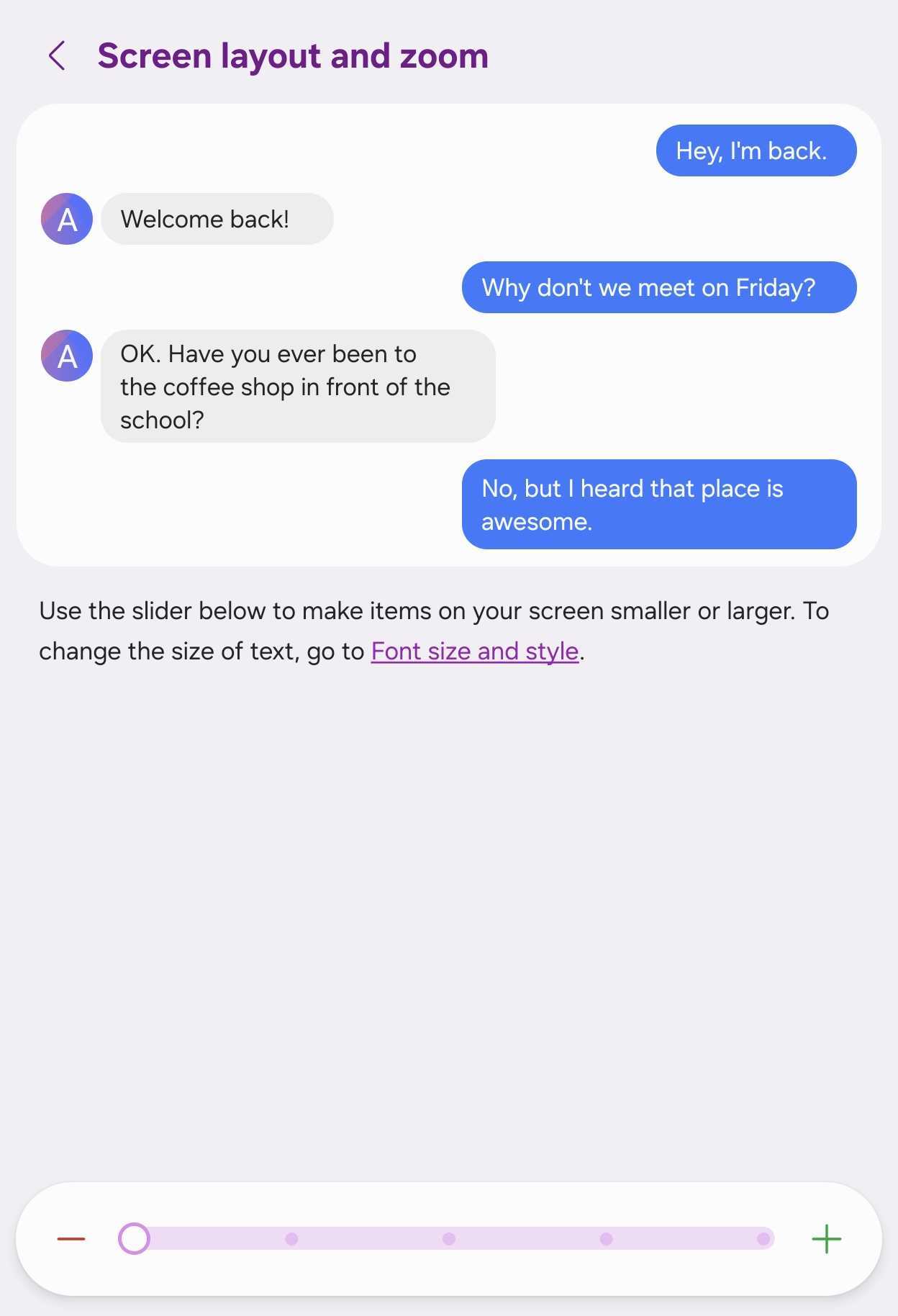
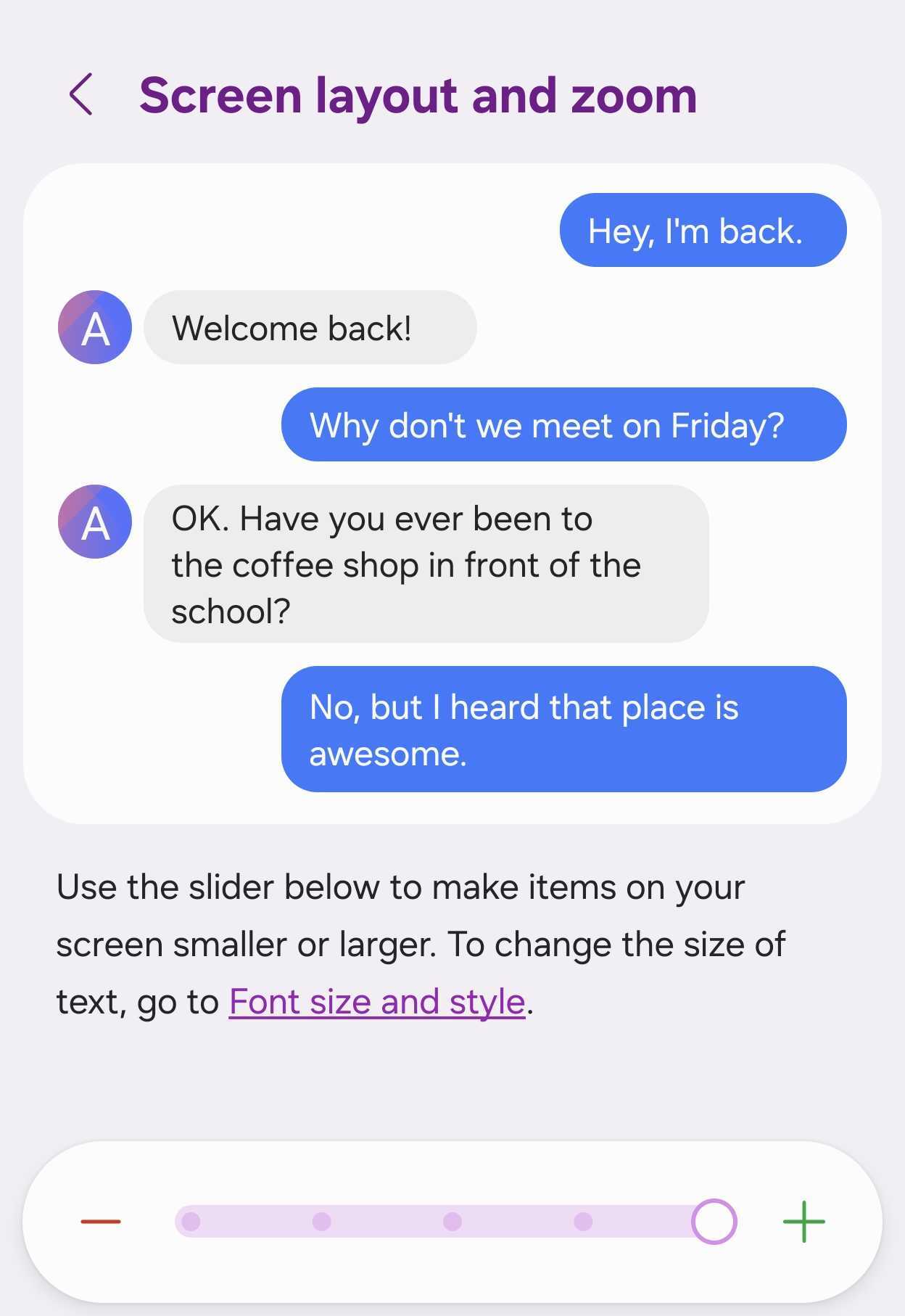
Most standard slab-style Galaxy phones keep this slider centered by default. Conversely, the Galaxy Z Fold 8 applies a different baseline, with Samsung positioning the default scale one notch further to the left.
This layout choice is intentional. Because the cover screen measures 5.5 inches—making it narrower than traditional smartphone panels—a slightly lower zoom setting ensures that more content fits comfortably on the outer display without crowding.
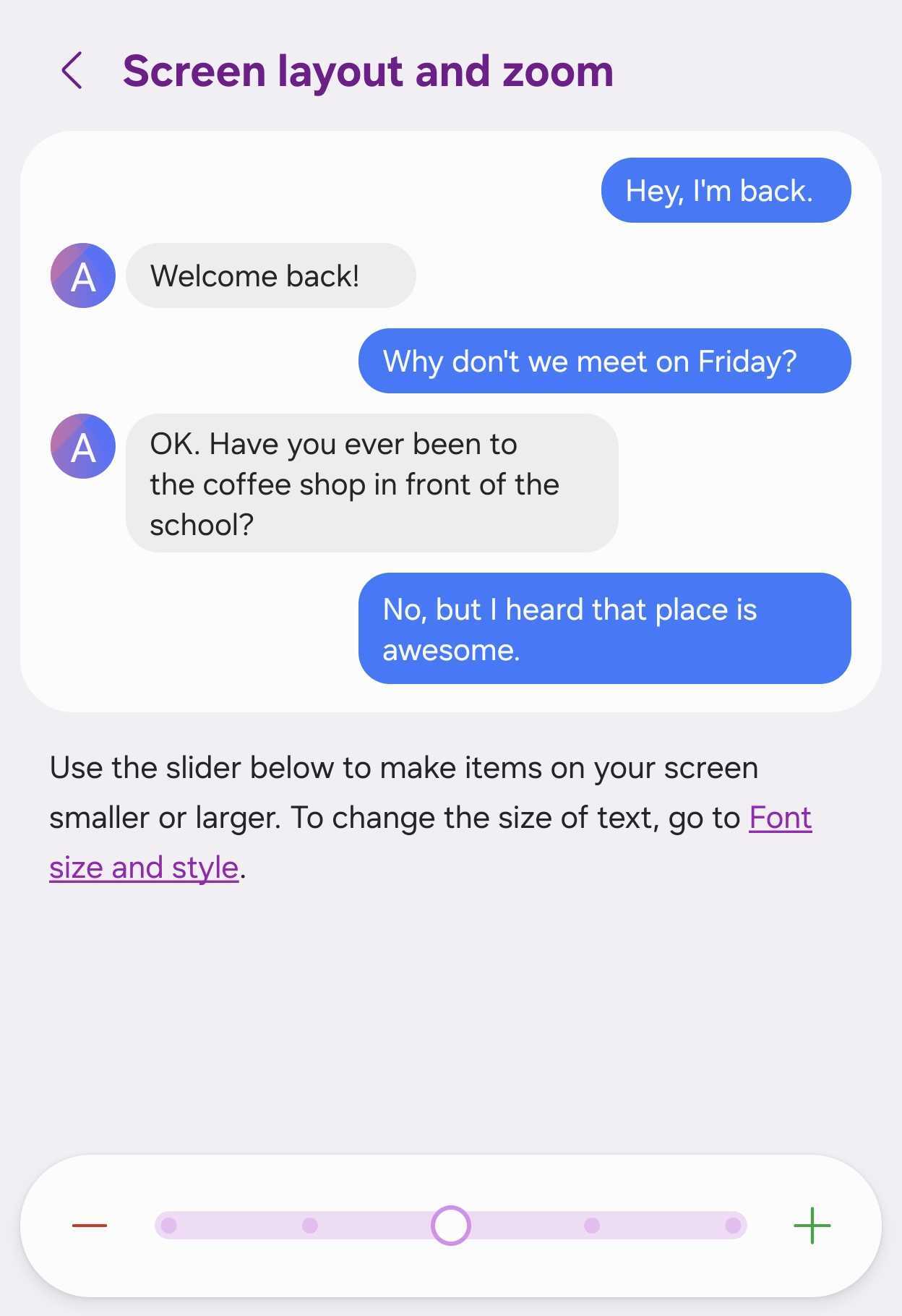
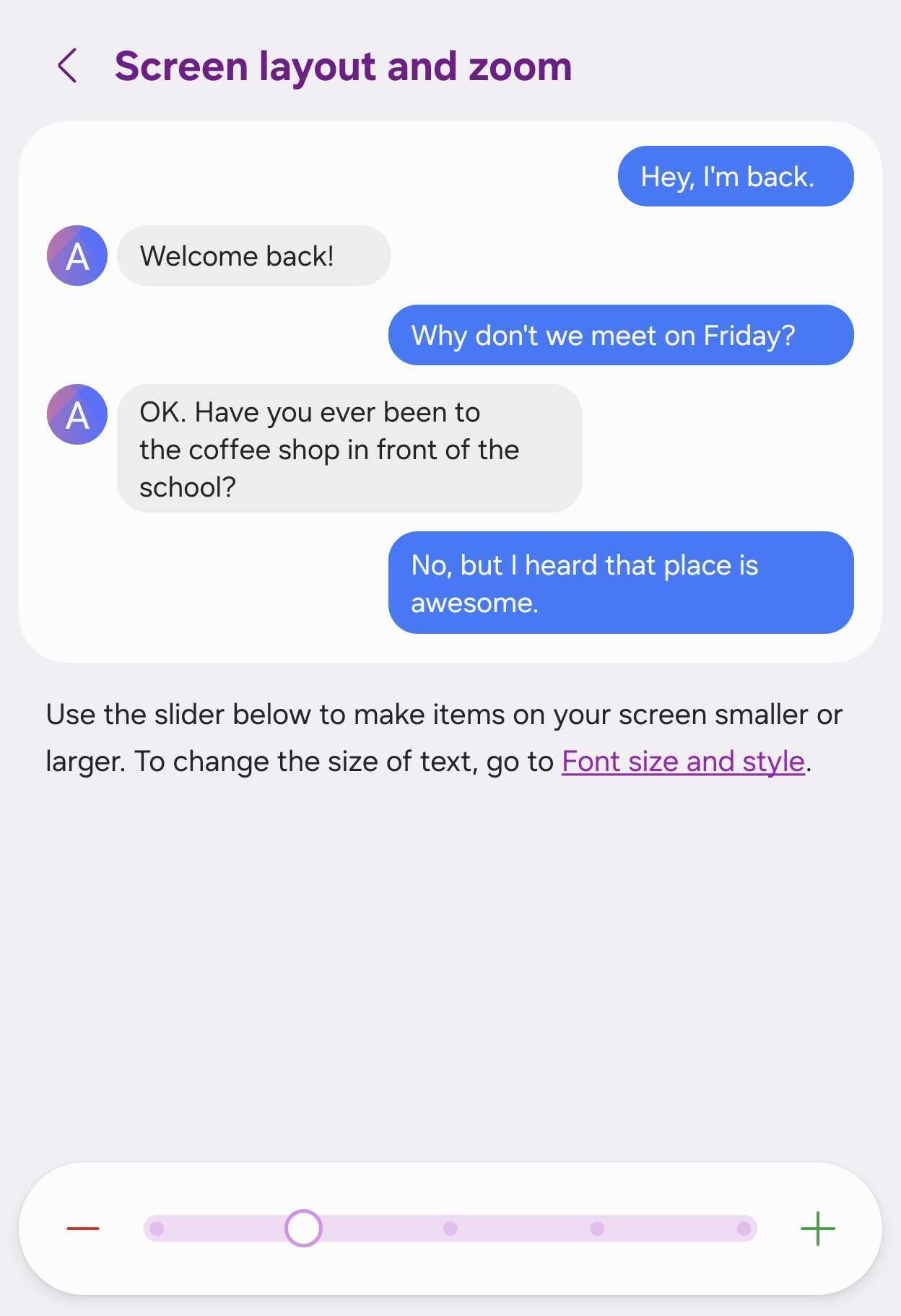
The complication arises when migrating configurations from an older, standard Galaxy phone via Smart Switch. Doing so often forces a higher scaling level onto your foldable device, which can trigger visual glitches or awkward formatting across One UI and third-party software.
NOTE: Screen zoom adjustments apply universally to both the external cover screen and the main foldable display, regardless of whether you choose to mirror your cover screen layout onto the interior panel.
Which Settings Require Inspection on Your Foldable Device?
Begin by navigating to Settings > Display > Screen layout and zoom to verify that your scaling slider sits precisely at the intended default position—one notch left of the center marker.
Although elements may initially appear compact, testing the default configuration for a few days lets your eyes adjust naturally. If you still find the interface too small after this testing window, you can manually increase the global zoom or fine-tune individual application display parameters.
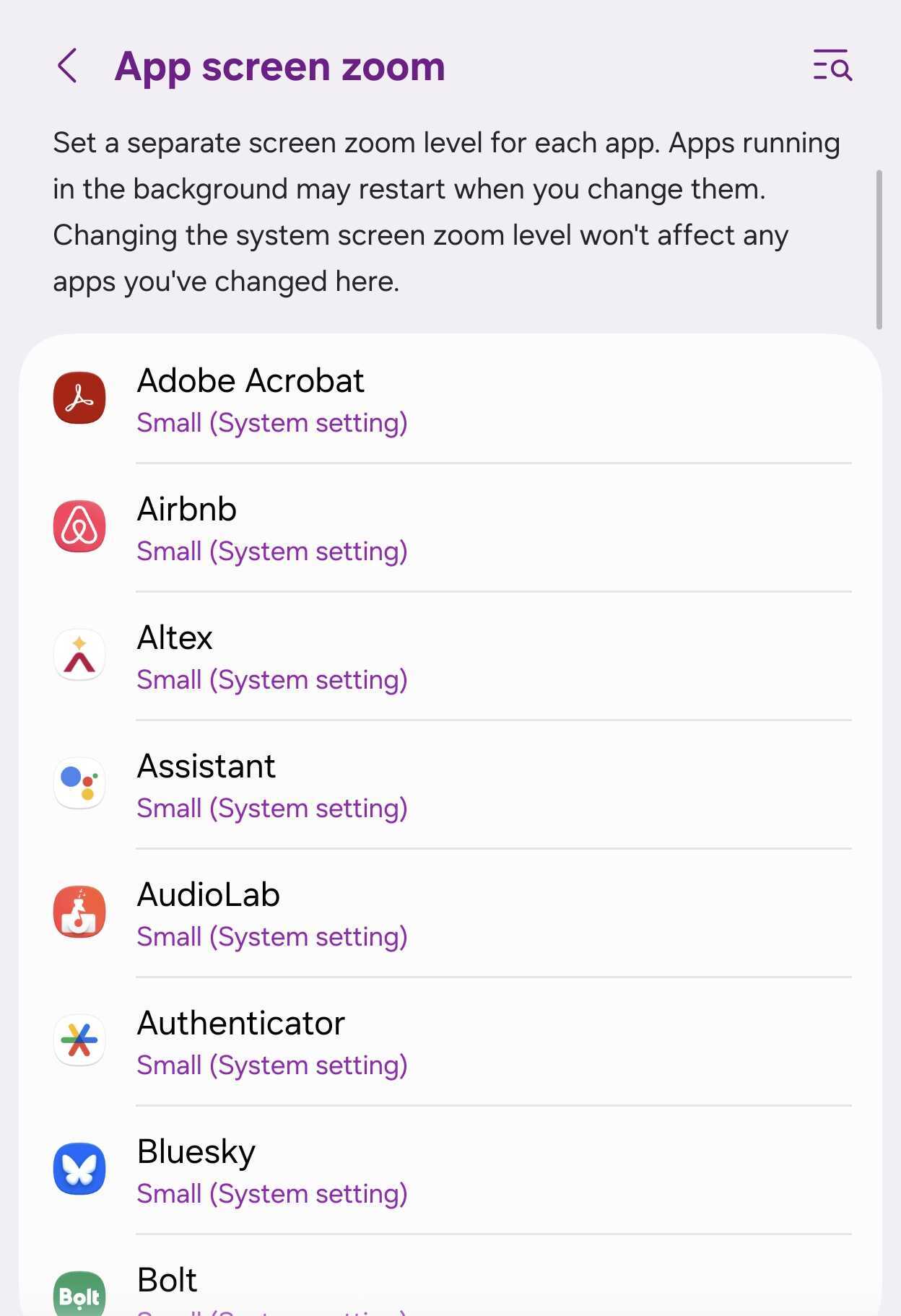
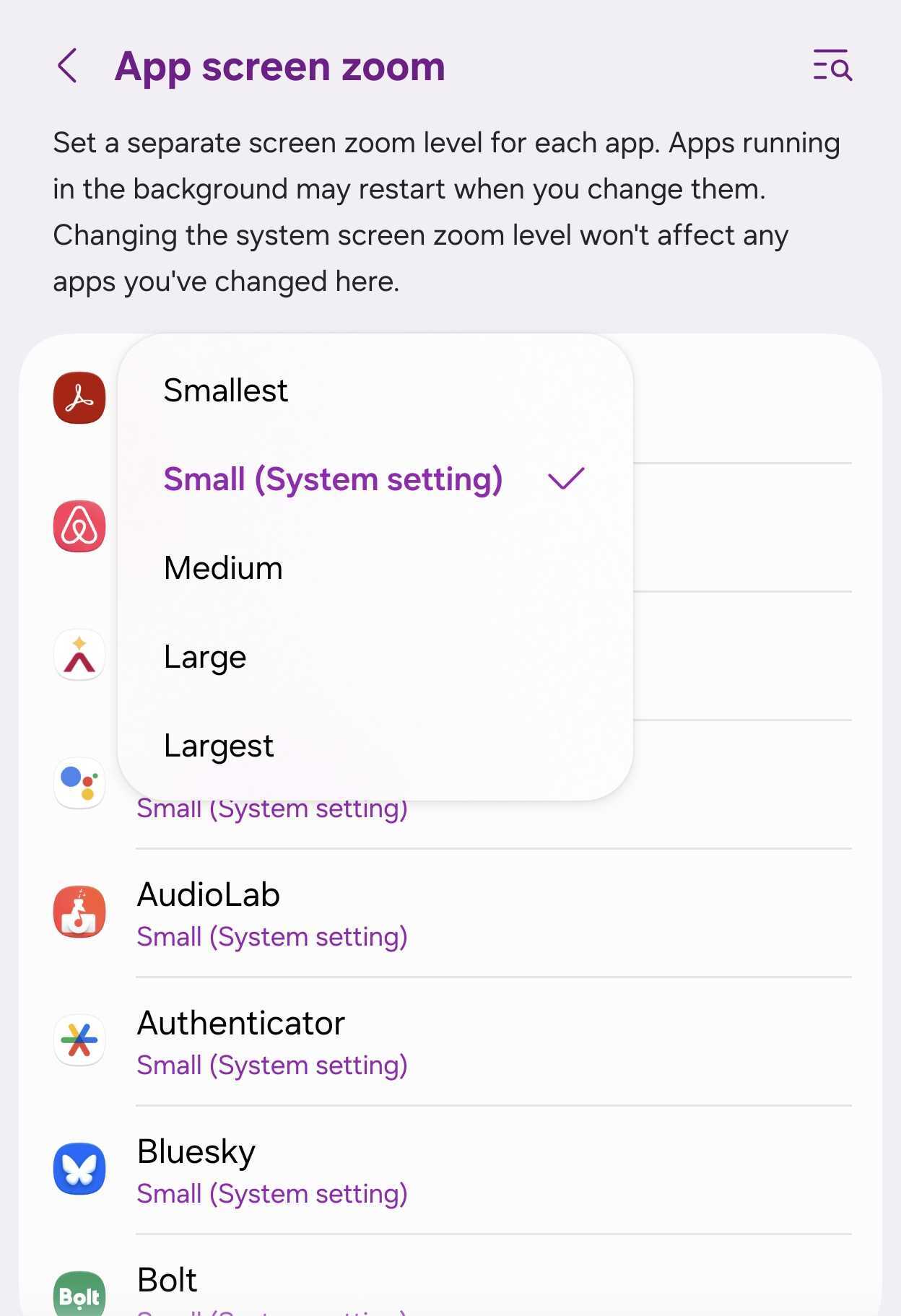
By default, apps inherit the system-wide zoom value chosen within your display configurations. If a specific application fails to render correctly, you can customize its scaling independently without disrupting other software or the broader user interface.
To do this, head over to Settings > Advanced features > Labs > App screen zoom, then select the target app and choose your preferred scaling tier.
Interface sizing can also be managed through two alternative methods:
- Font size and style: Found directly inside the main Display settings menu.
- App grid size: Pinch your home screen, then access Settings to modify icon layouts.
Ultimately, Samsung optimized the cover screen interface around a specialized scaling metric distinct from standard slab phones. If you own a Galaxy Z Fold 8, some light customization may be necessary to achieve your ideal visual comfort.
When transferring content via Smart Switch, consider skipping old display profiles or thoroughly auditing your screen layout and zoom parameters immediately following the migration process.
Even if compact interfaces are not your preference, experiencing the device through Samsung's intended design parameters first is highly recommended before applying customized tweaks.
Why does the Galaxy Z Fold 8 use a different default zoom level compared to regular phones?
The cover screen on the foldable device is narrower than traditional slab displays, requiring a lower default zoom level so that content fits neatly and reads clearly without awkward text wrapping.
Will changing the screen zoom affect both screens on my foldable device?
Yes, general screen zoom settings apply universally across both the outer cover screen and the inner foldable screen simultaneously.
Can I adjust the zoom level for just one specific app?
Yes, you can modify individual application zoom configurations by accessing the Labs menu in your advanced system settings without altering the rest of your phone.
🔎 Conclusion: Migrating to a sophisticated foldable device like the Galaxy Z Fold 8 via automated tools like Smart Switch offers incredible convenience, but default configurations should always be reviewed. By understanding how Samsung's display scaling functions on narrower cover screens, users can avoid unnecessary layout frustrations and enjoy a smoother, more tailored mobile experience right out of the box.
Post a Comment