
How I Automate My Galaxy Watch Always On Display When Leaving Home
Samsung's Modes and Routines app is a versatile automation suite for Galaxy devices, yet configuring smartwatches can still present unique challenges. Because native smartwatch functions are occasionally limited, creative workarounds are often required to achieve seamless daily automation.
✨ Quick Summary: Learn how to bypass smartwatch automation limits by leveraging your phone's Wi-Fi connection state with Modes and Routines to automatically toggle your Galaxy Watch Always On Display.
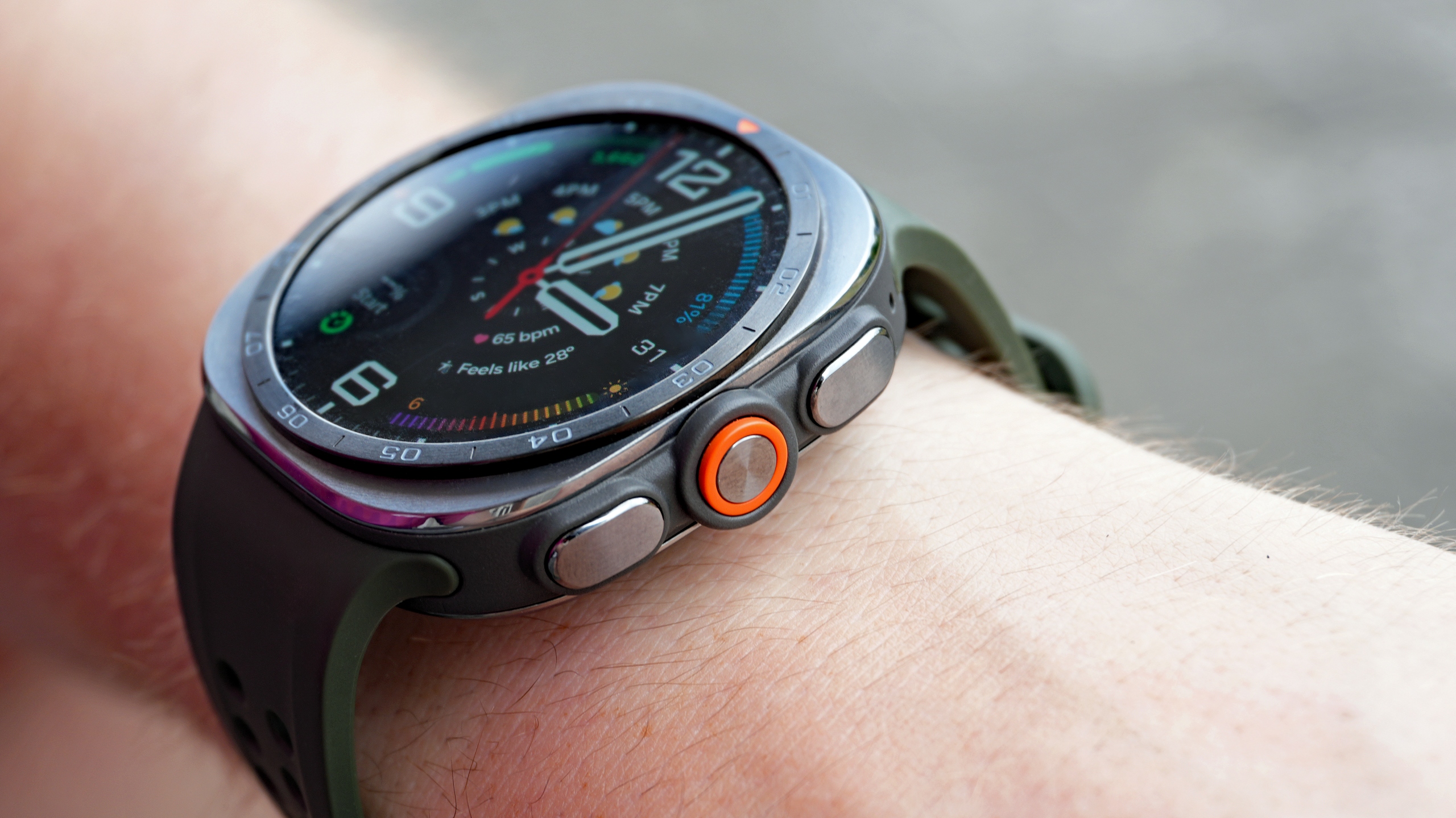
- ✨ Utilize Modes and Routines to automate your wearable preferences effortlessly.
- ✨ Save valuable battery life by keeping Always On Display disabled while at home.
- ✨ Set up smartphone network triggers to activate display features upon departure.
Let Samsung's Routines Do the Heavy Lifting
Preserving battery life is a top priority, which is why I prefer keeping my Galaxy Watch Always On Display (AOD) switched off while relaxing at home. However, stepping outside with a completely blank screen is inconvenient, meaning I traditionally had to toggle AOD manually every time I left or returned unless I forgot.
Using Modes and Routines, you can eliminate this manual chore. Although native options for watch AOD toggles are scarce, a clever smartphone network workaround solves the problem completely.
You can configure your routine so that your smartwatch automatically activates its Always On Display the moment your phone disconnects from your home Wi-Fi network. Follow these steps to set it up:
- On your phone, navigate to: Settings > Modes and Routines > Routines > Add.
- In the “If” condition field, select “disconnected from [your home Wi-Fi network name].”
- In the “Then” action field, choose Galaxy Watch > Always On Display > ON.
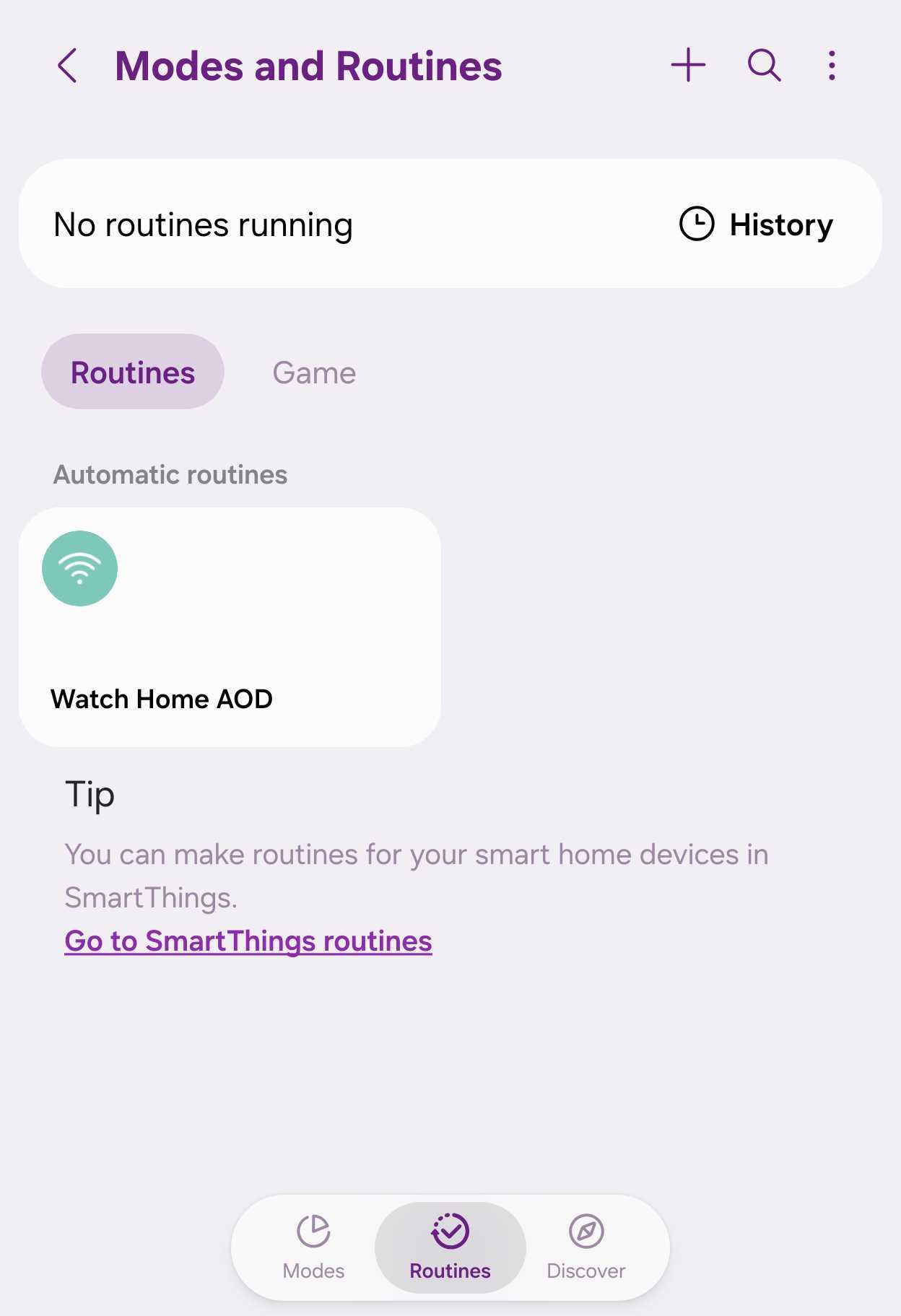
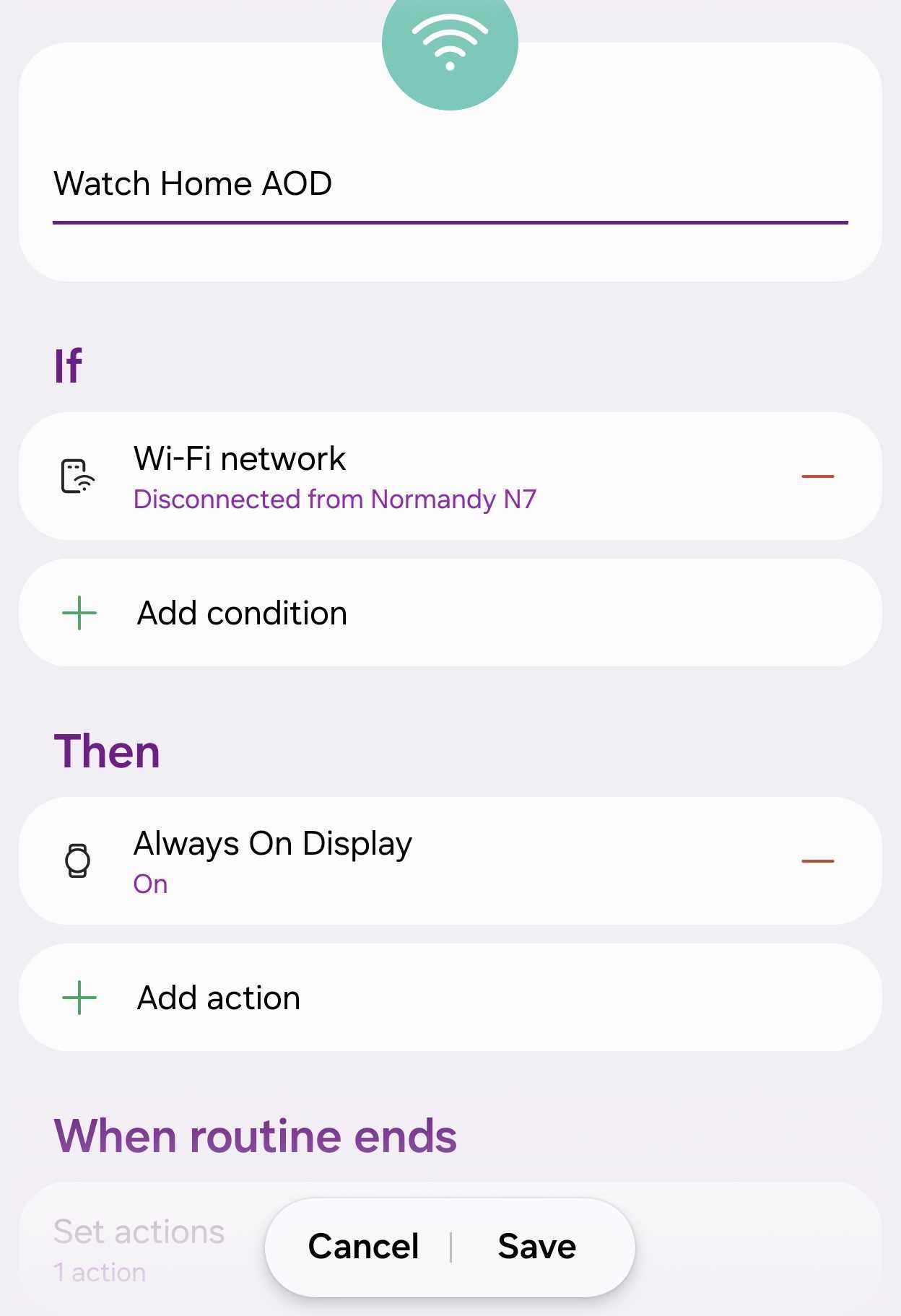
Whenever you step out and your phone loses connection with your home router, your Galaxy Watch will immediately enable its AOD mode. The routine reverses automatically once you return home and your phone reconnects.
The main limitation to keep in mind is that this method relies on your smartphone's connection status instead of the watch directly. If you head out for a quick workout without your phone, your smartphone remains connected to home Wi-Fi, meaning the AOD trigger will not fire for your smartwatch. Otherwise, it functions reliably every single time.
NOTE: While you can use location-based geofencing instead of Wi-Fi, map-based home radiuses typically cover around 100 meters, which exceeds standard Wi-Fi coverage ranges. Consequently, utilizing your home network provides much higher trigger accuracy.
Can I use location data instead of Wi-Fi to trigger my watch routine?
Yes, you can configure home location geofencing as an alternative "If" condition, though Wi-Fi networks generally offer tighter and more precise boundary detection.
Does this routine drain extra smartphone battery?
No, monitoring Wi-Fi connection states consumes minimal system resources within Samsung's optimized Modes and Routines framework.
What happens if I leave my phone behind when going out?
Because the trigger depends on your phone losing its connection to your home router, leaving your phone indoors means the watch AOD routine will not activate.
🔎 Automating everyday tech habits helps streamline wearable functionality while maximizing daily battery efficiency. By creatively connecting routine triggers to network states, you can enjoy customized convenience tailored specifically to your lifestyle needs.
Post a Comment