
How to Rename Apps and Widgets on Samsung Galaxy Phones
Samsung offers extensive user interface customization options through One UI, continually expanding personalization capabilities with each new update. However, by default, One UI lacks a native option to easily change app or widget names directly on your home screen. Fortunately, you can effortlessly unlock and enable this functionality using Samsung's official Good Lock application ecosystem on compatible One UI 8.5 and newer software releases.
Quick Summary
- ✨ Galaxy device owners running One UI 8.5 or higher can easily rename home screen application labels and widget titles using the Good Lock and Home Up modules.
- ✨ Install both official utilities from the Galaxy Store, activate the Home screen features, and enable the label-editing preferences.
- ✨ Keep in mind that turning off the Home Up module will temporarily revert your custom titles back to their original default system names.
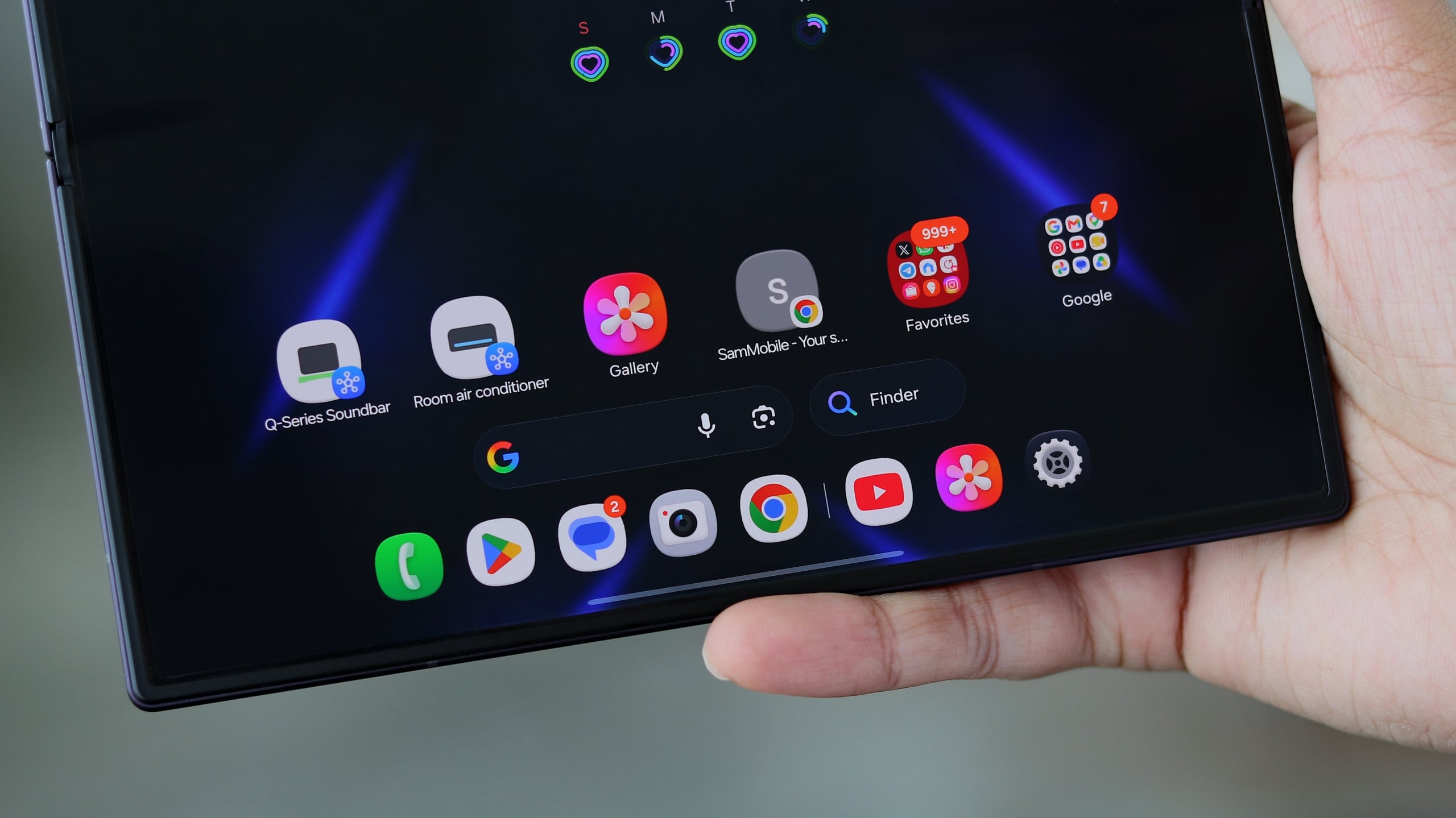
Steps to Customize App and Widget Titles on One UI
To modify any app or widget title on your Samsung Galaxy smartphone or tablet, you must download two essential packages from the Galaxy Store: the primary Good Lock suite and its dedicated Home Up customization module. Follow the detailed steps below to configure your device properly:
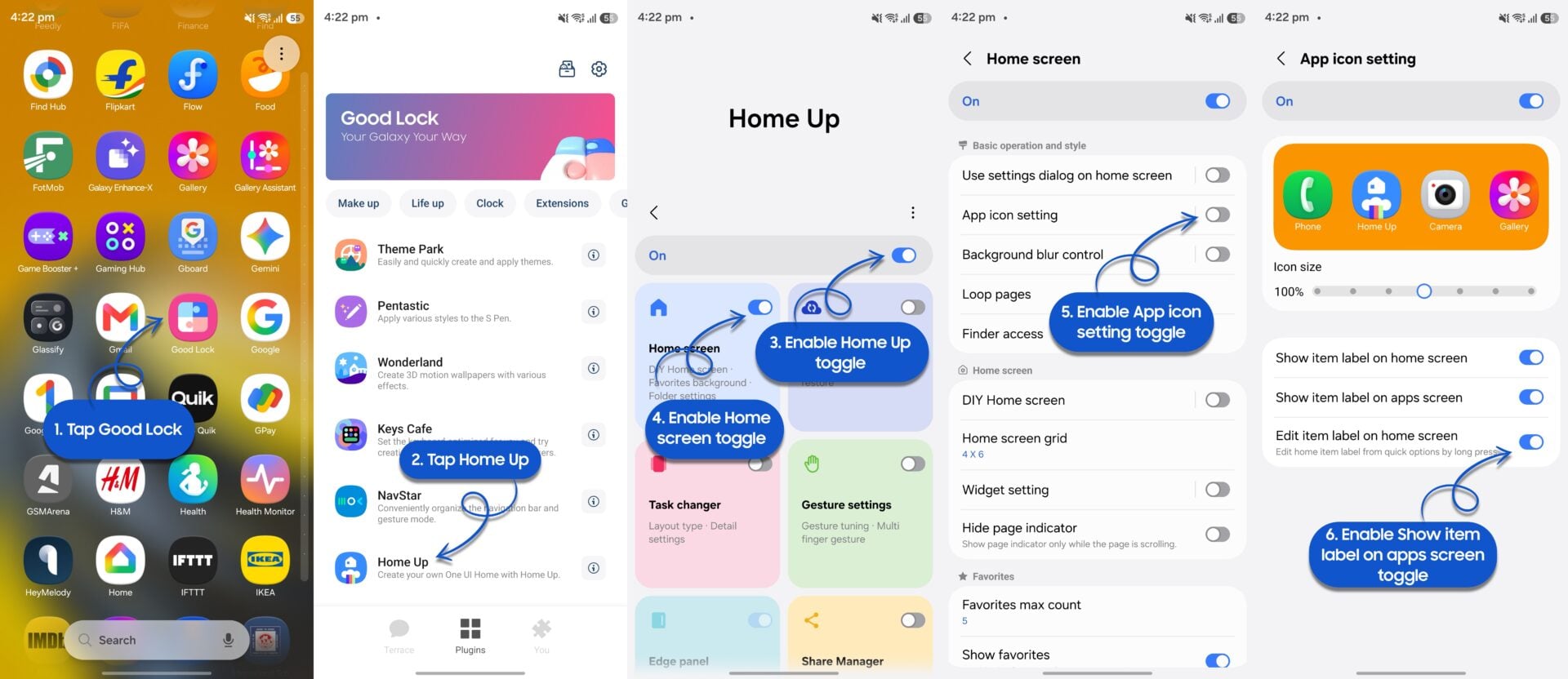
- ✨ Download and install Good Lock along with the Home Up module from the Galaxy Store. Alternatively, you can download Home Up directly from inside the main Good Lock application if it doesn't appear in the store search results.
- ✨ Launch the Good Lock application from your app drawer and tap on Home Up.
- ✨ Turn on the master toggle switch located near the top of the screen, and then enable the Home screen toggle.
- ✨ Tap on the Home screen menu option, and then activate the App icon setting toggle.
- ✨ Select App icon setting and enable the option labeled Edit item label on home screen.
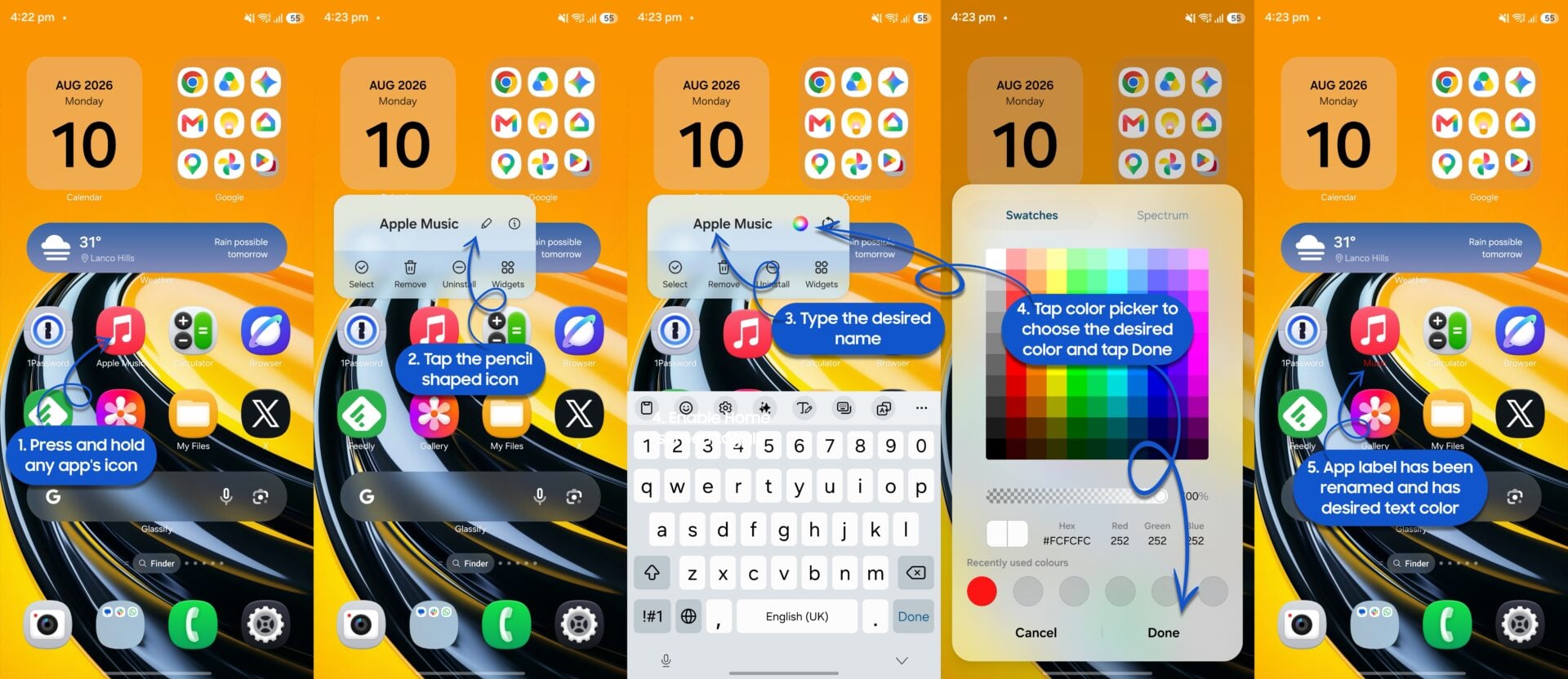
- ✨ Go back to your home screen, then press and hold the shortcut icon of the specific app or widget you wish to rename.
- ✨ Tap the pencil icon next to the existing name to modify the text. You can also use the built-in color picker to choose your preferred font color.
If you ever choose to disable the Home Up module, all customized app labels and widget titles will automatically revert to their original system defaults. Turning Home Up back on will immediately restore your personalized custom names.
Without utilizing the Good Lock ecosystem and the Home Up module, changing app labels inside the standard app drawer of the default One UI Home launcher remains restricted on Samsung devices. Hopefully, Samsung will integrate this option natively into future software updates.
Do I need any special software version to rename app labels on my Galaxy phone?
Yes, you need to be running One UI 8.5 or a newer version of Samsung's operating system, along with the latest versions of Good Lock and Home Up.
Can I change the text color of the app names as well?
Yes, the Home Up module includes a convenient color picker tool that lets you select a custom text color for your renamed app and widget labels.
What happens to my custom names if I turn off Home Up?
If you disable the Home Up module, your customized labels will temporarily revert to their original default names until you re-enable the module.
Is it possible to rename apps inside the app drawer without Good Lock?
No, renaming app labels within the default One UI Home app drawer requires the Good Lock and Home Up apps.
🔎 Mastering your Samsung Galaxy smartphone's home screen layout with advanced personalization features allows you to create a truly unique and organized mobile experience tailored precisely to your personal workflow.
Post a Comment