
Samsung's Powerful Finder Tool Receives Key Updates in One UI 9
The One UI 8.5 update introduced the powerful Home Finder feature to the home screen. Months later, Samsung revised its original implementation, bringing refined accessibility and a better layout.
TL;DR
- ✨ One UI 9 changes the home screen search setting so Finder and Google Search are managed together in one menu.
- ✨ You can hide or show either bar separately, and both can be enabled at the same time.
- ✨ Finder is for finding device content like settings, apps, contacts, files, and calendar entries, while Google Search opens the web.

The Galaxy Z Flip 8, Galaxy Z Fold 8, and Galaxy Z Fold 8 Ultra shipped with One UI 9 (Android 17) and a refreshed Finder tool that arguably enables easier access.
In One UI 8.5 on the Galaxy S26, you can turn Finder on or off from the home screen settings menu by toggling “Show Finder on Home screen” ON or OFF.
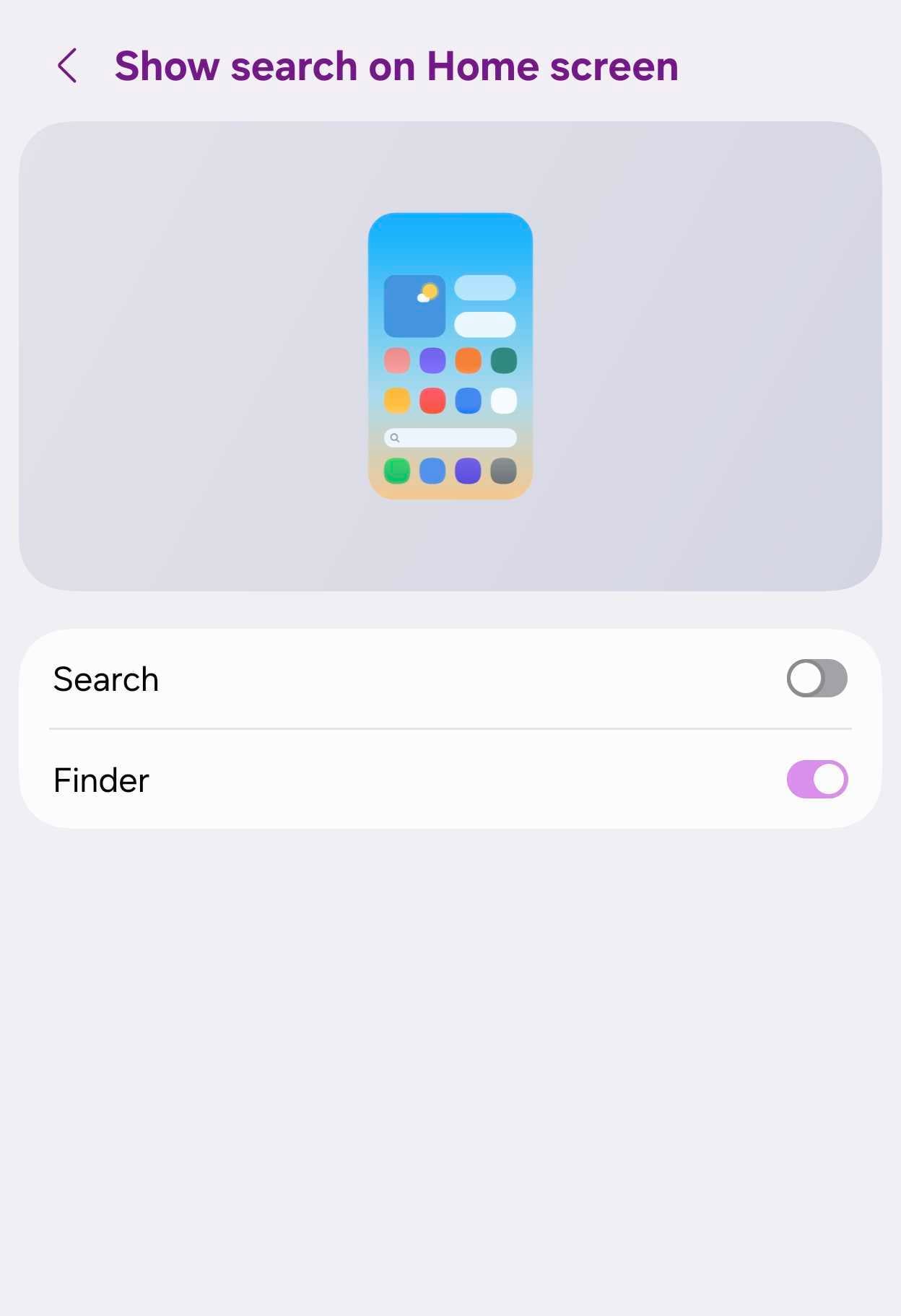
The structure is very similar in One UI 9, except Samsung has now grouped Finder and Google Search under the same menu.
To turn Finder ON/OFF in One UI 9:
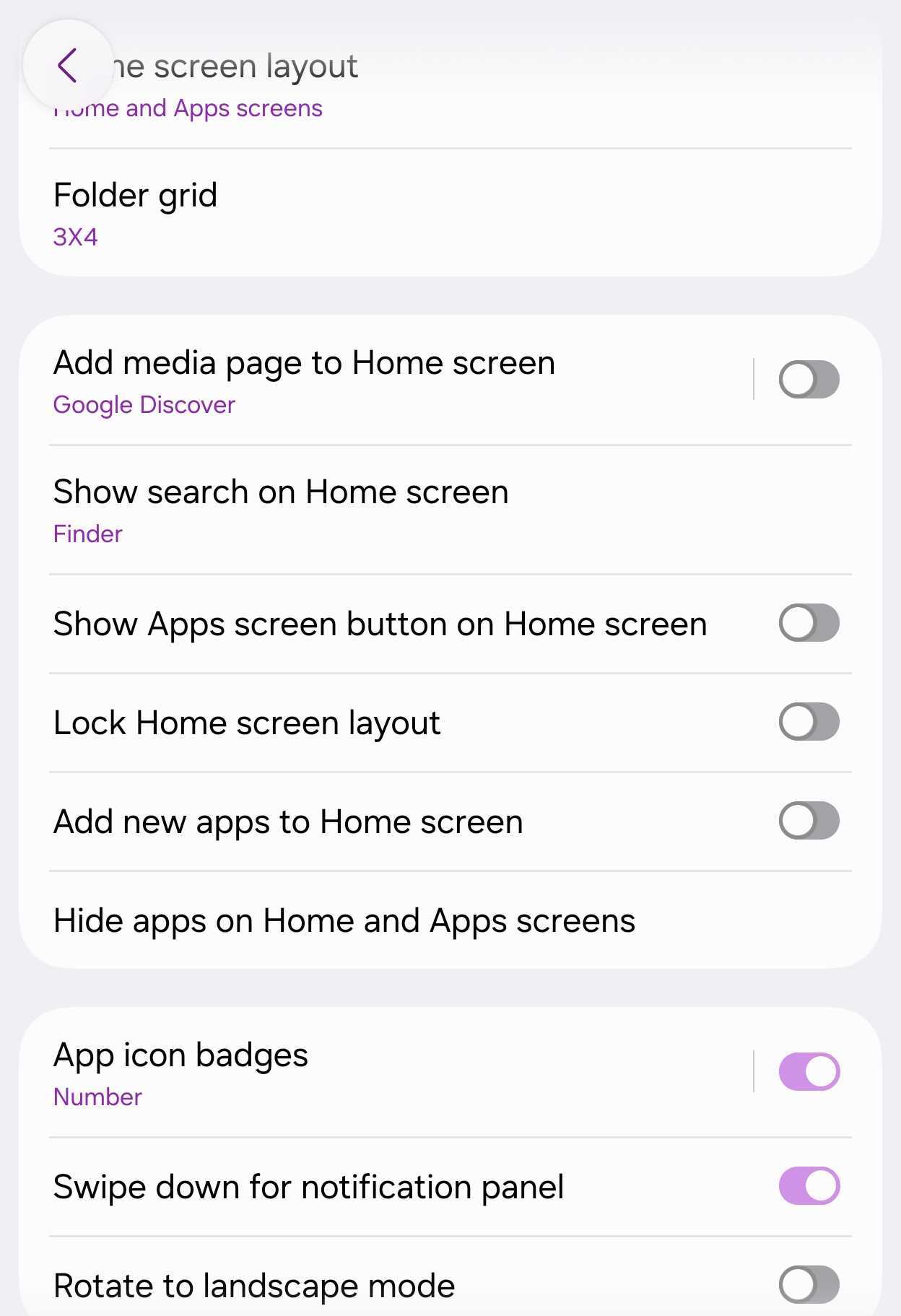
- Pinch the home screen > Settings > Show search on Home screen.
You can choose to hide or show Samsung's Finder bar and Google's search bar, and yes, you can enable one or both at the same time.
What's the difference between Finder and Search?
Why have both? Well, they are similar in that both fields help you find stuff, but they also serve different purposes.
Google Search is essentially a shortcut to the internet, more specifically the Google search engine. If you want to look something up online, you can do it faster through the Search field on your One UI 9 home screen.
Finder, on the other hand, is made by Samsung for One UI, and it's designed to help you find settings, apps, contacts, files on your device, and even Samsung Calendar entries.
More devices should get the feature with One UI 9
While Samsung says the Finder tool on the home screen is a One UI 8.5 feature designed for the Galaxy S26 series and newer devices, it's available only on select devices before One UI 9.
However, we expect Samsung to make it more widely available once the One UI 9 update starts rolling out to eligible Galaxy smartphones and tablets.
Can I use both Finder and Google Search bars simultaneously on my home screen?
Yes, One UI 9 allows you to display either Samsung's Finder bar or Google's search bar individually, or enable both at the exact same time.
How do I access the search settings on my One UI 9 home screen?
Simply pinch your home screen, tap on Settings, and then select the Show search on Home screen option to manage your preferences.
What types of content does the Samsung Finder tool look through?
Finder is built specifically to search through local device content, including your system settings, installed applications, contacts, local files, and calendar entries.
🔎 Conclusion: Samsung's continuous refinement of the Finder tool in One UI 9 demonstrates a commitment to streamlining user navigation and search capabilities. By integrating device-level file management alongside quick internet access into a unified settings menu, Samsung ensures that finding what you need—whether locally or online—is more intuitive and efficient than ever before.
Post a Comment