
7 Alternative Ways to Take Screenshots on Your Galaxy Z Fold 8
Taking screenshots using physical side keys is a long-standing habit for Android users, but doing so on modern foldable devices can feel awkward. When unfolded, the Galaxy Z Fold 8 and Galaxy Z Fold 8 Ultra are exceptionally thin and large, making simultaneous button presses uncomfortable. Fortunately, Samsung provides multiple alternative methods to capture your screen effortlessly.
✨ Key Takeaways
- ✨ Foldable screens make traditional side-button screenshot methods awkward to execute.
- ✨ You can use gesture controls like the Palm Swipe to capture your screen instantly.
- ✨ Quick settings and software additions offer dedicated on-screen shortcuts.
Alternative Screenshot Methods for Your Foldable Device
Whether you prefer using gesture commands, quick panels, or accessibility menus, here are seven different techniques to capture your screen on the Galaxy Z Fold 8 and Galaxy Z Fold 8 Ultra.
Palm Swipe
You can capture screenshots simply by swiping the edge of your palm across the display. To enable this feature, navigate to Settings > Advanced features > Motions and gestures > Palm swipe to capture.
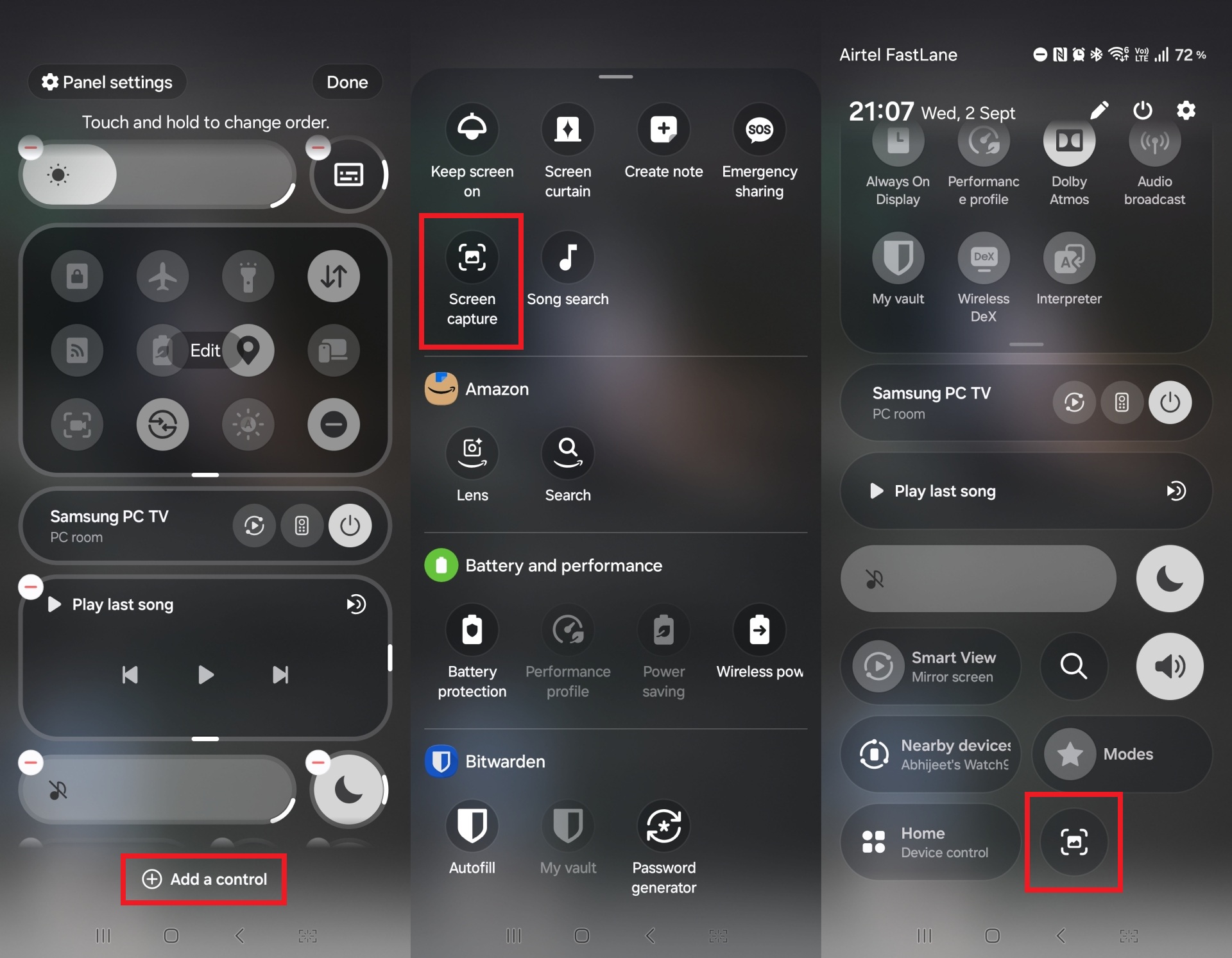
Screenshot Quick Toggle
The Quick Panel allows you to add a dedicated Screen capture button. Access your panel's edit mode to place the tool among your favorites for instant access with a single swipe and tap.
AI Select
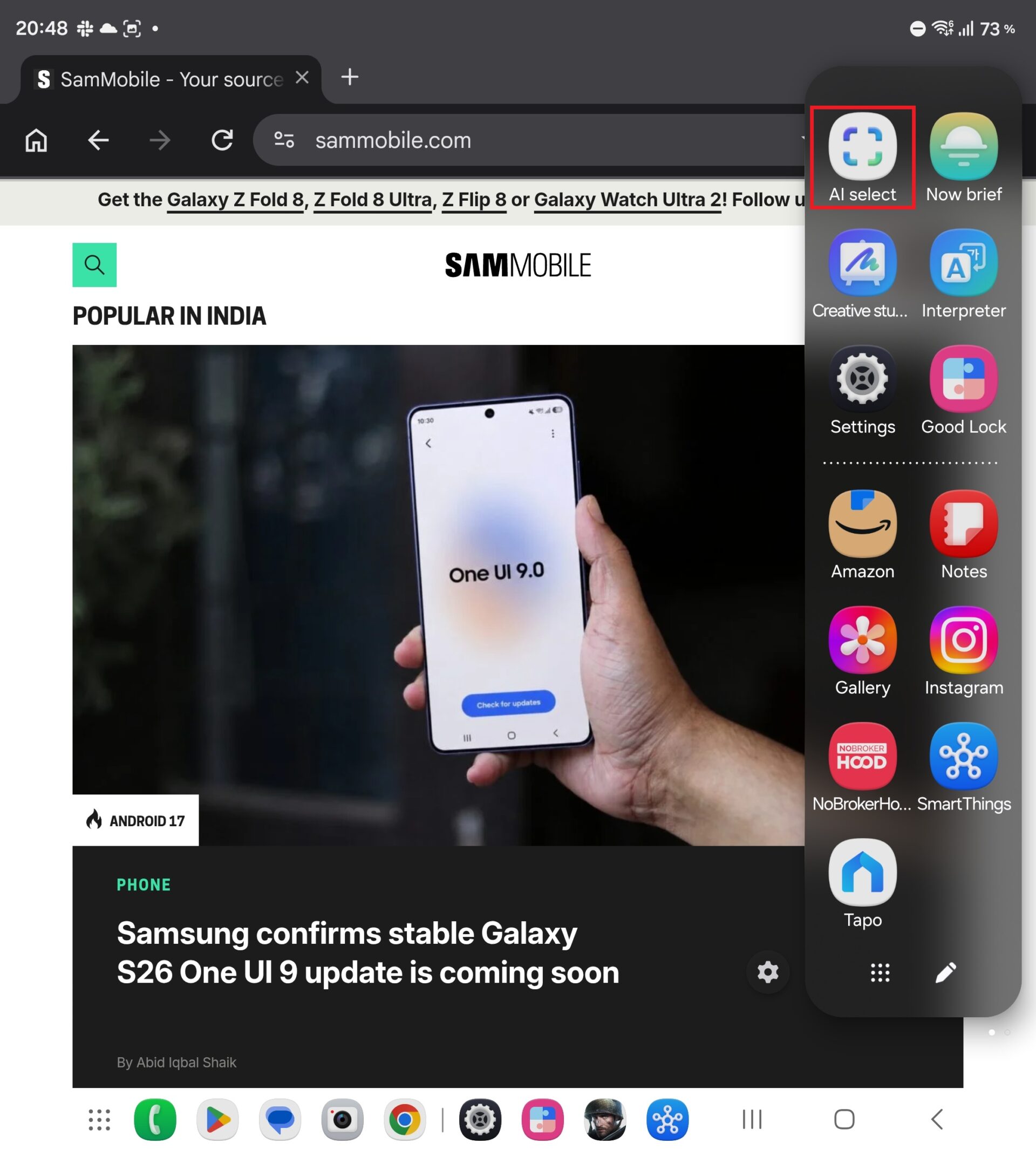
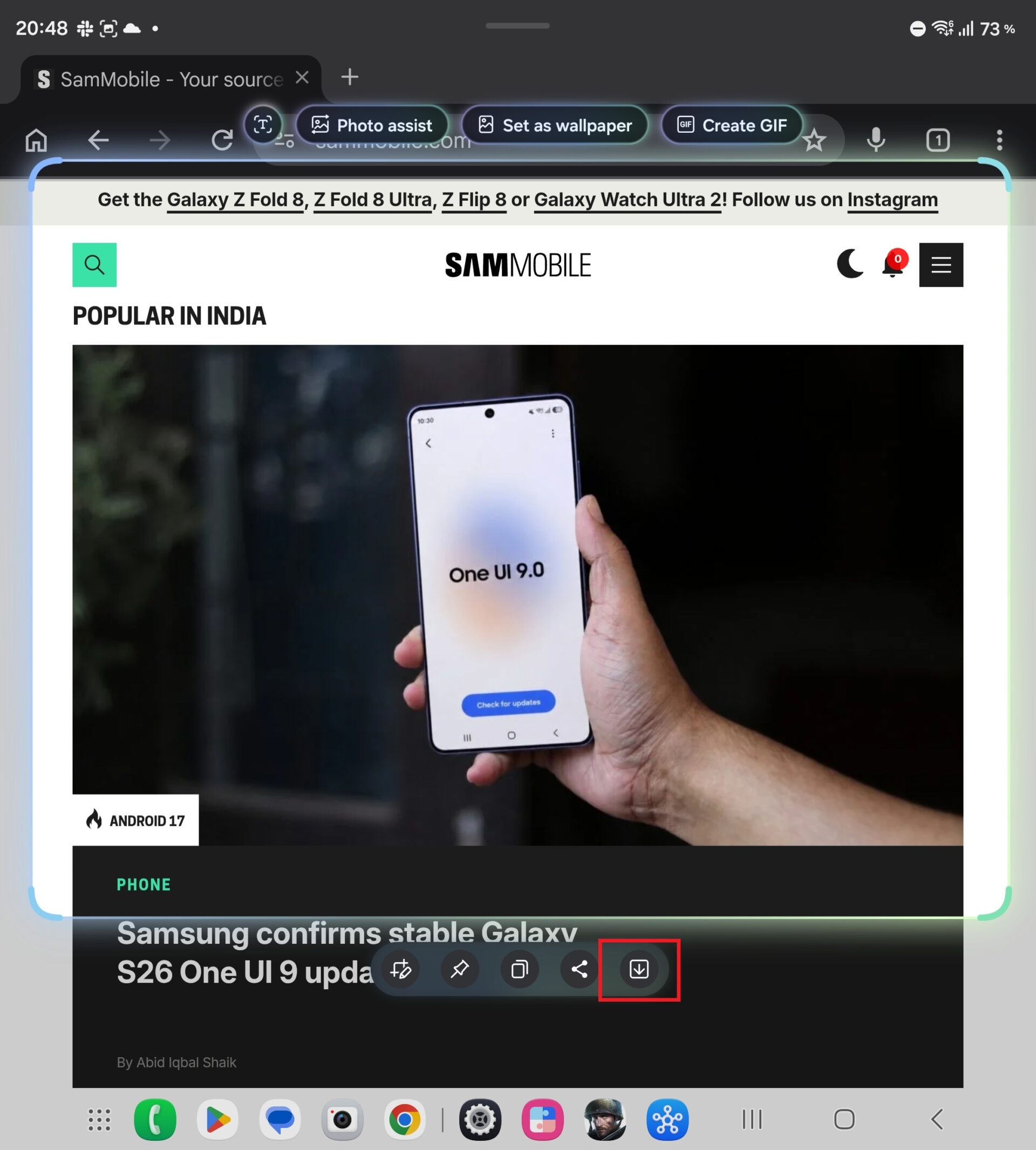
For capturing and cropping specific screen areas simultaneously, open the Edge panel, select AI Select, define your target zone, and save the image directly to your Gallery.
Good Lock NavStar
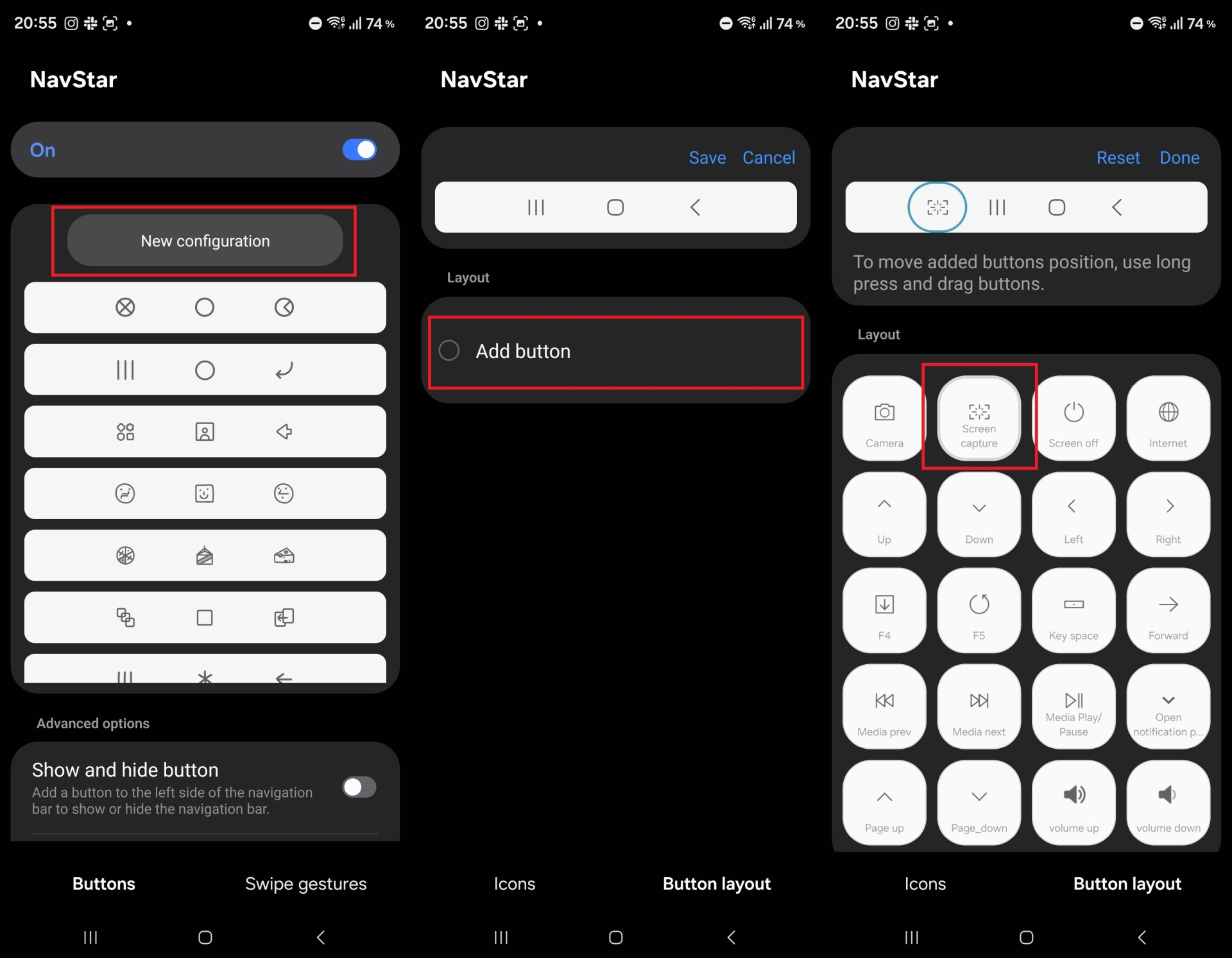
If you prefer navigation buttons over gestures, you can use the NavStar module via the Google Play or the Galaxy Store. Add a screen capture shortcut directly to your navigation bar for seamless operation.
Assistant Menu
Enable a persistent floating button by going to Settings > Accessibility > Interaction and dexterity > Assistant menu. Tapping this floating icon expands a menu containing a direct screenshot option.
Google Assistant or Bixby
Long-press the side key to activate your preferred voice assistant and ask it to capture a screenshot. The system will automatically take the picture while ignoring its own interface popup.
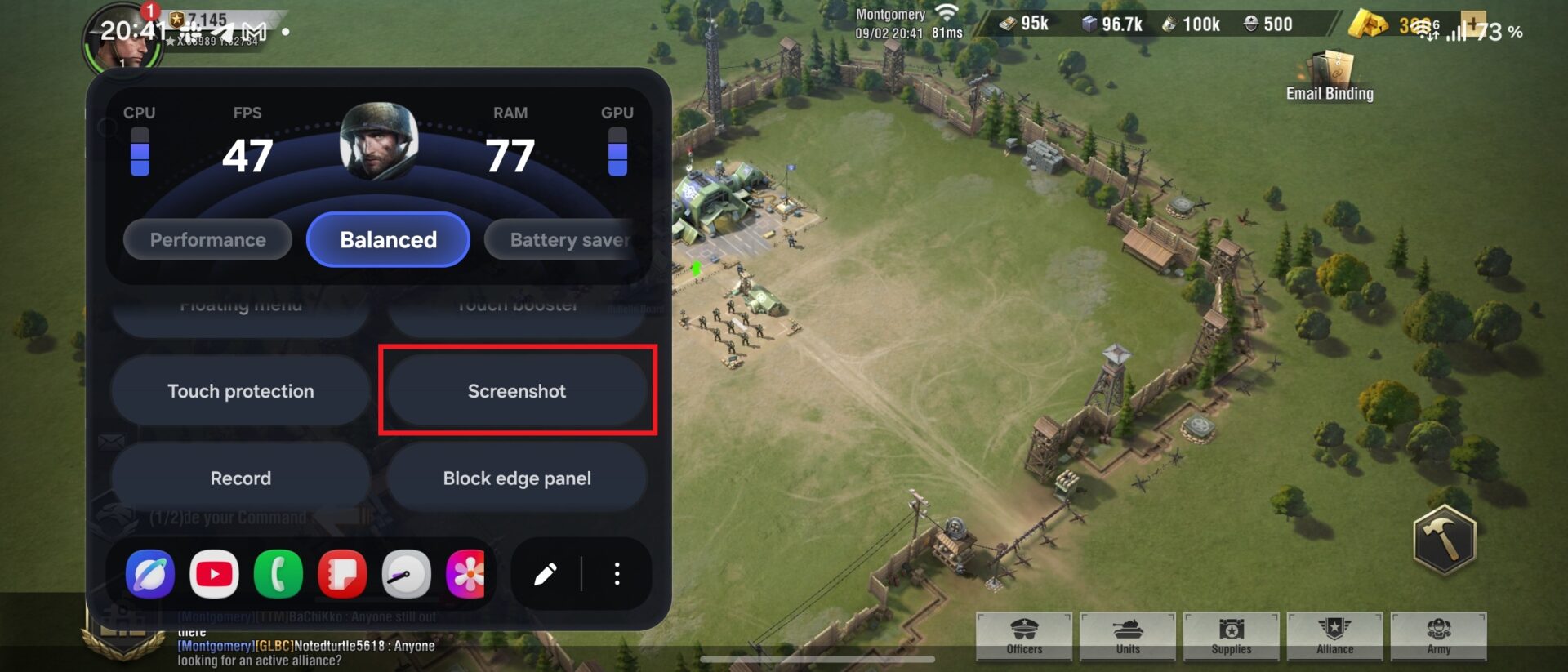
Game Booster
While playing games, swipe open the Game Booster panel from the side of your screen and tap the screenshot option to capture gameplay instantly.
Can I use these alternative screenshot methods on other Galaxy devices?
Yes, most of these features such as Palm Swipe, Quick Settings toggles, and Assistant Menu are widely available across various Samsung Galaxy smartphones and tablets running One UI.
Do I need an internet connection to use AI Select?
AI Select operates primarily through device features on your Galaxy Z Fold 8, though certain AI-driven capabilities may utilize network connectivity depending on your current settings.
How do I customize the Game Booster panel buttons?
You can easily add or remove shortcut buttons within Game Booster by opening the panel and tapping the pencil icon to edit your preferred layout.
🔎 Finding alternative ways to capture screenshots on your foldable phone helps eliminate the friction of awkward button combinations. By leveraging tools like Palm Swipe, Quick Panel shortcuts, and software modules, you can make capturing your screen smooth and efficient on your device.
Post a Comment