
How to Stop Annoying Store Ads on Your Phone When Visiting Samsung Locations
Have you ever walked by or stepped into a physical Samsung retail store, only to find your Galaxy phone immediately buzzing with notifications about the latest product deals and promotions? If you thought it was a strange coincidence, it actually wasn't. Your device is likely running a built-in software feature designed specifically to trigger alerts based on your physical location near official retail stores.
Quick Summary
- ✨ Samsung devices feature a preloaded service called Samsung Visit In that detects when you are near a store to send promotional ads.
- ✨ While you cannot completely uninstall this system app, you have the full ability to disable its functionality or block its notifications.
- ✨ You can easily locate and manage this feature by adjusting your system settings to display hidden system applications.
Managing Samsung Visit In on Your Device
This specific location-based capability is powered by a preinstalled system service called Samsung Visit In, though its availability may vary depending on your geographic region and local firmware deployment. If these automated marketing notifications become bothersome, you can take control of your device settings to stop them entirely.
Because this utility is baked deeply into the operating system as a native package, it does not feature a traditional home screen shortcut that you can long-press to access quick preferences. Instead, you must navigate through the deep system configurations of your One UI software environment.
Step-by-Step Guide to Disable Store Notifications
To verify if this service is active on your device and to successfully block its promotional alerts, follow these precise step-by-step instructions:
- Open your phone's main Settings menu and navigate to your Samsung account.
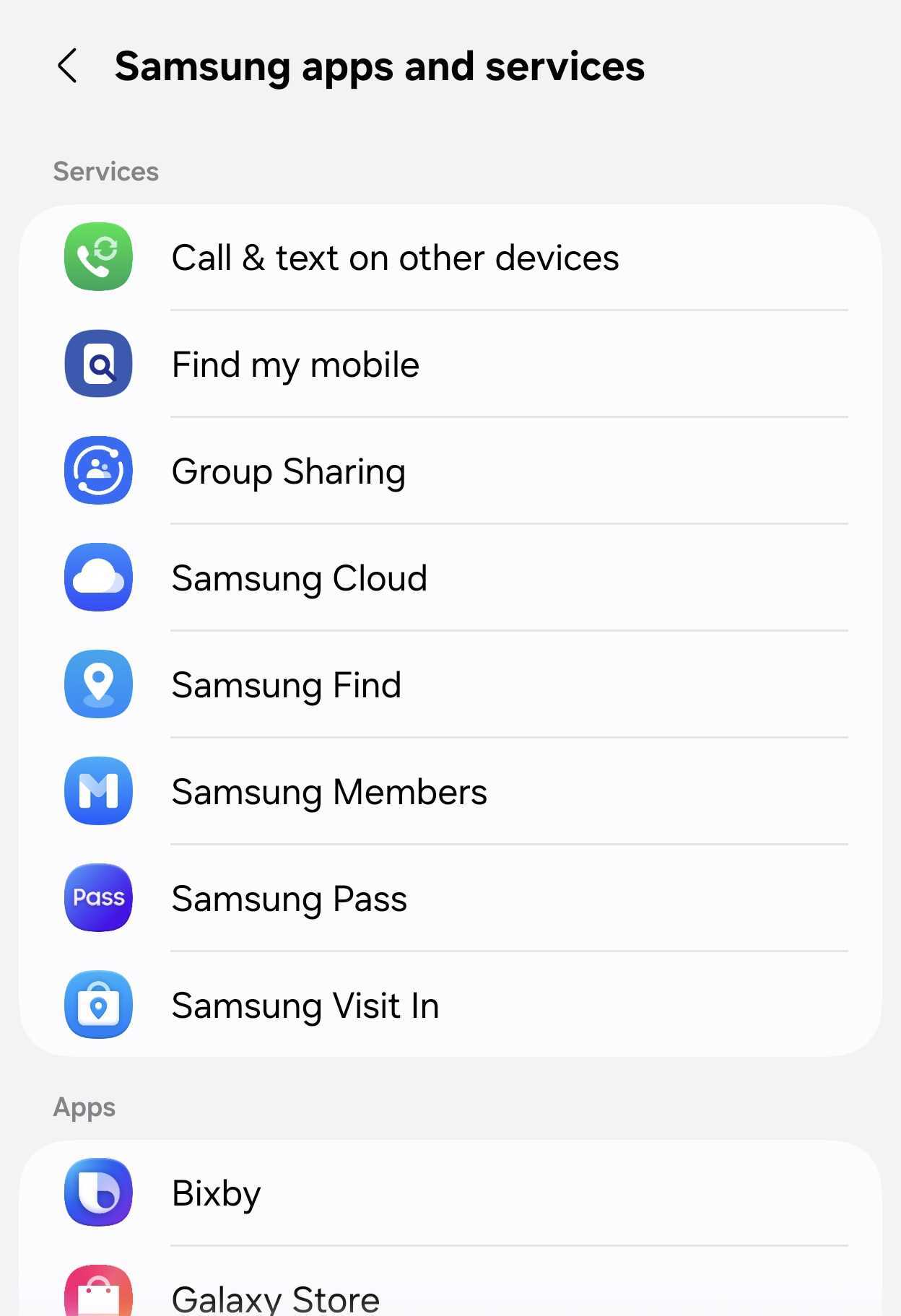
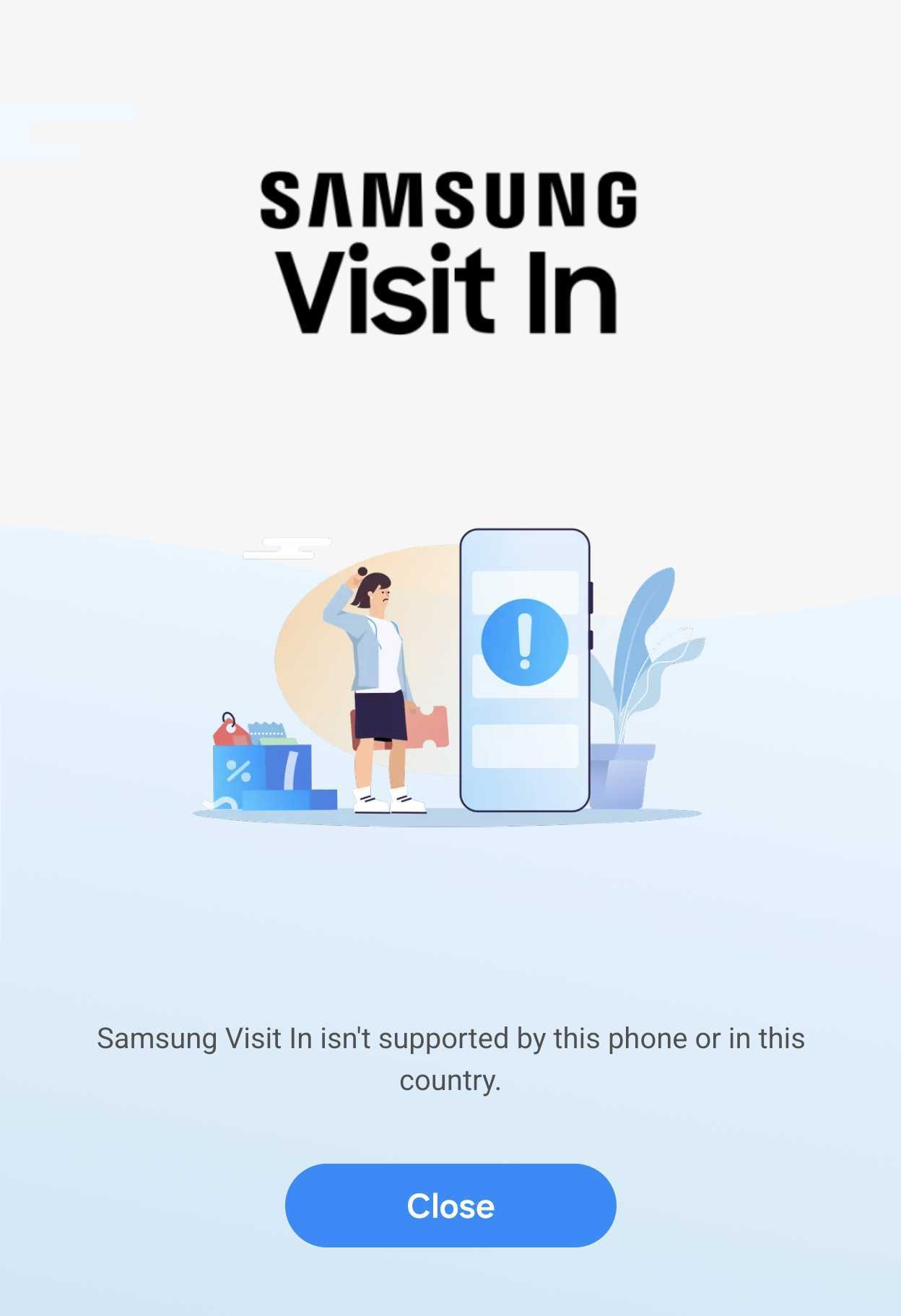
- Proceed to Samsung apps and services, then tap on Samsung Visit In to check its status.
- If you need to restrict its permissions, go back to Settings and select Apps.
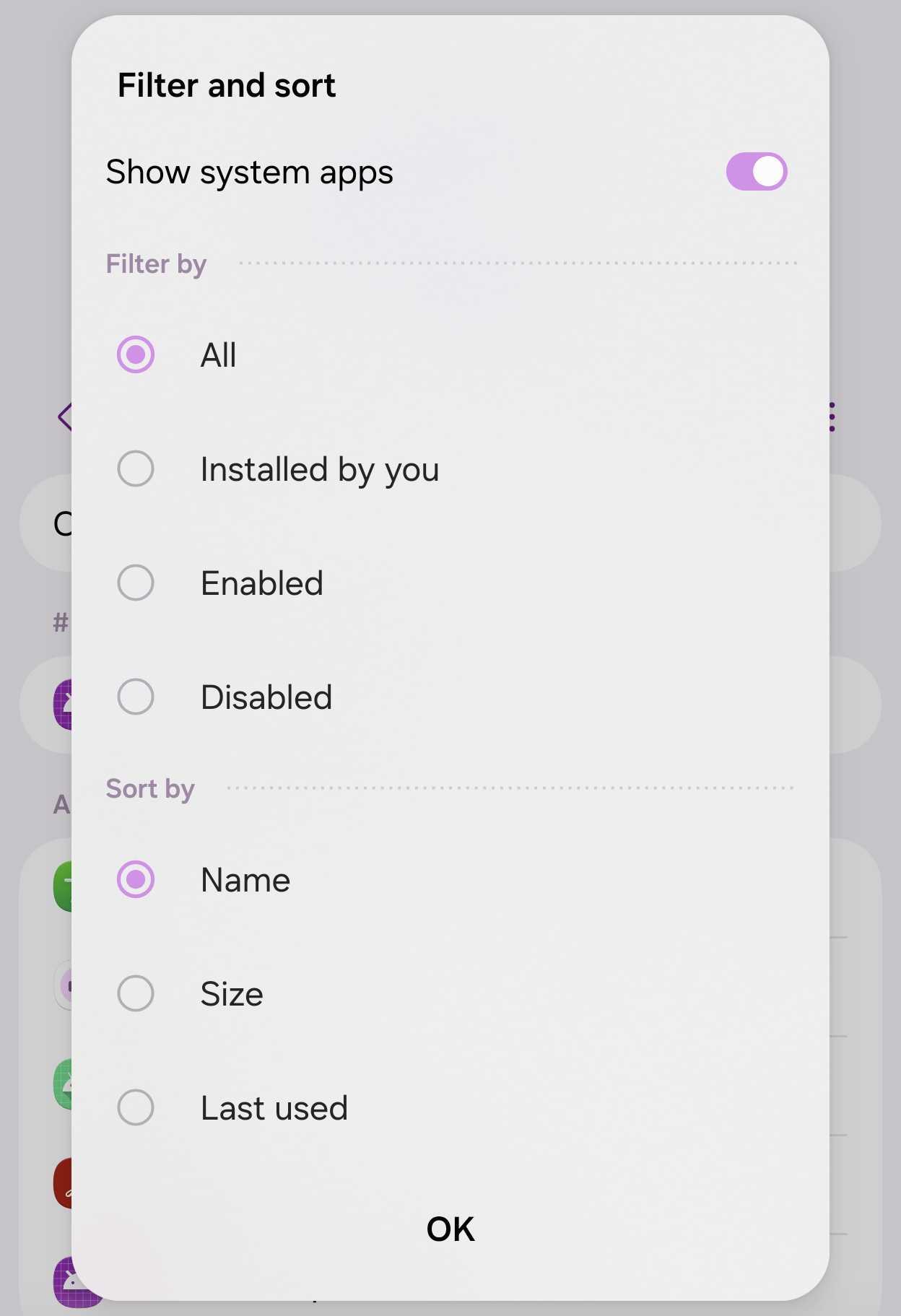
- Tap the menu icon, choose Filter and sort, and enable the toggle for Show system apps.
- Scroll down the list to locate Samsung Visit In, then select it to completely disable the application or toggle off its notification permissions.
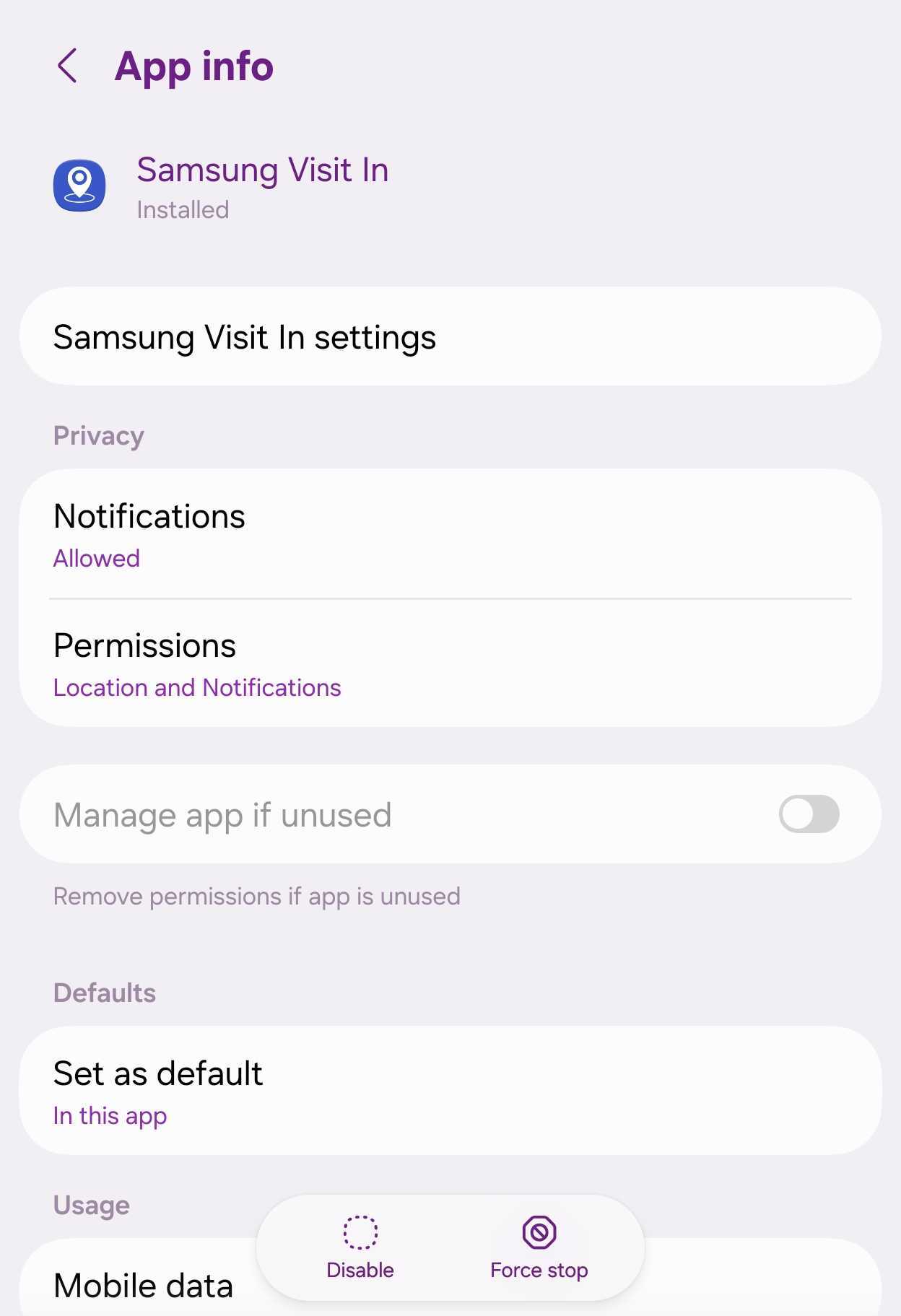
Keep in mind that the primary purpose of this built-in service is to alert you about exclusive in-store discounts, hardware trade-in offers, and special promotional events happening at nearby retail establishments. If you love discovering seasonal tech bargains, you might want to keep the feature running. Otherwise, turning it off ensures an interruption-free shopping experience
Can I completely delete the Samsung Visit In app from my phone?
No, because it is integrated as a native system package within the One UI 9.0 firmware, you cannot permanently uninstall it without root access. However, you can completely neutralize its functionality by disabling the app and blocking all its notification permissions through your application manager settings.
Why am I suddenly receiving promotional alerts near retail stores?
Your device utilizes location-aware background services like Samsung Visit In to sense when you enter the physical proximity of authorized brand experience centers and retail shops, prompting automated marketing alerts for ongoing hardware deals.
Will disabling this service affect other important phone features?
No, turning off or restricting this specific application will only stop location-based promotional messages and deal notifications. Your core phone functionality, system updates, and other cloud services will continue to operate normally.
🔎 Taking a few moments to adjust your system app preferences gives you full control over your digital environment, ensuring your device only alerts you to things you actually care about while protecting your peace of mind.
Post a Comment