
Manage App Continuity When Folding Your Samsung Galaxy Z Fold 8
If you unfold your Galaxy Z Fold 8 while an app is running, your phone can behave in one of three ways. Here's how to tweak these settings.
Quick Summary (TL;DR)
- ✨ Samsung Galaxy Z Fold 8 lets you control whether apps move to the cover screen automatically, only after a swipe, or never when folded.
- ✨ You can change this in Settings > Display > Continue apps on cover screen, and many users may prefer the swipe-to-continue option.
- ✨ There are no similar options for unfolding back to the main screen, and some apps will restart to fit the larger display.
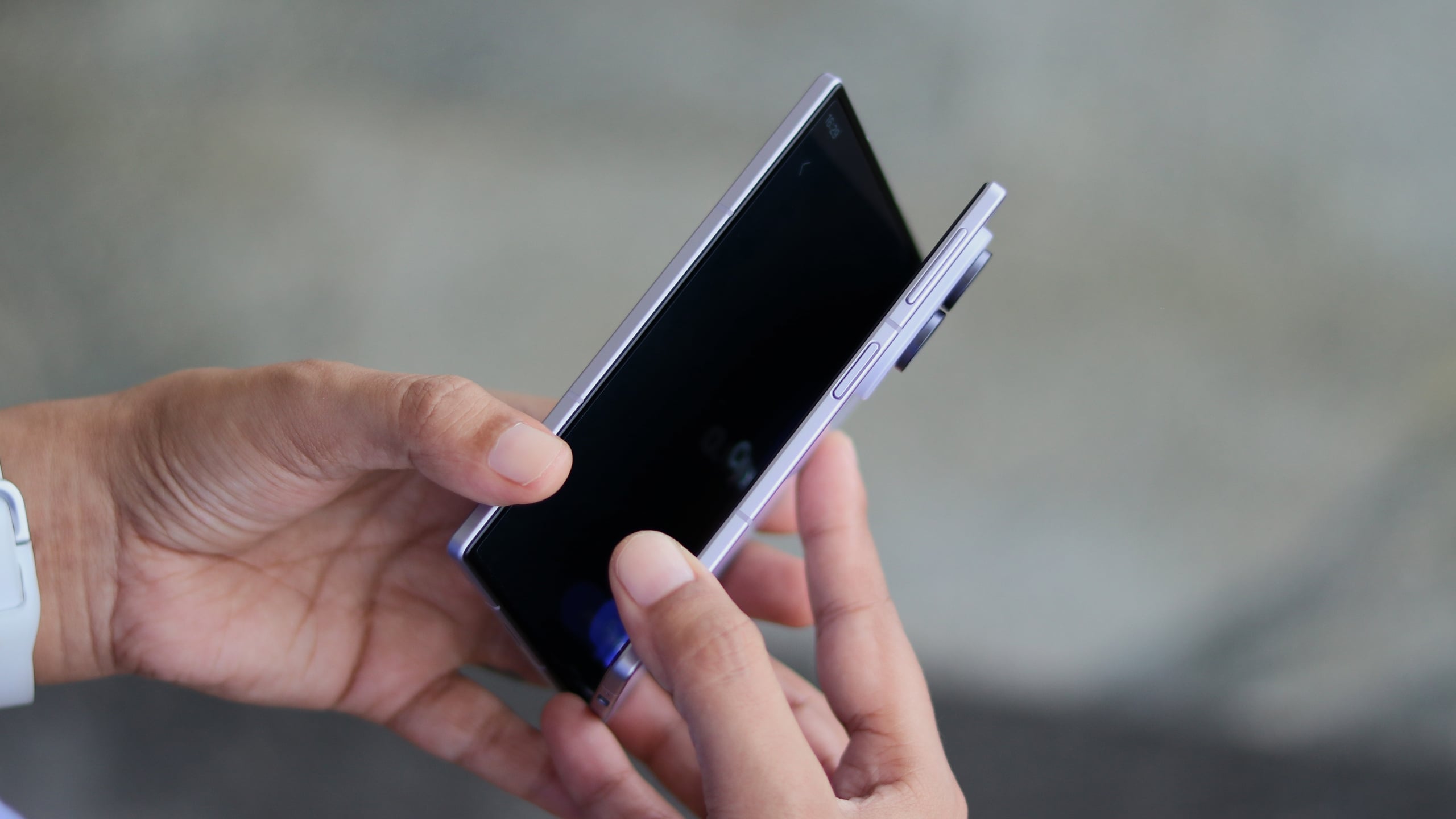
Arguably, one of the cleverest decisions Apple has made for the iPhone Duo launch was to create a smooth transition animation between the iPhone's two states: folded and unfolded.
While it serves no practical purpose, the animation caught everyone's attention and quickly became one of the most popular topics around the iPhone Duo's launch. Some even tried recreating it for Samsung's Folds.
Samsung's new Galaxy Z Fold 8 and Fold 8 Ultra don't have such lavish animations for the folding/unfolding action. But what they do have is a set of options that allow users to change how apps behave when they transition from the main to the cover screen.
Display Continuity Settings on One UI 9
These are the three settings for display continuity on the latest Galaxy Z Fold 8 models running the latest firmware version, One UI 9:
- Always: The app you're using on the main screen will automatically open on the cover screen when you fold the phone.
- Swipe up to continue app: The app can transition to the cover screen only when instructed by closing the phone and swiping up on the cover screen.
- Never: Regardless of which app you're using on the main screen, it will never transition to the cover screen when you fold the phone. Instead, your Galaxy Z Fold will lock automatically when folded.
You can access them by navigating to:
- Settings > Display > Continue apps on cover screen.
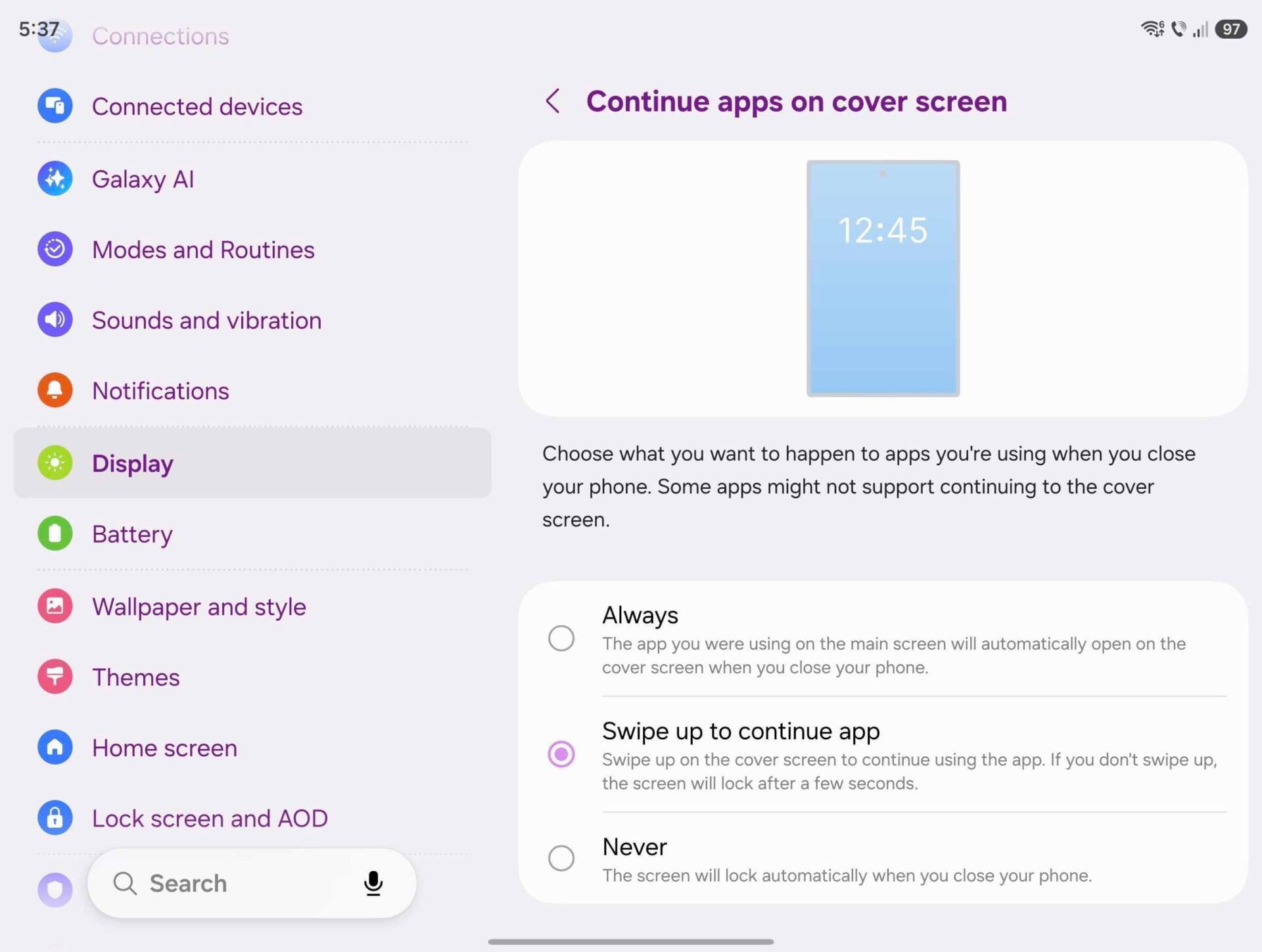
Most Galaxy Z Fold users find the Swipe option ideal. It seamlessly combines the best of both worlds. Simply swipe up when prompted to continue using the app, or ignore the swipe-up prompt to keep your Fold locked after folding.
There are no such options for when you are transitioning from the cover to the main screen. Apps that run on your cover screen will almost always be reopened on the main screen when you unfold the phone.
Do keep in mind that many Android apps lack on-the-fly UI scaling and resizing. They will almost always automatically restart to adapt their UIs to the different screen once you unfold your Galaxy Z Fold. This behavior may improve with future Android updates, but time will tell.
How do I change app behavior when folding my Galaxy Z Fold 8?
You can adjust these preferences by navigating to Settings > Display > Continue apps on cover screen.
What are the available transition options?
The three available modes are Always, Swipe up to continue app, and Never.
Can I control app behavior when unfolding the phone?
No, there are no specific settings for transitioning from the cover screen to the main screen; apps running on the cover screen will generally reopen on the main screen automatically.
Why do some apps restart when I unfold the device?
Many Android apps do not support on-the-fly UI scaling and resizing, requiring a quick restart to adapt their interfaces to the larger screen.
🔎 Ultimately, tailoring your display continuity settings on the Samsung Galaxy Z Fold 8 allows you to create a personalized folding experience that prevents accidental app switches and keeps your device secure.
Post a Comment