
Top 5 One UI 9 Features You Should Test Right Away
Samsung has officially kicked off the rollout of its major software update, bringing cutting-edge upgrades to supported devices. Whether you are using the latest flagship models or anticipating wider regional availability, this update introduces an array of visual refinements, powerful artificial intelligence enhancements, and innovative tools designed to streamline your daily smartphone experience.
- ✨ Relocate the Finder search bar directly to your home screen for instant access.
- ✨ Fully customize and rearrange your Quick Panel layout with flexible sizing options.
- ✨ Isolate and track specific subjects in crowded videos using the new My FanCam feature.
- ✨ Create personalized Now Brief cards tailored to your daily habits and preferences.
- ✨ Utilize Motion Assist to minimize motion sickness while reading or browsing on the go.
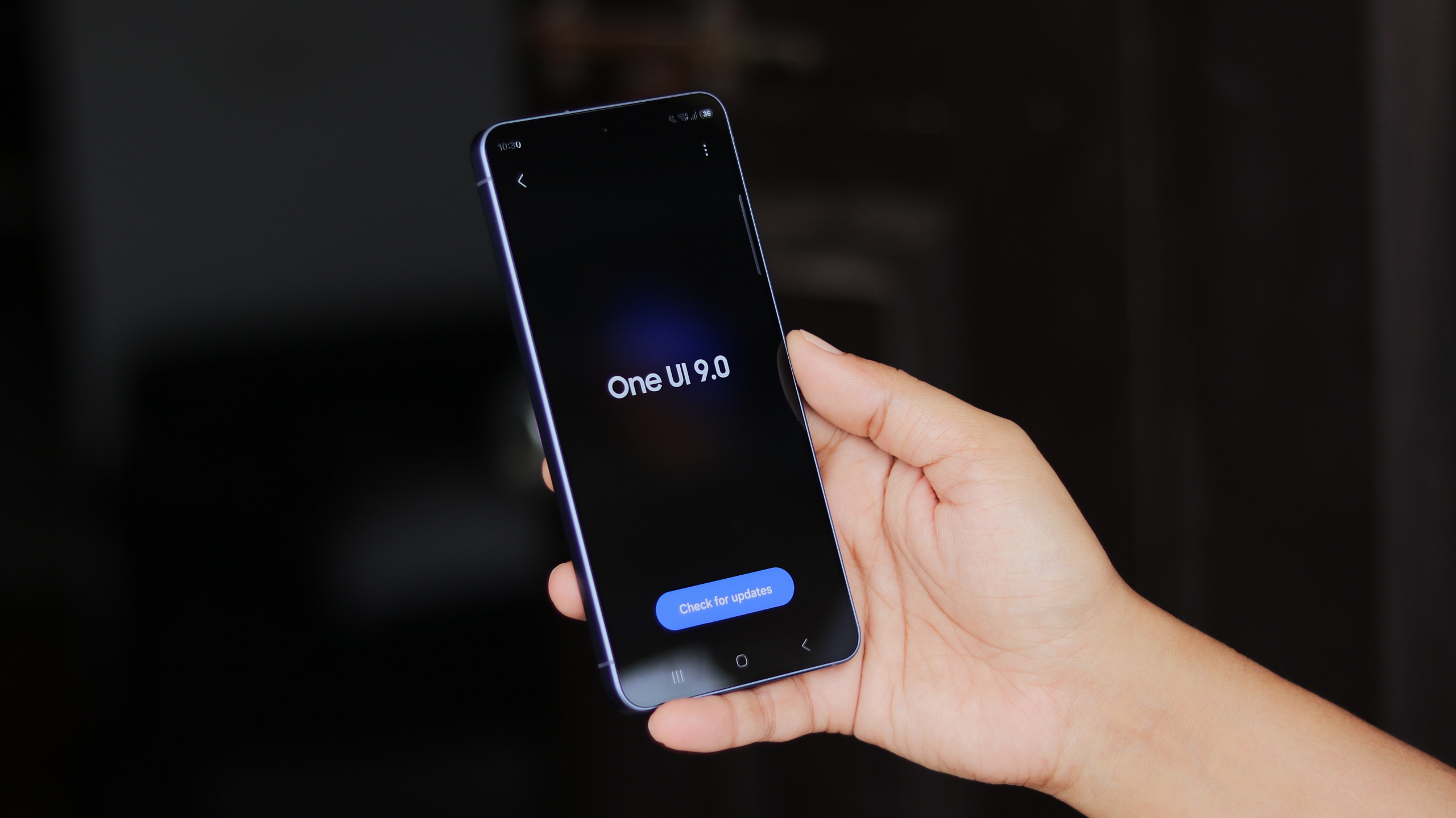
Discovering the Best Additions in One UI 9
The latest One UI 9 operating system brings a wealth of exciting additions to compatible Galaxy devices. If you have recently installed the firmware or are waiting for it to arrive on your device, here are five essential features you should explore first to get the most out of your phone.
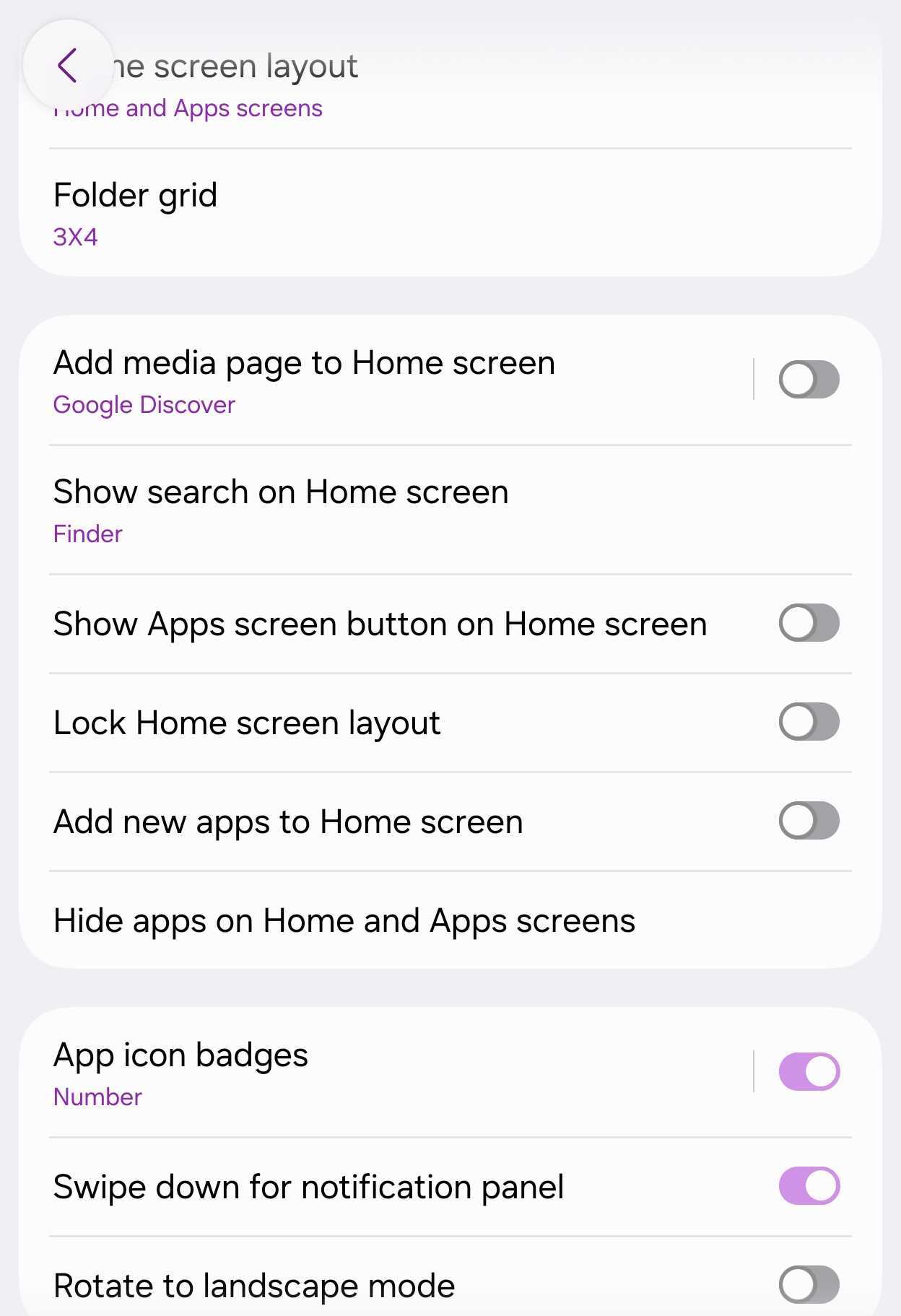
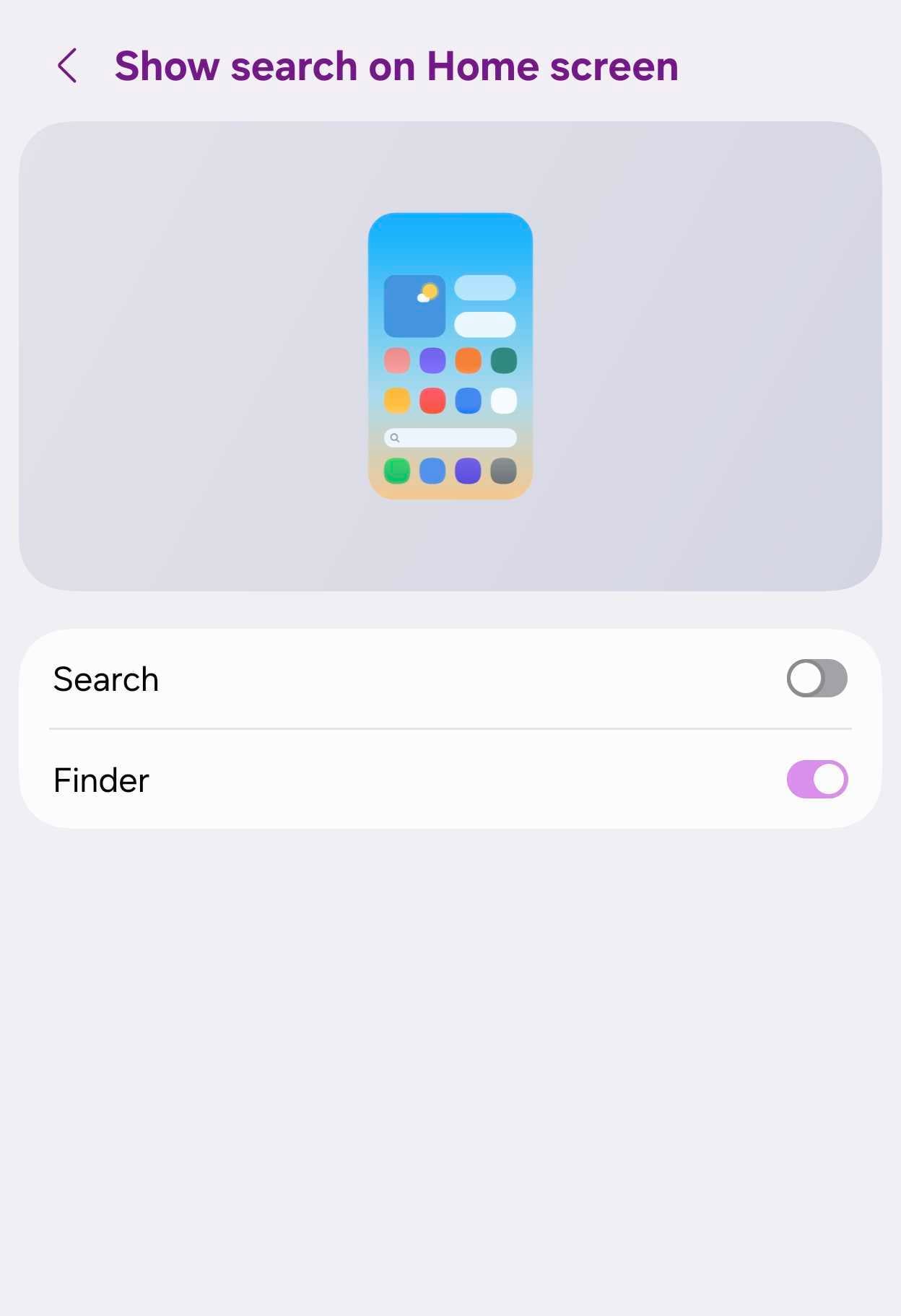
Add Finder Directly to Your Home Screen
One UI 9 allows you to integrate the Samsung Finder utility straight into the bottom of your home screen. This convenient shortcut eliminates the need to open your app drawer every time you need to search for a specific file, application, contact, or calendar entry.
To set this up, simply pinch your home screen, tap on Settings, and select the option to show search on the home screen. You can choose to enable Samsung Finder, Google Search, or both simultaneously depending on your preference.
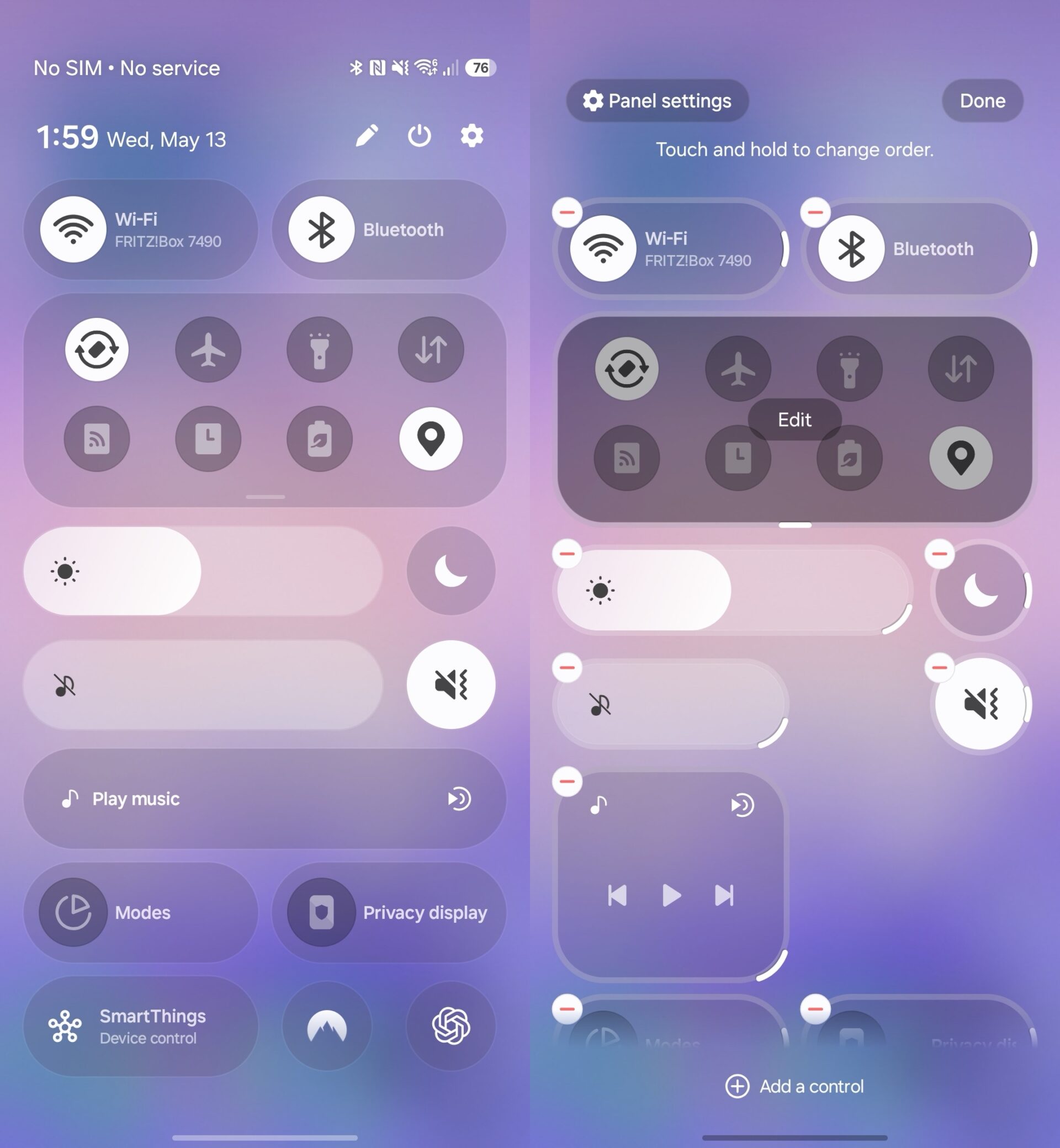
Redesign and Rebuild Your Quick Panel
Customization reaches new heights with the newly revamped Quick Panel layout. By swiping down from the top-right corner of your display and tapping the edit button, you gain total freedom to rearrange buttons, drop rarely used toggles, and position your favorite controls within easy thumb reach.
Furthermore, you can switch brightness and volume sliders between vertical and horizontal orientations, as well as adjust the overall size of media players and volume controls.
Track Specific Subjects with My FanCam
Recording videos at bustling concerts, sports matches, or school events often results in your main subject getting lost in the crowd. The AI-powered My FanCam feature automatically crops and tracks a selected individual throughout the entire video clip, keeping them centered in the frame.
To use this tool, open any recorded video inside your Gallery app, tap the Galaxy AI icon, select My FanCam, pick the person you wish to follow, and choose your preferred aspect ratio before saving the new clip.
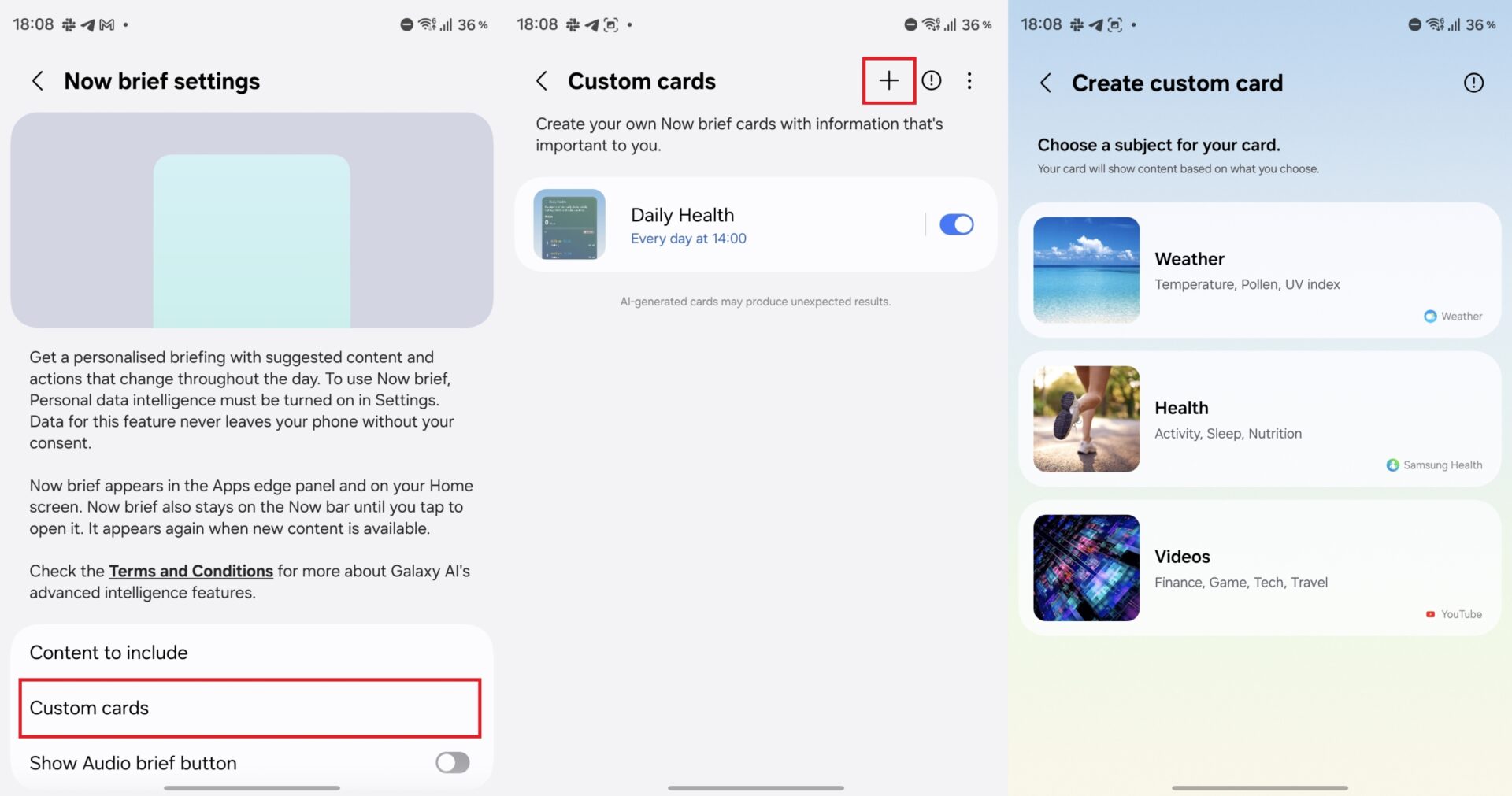
Create Custom Now Brief Cards
Galaxy AI’s Now Brief functionality now supports custom cards, allowing you to move beyond default categories and display information that truly matters to you. You can build up to three custom cards focusing on weather updates, fitness tracking metrics, or video recommendations.
Simply input a custom prompt—such as requesting your daily energy scores or step counts—preview the generated layout, select the days and times you want it to display, and save your personalized card.
Combat Motion Sickness with Motion Assist
Android Android 17 introduces a dedicated alternative to Apple’s travel features known as Motion Assist. This accessibility tool displays subtle moving dots or shapes around the edges of your screen that react naturally to vehicle movement.
By providing visual reference cues, Motion Assist helps reduce motion sickness when you are reading text, browsing the internet, or checking messages while traveling in a car, bus, or train.
Which Galaxy devices are compatible with One UI 9?
The stable update is rolling out initially to flagship models like the Galaxy S26 series, with broader deployment planned for previous flagship generations and select mid-range devices.
How do I enable the home screen search bar?
You can activate the home screen search utility by pinching the home screen, opening your home settings, and toggling on the search display options.
Does My FanCam work on older smartphone models?
My FanCam is powered by Galaxy AI and is supported on flagship devices starting from the Galaxy S24 lineup.
Can I customize the appearance of Motion Assist indicators?
Yes, you can fully customize the shapes, colors, and visibility settings of the Motion Assist indicators through your device settings.
🔎 Conclusion: Samsung's latest software release significantly elevates the user experience by combining deeper customization options with practical, AI-driven enhancements. By taking a few moments to explore and configure features like Home Finder, custom Now Brief cards, and Motion Assist, you can make your smartphone smarter, faster, and tailored precisely to your everyday routine.
Post a Comment