
Enhance Your Workflow: You Can Now Use Apple Keyboard Cmd Shortcuts in Samsung DeX
Samsung DeX continues to be one of the most innovative and versatile tools in the ecosystem, and it keeps improving with every single One UI update. Recently, Samsung DeX has introduced full recognition for Apple's keyboard layout, making it drastically easier for Galaxy phone and tablet users who prefer using an Apple keyboard.
- ✨ Samsung DeX now fully supports Apple keyboard Cmd+arrow shortcuts to snap windows effortlessly on external displays.
- ✨ The feature can be easily toggled on in your device settings running One UI 8.5 or newer, while traditional Windows-key shortcuts remain intact for standard keyboards.
- ✨ Please note that enabling Cmd+arrow functionality will disable the older Cmd+left arrow shortcut used for navigating backward.
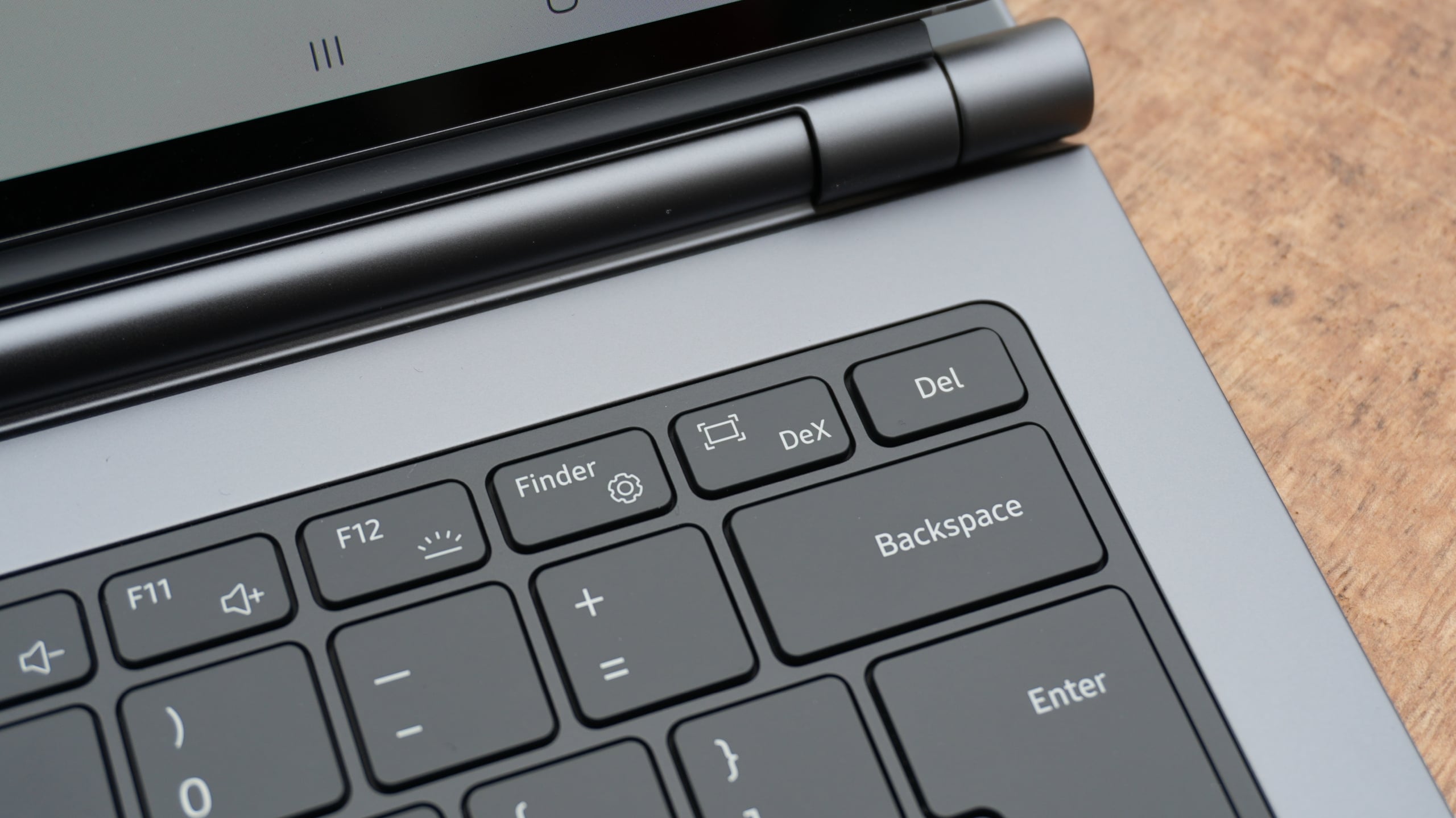
Apple Keyboards and Samsung DeX Integration
With the latest updates, Samsung DeX has integrated a brand-new feature that allows users with Apple keyboards to seamlessly snap application windows to the edges of a connected television or monitor using Cmd + arrow key shortcuts. This addition also brings fantastic utility for Samsung Keyboard users, especially those utilizing accessories like the multi-platform Smart Keyboard Trio 500, which features a similar Cmd layout.
Meanwhile, users with traditional Windows keyboards can continue to manage and snap their windows using the familiar Windows + arrow key combinations without any disruption.
How to Enable Cmd Keyboard Shortcuts in DeX
If you want to turn on this convenient window-snapping function on your Galaxy phone or tablet, follow these simple steps:
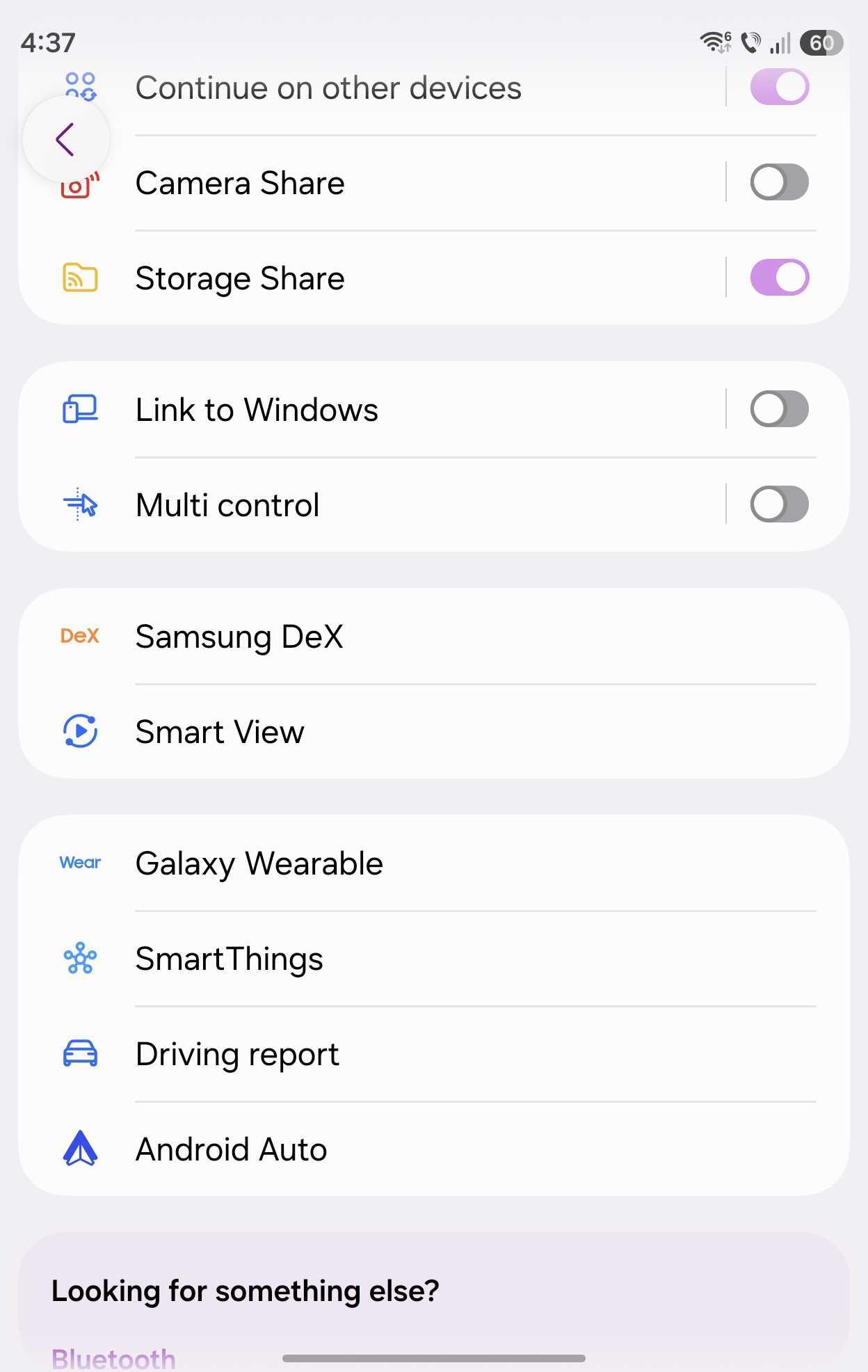
- Navigate to Settings.
- Select Connected devices.
- Tap on Samsung DeX.
- Turn the toggle for Cmd + arrows to move windows to ON (it is disabled by default).
Keep in mind that this option is exclusively available on Samsung Galaxy devices running One UI 8.5 or later. Additionally, a minor trade-off to consider is that activating Cmd + arrow key shortcuts means you will no longer be able to use the Cmd + left arrow combination to quickly navigate backward.
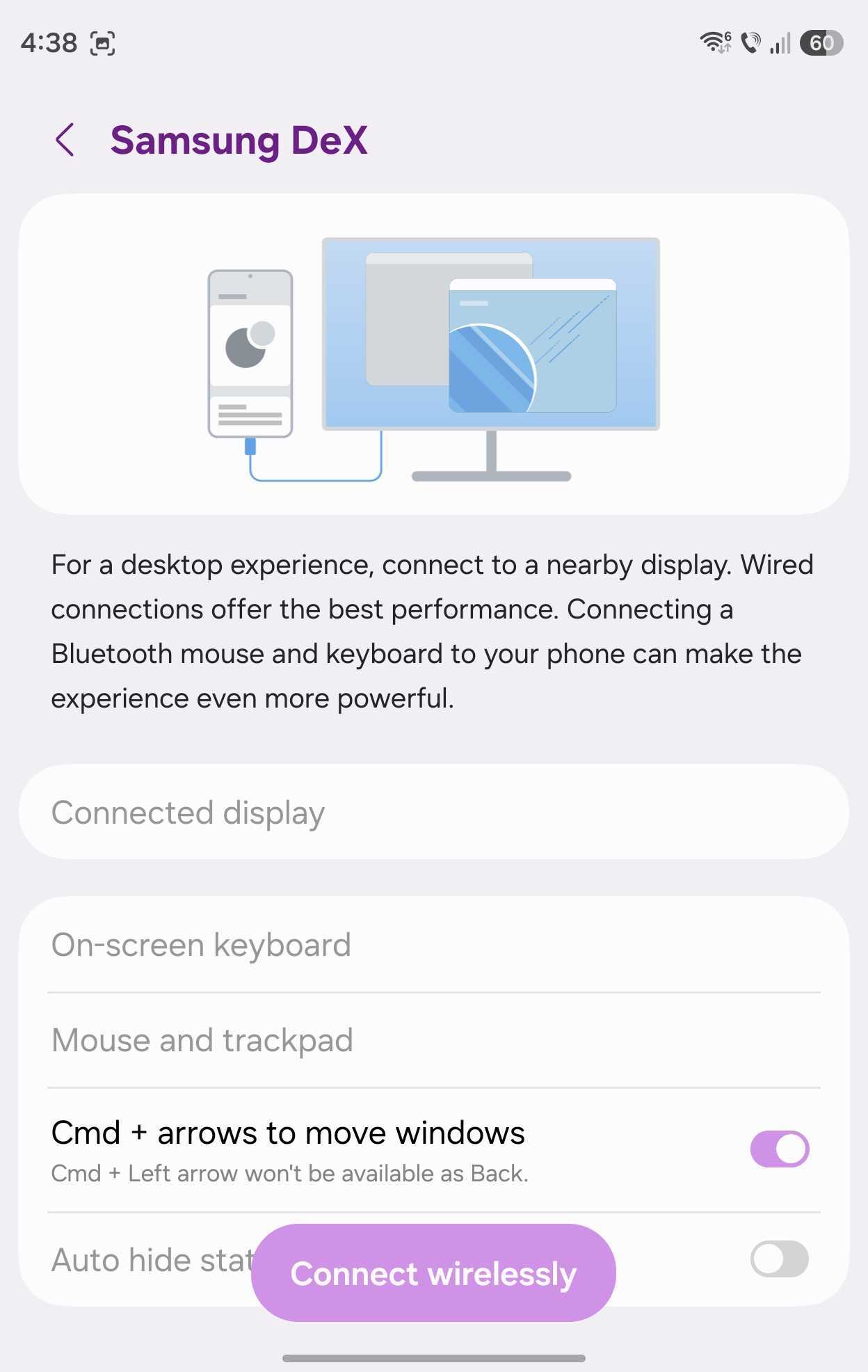
As a final note, if you check your Samsung DeX menu and cannot find the option to auto-hide the status bar and taskbar, it is likely because your device is currently running One UI 8.5 instead of One UI 9.0, which introduced those specific interface controls.
Which Galaxy devices support the new Apple keyboard Cmd shortcuts in DeX?
This feature is supported on Samsung Galaxy smartphones and tablets running One UI 8.5 or later when connected to an external display via Samsung DeX.
How do I turn on the Cmd window snapping feature?
You can enable it by going to Settings, selecting Connected devices, tapping Samsung DeX, and switching the "Cmd + arrows to move windows" option to on.
Will Windows keyboard shortcuts still work?
Yes, users with standard Windows keyboards can continue snapping and organizing their desktop windows using the traditional Windows + arrow keys combination.
Are there any limitations when using the Cmd shortcuts?
Yes, once you enable the Cmd + arrow shortcuts for window management, you will lose the ability to use the Cmd + left arrow combination for backward navigation.
🔎 In conclusion, the integration of Apple keyboard layout recognition within Samsung DeX demonstrates Samsung's continuous commitment to cross-platform flexibility and user productivity. By allowing seamless window snapping with familiar key combinations, DeX bridges the gap between different hardware ecosystems, making desktop-style mobile computing smoother than ever for a wider range of users.
Post a Comment