
Googlebook System Updates Improve Android Synchronization Features and Enable Samsung Support
- ✨ Rolling out new updates to improve the initial setup process and make cross-device pairing easier.
- ✨ Resolving the issue where the QR code continued to appear even after successful pairing.
- ✨ Launching official support for Samsung phones running the modern One UI 9.0 interface.
- ✨ Providing clear steps and guidelines to ensure synchronization features work smoothly.
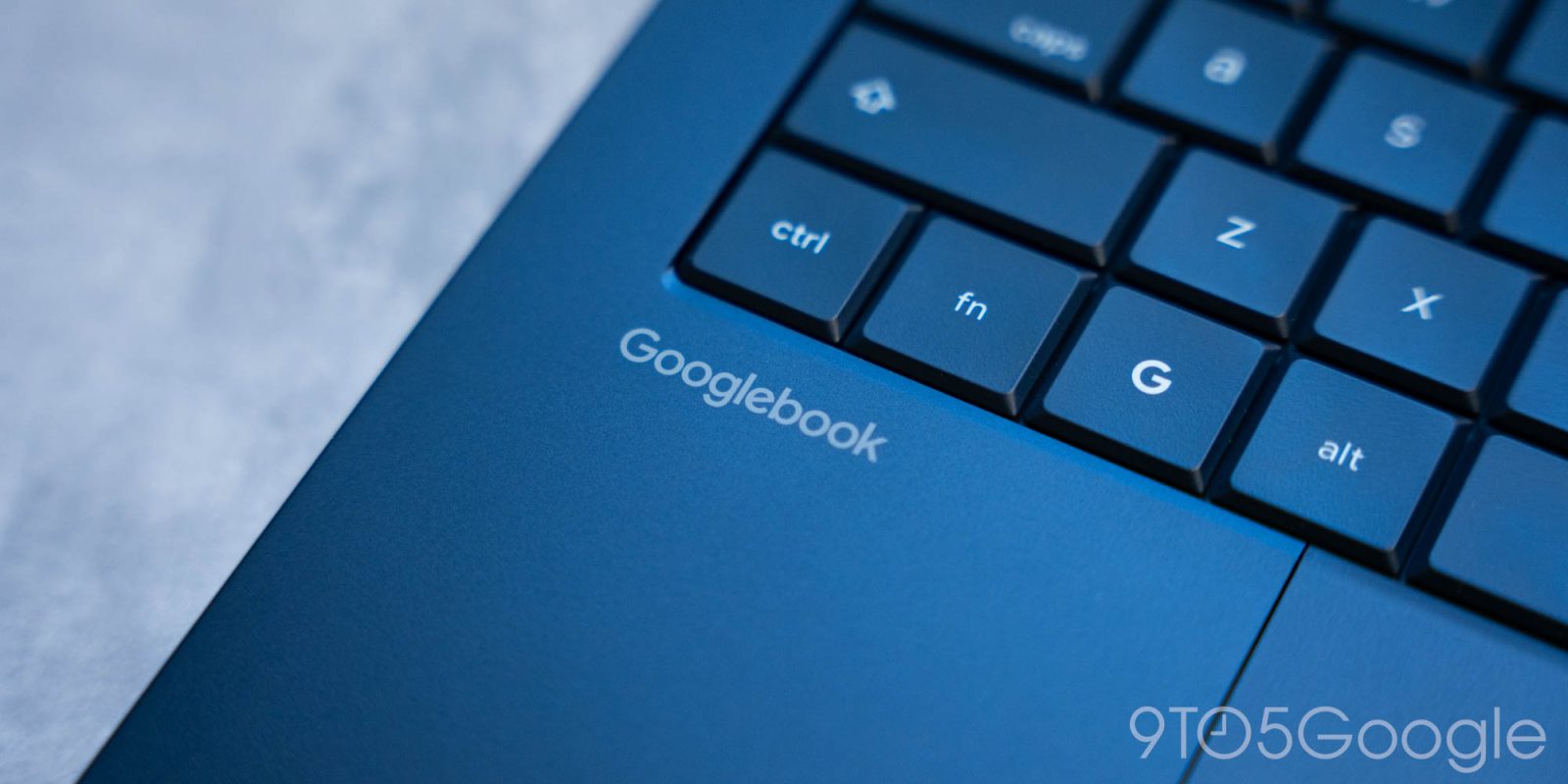
Deep integration with Android phones is the standout feature attracting users to the Googlebook desktop platform. However, the synchronization features known as "Better Together" faced some disarray upon their official launch. Google is currently rolling out a series of important updates, including enabling support for Samsung devices, which was puzzlingly missing before.
There are several core features operating between Android phones and Googlebook computers, which include app streaming, notification synchronization, the "Continue On" feature for compatible apps, and much more. But at launch, things did not work entirely as hoped. While some features like the instant hotspot worked widely, other features were slow to activate, inconsistent, or entirely absent. One of the issues was that fully activating these features required some extra steps by the user.
In a post on Reddit, Google explained that it has started rolling out a smoother initial setup process for these features, reducing the steps required to configure cross-device features. The current update also appears to have fixed a bug that caused the QR code used to pair the phone to keep showing even after the pairing process successfully completed. The required version on the phone is Google Play Services version 26.37, and you can check for Play Services updates via Play Store. Cross-device services also need to be updated to version 1.0.1346, which can also be done via Play Store.
These updates also appear to contribute to fully enabling support for Samsung devices.
The lack of support for Galaxy smartphones was the biggest gap in the Googlebook platform at launch, at least in terms of hardware compatibility. Google had previously stated that support would arrive "in the coming weeks," a phrasing that remained extremely vague for a long time.
Here are the complete details from Google for everything you need to check and configure:
- Make sure your phone is running Android 17: Your smartphone must run Android 17. To check the version, open Settings > About phone > Android version (setting paths may vary by phone type). "Better Together" features work with Pixel phones and compatible Android 17 phones including Xiaomi, Oppo, OnePlus, Motorola, Lenovo, Honor, Sharp, Sony, and Samsung (with One UI 9.0), and others.
- Check Bluetooth and Wi-Fi connection: Make sure your phone and Googlebook computer use the same personal Google account with both Bluetooth and Wi-Fi turned on.
- Use a private home Wi-Fi network: Hotel, café, office, and guest Wi-Fi networks often use client isolation, which hinders direct local connections between your phone and your laptop. Turn off any active virtual private networks (VPNs) or domain blockers and test the connection on a standard home Wi-Fi network.
- Update Google Play Services: Google Play Services must be version 26.37 or higher. To ensure your phone gets the latest version, select Settings > Apps (or Apps & notifications) > See all apps. If Google Play Services does not appear, select More then Show system. Choose Google Play Services from the app list, then go to App details (or app details in the store). If an update is available, click Update.
- Update Cross-device services: Cross-device services must be version 1.0.1346 or higher. To ensure your phone has the latest version, select Settings, then Apps (or Apps & notifications), then See all apps. Choose Cross-device services from the list, then app details, and click Update if available.
- Check Sub-options for activity continuation: On your phone, go to Settings, search for Cross-device services > Activity continuation, and make sure the options for Tasks, Apps, Notifications, and File and media sharing are enabled.
- Restart your phone and Googlebook computer together to ensure the changes take effect successfully.
Some Samsung Galaxy users have already confirmed that "Better Together" features are working properly on their computers after installing these updates.
The delay in Samsung support was initially attributed to a lack of updates from Samsung itself, but matters appear to have been completely resolved now. However, you will need One UI 9, which has not been rolled out yet except to a very small slice of Samsung phones.
Other News About the System and Its Updates
- The app situation on the Googlebook system is still messy due to missing elements
- Logitech supports Googlebook computers with a mouse and keyboard featuring magic cursor technology
- The very first thing you should do when getting a Googlebook is adjust the trackpad speed
What are the basic requirements to enable synchronization features on Googlebook?
Synchronization requires running Android 17 on your phone, using the same Google account on both devices, turning on Bluetooth and wireless networking, and updating Google Play Services and Cross-device services to the required latest versions.
Does the Googlebook system currently support Samsung Galaxy phones?
Yes, the new updates have started enabling support for Samsung phones running the One UI 9.0 user interface and compatible system, allowing users to take advantage of integration and synchronization features.
How can Google Play Services be updated on a mobile phone?
You can check for updates and install them by going to phone settings, then apps, showing system apps, and searching for Google Play Services to install any available update via the app store.
Why are public Wi-Fi networks unsuitable for synchronization to work?
Public Wi-Fi networks in hotels and cafés operate with client isolation, which prevents the direct local connections required to efficiently link your phone to your computer.
🔎 The continuous updates rolled out by Google form a pivotal step toward establishing a smooth and stable user experience across various compatible devices. With the activation of support for Samsung phones and the resolution of setup issues, the Googlebook platform is moving steadily toward fulfilling its promises of delivering a unique and advanced ecosystem integration for users.
Post a Comment