
Samsung Second Screen Explained: How to Use Your Galaxy Tablet as a PC Monitor
A Galaxy tablet can do much more than simply run mobile applications. Thanks to Samsung's innovative Second Screen feature, your compatible tablet can transform into a secondary high-definition display for your Windows computer, expanding your productivity and workspace effortlessly.
TL;DR Summary
- ✨
- Samsung's Second Screen allows compatible Galaxy tablets to function as an extended or duplicate monitor for Windows PCs, supporting touch gestures and S Pen input.
- ✨
- It is supported across numerous Tab S models, select Tab Active devices, and the Tab A11+, requiring no proprietary Samsung computer or account.
- ✨
- Wireless connections utilize standard Windows Cast protocols, while experimental USB connectivity requires One UI 7.0+ and Windows 11 24H2+ for enhanced stability.
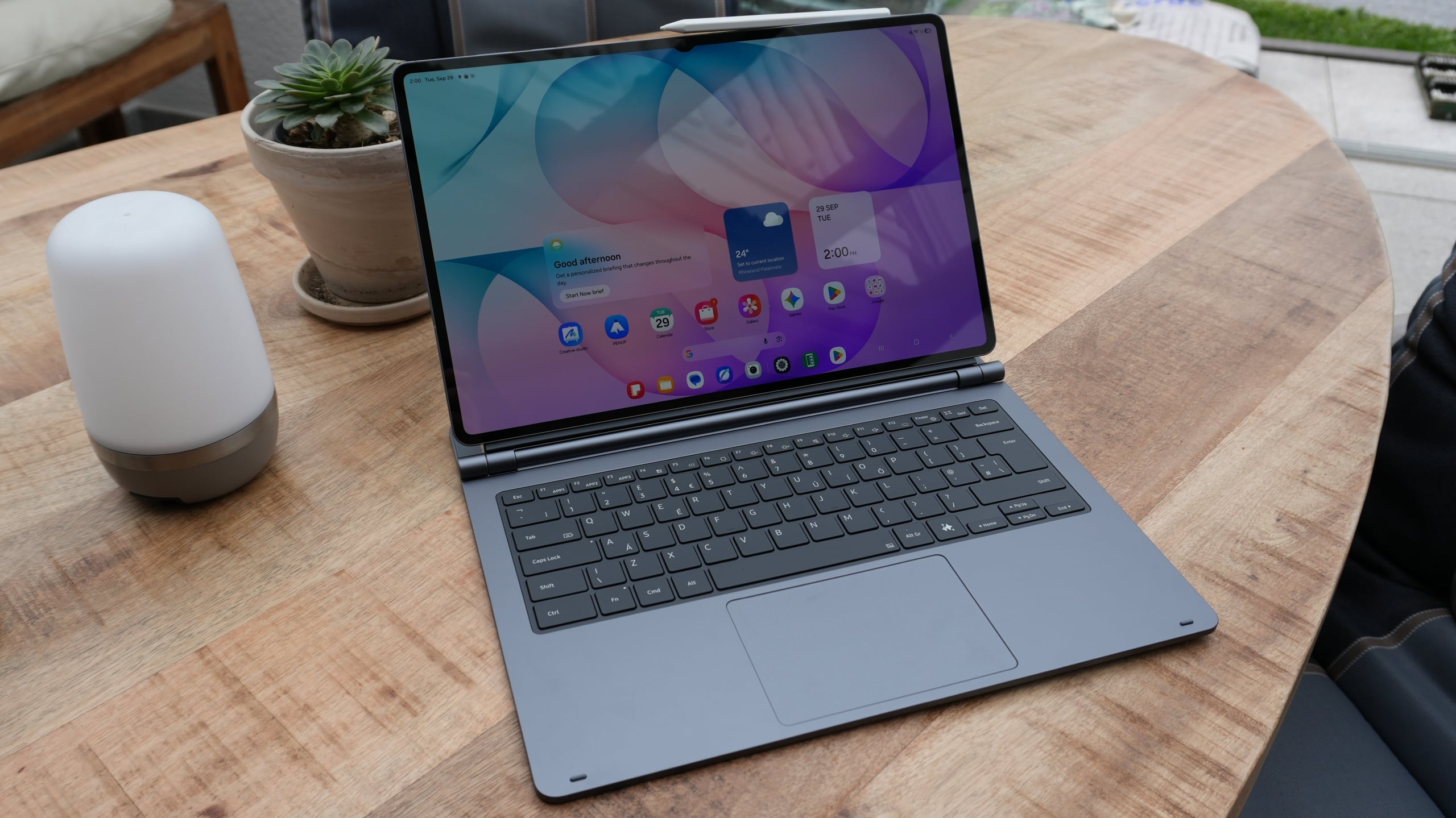
Understanding Samsung Second Screen
The Second Screen feature bridges the gap between portable mobile hardware and desktop computing. By turning your tablet into an external display, you gain the freedom to drag browser windows, keep essential documents open, or dedicate an entire screen to video playback while saving your primary monitor for other tasks.
Crucially, all processing remains handled by your Windows computer. The tablet simply receives the real-time desktop video feed and transmits your touch gestures and S Pen inputs back to the host machine. You do not need dedicated Android ports of your desktop programs to use them on the tablet screen.
Supported Galaxy Tablet Models
Samsung offers Second Screen compatibility across a broad lineup of its flagship Galaxy Tab S series, select rugged devices, and entry-level options.
| Tablet Family | Supported Models |
|---|---|
| Galaxy Tab S7 | Tab S7, S7+, S7 FE |
| Galaxy Tab S8 | Tab S8, S8+, S8 Ultra |
| Galaxy Tab S9 | Tab S9, S9+, S9 Ultra, S9 FE, S9 FE+ |
| Galaxy Tab S10 | Tab S10+, S10 Ultra, S10 FE, S10 FE+, S10 Lite |
| Galaxy Tab S11 | Tab S11, S11 Ultra |
| Galaxy Tab S12 | Tab S12+, S12 Ultra |
| Galaxy Tab Active | Tab Active4 Pro, Active5, Active5 Pro |
| Galaxy Tab A | Tab A11+ |
Ensure your tablet is running One UI 5.1.1 or later for wireless functionality, while USB connections require One UI 7.0 or newer alongside updated companion software.
Step-by-Step Connection Guide
Establishing a wireless connection takes only a few moments:
- Turn on Wi-Fi on both your Windows PC and your Galaxy tablet.
- Open the quick settings panel on your tablet and tap the Second Screen tile.
- Press the Windows + K keys simultaneously on your PC keyboard.
- Choose your tablet from the detected device list and accept the connection prompt.
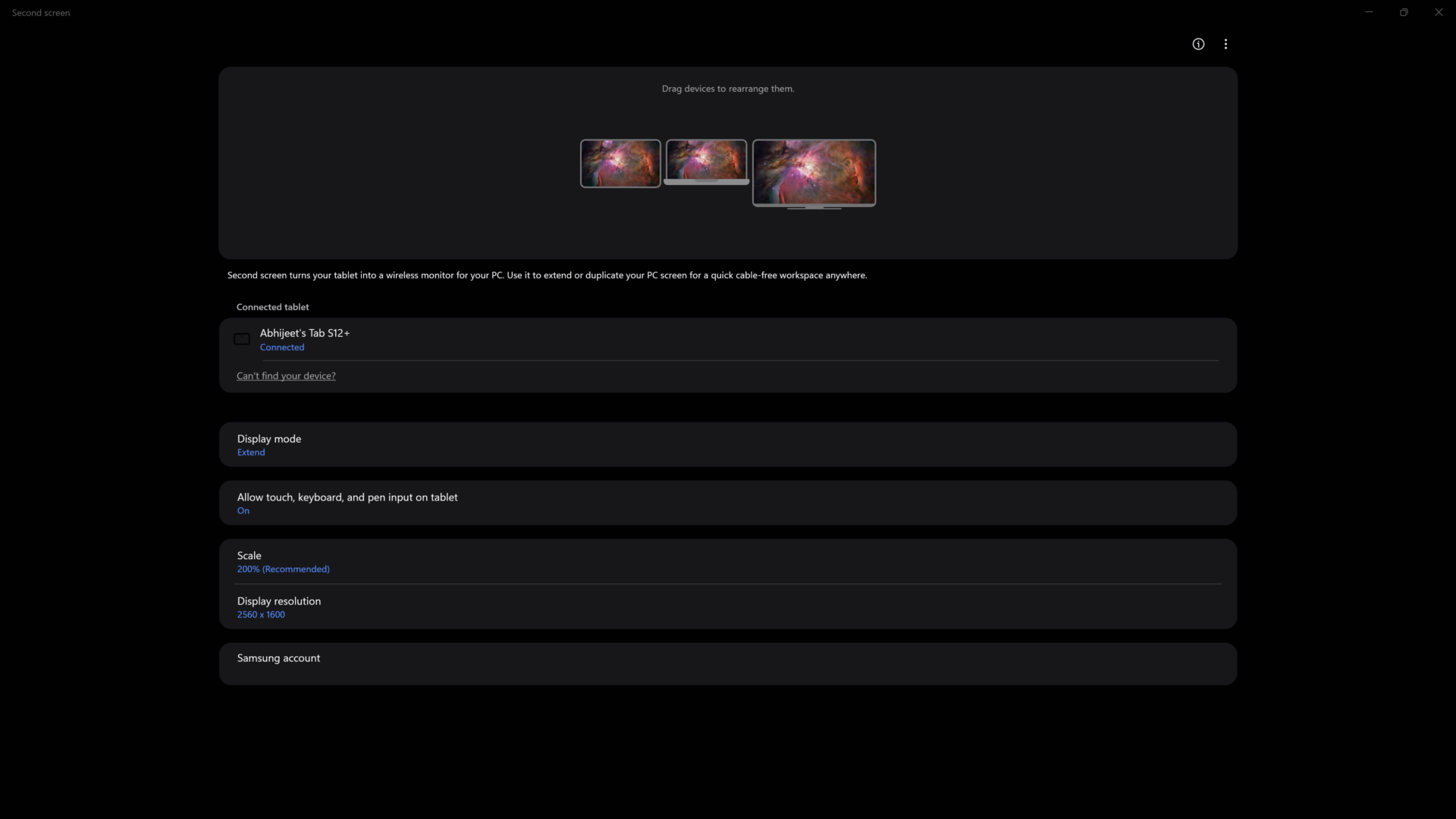
Once connected, configure your display orientation and layout by navigating to Settings > System > Display on your PC to align the monitor rectangles with your physical desktop setup.
Optimizing Performance and Refresh Rates
To achieve the smoothest experience possible, you can adjust your resolution and refresh rate settings. Wireless connections running at 1920×1200 resolution comfortably support 60Hz, whereas higher resolutions may throttle down to 30Hz unless utilizing a direct USB connection.
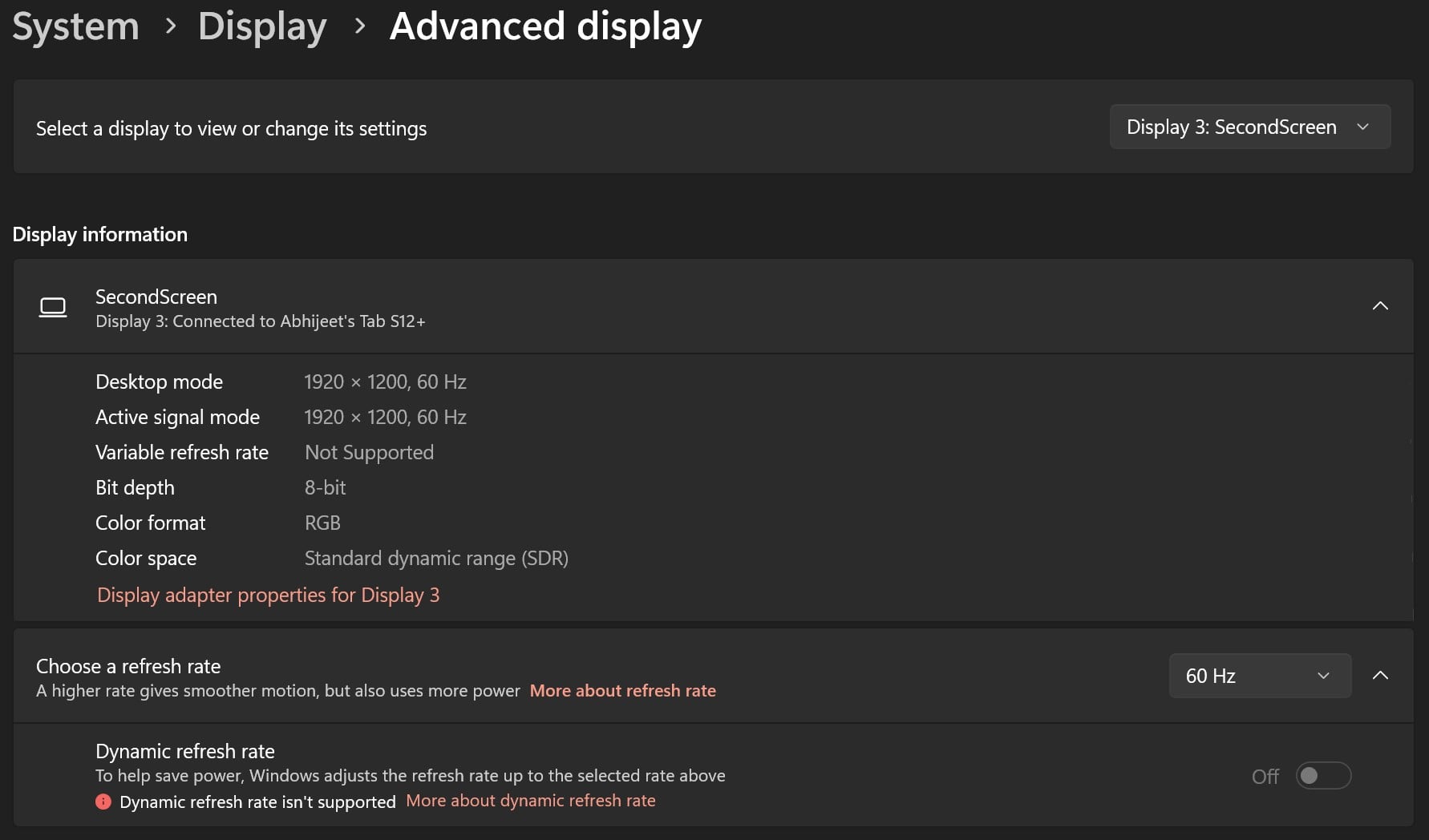
If your mouse pointer movement feels sluggish over Wi-Fi, look for the option in the Samsung PC app to disconnect the tablet from its local router Wi-Fi network, which forces a cleaner, faster direct connection stream.
What hardware requirements are needed for a wireless connection?
Your Windows PC must feature native Miracast and Wireless Display hardware support built into its Wi-Fi adapter and graphics drivers, along with active Wi-Fi enabled on both devices.
Can I use my tablet's touchscreen and S Pen as inputs for PC applications?
Yes, by enabling touch and pen input within the Windows Cast menu or Samsung companion app, you can fully interact with Windows apps using touch gestures and pressure-sensitive S Pen drawing tools.
How do I route sound through the tablet's speakers?
Click the volume icon in your Windows taskbar, click the options menu next to the slider, and manually select your tablet from the available digital audio output devices list.
Is it possible to connect using a USB cable instead of Wi-Fi?
Yes, experimental USB support is available for tablets running One UI 7.0+ and Windows 11 version 24H2+, providing a stable wired connection when file transfer mode is activated.
Does Second Screen work with Apple Mac computers?
No, Samsung's built-in Second Screen relies strictly on Windows Miracast protocols and does not natively support macOS architecture.
🔎 Samsung's Second Screen transforms your existing hardware ecosystem into a unified workspace, providing ultimate flexibility for mobile professionals and multimedia enthusiasts alike. For complete software downloads and product setups, visit the official Microsoft Store Second Screen App page.
Post a Comment