
Understanding the New Blue Location Icon on Samsung Galaxy Phones in One UI 9
After updating your Samsung Galaxy smartphone to One UI 9 (Android 17), you might notice a subtle yet important change in your status bar. Among the various system adjustments, a small blue icon frequently appears at the top of your screen during daily usage. This new addition serves as a crucial privacy feature designed to keep you fully informed about your device's background activities.
- ✨ Discover what the new blue status bar icon represents on your updated Galaxy device.
- ✨ Learn how to quickly identify which specific application is actively tracking or accessing your location.
- ✨ Master the steps to review, modify, and restrict location permissions for individual apps.
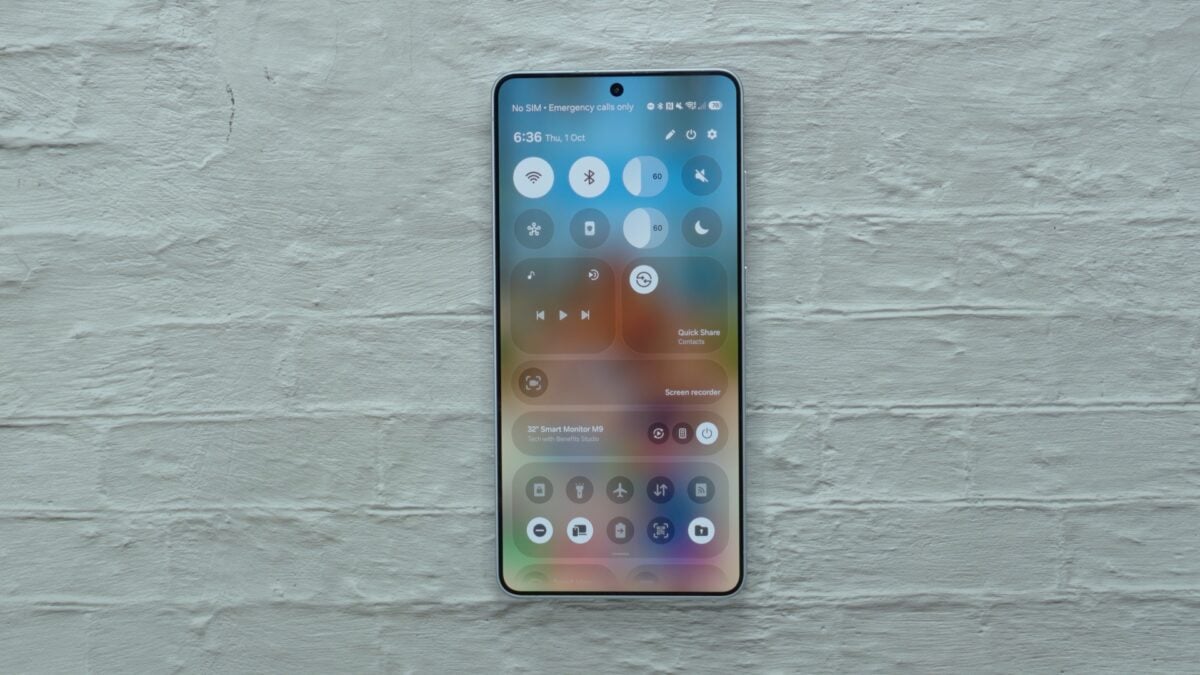
What Does the Blue Location Icon Mean?
The small blue icon that occasionally pops up in your notification bar is the brand-new location privacy indicator introduced in Android 17. Whenever a background service or active application pings your device's GPS or location data, this indicator lights up to make that specific system access completely transparent and effortless to monitor.
Numerous applications rely heavily on your geographical coordinates for core functionality. While navigation tools clearly require positioning data to provide accurate driving instructions, weather utilities also utilize location services to instantly fetch local forecasts. Consequently, you may notice this icon flashing even when you have not intentionally launched a map or route planner.
How to Track Which App Is Using Your Location
Fortunately, Samsung makes it exceptionally easy to investigate the exact origin of the location trigger without playing a guessing game. Whenever the blue indicator lights up in your status bar, simply swipe down to reveal your Quick Panel and tap directly on the blue icon. Your Galaxy phone will immediately display a prompt revealing precisely which app is accessing your location at that exact moment.
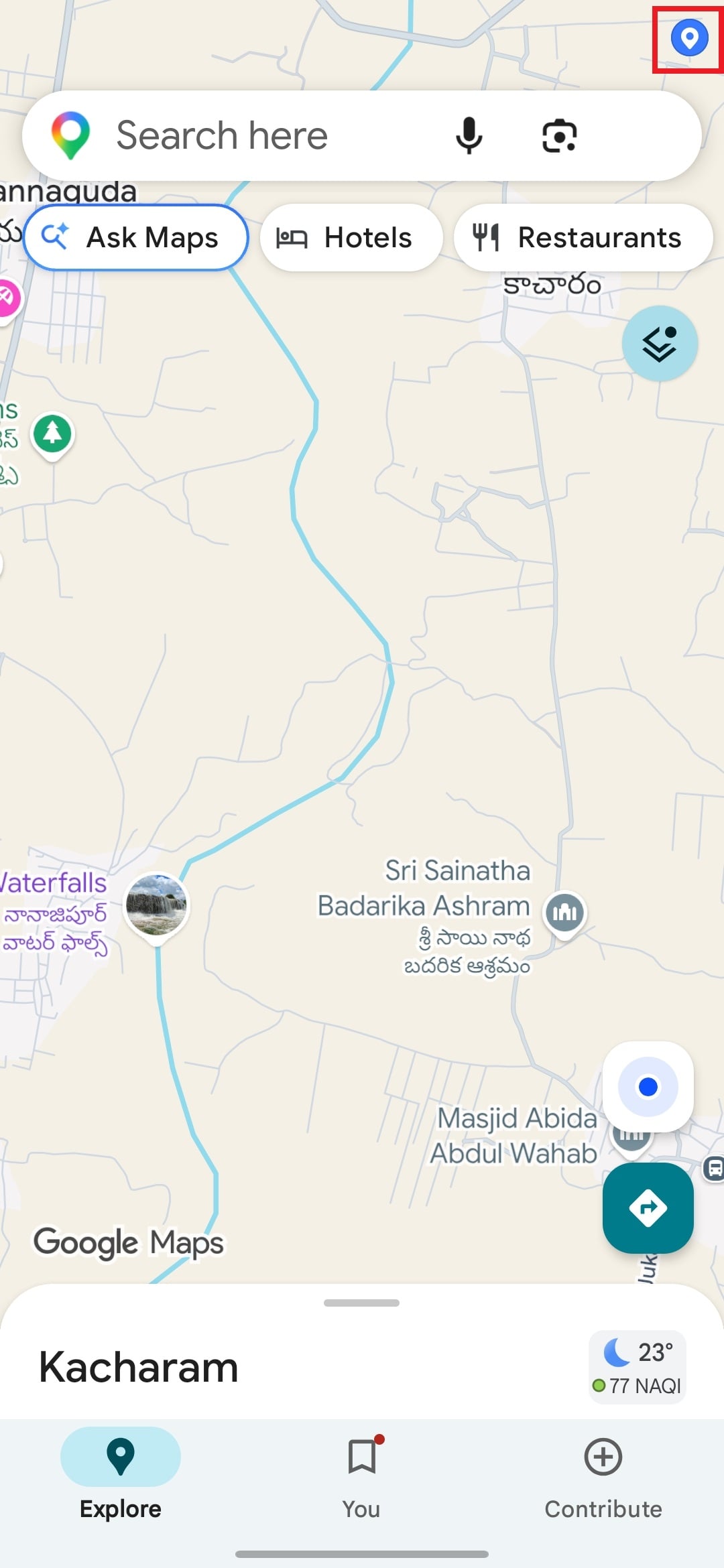
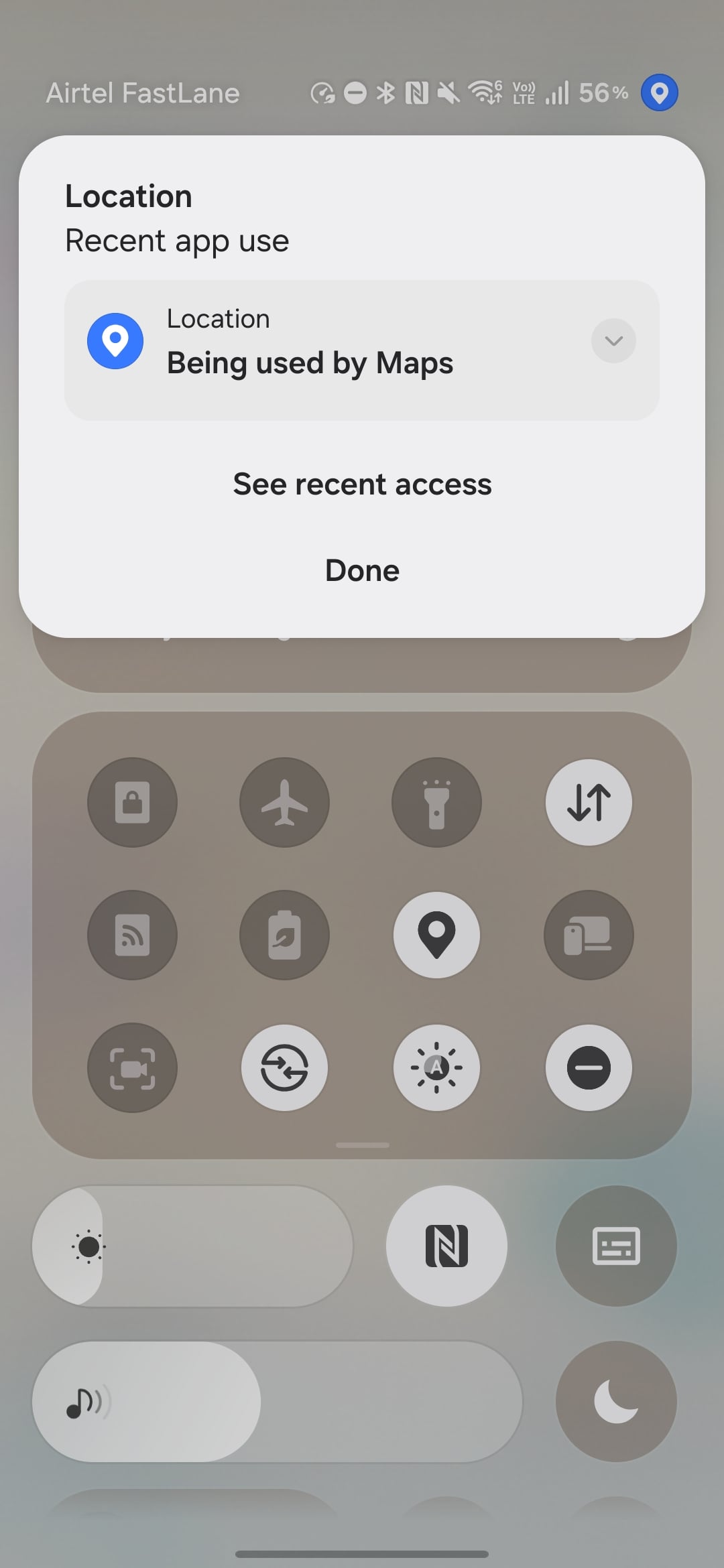
If the highlighted software is a program you are actively engaging with, the reason is usually straightforward. However, if an unfamiliar tool triggers the notification, it provides an immediate opportunity to evaluate whether that utility genuinely warrants continuous background access. Programs configured with permission to track your location at all times can continuously query your coordinates, a privilege you might have granted during initial setup and subsequently forgotten about.
Managing and Changing App Location Permissions
If you wish to audit and adjust your privacy settings across installed programs, navigate to Settings > Location > App permissions, and select the specific software you wish to inspect.
Depending on the app's requirements, you can modify its privileges to allow access continuously, restrict usage strictly to instances when the app is actively open, prompt for permission every single time, or block access entirely.
It is best practice to select Allow only while using the app for utilities that do not require constant tracking. For any program that has zero functional justification for knowing your coordinates, select Don’t allow to lock down your personal privacy.
Why does the blue location icon appear randomly throughout the day?
The icon appears whenever any application or background service queries your phone's GPS or location sensors. This often happens with weather apps updating forecasts or system services checking your regional time zone.
How can I find out which exact app triggered the blue icon?
When the blue privacy icon is visible in your status bar, swipe down to open your Quick Panel and tap directly on the icon. A prompt will instantly show you which application is currently accessing your location data.
Can I completely disable the location privacy indicator?
No, the location privacy indicator is a built-in security feature of Android 17 and One UI 9 designed to protect user privacy. It cannot be permanently disabled.
How do I restrict an app from tracking my location in the background?
You can easily change app permissions by navigating to your phone's Settings, selecting Location, tapping App permissions, and switching the access preference to "Allow only while using the app" or "Don't allow."
🔎 Staying informed about how your device manages sensitive data ensures a secure and private mobile experience. By keeping an eye on the new location privacy indicator in One UI 9 and regularly auditing your app permissions, you can take full control of your digital footprint on your Samsung Galaxy device.
Post a Comment