
20 Essential Tips and Tricks to Master Your Samsung Galaxy Z Fold 8
The Samsung Galaxy Z Fold 8 comes packed with a wealth of innovative features that Samsung leaves for you to discover on your own. While some capabilities are tucked away inside the Settings app, others are seamlessly integrated into the daily applications you already rely on. From streamlining your expansive inner screen to effortlessly organizing your media and documents, mastering these tips will elevate your foldable smartphone experience.
Key Highlights
- ✨ Compare similar photos side by side using Good Lock's Gallery Assistant.
- ✨ Enhance your productivity by combining multiple images and screenshots directly into a single PDF.
- ✨ Optimize your typing experience on the cover screen with dedicated one-handed keyboard layouts.
- ✨ Streamline your workflow by automating screen timeouts and app rotations using Modes and Routines.
A few of these features require Good Lock and its specialized add-ons, which you can download from the Galaxy Store or the Play Store. Before getting started, it is also recommended to update your Samsung apps to ensure you have access to the latest improvements.
Note: These features also work with the Galaxy Z Fold 8 Ultra and other foldable models, though some may require your device to be updated to One UI 9 (Android 17).
1. Compare similar photos side by side
Taking multiple photos of the same subject is effortless, especially when capturing active pets or lively moments. However, picking the absolute best shot later can be tedious when the differences are minor.
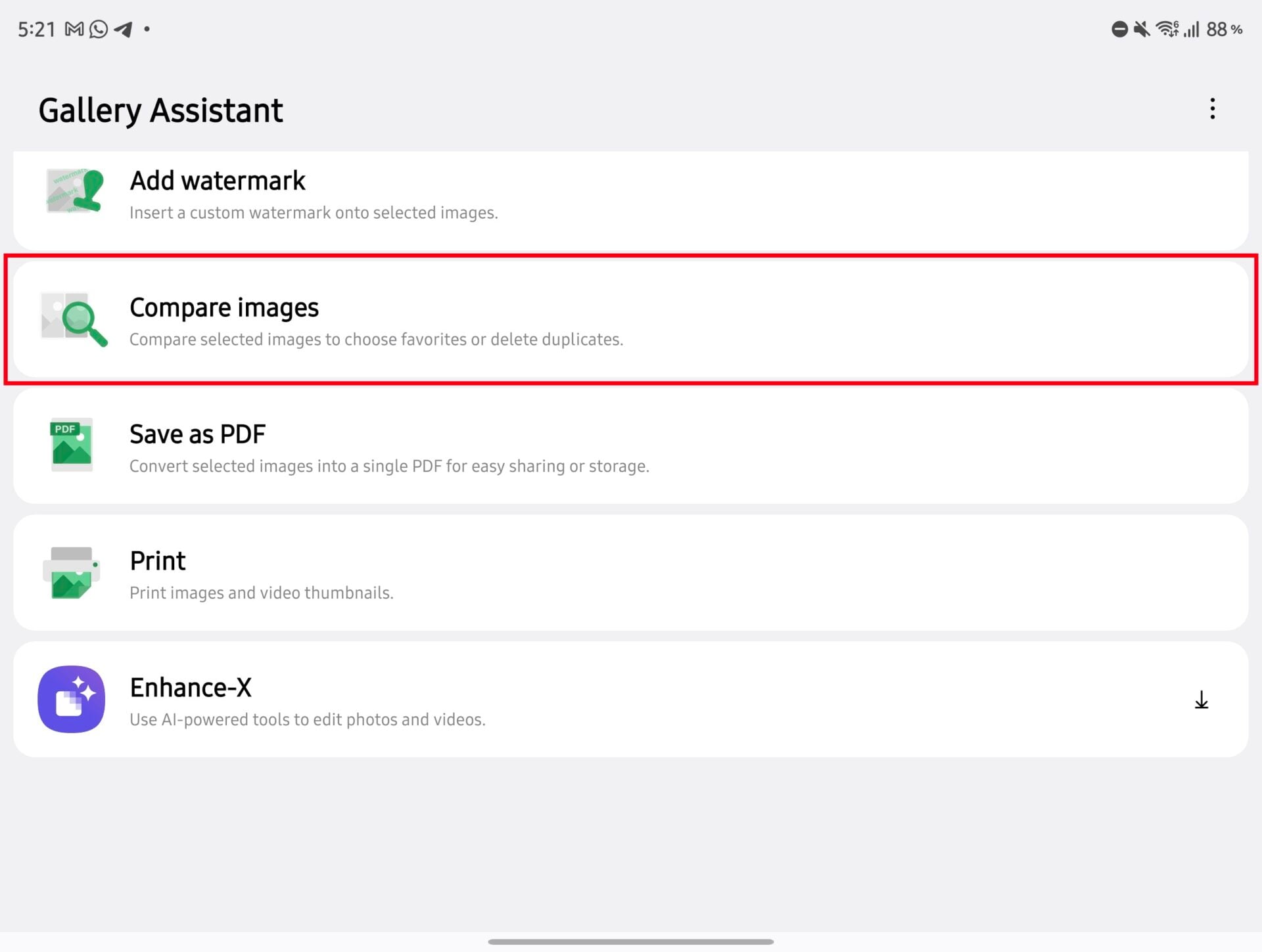
Samsung's Gallery Assistant app, available as part of the Good Lock suite, features a Compare Images tool designed to resolve this. You can select up to 20 photos and compare four at once by zooming in simultaneously or individually, helping you quickly spot closed eyes or blurred details.
Mark your favorites or delete unwanted duplicates directly during the comparison view. The expansive inner display on the Fold 8 makes distinguishing these fine details much easier than on a standard phone screen.
Install Gallery Assistant from the Galaxy Store or the Plugins section of the Good Lock application. Alternatively, initiate comparisons by selecting photos in your Gallery and navigating to More > Edit with Gallery Assistant.
2. Combine screenshots and photos into one PDF
While exploring Gallery Assistant, you will find another valuable function: Save as PDF. If you have collected multiple screenshots or document pages—such as travel bookings or receipts—you can merge them into a single portable document instead of sharing them individually.
Open Gallery Assistant, select Save as PDF, and choose the desired images. You can customize the page size, layout orientation, and image quality before exporting, or share the finalized PDF directly.
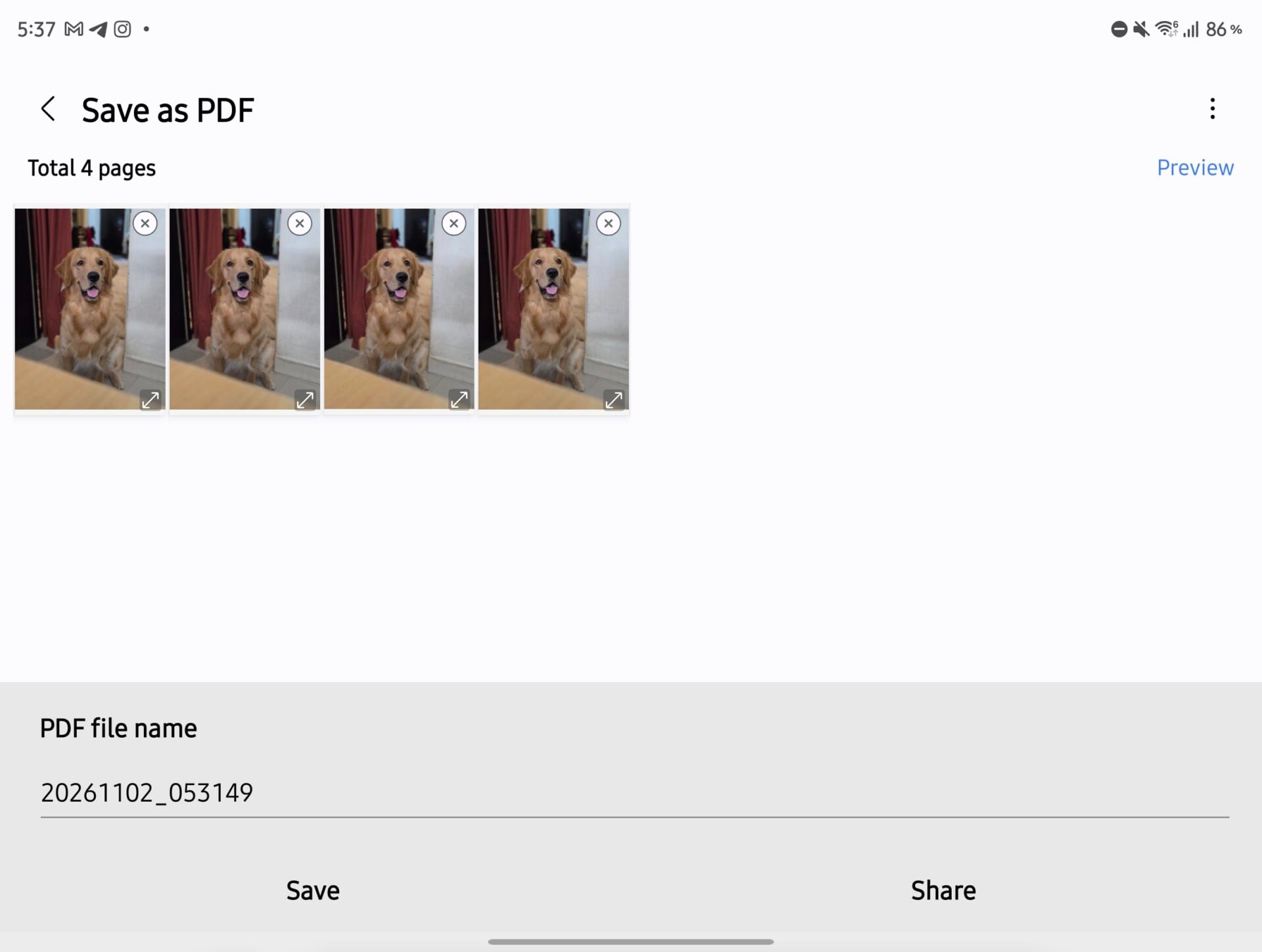
This feature provides a clean, professional way to keep related documents organized when sending files to colleagues or friends.
3. Resize a batch of photos or videos
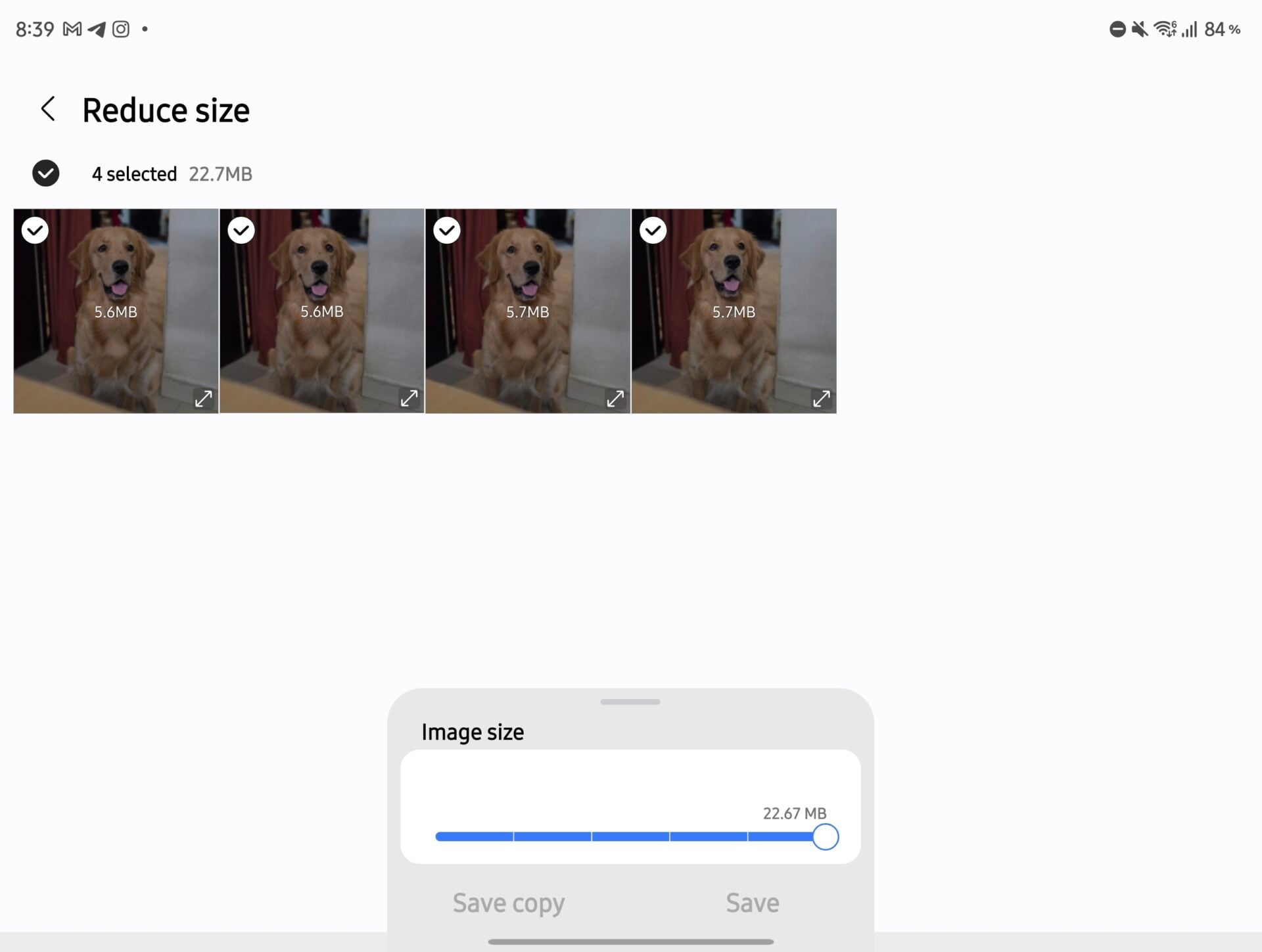
Another time-saving tool within Gallery Assistant is Reduce Size. As the name implies, it lets you resize up to 500 media files simultaneously rather than editing them one by one.
Select the target files and use the adjustment slider to scale down dimensions, observing estimated file size savings in real time. You can also process videos, choosing between HEVC and H.264 codecs depending on whether storage efficiency or broad compatibility is your priority.
4. Make the cover-screen keyboard easier to use with one hand
The Fold 8 cover screen is conveniently compact yet quite wide. Depending on hand size, reaching every key with a single thumb can occasionally present a challenge.
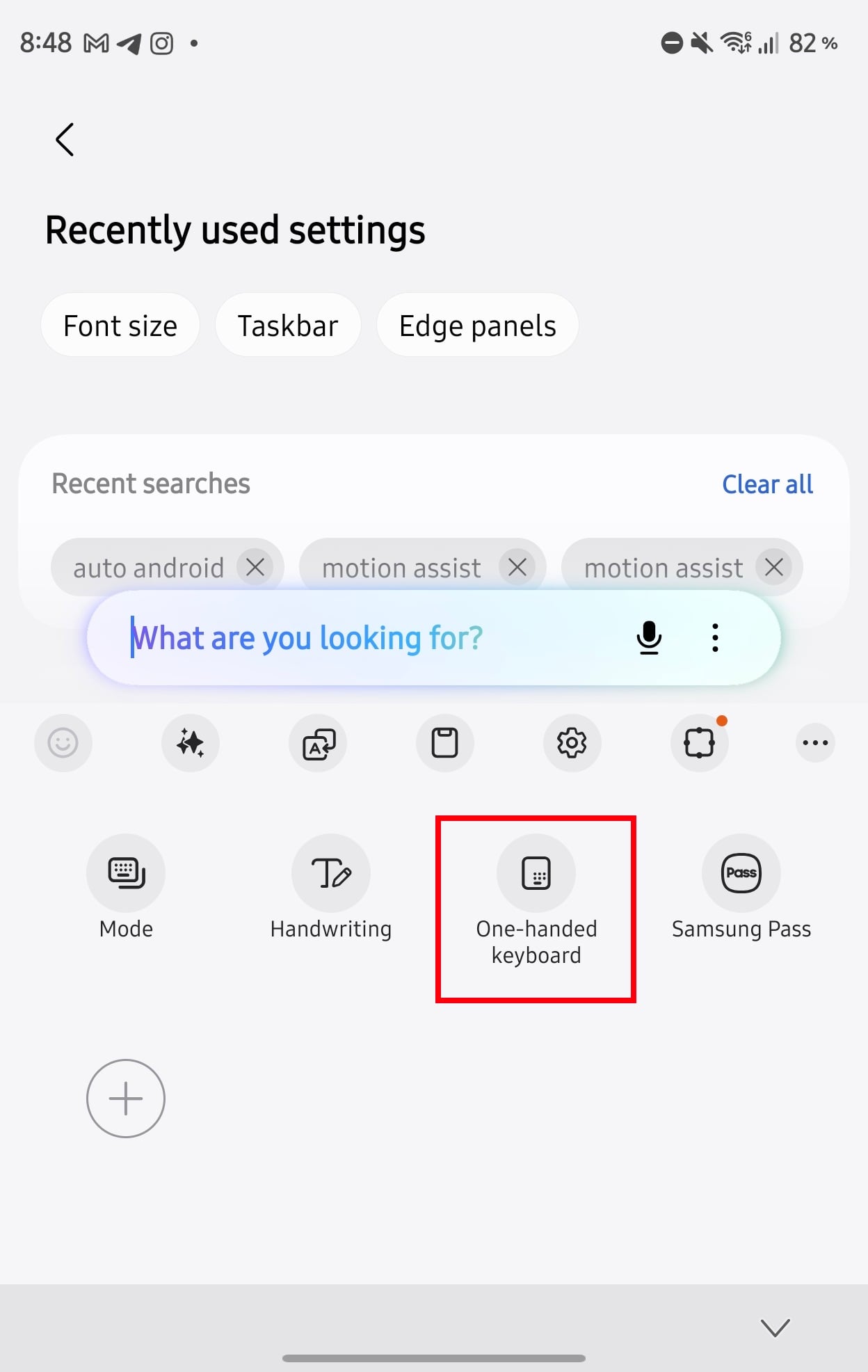
Try activating the Samsung Keyboard's One-handed keyboard mode. This shrinks and shifts the keyboard toward either the left or right edge of the display, matching your active hand.
Open the keyboard, tap the three-dot toolbar icon, and choose the one-handed option. If it isn't visible, check for a Samsung Keyboard update via the Galaxy Store.
5. Bring back a regular video seek bar in Gallery
By default, Samsung Gallery displays a thumbnail filmstrip for video scrubbing. If you prefer a traditional playback slider, an option is hidden within Gallery Labs.
To unlock this menu, navigate to Gallery > Settings > About Gallery and tap the version number repeatedly until a confirmation message appears. Then open Gallery Labs and enable Video player mode on filmstrip > Legacy video seekbar.
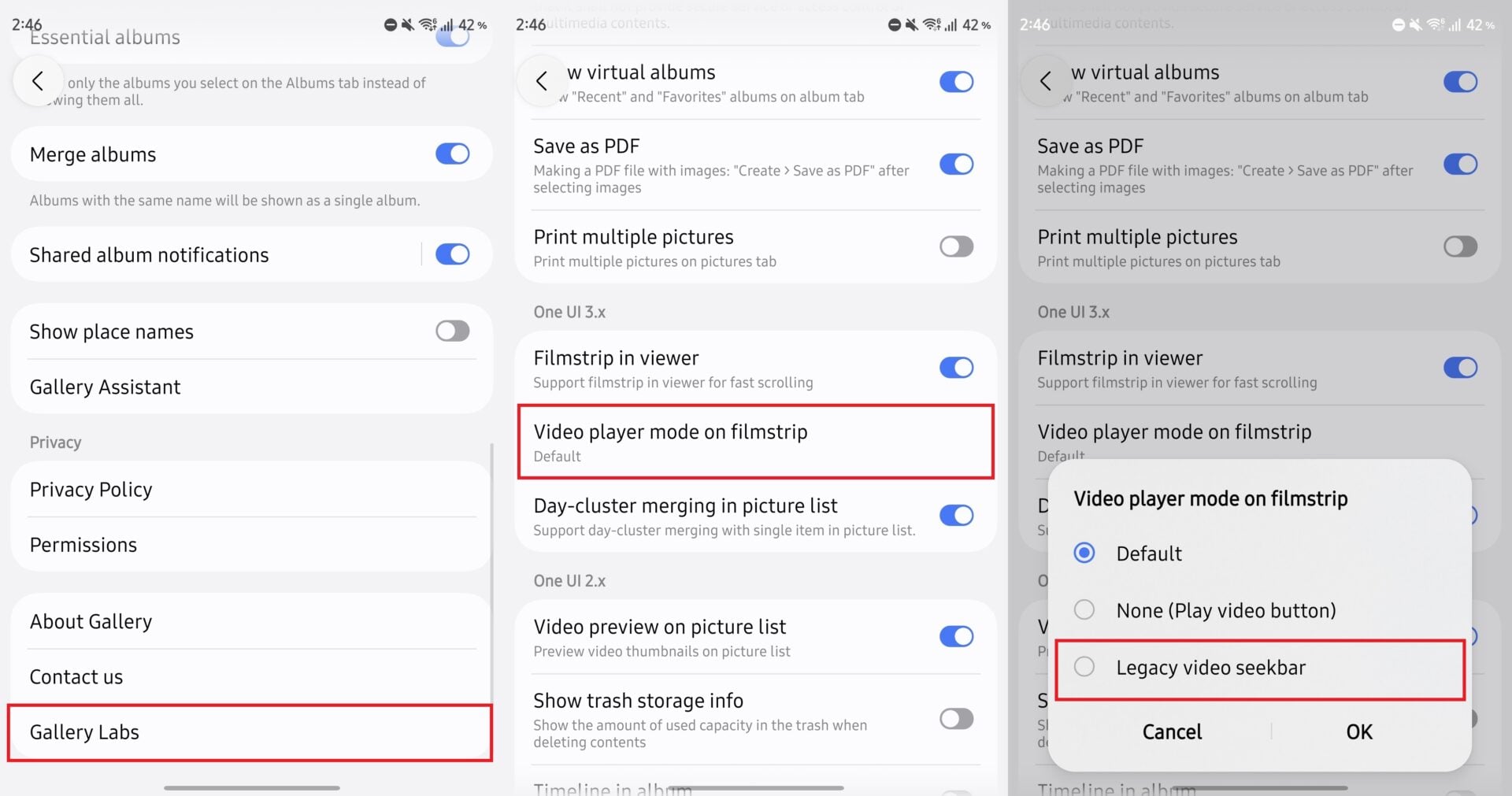
6. Add date sections inside your photo albums
While the main Pictures tab organizes your library by date, individual albums can sometimes feel cluttered with thousands of thumbnails.
Enabling Timeline in album within Gallery Labs introduces clear date separators inside your custom and system folders, making past memories much easier to locate.
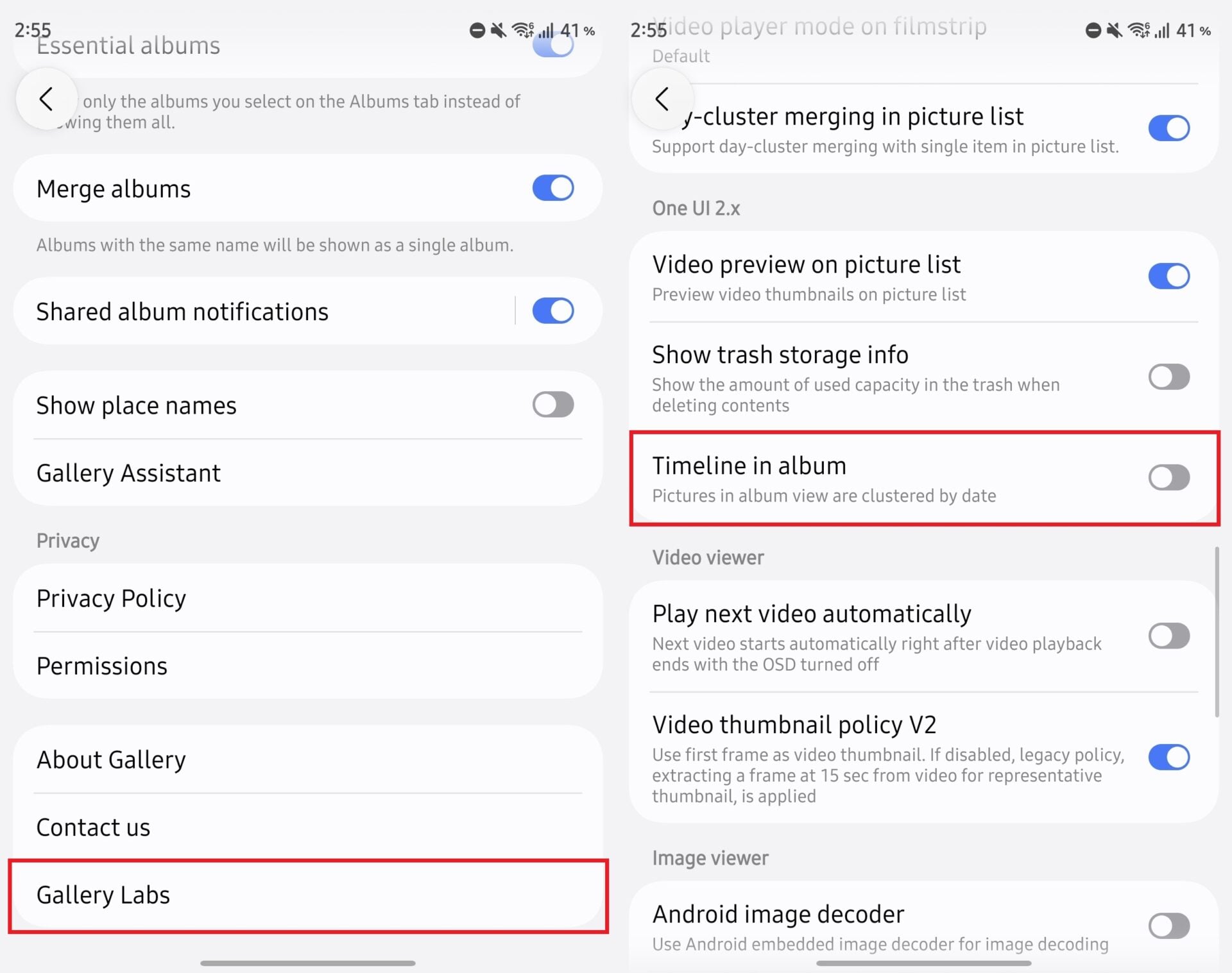
7. Change the volume without reaching for the buttons
When the phone is unfolded in portrait orientation, physical volume buttons can sit rather high up. Samsung's Good Lock module, One Hand Operation+, offers an elegant alternative.
Install the application, activate a gesture handle, and assign diagonal swipe motions to Volume up and Volume down for quick audio adjustments without shifting your grip.
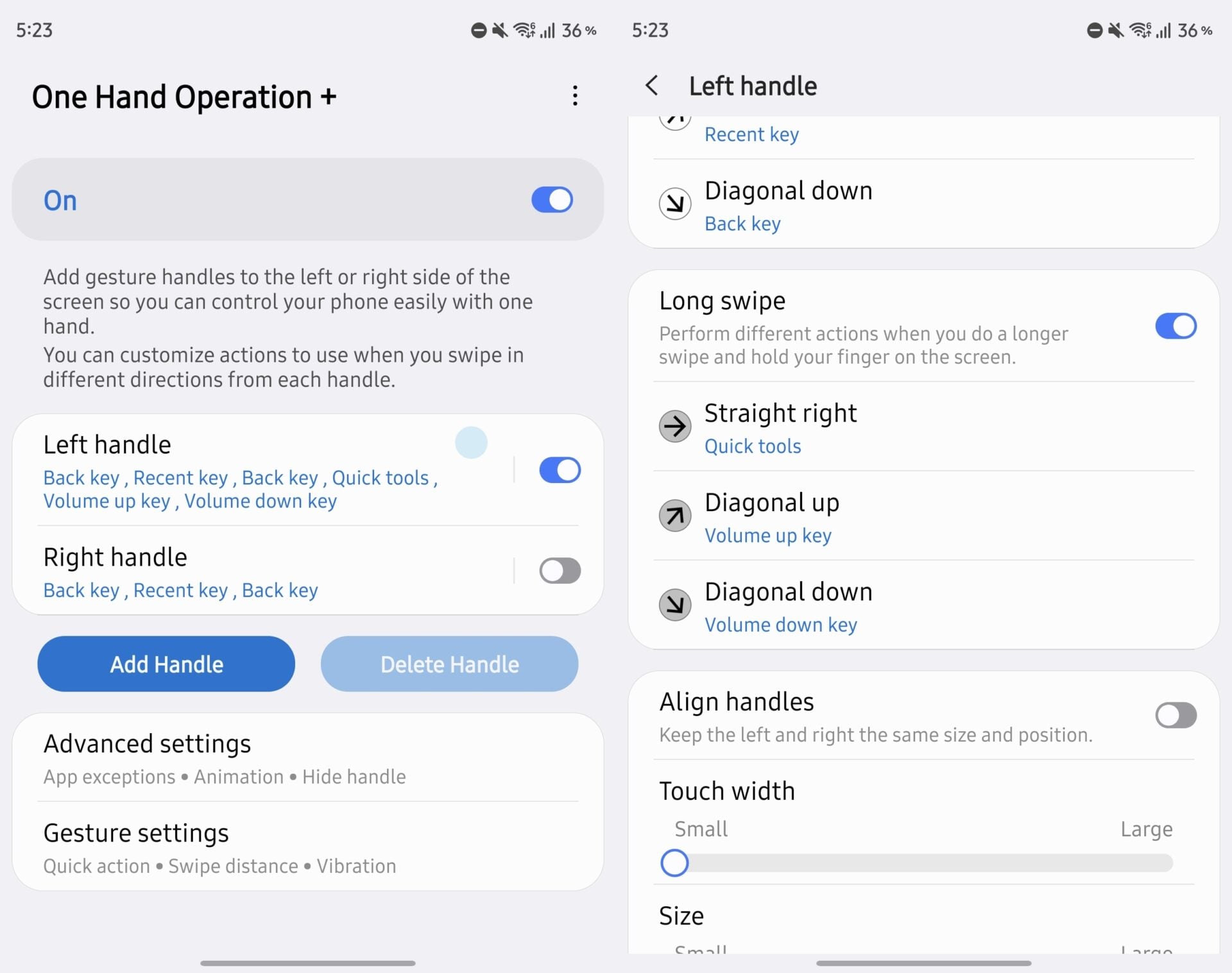
8. Create your own keyboard
The Keys Cafe add-on for Good Lock allows you to build completely custom keyboard layouts. Adjust key heights, reposition buttons, or add dedicated rows for frequently used numbers and symbols to minimize typos.
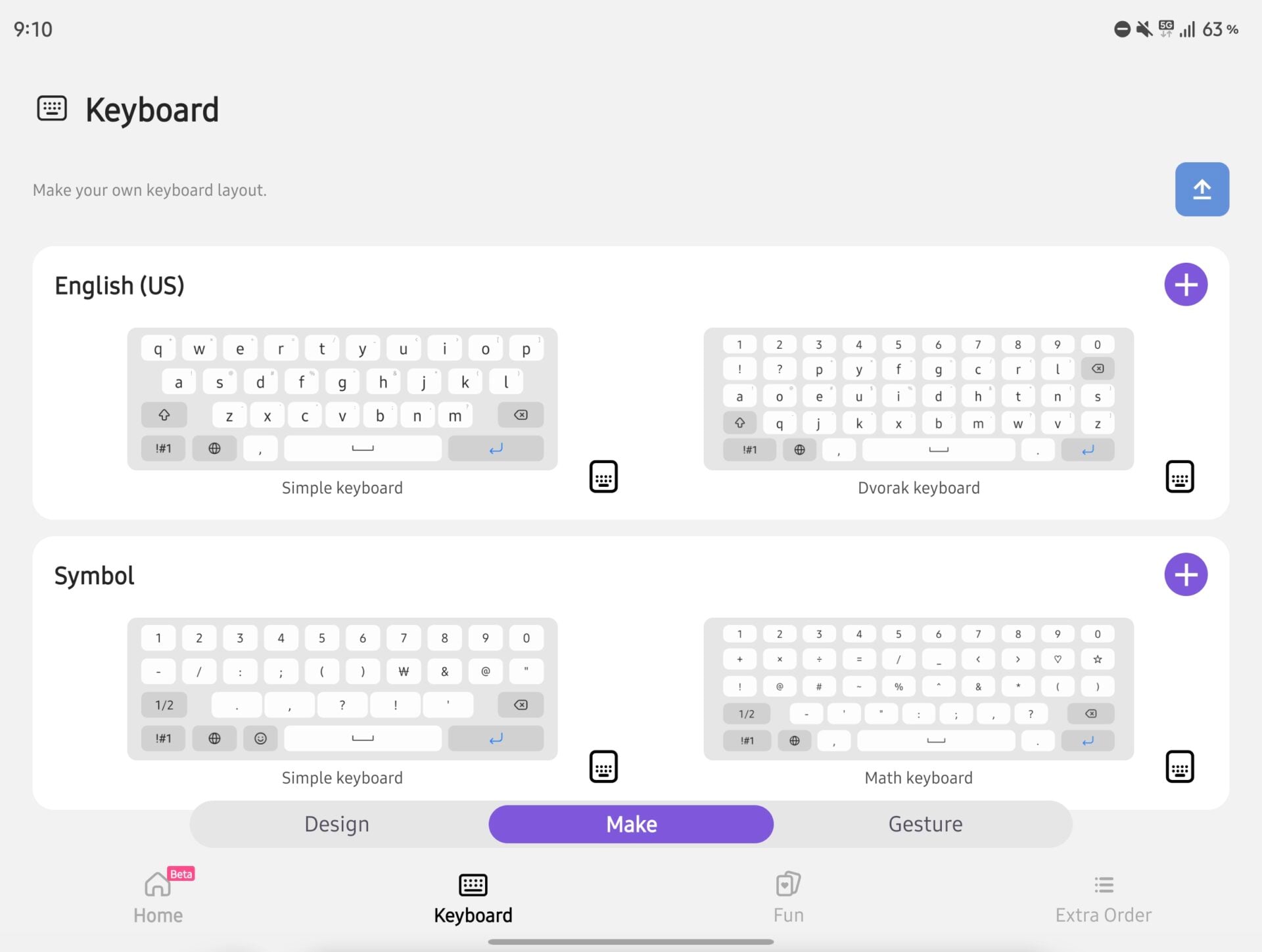
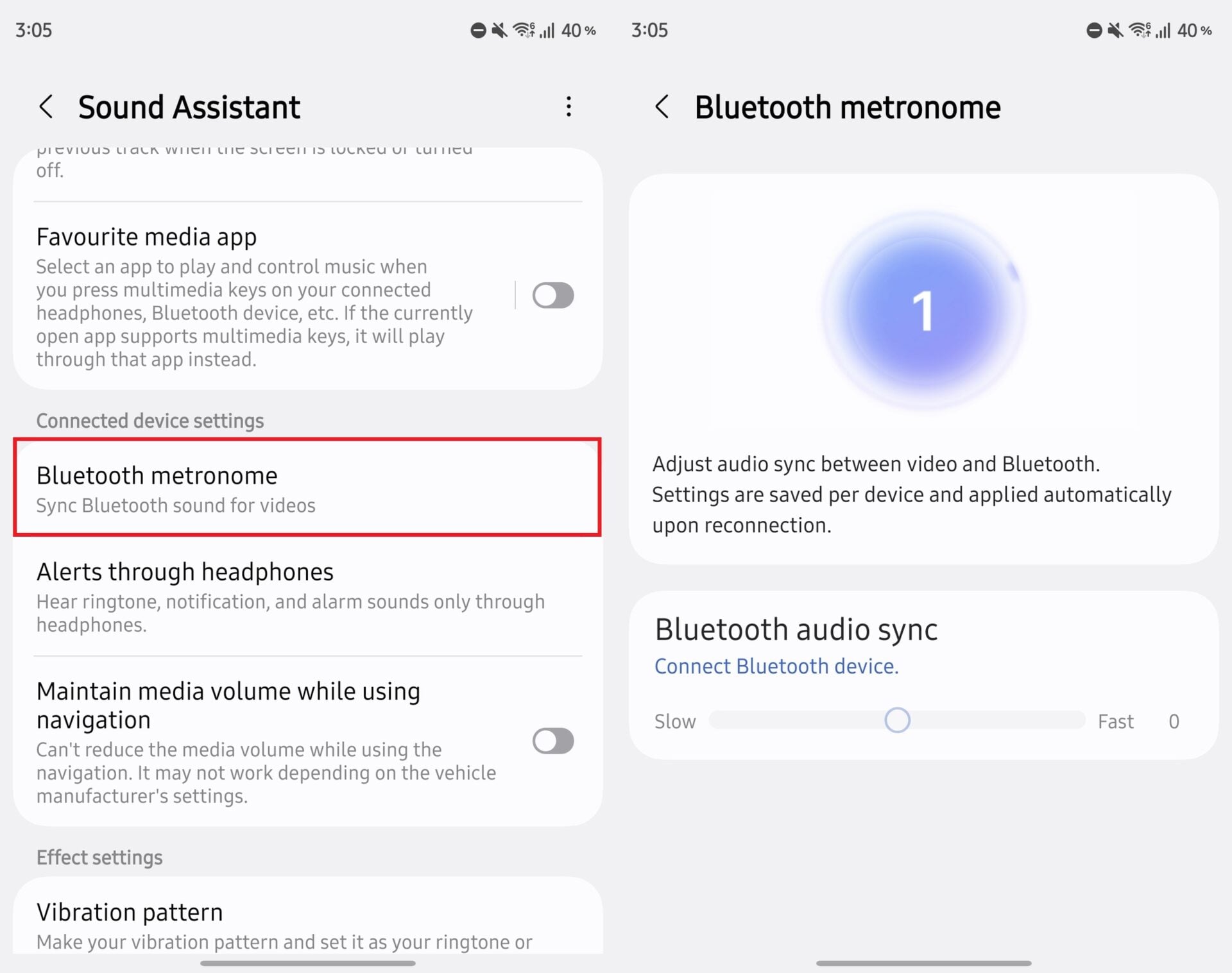
9. Adjust Bluetooth audio that's out of sync with video
Audio-visual latency can occasionally affect Bluetooth connections. Opening Sound Assistant from Good Lock lets you utilize the Bluetooth metronome tool to calibrate synchronization and improve media playback alignment.
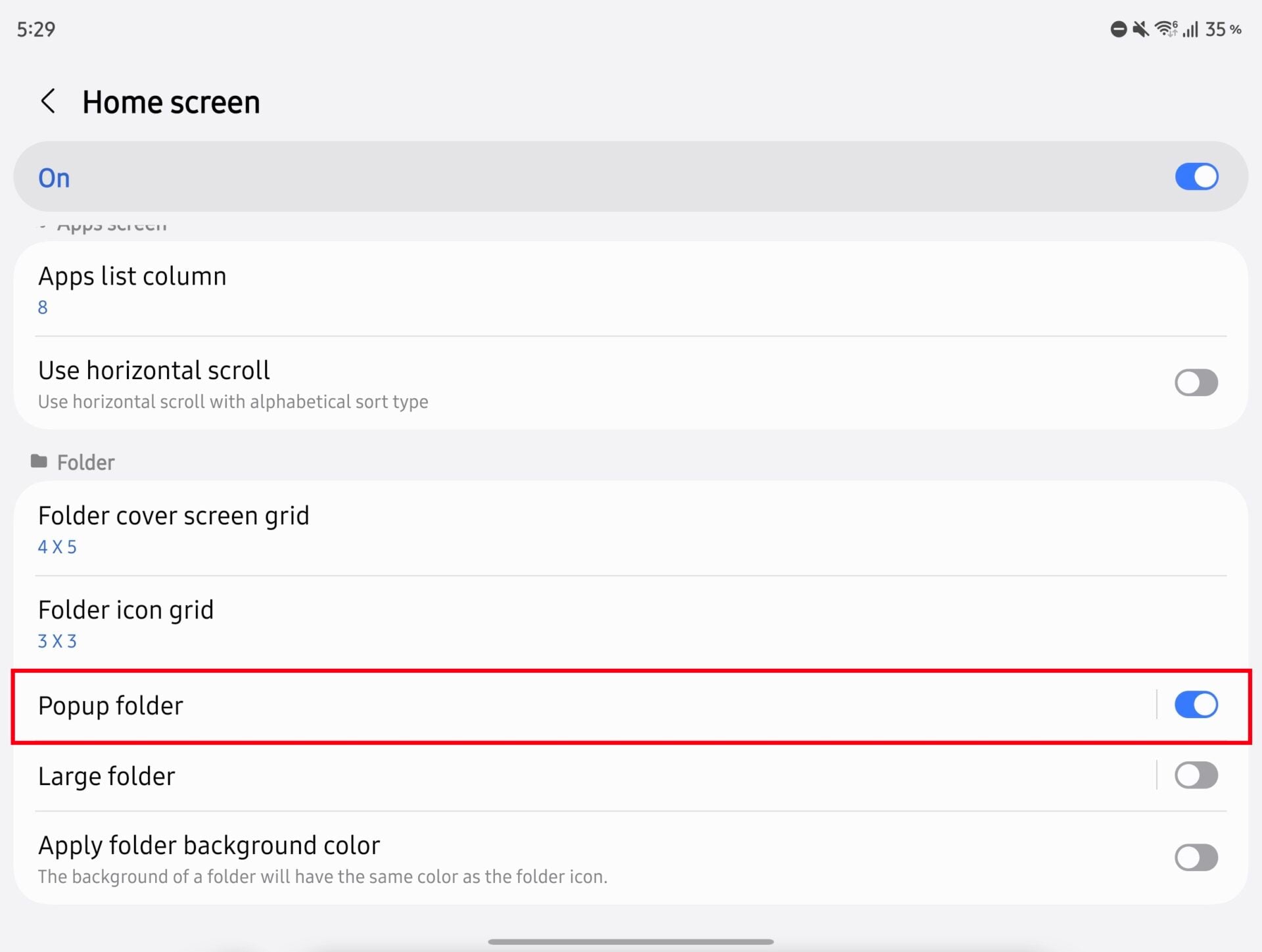
10. Stop app folders taking over the inner screen
Opening home screen folders doesn't need to expand across the entire massive display. Navigating to Good Lock > Home Up > Home screen and enabling Pop-up folder restricts folder contents to a compact, easily reachable window.
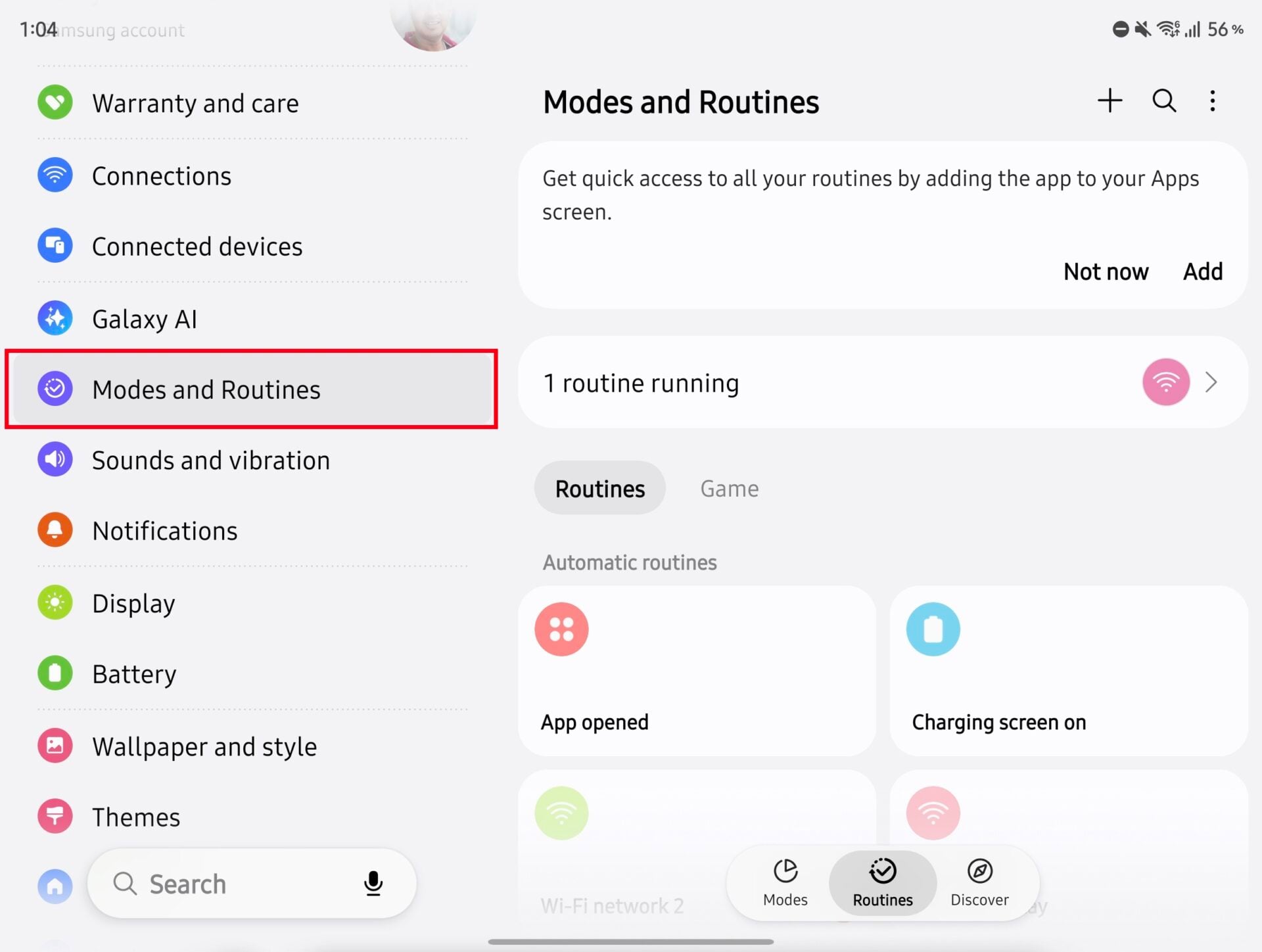
11. Use a longer screen timeout when the phone is unfolded
You may prefer a quick timeout for the cover screen while keeping the inner screen active longer for reading. Create an automated rule via Settings > Modes and Routines by setting the condition Folding status > Completely open to trigger an extended Screen timeout duration automatically.
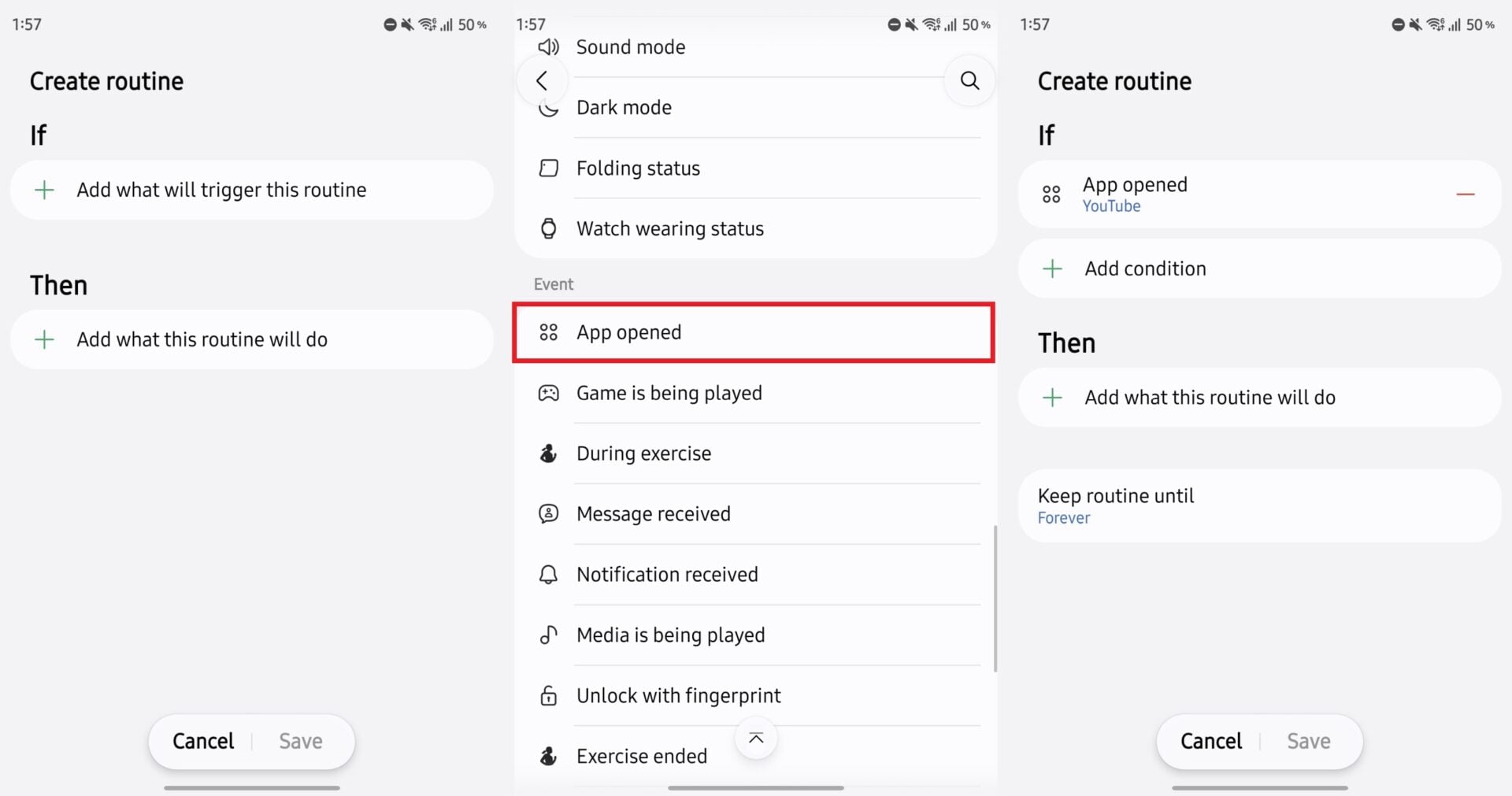
12. Create a routine to enable auto rotation for specific apps
The Galaxy Z Fold 8 stores rotation preferences independently for each display. To force auto-rotation only within specific apps, set up a custom routine with App opened as the trigger and Screen orientation > Auto rotate as the resulting action.
13. Bookmark important PDF pages in Samsung Notes
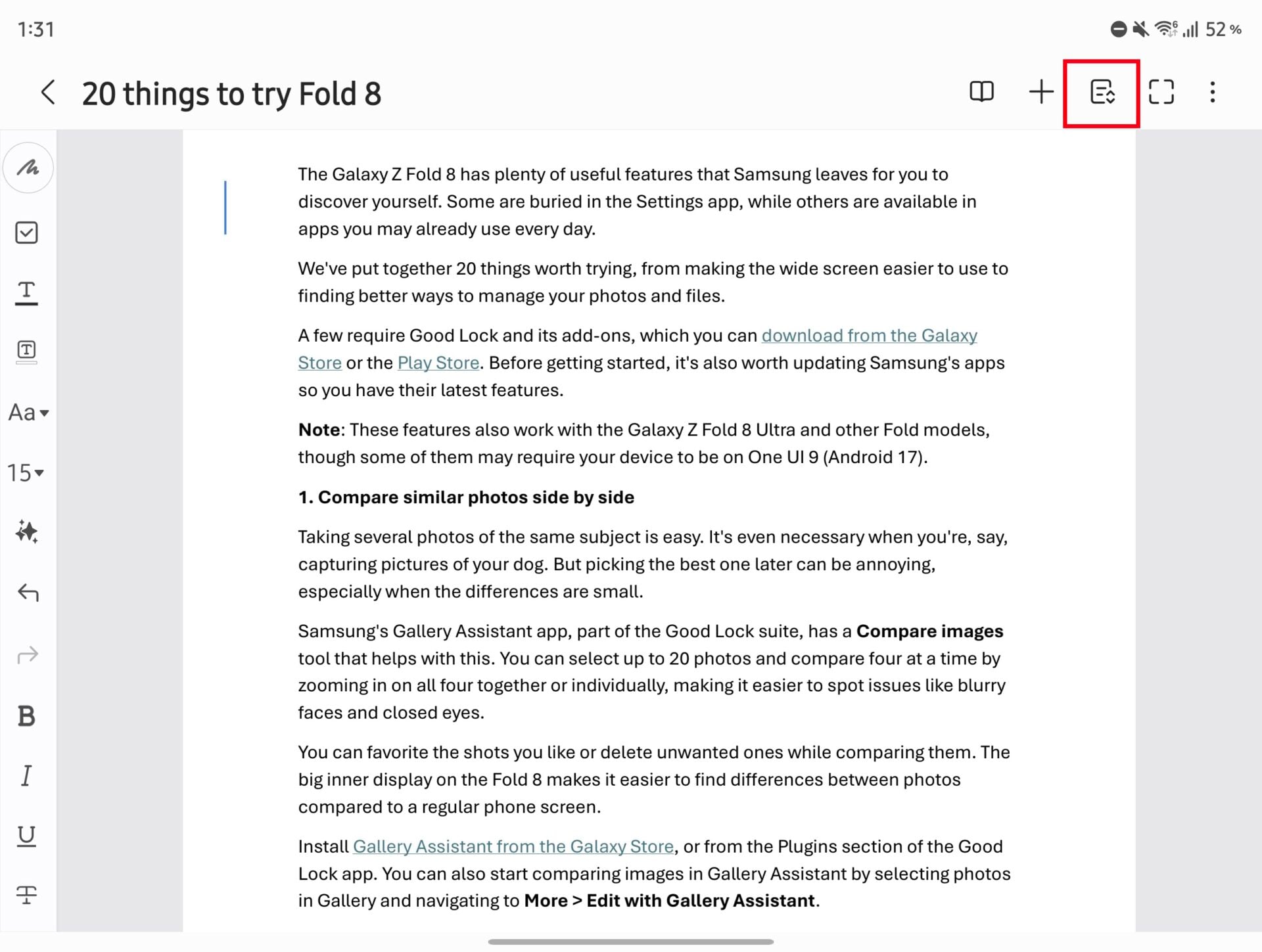
Samsung Notes serves as an efficient PDF reader on the Fold 8. When viewing lengthy manuals or documents, tap the Page sorter button to bookmark essential pages for instant future reference.
14. Put several files into one ZIP
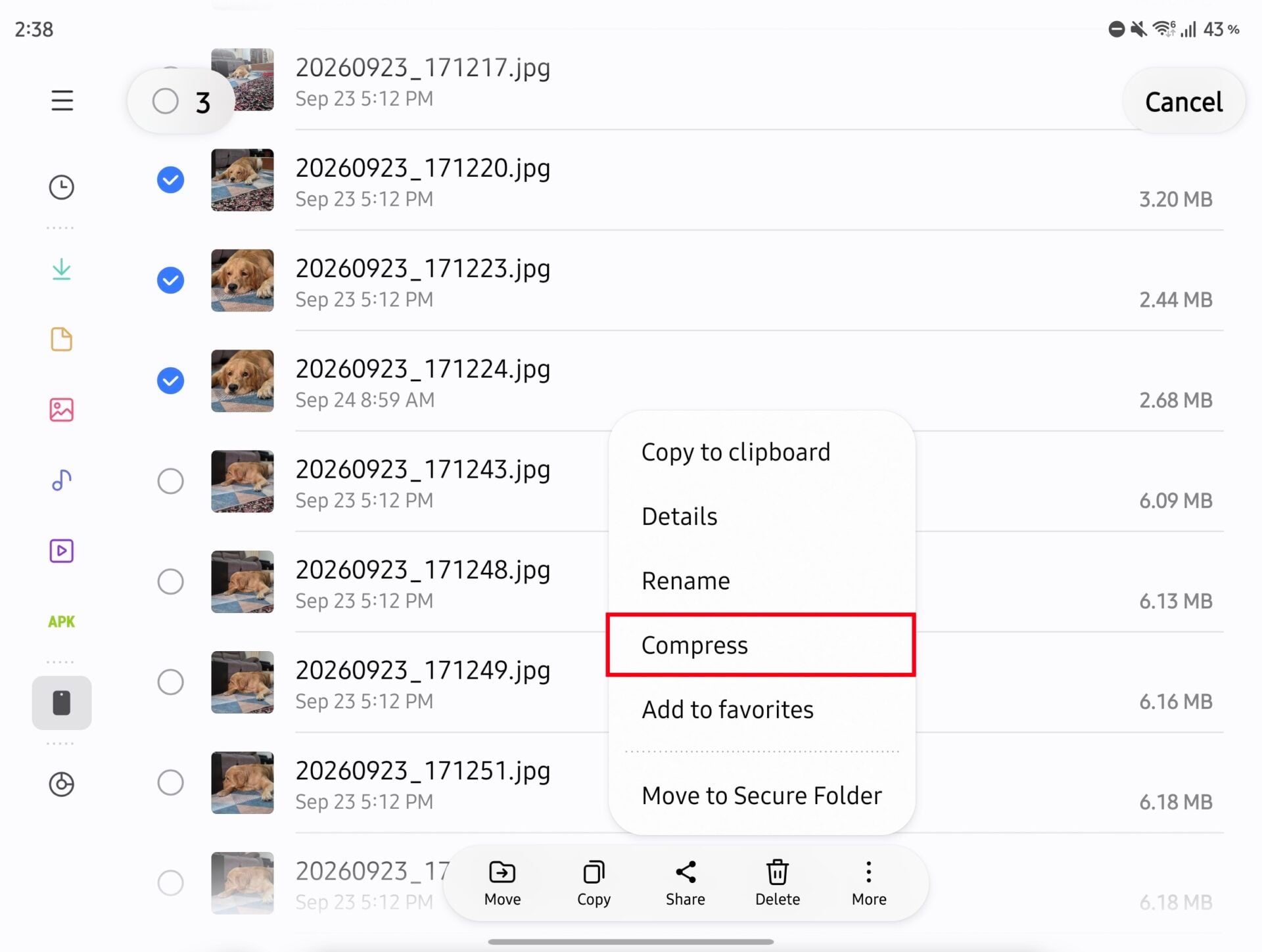
Sharing multiple documents is simplified by bundling them into an archive. Open My Files, select your items, and tap More > Compress to create a ZIP file ready for attachment and sharing.
15. Access your computer's shared folders from My Files
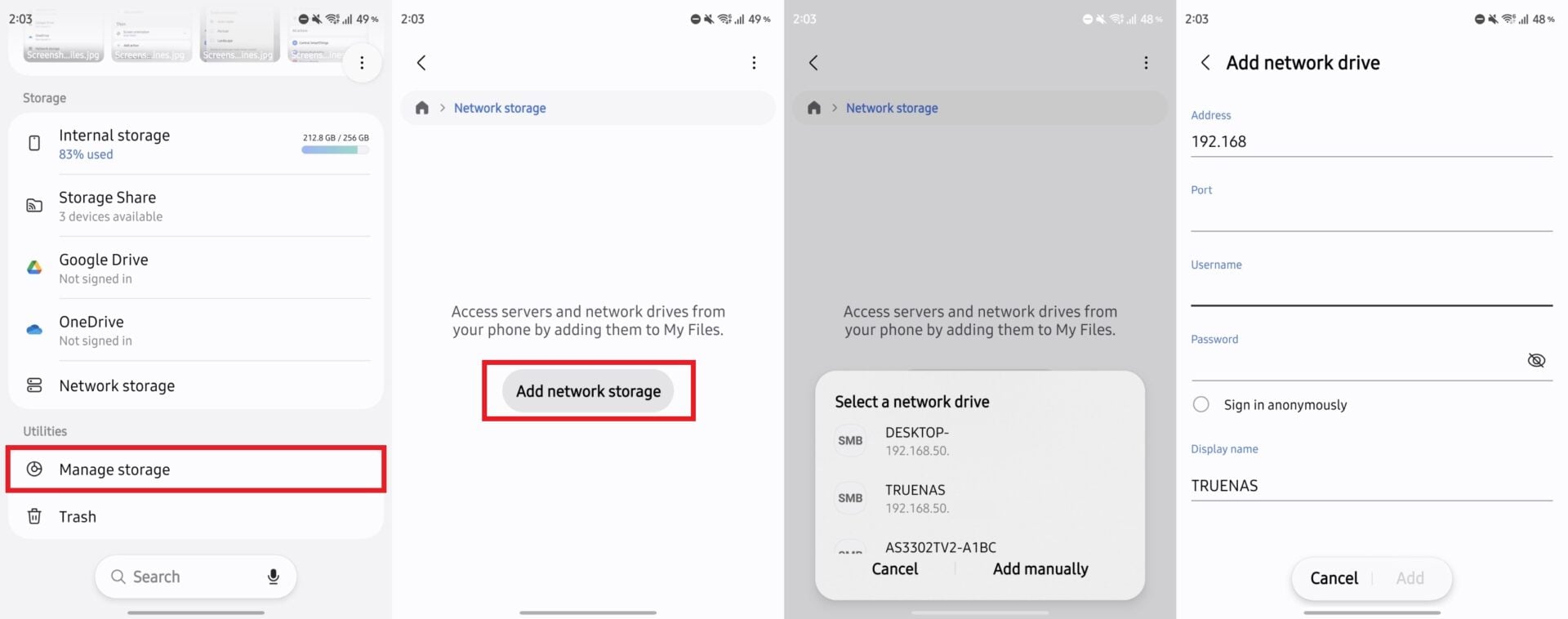
Connect your phone directly to network storage or home computers. Navigate to My Files > Network storage > Add network storage to browse and transfer files locally without relying on cloud services.
16. Switch browser tabs with a swipe
Samsung Browser includes hidden navigation shortcuts. Swiping left or right across the address bar lets you switch tabs instantly without opening the tab overview screen.
17. Download multiple images from a webpage together
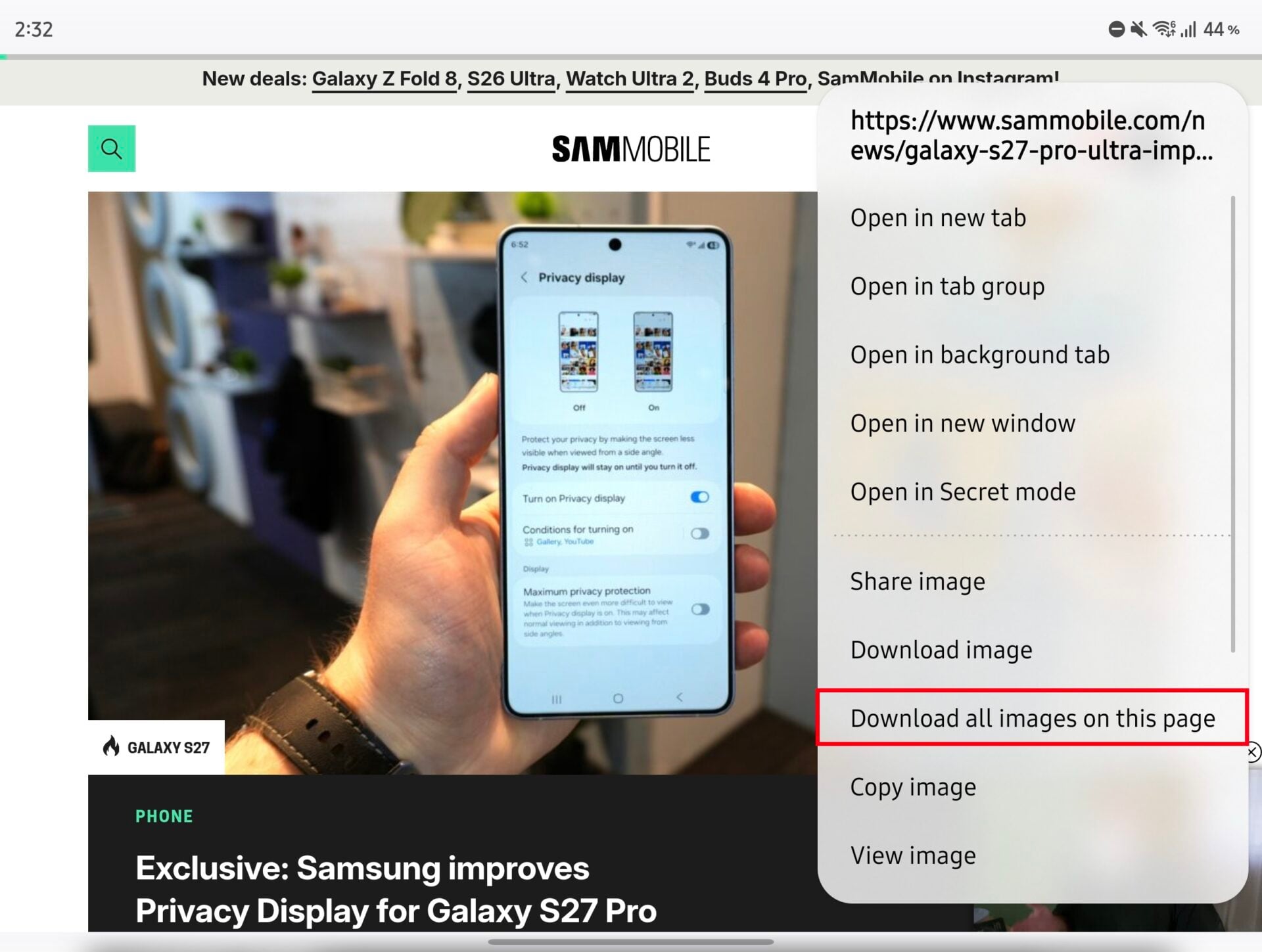
Instead of saving images individually, touch and hold any picture on a webpage within Samsung Browser and choose Save all images on this page to batch-download your desired selections.
18. Automatically silence interruptions while recording the screen
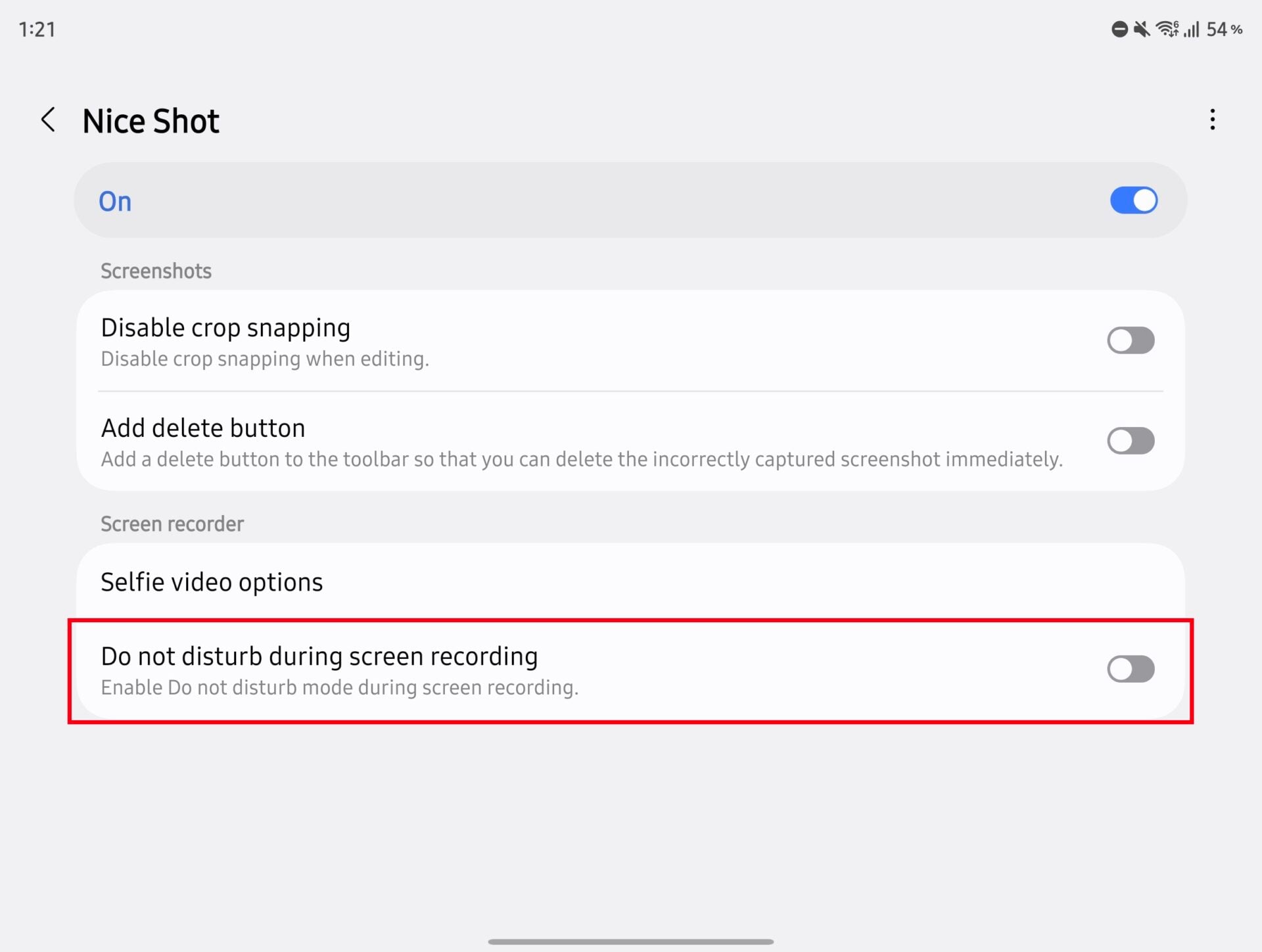
Prevent incoming notification pop-ups from ruining your video captures. Install the Nice Shot app via Good Lock and enable Do not disturb during screen recording for clean, interruption-free clips.
19. Create a Galaxy AI wallpaper
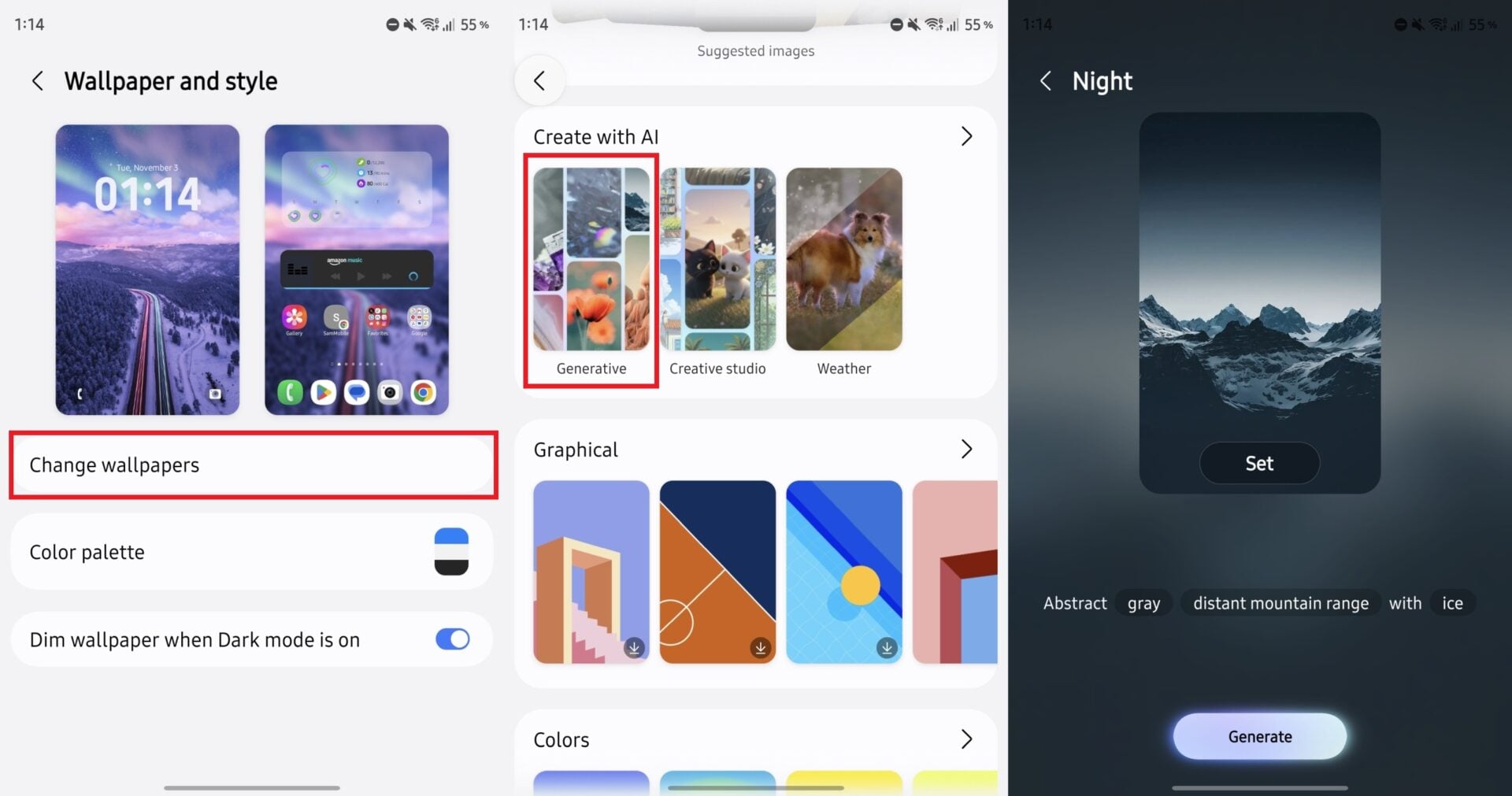
Generate unique custom wallpapers using Galaxy AI. Go to Settings > Wallpaper and style > Change wallpapers > Generative, modify prompt keywords to your liking, and tap Generate.
20. Fit more content into individual apps
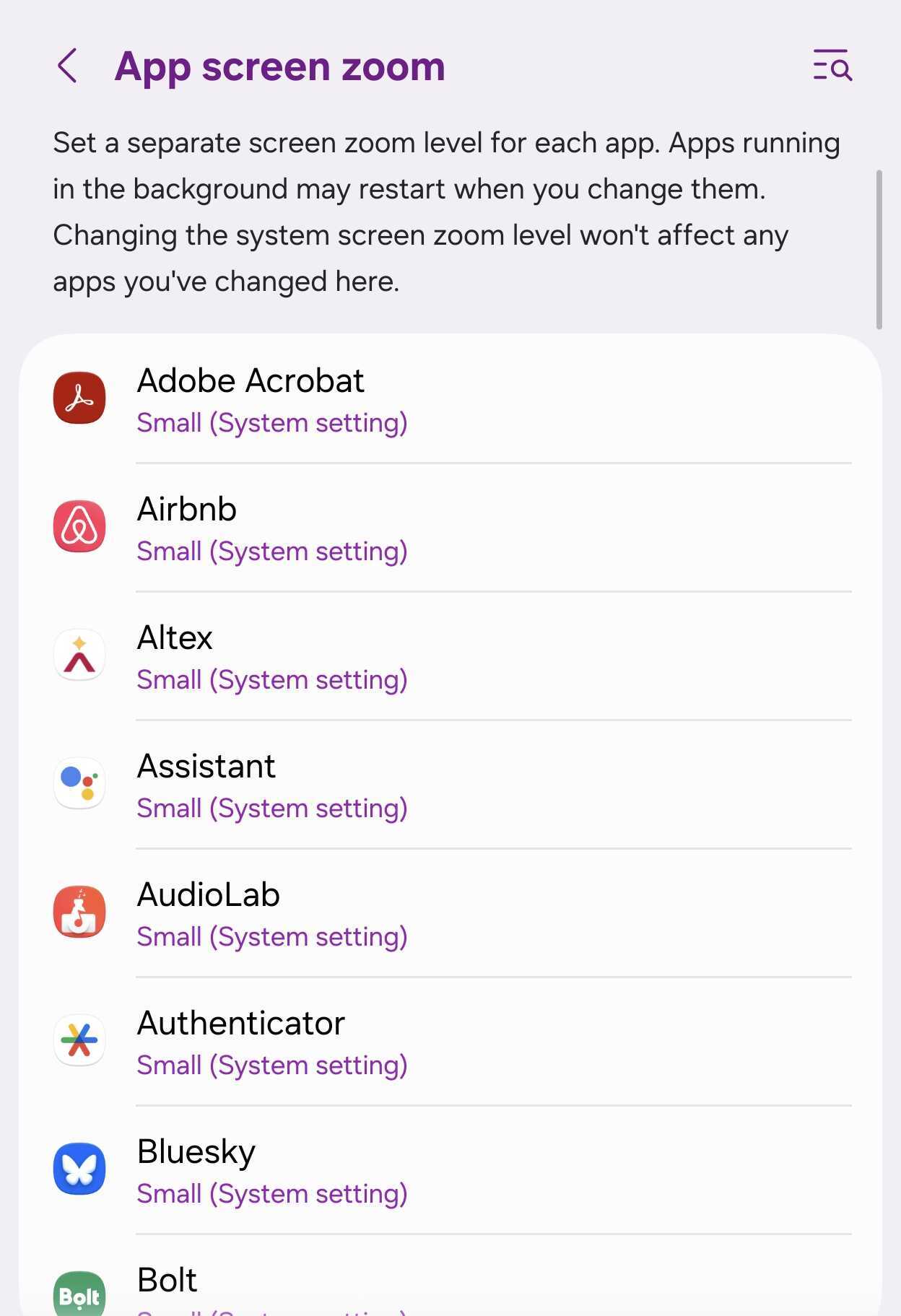
Maximize the potential of your inner display by customizing app-specific scaling. Unfold your device and navigate to Settings > Advanced features > Labs > App screen zoom to adjust display densities for apps like YouTube.
Do these features work on older foldable models?
Many of these capabilities are compatible with older foldables running recent software updates, though some rely on newer hardware and software iterations like One UI 9.
How do I access Gallery Assistant?
Gallery Assistant can be downloaded directly from the Galaxy Store or accessed through the Good Lock application suite.
Can I customize keyboard layouts on the Fold 8?
Yes, by utilizing the Keys Cafe module available in Good Lock, you can resize keys, add extra rows, and tailor the layout completely.
How do I prevent notifications from appearing during screen recordings?
Installing the Nice Shot add-on from Good Lock allows you to automatically enable Do Not Disturb mode whenever a screen recording starts.
🔎 Conclusion: Unlocking the full potential of the Samsung Galaxy Z Fold 8 transforms it from a standard smartphone into an immensely powerful productivity tool. By exploring hidden settings, leveraging the power of Good Lock modules, and utilizing Galaxy Z Fold 8 features like Gallery Assistant and custom automation routines, you can tailor your foldable device to match your exact workflow and lifestyle preferences.
Post a Comment