
How to Personalize Your Samsung Galaxy Lock Screen Padlock Icon Using Good Lock
Samsung's One UI offers incredible levels of personalization right out of the box, allowing users to tailor nearly every aspect of their device. However, one specific user interface element has traditionally remained untouched by default settings: the lock screen padlock icon. Fortunately, Samsung's proprietary utility suite lets you push your setup even further, giving you complete control over this final piece of the puzzle.
Quick Overview
- ✨ The LockStar module within Good Lock enables full customization of your Galaxy lock screen padlock.
- ✨ You can easily modify the icon's color, select from unique preset designs, or hide it completely.
- ✨ The application process is straightforward and integrates directly with your standard One UI lock screen controls.
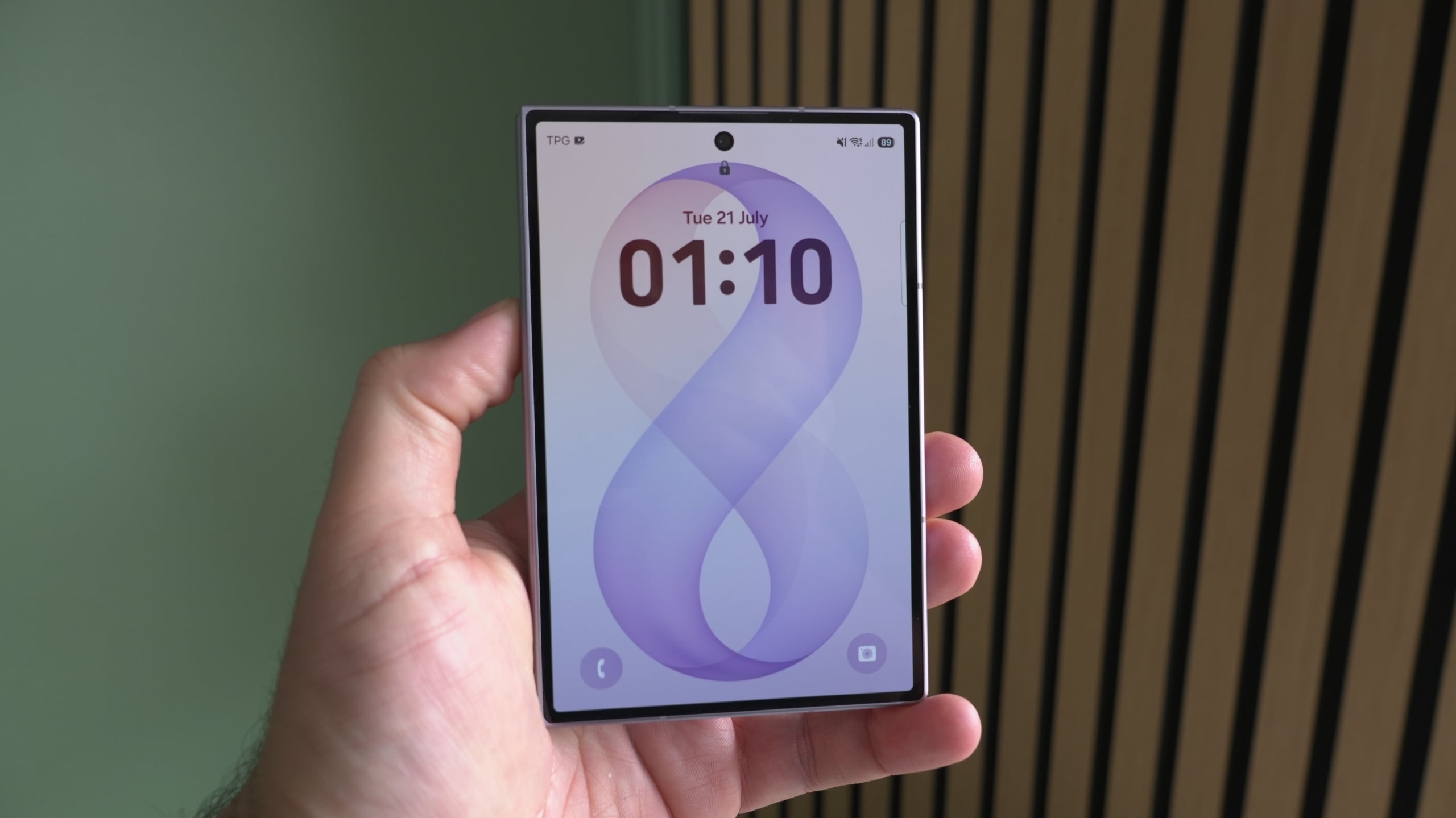
Customizing Your Lock Screen Padlock Icon
By default, Samsung permits Galaxy phone users to configure virtually all elements of the lock screen interface, except for the padlock icon situated at the top. Everything else falls neatly under standard One UI adjustment rules, leaving this single icon as the lone exception.
To alter this final UI component according to your exact preferences, you can utilize the LockStar module. This dedicated tool allows you to change the padlock icon style and tint, or even remove it from view entirely. Here is how you can set it up.
Getting Started with Good Lock on Your Device
There is no need to rely on unsecured third-party software for this customization procedure. Good Lock is an official Samsung development initiative, and the platform is fully accessible across global regions.
You can safely download the optimization hub on your mobile device through the official app distribution platforms by clicking the designated buttons below.
Once the utility suite is installed on your smartphone, launch the application, locate LockStar within the list of available modules, and install it to proceed with the configuration steps.
Applying Your Custom Padlock Design
With the necessary software modules active on your device, you are only moments away from personalizing the final element of your lock screen. Simply follow these instructions:
- Wake up your display, then tap and hold down on the padlock icon.
- Unlock your device using your biometric authentication or passcode.
- Dismiss any system battery optimization pop-ups related to LockStar if they appear.
- Tap directly on the padlock icon to open the dedicated customization menu window.
Inside this configuration window, you can choose from five distinct preset icon styles, adjust the color tone, create personalized padlock graphics using pictures from your Gallery app, or hide the indicator entirely.
This means you won't even need to open the main utility application every time you want to make a change. Installation simply unlocks the capability within your standard operating system interface, making future adjustments fast and effortless.
Is Good Lock an official Samsung application?
Yes, Good Lock is a fully official suite of customization modules developed directly by Samsung for Galaxy mobile devices.
Do I need to keep the Good Lock app open to use LockStar?
No, once you install the LockStar module and configure your preferences, the feature integrates directly into your native lock screen settings without requiring the main app to remain open.
Can I use my own photos for the padlock icon?
Yes, the customization menu allows you to create custom padlock graphics by selecting images directly from your device Gallery.
Is it possible to completely remove the padlock from the lock screen?
Absolutely. Through the LockStar settings window, you have the option to hide the padlock indicator entirely for a cleaner aesthetic.
🔎 Transforming the final uncustomizable element of your mobile device is a great way to make your daily smartphone experience truly your own. By leveraging official utility modules, Galaxy users can enjoy limitless aesthetic freedom without compromising system stability or security features.
Post a Comment